Routes — Mapping
On the Mapping tab you determine which field of the source goes into which field of the target system and what happens to the value along the way. What steps are and in which order a route writes is described under Mapping.
Permissions
The tab belongs to the route and therefore follows the Routes permission:
| Level on Routes | What you can do on the tab |
|---|---|
| None | nothing — the Routes menu item is missing, and this tab with it |
| Read only | view the mappings, open the settings of step, row, list and additional row read-only, and use the test area |
| Full | in addition, create, change, reorder and delete steps, rows, lists and additional rows |
In the example: A. Vogt has Full and builds the mapping of "Bestellungen Webshop".
M. Brandt has Read only, looks up which field CardCode comes from, and sends an
order through the test area — the target system stays untouched.
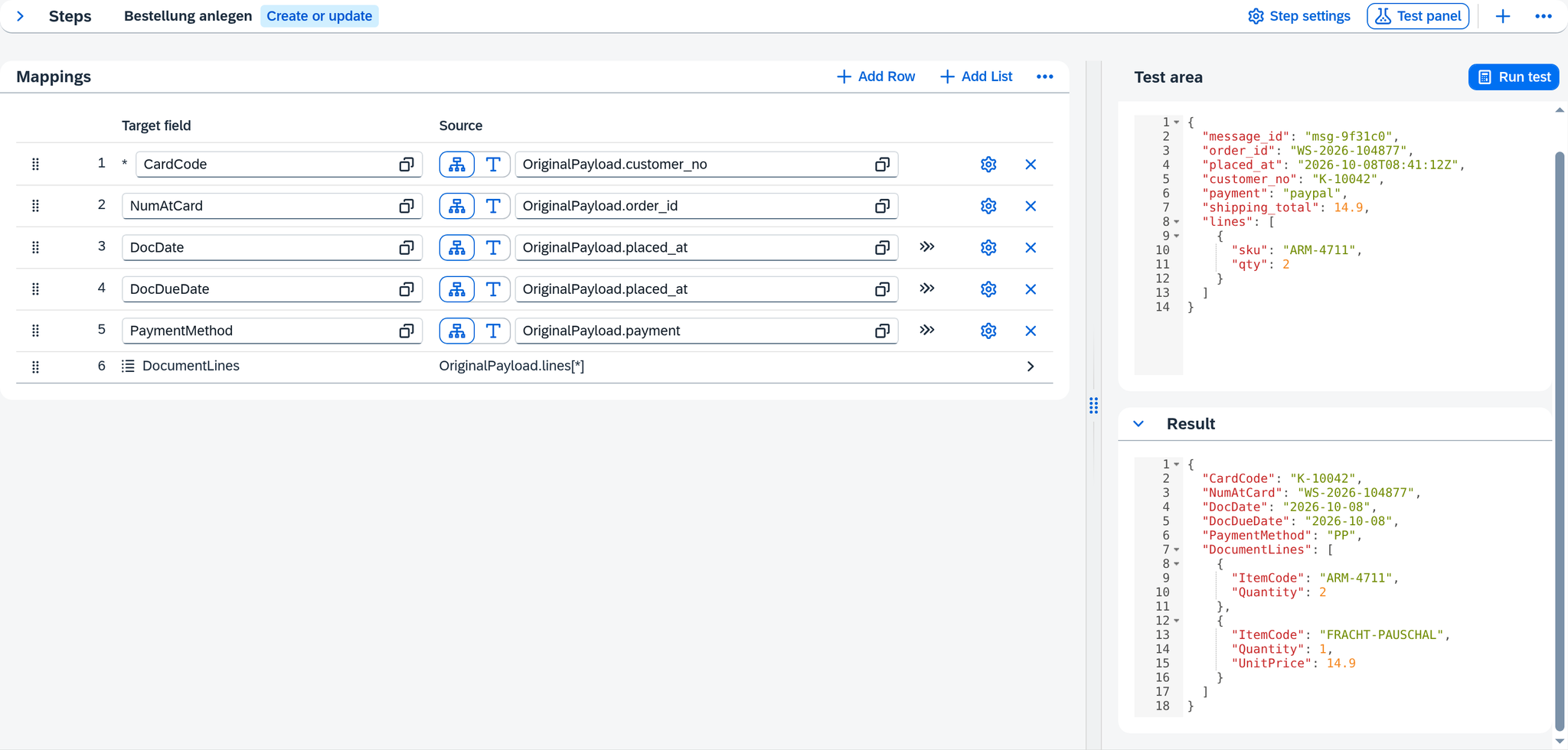
Layout
The tab shows the same mapping table in three places: in the step, in an expanded list and in an additional row. They are the same rows with the same columns — only the place changes.
| Area | Content |
|---|---|
| Steps | the bar at the top with all steps of the route; the selected one determines what appears below it |
| Mapping row | on the left the Mappings table of the selected step, one row per target field |
| Row settings | behind the gear of each row: transformations, empty behavior, condition, options |
| Transformations | the 24 functions that reshape a value along the way |
| Step settings | where and how the step writes |
| Lists and additional rows | one level deeper: the entries of a target list |
| Test area | on the right, can be shown and hidden: a sample message and what the mapping makes of it |
You can move the dividing line between the table and the test area. If you expand a list or an additional row, a band with the path there appears above the table. It stays in place while you scroll, leads back via the back arrow (Back to step) and carries the gear for the settings of the expanded level.
Steps
The Steps bar shows all steps of the route in the order in which they run. Xchange creates the first step together with the route. If a route without a step comes into the draft, e.g. via an import, the bar reads No steps configured.
- Add Step creates another step.
- Step settings opens the settings of the selected step.
- Delete step sits in the overflow of the bar and removes the selected step together with all its mappings. The confirmation reads The step "…" and all its mappings will be deleted. This cannot be undone. A route always keeps at least one step; for the last one Xchange answers The last step can't be deleted.
The mapping row
The header of the Mappings table carries three buttons:
- Add Row creates a row. If the step has no mapping, an empty row is already there when you open the tab; it is saved only once you enter something.
- Add List creates a list.
- Delete all mappings sits in the overflow and empties the step, including all lists and their entries. The step itself stays. That too is final.
If the stored mapping of a step cannot be read, the tab shows The stored mapping cannot be read. It is kept unchanged. instead of the table. Nothing about it can be overwritten by accident; only Rebuild discards it and starts the step anew.
A row has seven columns, from left to right: the sequence number, the Target field, the Source, a series of icons, the key icon, the gear and the button for removing.
Target field. The field in the target system that is written to. The selection knows the structure of the target — for an import or internal route from the selected target endpoint, for an export route from the field structure of the connection. If the connection provides none, the pasted target structure takes its place; if that is missing too, the empty selection says what is missing.
Where an OpenAPI field structure describes the target, the selection shows the fields the step sends and follows the Write intent: with Create the fields of the POST call, with Update those of the PATCH call, with Create or update both. Fields the target only returns are not among them. If the field structure names no content for the call, the selection shows the fields of the read response. Search field in the target system and Display field are always chosen from the read response.
Source. Where the value comes from. The button at the left edge of the field switches between two kinds:
- Path — a field of the source data, e.g.
OriginalPayload.customer_no. The first part says where from:OriginalPayloadis the record as the source system delivered it,Enrichmentsis the additional data. The selection knows the fields of the source as soon as the Source data tab has determined them. - Constant — a fixed value that you enter.
If the path points to a list, the List values selection appears next to it: Single value, Sum or Count of the entries. The Filter list values button opens the dialog of the same name, which restricts the aggregation to a part of the entries.
Some transformations generate the value themselves and do without a source. The column then shows, instead of the input field, a short version of what the row does, e.g. Conditional value mapping (3 cases).
The required field. An asterisk in front of the target field marks a required field. The tooltip says who demands it: Required: the target structure demands this field, Required: your configuration demands this field or Required: the target structure and your configuration both demand this field. The same asterisk appears in front of a list whose target is demanded.
The icons. Between the columns and the gear are two fixed slots. Both report settings that make the row work differently from what its two columns suggest:
| Slot | Icon | Meaning |
|---|---|---|
| 1 | Double arrow | The value is transformed along the way. The tooltip names the transformations. |
| 2 | Funnel | On a field row or additional row: a condition decides whether it is written. On a list: a filter determines which elements the list keeps. The tooltip says which of the two applies. |
On a list, slot 1 stays empty because a list carries no transformation.
The warning signs. A warning sign stands where a finding lies that you cannot see at this spot. The symbol carries the severity: red for an error, orange for something to check, gray for a missing entry. If different ones come together, it shows the most severe. It carries no number — it says where to look, not how much lies there.
| Where | What lies beneath |
|---|---|
| In the corner of a step in the Steps bar | A finding in this step. The tooltip reads This step has validation issues. |
| Next to the name of a list or additional row | A finding in one of the rows of its own that it hides, e.g. This list contains faulty entries. |
| Next to the gear of a field row | A finding in the settings of the row that the row itself does not show. |
| In the corner of a station, in the settings of the row | A finding at this transformation. The tooltip reads This transformation has validation issues. |
What concerns a field row itself it shows right at the field, in red, as soon as you have edited it. All findings are collected under Messages in the footer.
The key icon. It appears only on the rows inside a list and marks the key of the list there. The key of the record itself — its address in the target system — is not set on a row but in the step settings.
Reordering. Rows can be moved with the mouse. The order is the order in which they are written.

What else a row carries
The gear at the right edge opens the settings of the row. They can also be opened with read permission, because only here can you see what is set on the row. They are spread across four tabs: Transformation, Empty source value, Condition and Options. In the footer, Previous and Next page to the previous and next row without closing the dialog; Done closes it.
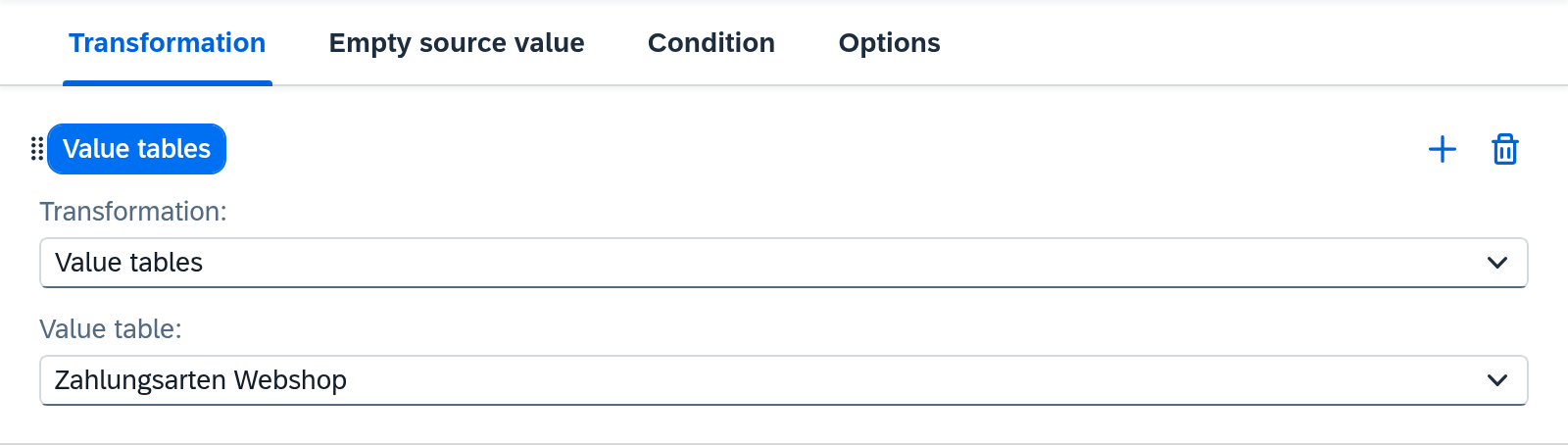
The gear is highlighted when something is set behind it that is visible only there — a fallback value, an empty behavior other than the default, anything other than Always under Write or the exclusion from change detection. The tooltip then reads Row settings — this row carries settings that are not shown here.
If one of these tabs carries a marker, something is waiting there. The tooltip says what: Contains errors, Contains warnings or Has missing entries. The same marker appears on the tabs of the other settings on this screen.
Transformations. The value can pass through several stations; each passes its result on to the next. If there is none on it, it reads No transformation — the source value is passed through unchanged. Functions that do without a source can be chosen only at the first station.
Empty behavior. What happens to the field when nothing is left after all stations. Three settings, and all three are about the outgoing message:
| Setting | Effect |
|---|---|
| Transfer unchanged | The field goes out empty. Default. |
| Do not transfer | The field is missing from the message entirely. |
| Write null | The field goes out with an explicit null value. |
The difference between the last two matters for target systems that treat a missing field differently from an empty one — many leave a missing field unchanged and overwrite on an empty one. What happens there as a result is decided by the target system; Xchange only decides what is in the message.
In addition, you can switch on a Fallback value that steps in when the source value is empty. Like the source, it is either a path or a constant; a constant carries the Value type Text, Number or Boolean. The fallback value has a chain of transformations of its own. If it stays empty too, the selected setting applies again. If either of the two is set, the row's gear is highlighted.
A row whose source is a constant, or which does without a source, has no empty source value; it lacks the Empty source value tab.
The Fallback value here applies when the source delivers nothing. The Fallback value of a value table applies when an existing value is missing from the table. You can have both on the same row, and both take effect side by side. See Value Tables.
Required. Makes the field mandatory. If the value is missing, the mapping aborts instead of
writing an incomplete record. An empty text and a null value count as missing, regardless of
which empty behavior the row carries; only a fallback value that delivers something fills the field.
In "Bestellungen Webshop", CardCode is set this way — an order without a customer number therefore
ends up in Clarification with the cause Required field has no value,
instead of creating a document without a business partner.
There are two checkboxes for this with the same effect; they differ in who demands the requirement: Technical, when the target structure demands the field, and Business, when your configuration demands it. On an import or internal route Xchange sets Technical itself, because it knows the structure of SAP Business One — the checkbox is read-only there. On an export route you set both yourself.
Condition. Decides whether the row is written — one group with up to 10 conditions, combined with AND or OR. If one is set, the row carries the funnel in slot 2.
Write. When the row goes into the message: Always (default), Only on create or Only on
update. What decides is whether Xchange creates the record in the target or updates an existing
one — not the event type of the source. If the shop sends along the customer's requested date,
DocDueDate in "Bestellungen Webshop" gets Only on create: if the search already finds the
document, the field does not go along, and the date the sales office has promised stays as it is.
See Write a field only on create.
With SAP Business One, the rows of a list follow their own row in the target: a row that is found is updated, an appended row is created. With a REST target, and inside a record being created, they follow the record. Required applies only where the row is sent — an Only on create field that stays empty on an update does not abort the mapping. The setting exists only on steps that write, and not on the one mapping of a value list; there you set it on the list. On a field of an additional row it applies to that target field in every entry of the list, because the message does not record which row an entry came from.
Write is visible only where the write intent leaves a choice — that is, under Create or update. Under Create or Update every row is written the same way, and the setting is missing. The exception is a field in a list with SAP Business One under Update: an appended row is created even on an updated record, so the choice keeps its effect there. A stored value that is never sent stays visible with its message; you change it yourself.
Validate reports on this setting:
| Message | Meaning |
|---|---|
| "Write" has no effect — the step creates no records | The write intent is Update, and the field does not sit in a list with SAP Business One. |
| "Write" has no effect — the step changes no records | The write intent is Create. |
| "Write" does not protect the field — "Endpoint for updating" replaces the whole record | The step updates in a batch call with PUT, which replaces the whole record. |
| "Write" contradicts the list — field is never sent | The field sits in a list that is itself written in only one of the two cases, and asks for the other. |
| "Write" differs from the same field in another row of the list | The same target field is set to a different value in another row of the list, an additional row for example. It applies to every entry alike, though. |
Change detection. Every mapping counts in the comparison that decides whether a record has changed since the last transfer. With Exclude field you take a single row out — e.g. a timestamp that changes on every run anyway. An excluded row never triggers a transfer; when the record is transferred because of another field, it goes along. If you exclude all of them, the UI points out that a change will then never be detected. See Transfer only what changed.
The comparison uses the message the next run sends — under the write intent Create the one on create, otherwise the one on update. If the row is missing from that message, e.g. an Only on create field on a step that also updates, the setting disappears. An exclusion you set stays stored and applies again as soon as the row is back in the message.
The transformations
24 functions in six groups. The order of the groups is that of the selection.
| Group | Function | What it does |
|---|---|---|
| Lookup | Value tables | Looks the value up in a value table. |
| Conditional value mapping | Checks cases in order and takes the first one that matches; otherwise the otherwise value. A case's condition has up to 3 groups of up to 10 conditions each, every group with its own AND / OR; between the groups it is always OR. Each case and Otherwise can carry their own transformation. | |
| First available value | Checks alternatives in order and takes the first one that yields a value. Each alternative can carry its own transformation. See When several values are candidates. | |
| Date | Format date | Puts a date into a different format, e.g. ISO date (YYYY-MM-DD) or Calendar week (CW). |
| Convert to date | Reads a text as a date. | |
| Convert to date/time | Reads a text as a point in time. | |
| Next reference date | Inserts the next fixed reference date on or after the date, e.g. the end of the season on 30 June. | |
| Type conversion | Convert to decimal | Reads a text as a decimal number; you specify the decimal separator. |
| Convert to integer | Reads a text as a whole number. | |
| Convert to boolean | Reads a text as true or false. | |
| String | Concatenate | Joins several parts into one value. |
| Substring | Takes an excerpt starting at a character, over a number of characters. | |
| Split | Splits the value at a separator and takes one part. | |
| Replace | Replaces a search text with a replacement text; without a replacement text it is removed. | |
| Trim whitespace | Removes spaces at the beginning and at the end. | |
| Convert to uppercase | Writes the value in uppercase. | |
| Convert to lowercase | Writes the value in lowercase. | |
| Arithmetic | Add | Adds an addend. |
| Subtract | Subtracts a subtrahend. | |
| Multiply | Multiplies by a factor. | |
| Divide | Divides by a divisor. | |
| Value generation | Current timestamp | Inserts the point in time of the transfer, in the time zone of the system settings and with its offset from UTC, e.g. 2026-10-17T00:30:00+02:00. |
| New GUID | Generates a new unique identifier. | |
| Object type | Inserts the object type of an SAP Business One object. | |
| License environment | Inserts the identifier of the environment in which Xchange runs. |
The four arithmetic functions take their second value either as a fixed value or from a value table — useful when the factor depends on the value of another field.
How a date is read. The date functions recognise the common spellings (2027-01-10,
10.01.2027, a point in time such as 2027-01-10T08:00:00Z). A date with slashes such as
05/12/2026 is read by the connection's Dates with slashes setting
(Data spelling). Of a point in time, the date written in it
counts. With Convert to date and Convert to date/time you set a fixed pattern in Source format
when the system writes differently; once set, only that pattern applies.
Next reference date. You choose the Day and Month of the reference date. With 30 June, 16 Oct 2026 becomes 30 June 2027. If the date falls exactly on the reference date, it is the result itself — 30 June 2026 becomes 30 June 2026. If the following year's reference date should apply in that case, tick Do not count the reference date itself. A day the chosen month never has, such as 31 June, is reported by the check at the Day field. 29 February is allowed and becomes 28 February in years without that day.
How to use one of these functions in a real case is shown in Convert and translate values.
Where it is written to
The Step settings button in the step bar opens the settings of the selected step. They apply to the whole step and are spread across the tabs General, Condition, Target structure, Response structure and — on a writing step — Batch call.
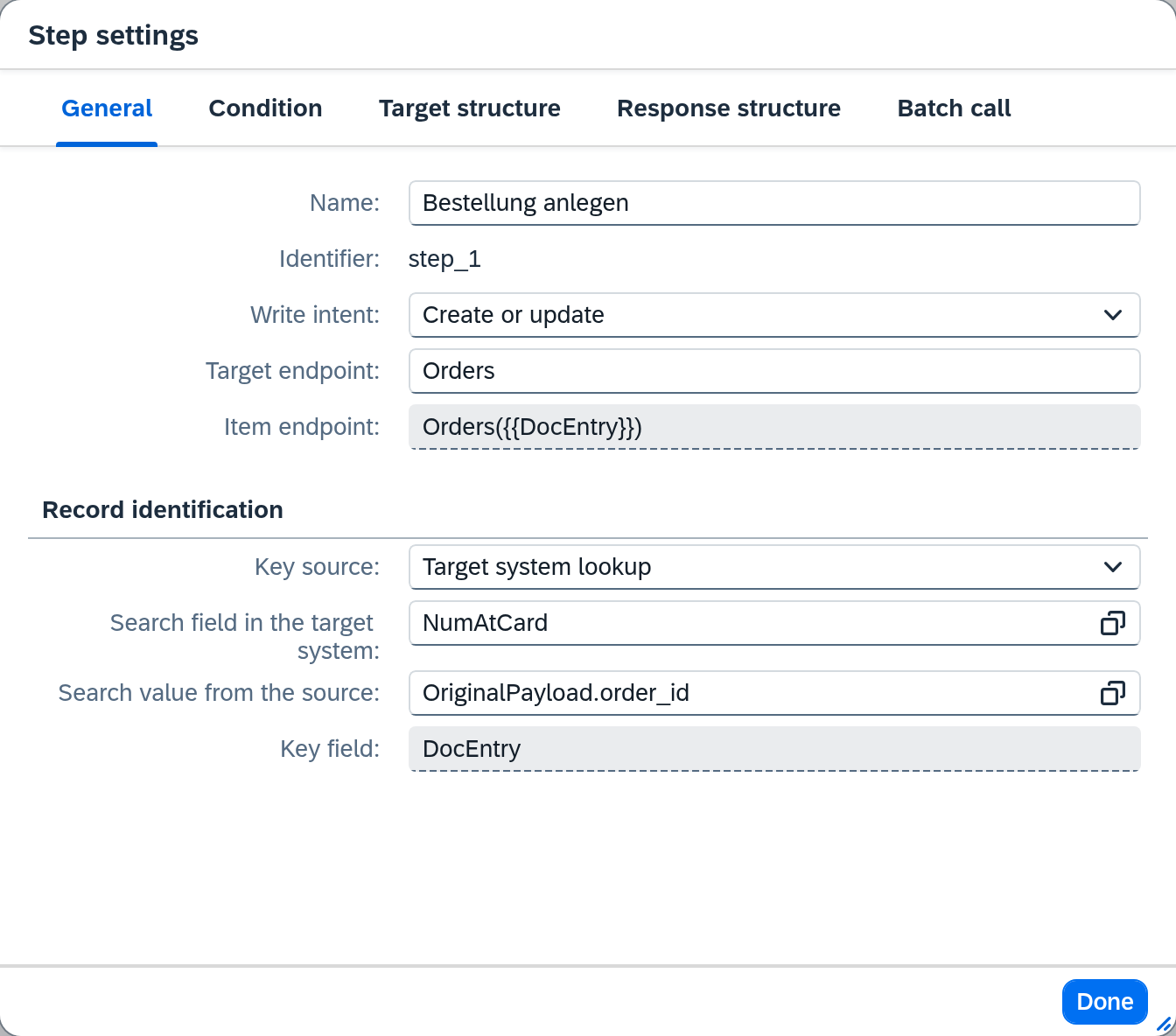
General
| Field | What it determines |
|---|---|
| Name | What the step is called in the Steps bar, at most 150 characters. Required as soon as the route has more than one step. |
| Identifier | The name under which other steps access its response. |
| Mode | Whether the step writes or only reads. |
| Primary Step | Whether this step writes the main object of the route. |
| Execution | Not on the primary step: whether the step runs Once per message or Per element of a list in the message. The switch asks first when it removes entries — towards Per element those of the batch call, towards Once List and Element key. |
| List and Element key | Only for Per element: the list whose entries the step processes one by one, e.g. OriginalPayload.persons[*], and the field that names each entry uniquely. |
| Write intent | Whether creating, updating or both is allowed. |
| Target endpoint | The collection in the target system that records are created in, at most 254 characters: on an export route a path of the target system's API, e.g. products, on an import or internal route a Service Layer path, e.g. Items. It carries no key placeholder — the address of a single record is in the Item endpoint. |
| Item endpoint | Only for Update and Create or update: the address of a single record, with a placeholder for its key, e.g. products/{{key}}. For a REST target the field suggests an address derived from the Target endpoint in grey; if it stays empty, this suggestion applies. Insert key next to it puts a placeholder at the cursor and creates the matching Key row. For SAP Business One the address is fixed, e.g. Items('{{ItemCode}}'), and cannot be changed. |
| Key source | Where the key comes from: Mapping or source, Target system response, Target system lookup or No key. |
| Key and Value | Only for Mapping or source: one row per placeholder in the Item endpoint. Value chooses what is inserted — under Mappings the value of a mapping row as it goes to the target after its transformations, or a field of the source data. A row whose placeholder no longer exists is shown in red and can be deleted with Remove key. |
| Search field in the target system and Search value from the source | Only for Target system lookup: what is searched for and with what. The search value comes from the source data or, under Mappings, from a mapping row. |
| Key field | Only for Target system lookup: the field of the found record under which the target system keeps it, e.g. id. Xchange reads from it the address it writes to. If the target structure knows it, it is fixed; otherwise you enter it. |
| Read from | For Target system response: whether the key is in the Response data or in a Header of the response. Header is offered if the connection can evaluate response headers. On the primary step of an export route the field also appears for Target system lookup, unless the write intent is Update — it then says where the key of a newly created record is. |
| Path in the response data | For Response data: where the key is, e.g. id. The selection knows the fields of the Response structure. |
| Header name and Use value | For Header: which header carries the key, e.g. Location (at most 254 characters), and whether its value is taken Complete or as the Last path segment — so 4711 from …/orders/4711. |
| Display field | Only on the primary step of an export or internal route, under Record identification: the field of the written record by which you recognize it in the target system, e.g. orderNumber. History shows its value under Records beside the external key. It is for display only and never required. If the target structure knows such a field, it is prefilled; Reset to derived value restores that value after a change. |
The key from the Key and Value rows goes into the address alone. If its value is a mapping row, that row is still in the written record.
Validate reports on these fields:
| Message | Meaning |
|---|---|
| "Target endpoint" must not contain a key placeholder — enter the path with the key as "Item endpoint" | The Target endpoint carries a placeholder such as {{key}}. |
| "Item endpoint" contains no key placeholder | The address in the Item endpoint names no key and would therefore hit no particular record. |
| Required | A Key row has no Value. In the checklist it reads Row N: "Value" is missing. |
| The record's address no longer knows this key part — remove the row | The row's placeholder is no longer in the Item endpoint. |
| The target system cannot read the record — pick a different write intent | With Create or update and Mapping or source, Xchange reads the record before writing, and the target's field structure describes no read for this address. The message sits at the Write intent. |
| The key cannot be determined after the create — specify where it is in the response | With Target system lookup, Xchange needs the key of the new record after creating it, and the target's field structure does not name it. Specify under Read from where it is in the response. |
| Not a valid field path | The Display field is not a valid field path. |
| "Display field" does not exist in the field structure | The target structure does not know the Display field. |
What these settings mean for the result — and why an empty search silently creates duplicates — is described under Writing to the target system and Avoid and investigate duplicates.
Condition
Decides whether the step runs for a record at all — one group with up to 10 conditions, combined with AND or OR. If it does not match, Xchange skips the step for this record: it then writes nothing, and that counts as proper. Without a condition the step always runs.
If the condition cannot be evaluated for a record — usually because it refers to a field that this record does not carry — the job ends up in Clarification with the cause Step condition invalid.
Target structure and response structure
The Target structure exists only on a writing step. It shows an example of what the step writes into the target system. If Xchange can read the structure of the target, it prefills it itself; otherwise you paste an example. Generate mappings in the footer of the dialog creates a mapping row from it for each field and each list — what is already mapped stays as it is. From 50 new rows on, Xchange asks first.
The Response structure shows an example of what the target system answers to the step. If the target system returns no record when writing, Xchange reads it afterwards. From it, the following steps know the fields they can take from this response, and the test area presents it as the response. Use last run inserts the response of the last successful run; if there has been none, Xchange says No successful run recorded yet for this step. On the last step the response has no following step, and a hint below the editor says so.
Batch call
Exists only on a writing step. Here you decide whether the step sends several records to the target system in one call instead of each one on its own. Every record remains a job of its own — with its own result, its own retry and its own entry in Clarification.
| Field | What it determines |
|---|---|
| Call | Single — the default — sends each record in a call of its own. Batched sends several records in one call and starts at 100 Records per call. Back on Single, the batch call settings are kept, they just do not apply. |
| Records per call | Only for Batched: how many records at most go out in one call, 2 to 1000 — a single record per call is Single. Xchange never raises the value by itself. |
For SAP Business One these two fields are enough. Xchange bundles the records into one call but writes each one on its own: a rejected record does not hold up the others, and none waits for another's result. Keep the number moderate all the same — SAP advises against long batch calls, and a large call occupies the Service Layer for correspondingly long. The note below Records per call is a reminder of this.
For a REST target you also describe how the target system expects the call. The fields appear for Batched, divided into Request and Response:
| Field | What it determines |
|---|---|
| Endpoint for creating | Method (POST, PUT or PATCH) and path under which the target system accepts several new records at once, e.g. POST and products/batch. Not for the write intent Update. |
| Endpoint for updating | The same for changes. Not for the write intent Create. |
| Entry list | Under which field of the request the list of records is, e.g. items. |
| Key in the entry | Not for the write intent Create: under which field an entry carries the key of its record, e.g. key. It receives the values of the Key and Value rows under General. |
| Data in the entry | Under which field an entry carries the record itself, e.g. fields. Empty: the entry is the record. |
| Result list | Under which field of the response the results are, one per entry, e.g. results. |
| Position in the result | Which field of a result says which entry it belongs to, e.g. index. Empty: the results follow the order of the request. |
| Status in the result | Which field of a result carries the HTTP status of this one entry, e.g. status. |
| Record in the result | Where a successful result carries the accepted record, e.g. item. Empty: the whole result. |
| Error in the result | Where a rejected result carries its error, e.g. problem. Empty: the whole result. |
Which endpoint is needed follows from the write intent: for Create the one for creating, for Update the one for updating. For Create or update one is enough; if the other stays empty, the step sends the records of that kind one by one — if the target system accepts only new records in a batch, for example, enter only Endpoint for creating.
If the connection knows the target's field structure, you pick the path from the list. Xchange then sets the matching method, fills in the Entry list and the Result list where these are empty, and the remaining fields offer the fields of the request and the response for selection. Without a field structure, Paste sample request and Paste sample response each take a call with at least one entry; its fields are then offered for selection. The sample is not stored. As long as there is none, the selection says Choose an endpoint or paste a sample.
Every result counts for its own record. A 2xx status completes the record like a single call, any other makes it fail like a single call with that status — Xchange retries 429 and 5xx, not 404, 409 and 422. If the target system rejects the whole call, every record in it fails with that response. If the outcome stays open — the response did not arrive, or a result is missing — Xchange checks the affected record before a retry as after an interrupted single call, and from then on sends it only on its own.
In the example: Artikelexport writes to the shop Batched with Records per call 50.
Endpoint for creating and Endpoint for updating are both set to POST and products/batch, the
envelope is items / key / fields, the response results / index / status / item /
problem. A call looks like this:
{"items":[{"key":{"key":"ARM-4711"},"fields":{"sku":"ARM-4711","name":"Einhebelmischer Nordfluss 120"}}]}
The shop answers with 200, even when an entry fails:
{"results":[{"index":0,"status":200,"item":{"id":"p-5f2c91","sku":"ARM-4711"}},{"index":1,"status":422,"problem":{"detail":"name: darf nicht leer sein"}}]}
The first record is written, the second fails with its own error; the other records of the call are not affected.
How many records go out together is decided by the route. Xchange takes up jobs of the same route together, at most as many as the smallest value of Records per call among its steps allows, and never two jobs of the same record. While a run is reading records, only full calls go out; the rest follows once the run has read them all. When only one job is waiting, it too goes out through the batch call, as the only entry of its call. In the job details the sent message says which call carried the record and which part of it the record was.
Validate reports on these fields:
| Message | Meaning |
|---|---|
| Only a writing step sends several records per call — set "Call" to "Single" | The step only reads but is set to Batched. |
| Not allowed in a batch call — choose response data | Under General, Read from is set to Header. A result in a batch call has no headers; the field Read from shows Not allowed in a batch call. |
| The batch call has no endpoint — enter "Endpoint for creating" or "Endpoint for updating" | For a REST target with the write intent Create or update, Call is set to Batched but neither of the two paths is entered. |
| The endpoint accepts at most 0 records per call — reduce "Records per call" | The target's field structure limits the list of the chosen path to fewer entries. The limit stands in place of {0}. |
| Required | Call is set to Batched, but Records per call is empty. Or, for a REST target, the path the write intent requires is missing — for Create the one of Endpoint for creating, for Update the one of Endpoint for updating. Or a path is entered, but Entry list, Result list or Status in the result is missing — with Endpoint for updating also the Key in the entry. |
| Value must be between 2 and 1000 | Records per call lies outside this range. |
Lists
If there is a list in the target — e.g. the lines of a document — the step carries a row with a list icon for it. A click on it takes you one level deeper, into the list; the path there then appears in the breadcrumb band. There you find the familiar mapping table again, this time for the fields of one entry. A list you create with Add List is initially called "New list".
On the row of the list, two icons show what applies to it:
| Icon | Tooltip | Meaning |
|---|---|---|
| Filter | Filter: this list only keeps the elements it matches | The list has a filter, see below. |
| Chain | Merged into a shared target list | Further lists write into the same target list. |
The breadcrumb band then carries the List settings button. It opens the settings of the list and is open even without write permission — the fields in it are then read-only. The settings sit on the tabs General, Filter, Empty rows and Existing rows; Filter is missing for Fixed Rows, Empty rows and Existing rows appear under the same conditions as Search By.
Delete list sits in the overflow of the breadcrumb band. The confirmation reads: The list "…" and its mappings will be deleted. This cannot be undone.
Above the table of the expanded list are two buttons. Add Row creates a mapping for a field of the entry; with Fixed Rows it is missing. The second creates an additional row and is called Add additional row, with Fixed Rows Add row. If Xchange does not know the fields of the source list, the field selection shows the hint Element fields unknown — type the fields directly, e.g. Element.Name.
Fill Mode. Where the entries come from — three options:
- From Source List: For each entry of the source list, an entry is created in the target. This is
how
OriginalPayload.lines[*]in "Bestellungen Webshop" runs onto the document lines. - Fixed Rows: The list has no source; every entry is an additional row that you create yourself.
- From Text Value: A single text field is split at a separator, and each part becomes an
entry. The text field goes under Source Field, the character under Separator; both are
required. This is how, in "Kunden Webshop",
OriginalPayload.payment_methodswith the valuepaypal|invoiceand the Separator|becomes the listBPPaymentMethodswith two entries.
Changing the fill mode discards what belonged to the previous one; the confirmation says in each case what is lost.
Result type. What an entry of the target list is:
- Object list: Each entry is an object with the fields you map to it. This is the default.
- Value list: Each entry is a single value, e.g.
["Fußball", "Tennis"]. The list then has exactly one mapping; its target field reads (Element value). You set required and empty behavior on the list, not on the mapping. If the mapping yields no value for an entry, the entry is dropped.
If the target schema knows the kind of entries, Xchange preselects the result type when the list is created and reports in the check when an existing list deviates from it. Switching to Value list asks before it removes the target fields, required flags and empty behavior of the mappings; sources and transformations are kept. SAP Business One has no value list as a target.
Source List and Target List name the two sides. Within the entries you access Element fields, the Parent row and the Main record — for a source of simple values also the Element value. For a source list it appears only when the source schema, the additional data or the sample data show that its entries are single values.
Filter. Restricts which entries are taken over. It has a single group with up to 10 conditions, combined with AND or OR. The comparisons available are: equals, does not equal, contains, does not contain, starts with, does not start with, is greater than, is greater than or equal to, is less than, is less than or equal to, is empty, is not empty, contains value. Which of them a row offers depends on the field: a field that yields several values offers only contains value, is empty and is not empty; a field with a single value does not offer contains value. Without a condition all entries are taken over.
Required. Technical and Business as on a mapping row, for the list as a whole.
Empty behavior. What happens when no entries are left: Do not transfer, Write null or Write empty list.
Write. The same choice as on a mapping row, for the whole list: if it is set to Only on create, the list is missing from the message entirely on an update, and its rows in the target stay untouched. A field in the list can only keep the setting or narrow it; if it asks for the other case, Validate reports the contradiction. The setting is visible only under the write intent Create or update — the row's exception for fields in a list does not apply to the list itself. A stored value that is never sent stays visible with its message, as on the row.
Search By and Link By. How a row of the list recognizes its row in the target on an update. Both fields appear only when the step writes into SAP Business One and its write intent is Update or Create or update — on a create every row is new — and only once a target list is selected:
| Field | What it determines |
|---|---|
| Search By | Marked Fields: the row is found by the fields you mark with the key icon. Do Not Search: a row that is not found by its link is appended. Required; initially nothing is selected. |
| Link By | A field of the source entry that names it uniquely in the source system. Xchange links every written row to its value and finds it by that first on the next run — even if its fields have changed. Optional; appears only for lists whose rows can be linked, e.g. the lines of a document. |
How the two work together is described under Mapping. Validate reports on these fields:
| Message | Meaning |
|---|---|
| No key field marked | Marked Fields is selected, but no row carries the key icon. Mark a field or choose Do Not Search. |
| "Link By" only takes effect on the primary step — clear the field | Rows are linked on the primary step only. |
| Rows of this list cannot be linked — clear "Link By" | SAP Business One gives the rows of this list no identifier of their own. |
| "Link By" must come from the list element — otherwise every row gets the same value | The selected field lies outside the list entry, e.g. in the header of the message. |
| "Link By" is the same for every fixed row — leave it empty when the list has several fixed rows | The list consists of several additional rows that would share the same value. |
The key of the list. Inside the expanded list, every row with a target field shows the key icon
as soon as the list's Search By is set to Marked Fields. Its tooltip reads Key field of the
target list — identifies an existing row on update. You can mark several rows; together they form
the key. In "Bestellungen Webshop" ItemCode is marked. With Read only you see the icon on marked
rows only.
If the target list has a key and several lists write into it, the notice above the list reads The key applies to every list on with the name of the target list: a field you mark in one of them is marked in all of them. Every list that writes into a target list with a key, and each of its additional rows, must write every marked field, with fixed rows only the additional rows; if one is missing, Validate reports Not all key fields mapped there. What the key does on an update is described under Mapping.
Empty rows. Some targets add an empty row at the end of a list themselves when they save. The default is Leave unchanged: new rows of the message are appended below. With Fill with new rows, a new row fills such an empty row first. Under Recognize empty rows by you set how Xchange recognizes an empty row — one group with up to 10 conditions and the same comparisons as the filter, a field of the row in the target on the left, a fixed value or a field of the message on the right, usually with is empty. The condition is required, so choosing the option already opens one empty condition row.
A row of the message that finds no row in the target, neither by its link nor by the key, takes the first free empty row; only when none is left is it appended. The filled row keeps its row number, and fields without a mapping keep their value. A row with a link never counts as an empty row, and the remaining empty rows stay unchanged — the rule under Existing rows leaves them out too. If you go back to Leave unchanged, Xchange asks before it removes a filled-in condition. Validate reports here:
| Message | Meaning |
|---|---|
| No condition added | Fill with new rows is selected, but no condition describes an empty row. |
| "Condition" is invalid | A condition row is incomplete or names a field the target list does not have. |
Existing rows. What happens on an update to the rows in the target that the message does not deliver — that is, rows matched to no row of the message, neither by the key nor by their link:
- Leave unchanged: The rows stay as they are. This is the default.
- Change: Xchange sets the fields under Then set in these rows. No row is deleted.
Under If, conditions restrict which of these rows are changed — one group with up to 10 conditions and the same comparisons as in the filter. On the left is a field of the row in the target, on the right a fixed value or a field of the message. Without a condition the rule applies to all of these rows. Under Then set each row carries a Target field and its Value: a fixed value or a field of the message, optionally with a transformation. Fields of the list entry are not offered there, because an undelivered row has none.
In "Kunden Webshop" the list ContactEmployees is set to Change without a condition, with
Active = tNO under Then set. If a contact person is missing from the shop's next record, it
stays in SAP Business One and is set inactive.
The rule only takes effect when the list is in the message. If it is missing — e.g. with Do not transfer or Only on create — every row stays untouched. If it goes out with Write empty list, every existing row counts as undelivered. Switching back to Leave unchanged asks before it removes the rule. Validate reports on this tab:
| Message | Meaning |
|---|---|
| No field to set added | Change is selected, but there is no field under Then set. Add one or choose Leave unchanged. |
| Key and link fields cannot be set here — choose a different field | The Target field belongs to the key of the list, to its link, or to the identifier SAP Business One gives the row. |
| "Condition" is invalid | A condition under If is incomplete or compares in a way that is not available here. |
How to map a document whose target is cut differently from the source is shown in Map header and lines.
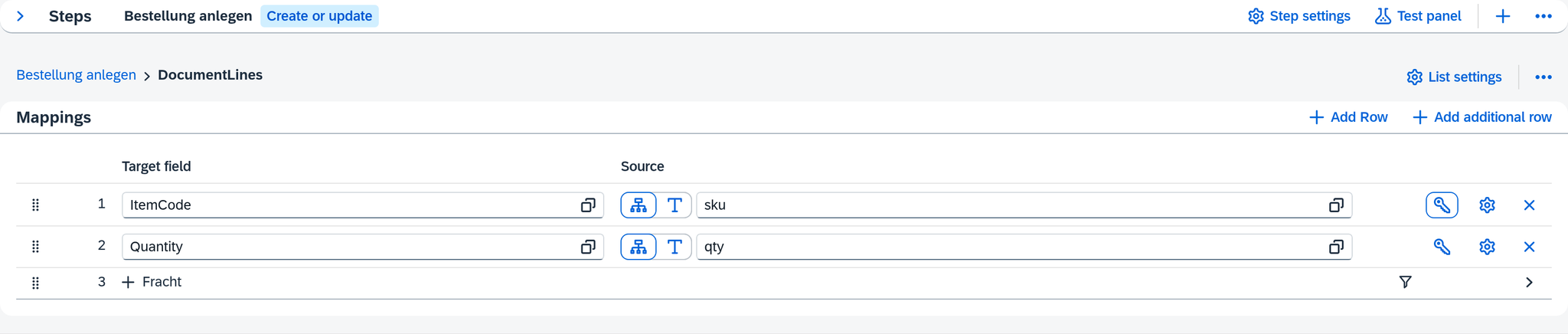
Additional rows
Within a list you can add entries that go beyond the source — e.g. the
line "Fracht" in "Bestellungen Webshop": item FRACHT-PAUSCHAL, quantity 1, price from
OriginalPayload.shipping_total. They appear as a row with a plus icon and expand like a list;
inside is the same mapping table. A new additional row is initially called "New additional row",
in a list with Fixed Rows "New row".
An additional row has no entry of the source list behind it. Its fields therefore read from the Main record, and it is created once per record, not once per entry. A condition on the row leaves it out when it does not apply — this is how "Fracht" drops away for orders without shipping costs. An additional row with a condition carries an icon on its row with the tooltip Condition: this additional row is only written when it matches.
The gear in the breadcrumb band opens the Additional row settings:
| Tab | Content |
|---|---|
| General | Identifier — the name of the additional row, e.g. "Fracht". |
| Condition | Conditions under which the additional row is written; Add condition creates one. Without a condition it is always written. |
Done closes the dialog. In the overflow of the band sits Delete additional row, with Fixed Rows Delete row; the confirmation reads "Delete this additional row?" or "Delete this row?".
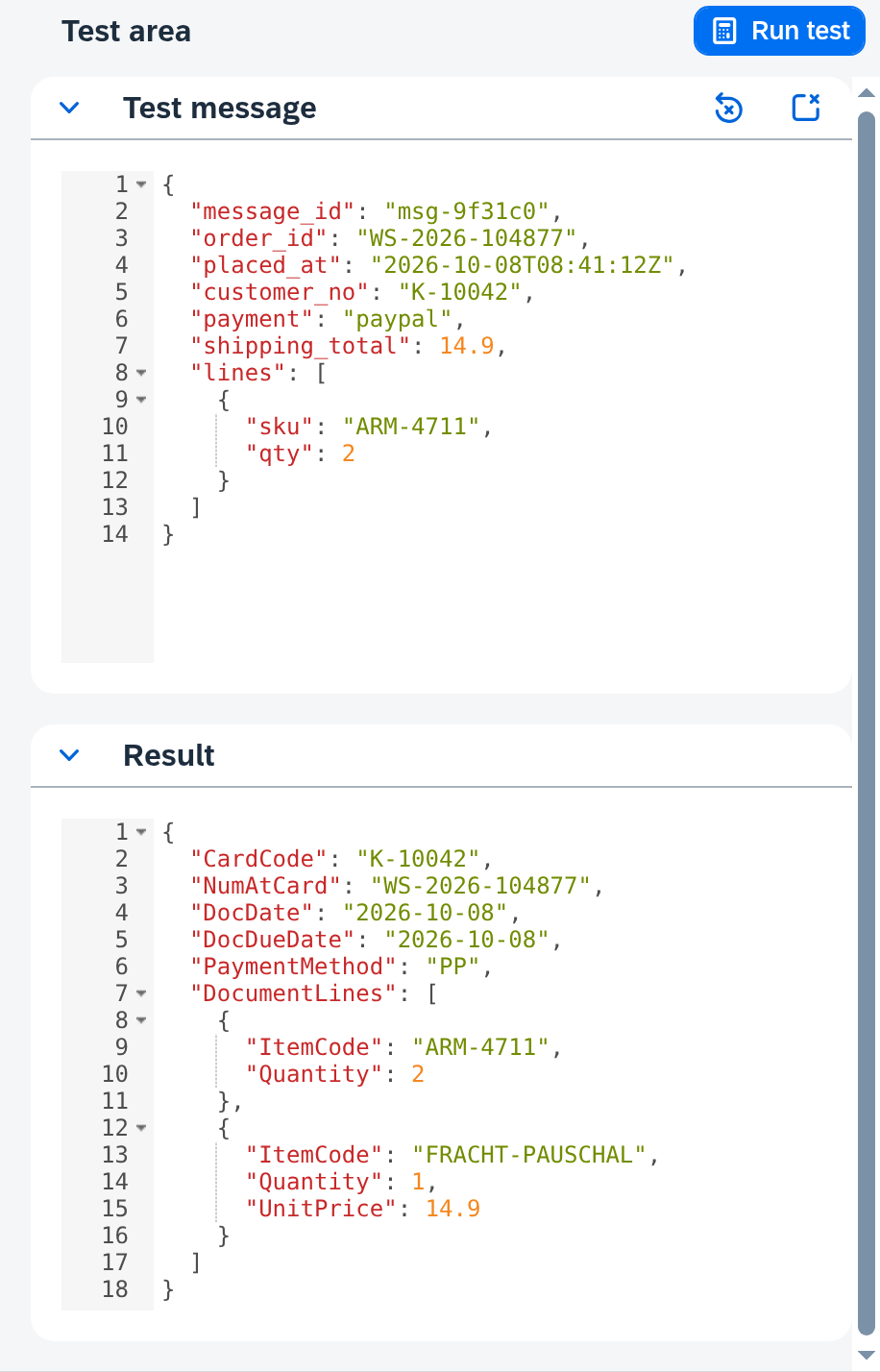
The test area
The test area shows what comes out at the end. You put a sample message in and see the result the mapping makes of it.
A test leaves the target system untouched — the button's tooltip says so explicitly. So you can test at any time, even on a route that is running in production.
The test really fetches additional data. If the route carries additional data, the test reads it from SAP Business One for that purpose. A test can therefore fail because of something outside the mapping — e.g. because a query returns too many records. The message then names the additional data.
The Run test button sits in a band that stays in place while you scroll. Below it are the sections:
Test message. An editor for the sample data. If it is empty, a hint there says that you can paste something here or load it via Source data — the link leads to the Source data tab, where you fetch a real record. Two buttons in the header: Reset to reference brings back the reference data stored there and appears only if there is any; Clear test message empties the editor.
On an export or internal route, above it is the Event type selection with the three values Create, Change and Delete; on an import route, when its delete behavior is Deactivate in the target system and it carries no deletion marker. It fills the Event type source field of the test message, so that you can check a mapping that depends on the kind of job.
If the route carries a deletion marker, the test message decides — just as in operation. The Event type selection is then left out: a flagged test message runs as Delete, any other as Change. If it applies to the test message, a notice above the result says what the route makes of it: it skips the record, or it maps the last transferred version with the event type Delete; the result then shows that version, not the test message you entered.
Response from "…". If the mapping uses the response of a preceding step, each of these steps gets an editor of its own. It is prefilled with the response structure stored in the settings of that step. What you change here applies only to this test run and is discarded afterwards; Reset to response structure restores the prefilled content. If none is stored there, the empty editor reads No response structure yet. Maintain it in the prior step's settings, or enter a test response here.
Element. If the step runs Per element, the header of the result carries the Element selection: the result shows the message for one entry of the list, and the selection switches between them. If the list cannot be split, the test area names the reason:
| Message | Meaning |
|---|---|
| The list holds no elements — the step would be skipped. | The step's List is empty in the test message. |
| Element 0 of the list has no key — check the step's element key | The Element key yields no value for this entry. Its number stands in place of {0}. |
| Two elements of the list share the key "0" — check the step's element key | The Element key does not tell the entries apart. |
Result. Appears as soon as a run has produced something — a result or an error. The header carries at most one of these badges:
| Badge | Meaning |
|---|---|
| Partial result — see the list of failed fields | The run went through, but individual fields failed. |
| Outdated — run test again | You changed something after the run. The result shown belongs to the old state. |
If both apply, the header shows Outdated — run test again.
View. If a row of the step carries anything other than Always under Write, the View select in the header chooses which version of the message the result shows:
| Write intent | Entries |
|---|---|
| Create or update | On create, On update; for SAP Business One with an affected field in a list On create, On update — existing list rows, On update — new list rows |
| Update, for SAP Business One with an affected field in a list | Existing list rows, New list rows |
New list rows shows the message as if every row of the list were appended in the target and thus created; Existing list rows as if each found its row in the target. Which case applies is decided by the target alone — the test does not read it. Changing the view does not start a new run. The first entry is the default. In every other case the select is missing, and the result shows the version this step sends.
What failed is listed below the result in Failed in this test run, with the count in parentheses. Each entry names the row, its target field and the reason — e.g. Required field has no value, Source path returned no value or that a source expression returns multiple values where a simple field takes exactly one. A click on the entry opens the row. If the error lies in a transformation, the row's settings open at exactly that station. If the run produced no result at all, Mapping failed — check the fields in the list below appears above it.
The list belongs to this one test run. Nothing of it appears on the rows themselves: their markers and the messages judge the configuration, the test only the one message you sent through it.
If the mapping contains errors, the test does not start. It then reads The test run did not start because the mapping contains errors. Fix them and run the test again. The errors themselves are listed below in Failed before the test run, with the count in parentheses. Like the marker on the row, a click on an entry leads to exactly the field the error lies in.
See also
- Convert and translate values (guide) — attach a transformation or value table to a row
- A field is missing from the mapping (guide) — when a source or target field is not offered for selection
- Routes (reference) — the route as a whole, its tabs and messages
- Routes — Source data (reference) — where the test message and the additional data come from
- Value Tables (reference) — the tables behind the Value tables transformation
- Mapping (core concept) — steps, lists and keys in context
- Writing to the target system (core concept) — what happens to the finished message at the target