History
An operation is a single execution of a route for one record. History shows the operations of every route in one combined list — sorted by the time of the last status change, newest first. The list refreshes automatically whenever the status of a displayed operation changes.
Permissions
The page is visible once you have the Operations — History permission (Read or Full). The Cancel and Reprocess actions are only available with the same permission at the Full level.
List view
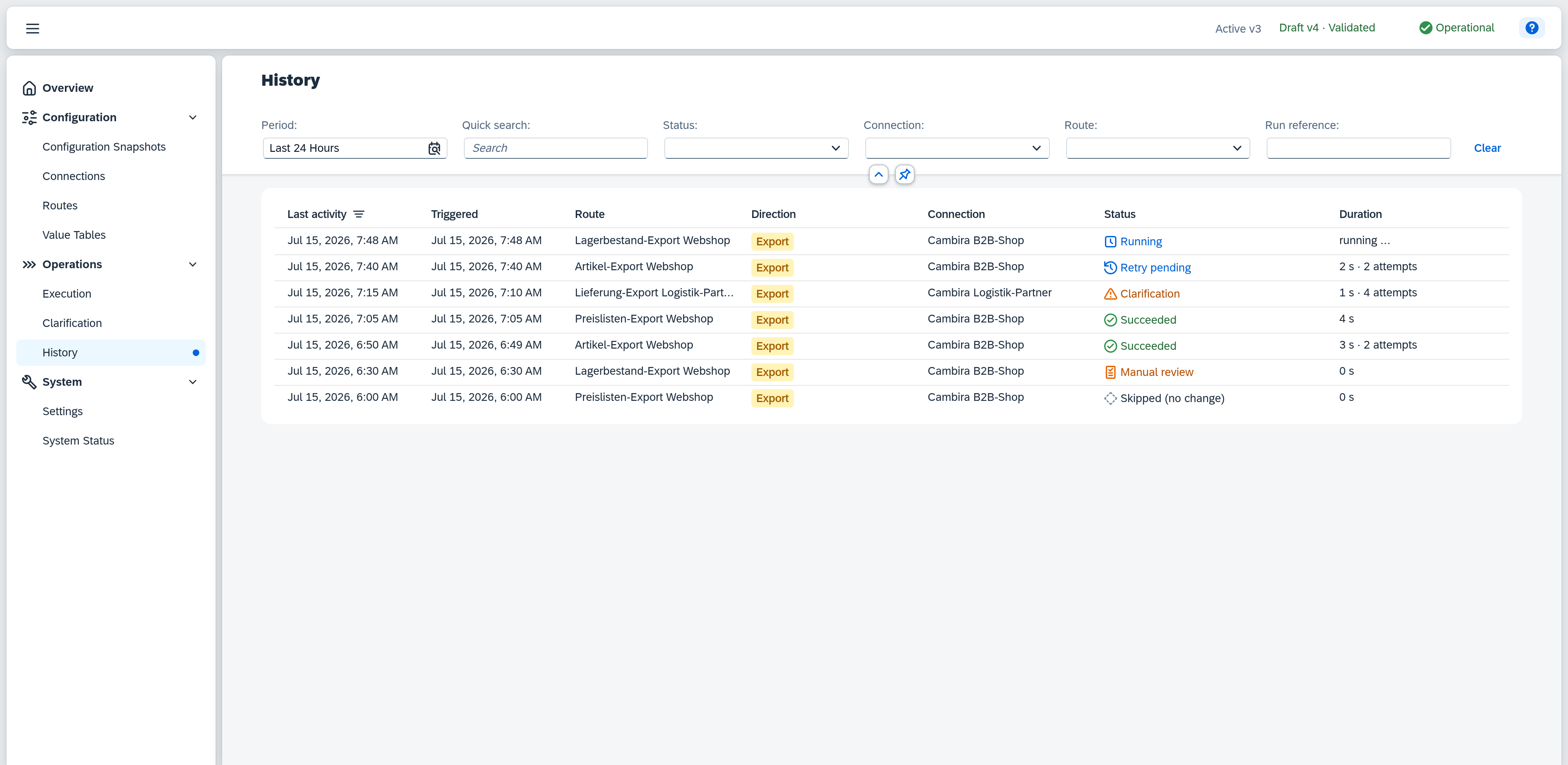
By default the list shows a 24-hour window. Scrolling to the end of the list automatically loads more, older operations.
The automatic refresh has two limits. It covers the first 200 loaded operations — once you have loaded beyond that, the list stops updating until you reopen it or change a filter. This keeps even a very large run manageable in the browser. And it pauses while History sits in the background; reopening the page reloads the list.
Filters
| Filter | Effect |
|---|---|
| Period | Time window for the display. Default: Last 24 hours. Alternatively e.g. Today, Yesterday, Last X days, This week, Last week, or a freely chosen range. |
| Quick search | Free text across three identifiers at once: object key, correlation ID and external key — the same three are named in the field's tooltip. It filters as you type; there is no search button. It matches on substrings and ignores case. |
| Status | Multiple selection. The list is split into three sections — Active, Action required and Completed — separated by a divider. The row carrying the group name is the section's heading and a selectable entry at once: select it and every single status below it is selected too; clear one of them and the group loses its tick. An operation in clarification or review appears in two sections — under Action required while its case is open, and under Completed once it has been resolved, closed or superseded. With no selection the list shows every status. |
| Connection | Restricts the list to the operations of one connection — and at the same time narrows the Route filter's choices to that connection's routes. |
| Route | Restricts the list to the operations of one route. The choice list names each route's connection in a second column. |
| Run reference | Restricts the list to the operations of a specific run. Once a run reference is entered, the period restriction is lifted — every operation of that run is shown regardless of the selected period. Clearing the run reference restores the previous period. |
The Clear button on the right of the filter bar resets every filter to its initial state — the period back to the last 24 hours included.
The filters you set live in the page's address. A link to History therefore carries them: you can bookmark it or pass it on, and whoever opens it sees the same selection. Reloading the page restores it just as well.
Which of a route's runs are currently in flight, and how the last ones turned out, is shown on the route in Execution. The Show in History link there enters the run reference into the filter of the same name and thereby shows exactly this run's operations.
Columns
| Column | Content |
|---|---|
| Last activity | Time of the operation's last status change. The list is sorted descending by this column — the sort indicator (downward arrow) in the column header shows this. Click a row to open the detail view on the right. |
| Triggered | Time the operation was created. |
| Route | Name of the route that executed the operation. |
| Direction | Data-flow direction as a coloured badge, e.g. Export. |
| Connection | The connection the operation used to talk to the external system. |
| Status | Current status as a badge with icon and text — see status values below. |
| Duration | Cumulative processing time, e.g. "4 s" or "2 min 5 s". While the operation is still running this shows "running …"; after multiple attempts it additionally shows the attempt count, e.g. "4 s · 2 attempts". |
Status values
Every status also carries a colour. The internal Claimed status (an operation just picked up for processing) is shown identically to Running.
| Status | Colour | Meaning |
|---|---|---|
| Succeeded | green | The operation completed successfully. |
| Clarification | orange | Every automatic attempt is exhausted; the operation needs manual intervention. |
| Manual review | orange | The operation is waiting for a business decision. Not a failure — a configured rule submitted it for review. |
| Queued | blue | The operation is waiting to be processed. |
| Running | blue | The operation is currently being processed. |
| Cancellation requested | blue | A cancellation was requested; the operation keeps running until the next safe point. |
| Retry pending | blue | A previous attempt failed; the operation will be retried automatically. |
| Clarification resolved | grey | The operation's manual clarification was resolved. |
| Clarification closed | grey | The operation's manual clarification was closed without further processing. |
| Clarification superseded | grey | The same record went into clarification again; this operation's clarification was superseded by the newer one. |
| Review resolved | grey | The operation's manual review was resolved. |
| Review closed | grey | The operation's manual review was closed without further processing. |
| Review superseded | grey | The same record was submitted for review again; this operation's review was superseded by the newer one. |
| Cancelled | grey | The operation was cancelled. |
| Skipped (echo detected) | grey | The change originated from a previous Xchange write and is not processed again. |
| Skipped (stale) | grey | The record was changed again in the meantime; this operation is superseded. |
| Skipped (no change) | grey | The data has not changed since the last transfer. |
| Skipped (condition) | grey | A configured condition excluded the record from processing. |
| Skipped (clarification open) | grey | The affected record already has an unresolved clarification; the operation is deferred. |
Detail view
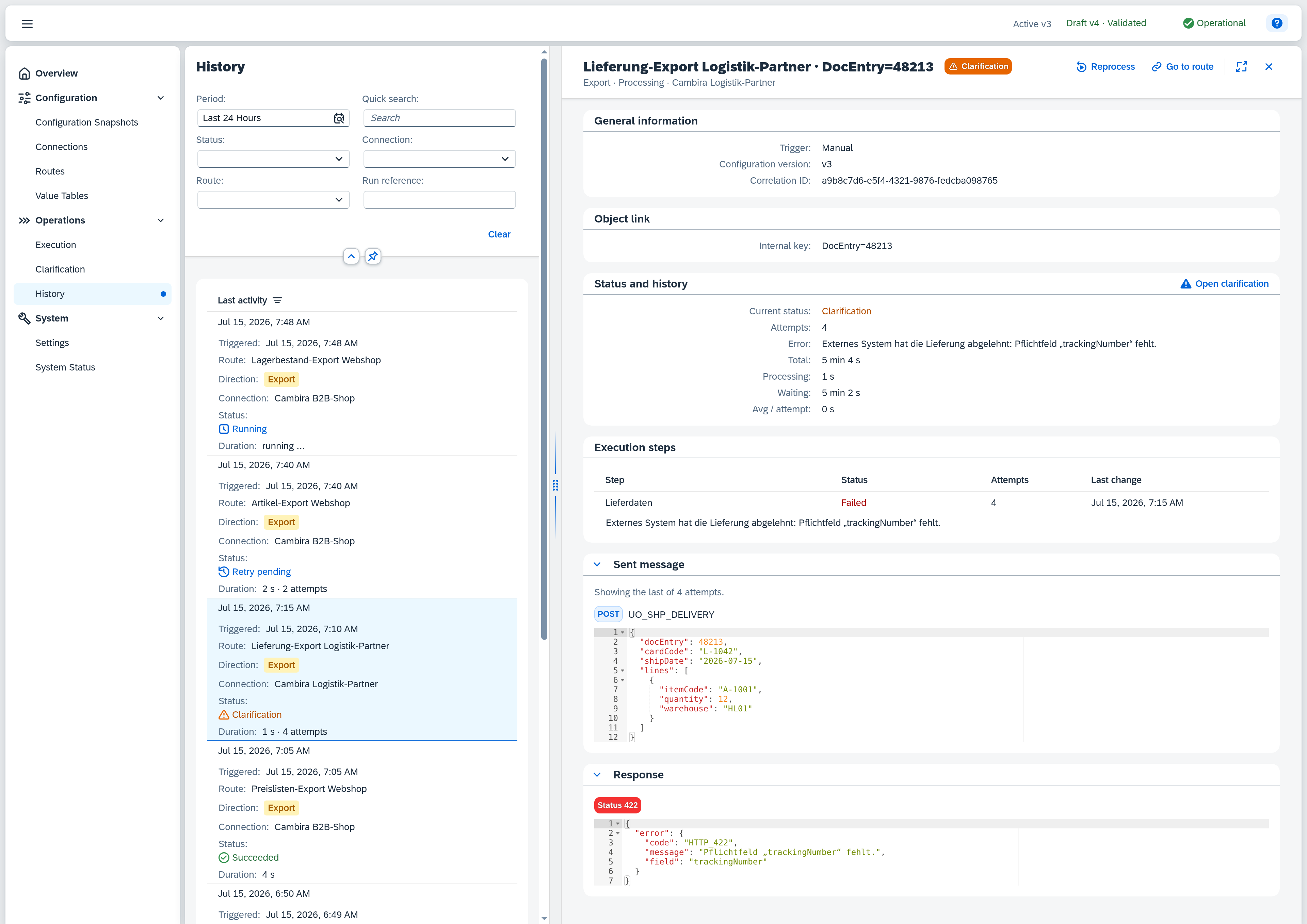
Click a row to open the operation's detail view on the right. It consists of a header and, below it, several panels; a panel with nothing to show does not appear at all.
Header
| Field | Content |
|---|---|
| Title | Route name and object key, e.g. "Lieferung-Export Logistik-Partner · DocEntry=48213". Where the operation carries no object key, the route name stands alone. |
| Status badge | Current status as a coloured badge next to the title — see status values above. |
| Subheading | Direction · type · connection, e.g. "Export · Processing · Cambira Logistik-Partner". |
The actions sit on the right of the header: Cancel for an operation that is still running or waiting; Reprocess for one that has finished and may be repeated; Go to route always. Both of the first two need the Full permission level.
General information
Route, direction and connection are already in the header and are not repeated here.
| Field | Content |
|---|---|
| Trigger | What the operation came from — manually, via the schedule, through an event from SAP Business One, or through a dispatch. |
| Configuration version | The configuration version the operation ran under. If the configuration has changed since, a note below it names the version that is active now. |
| Run | Only if the operation belongs to a run, and on two lines: above, the run type and the run's start time; below it, the run reference as a link — the link filters the list to that run. The run type is omitted where it merely restates the trigger: for an operation from an SAP event and for one from a dispatch. |
| Cleanup for run | Only on an operation from a cleanup run, likewise on two lines: above, the start time of the run it cleans up; below it, that run's reference as a link. |
| Correlation ID | Technical identifier for tracing across system boundaries. |
| Repeat of / Dispatched from | Only if the operation came out of another one: above, the status and time of that operation; below it, its reference as a link. The label names the relation — Repeat of on a reprocessed operation, Dispatched from on one a dispatch created. Once the other operation has passed out of retention, the link stands alone. |
| Repeats | Only if this operation was reprocessed: the operations that came out of it, each on two lines with its status and time above its reference as a link. Target operations of a dispatch do not appear here, but in the Dispatched to panel. |
Object link
The internal and external key of the processed record — that is, how Xchange identifies the record in SAP Business One and in the connected system. If no link exists yet, that is stated in their place.
For an operation of a dispatch route the panel is gone: a dispatch assigns an incoming message to a target route and binds no record of its own.
Status and history
| Field | Content |
|---|---|
| Current status | The same status as in the header, spelled out. |
| Attempts | Number of execution attempts, the first one included. |
| Error | The error message of the last attempt, if one failed. |
| Next retry | Scheduled time of the next automatic attempt, only while Retry pending. |
| Total | Time from the start to the end of the operation. Appears only once the operation has finished. |
| Processing | The time actually spent processing within it. |
| Waiting | The difference between the two — waiting time between attempts. Likewise appears only after the operation has finished. |
| Avg / attempt | Processing time divided by the number of attempts. |
If a clarification or review case exists for the operation, the Open clarification / Open review button in the panel header leads straight to it.
Execution steps
An operation consists of one or more steps. The table shows, per step, its name, status, number of attempts and the time of its last change.
Two further columns appear only where this operation has something to show in them: Error, once at least one step has reported one, and Messages, once at least one step holds a recording. The Show link in the Messages column opens that step's sent message and response in a dialog; both are fetched on click. Where the operation has a single step whose messages already sit below under Messages, the column is gone as well.
If the operation ran no step at all, that is stated in place of the table. For an operation of a dispatch route the panel is gone entirely — a dispatch evaluates rules and creates operations of the target routes from them; it runs no steps of its own.
Dispatched to
Only on an operation of a dispatch route, and there in place of the execution steps: what a dispatch does is recorded here. The panel header carries the number of target operations created.
| Column | Content |
|---|---|
| Target route | Name of the route the message was dispatched to, with the target operation's reference as a link below it. |
| Status | Status of the target operation, shown the same way as in the operations list. |
| Last activity | Time of the target operation's last status change. |
If the list is empty, the reason stands in place of the table: the operation has not been dispatched yet, no dispatch rule matched, or it was routed to manual review.
Received message
Inbound operations only: the message the operation was delivered with, as read-only JSON. If the message is too large to display, a note with its size takes its place; once the payload retention period has passed, the panel is gone.
Messages
For every step, Xchange records what was sent to the target system and what came back from it. That answers a rejected operation without looking into the target system — an error message only becomes readable next to the message that caused it.
For an outbound operation, both messages of its primary step sit in the detail view itself, in the Sent message and Response panels. Both are expanded and can be collapsed individually. For an inbound operation they are not there: what was delivered is shown by the Received message panel, and the steps' messages stay one click away.
The step table carries that click: the Show link in its Messages column opens the same two contents in a dialog — for every step that holds a recording, the primary one included.
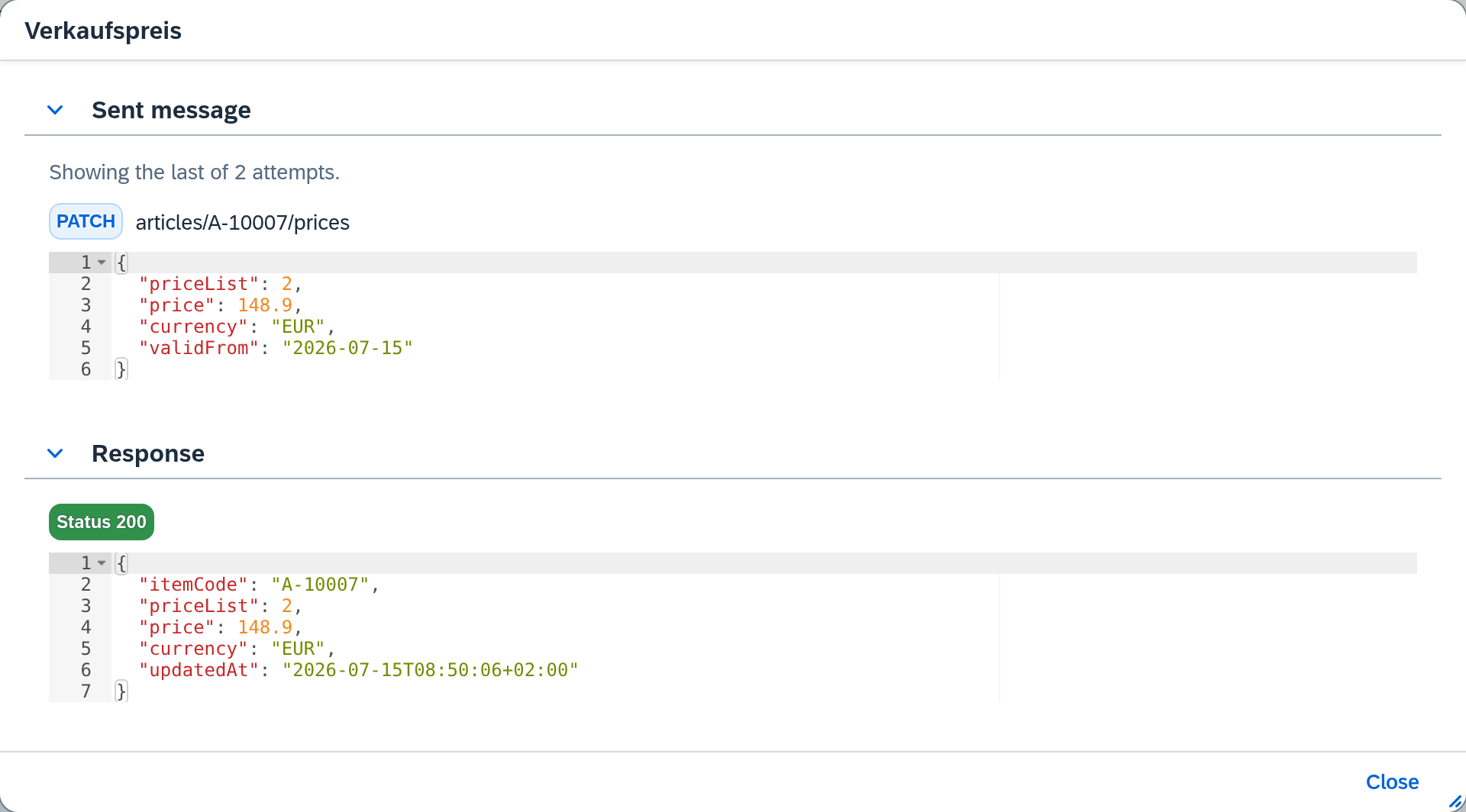
| Item | Content |
|---|---|
| Header of the sent message | Method and path of the call, e.g. POST UO_SHP_DELIVERY. The connection itself — and with it the address and the credentials — is not recorded. |
| Header of the response | The status the target system answered with, e.g. "Status 422". |
| Message body | The recorded content as read-only JSON. |
Where a sentence stands in place of a body, that sentence is the answer: the step sent no message body, the target system returned nothing, or the step ran before the recording was introduced.
For a step that was retried, both messages show the last attempt; a line above them names which one that was. Earlier attempts are not kept.