Routes — Dispatch
On the Dispatch tab you determine which incoming message is passed on to which route. The tab appears only on a route of type Dispatch.
The assignment is an ordered list of rules. Xchange checks them from top to bottom and stops at the first one that matches. What that means for operation is described under Dispatch.
In the example: "Statusmeldungen Kessler" dispatches the logistics provider's messages to four routes — Abholung, Transport, Zustellung, Fehlzustellung.
Permissions
| Permission on Routes | What you can do |
|---|---|
| Read only | view the rule list and the otherwise behavior, use the test area |
| Full | in addition, create, change, duplicate, reorder and remove rules |
The rule details open only with Full. With Read only, the gear that leads there, as well as Add rule, Duplicate rule and the remove icon, are hidden. What stays visible of a rule is the summary in its row — condition and targets as text. This sets this tab apart from Routes — Mapping, where the settings can also be opened read-only.
The test area, on the other hand, is open to both. A test is pure evaluation — without passing the message on and without a run.
Layout
The tab is split into two halves, and you can move the dividing line between them:
- on the left the rule list with the otherwise behavior below it,
- on the right the test area.
Unlike on the Mapping tab, the test area always stays visible. Its two parts, Test message and Result, can each be collapsed via their header.
The two halves are linked: the test message on the right supplies the field tree from which you pick a Field in the rule details, and the test marks in each row on the left whether the rule matches.
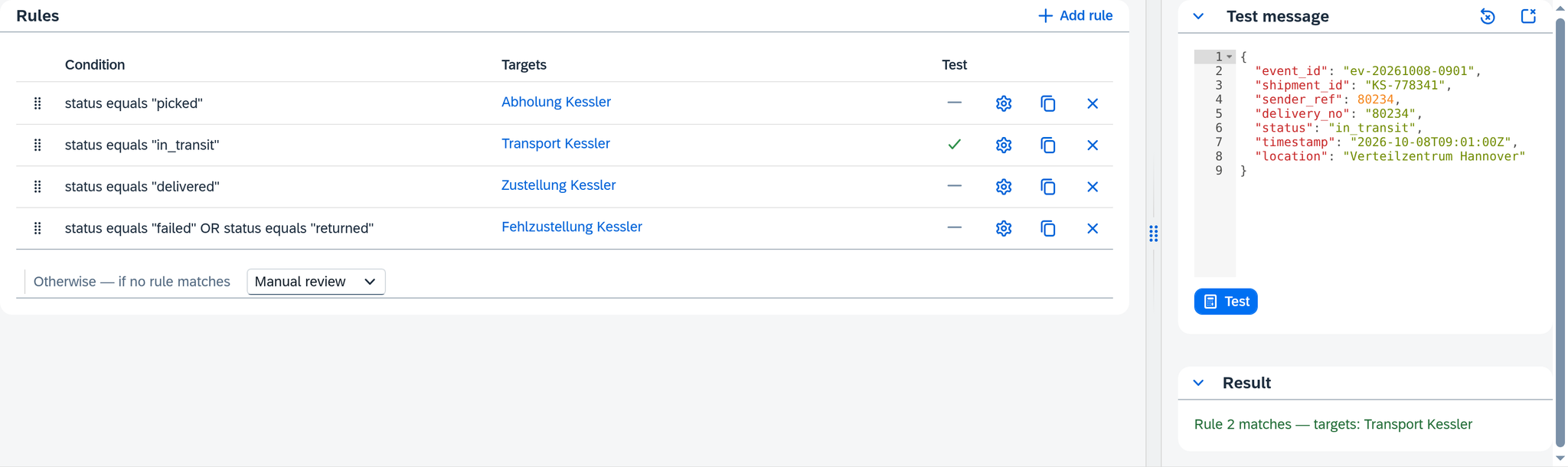
The rule list
Above the list is the title Rules; to its right is Add rule. A new rule goes to the end of the list, without a condition and without a target — which makes it a catch-all rule until you give it a condition.
Each row has seven columns:
| Column | What it contains |
|---|---|
| (no heading) | the drag handle. With it you move the rule to a different position — and so change which one is checked first. |
| Condition | the condition as a readable sentence, e.g. status equals "picked". Multiple conditions have AND or OR between them, multiple groups are separated by a vertical bar ` |
| Targets | the target routes, each as a jump link. A click takes you to the route itself; the tooltip reads Open target route. If the rule has no target, a dash appears there. |
| Test | the result of the last test, as a symbol — see The test area. Without a test the column stays empty. |
| (no heading) | the gear: opens the Rule Details. |
| (no heading) | Duplicate rule: creates a copy directly below the rule and opens its Rule Details straight away. For a rule without a condition the button is missing, and so it is for a rule whose stored condition or targets cannot be read. |
| (no heading) | the remove icon. A rule without a condition and without a target disappears at once. Any other rule asks first: Remove rule, with the note "The rule will be removed. This action cannot be undone." and the button Delete. |
A deleted target route remains as text instead of a link — with its technical key. The rule then points nowhere.
Rule Details
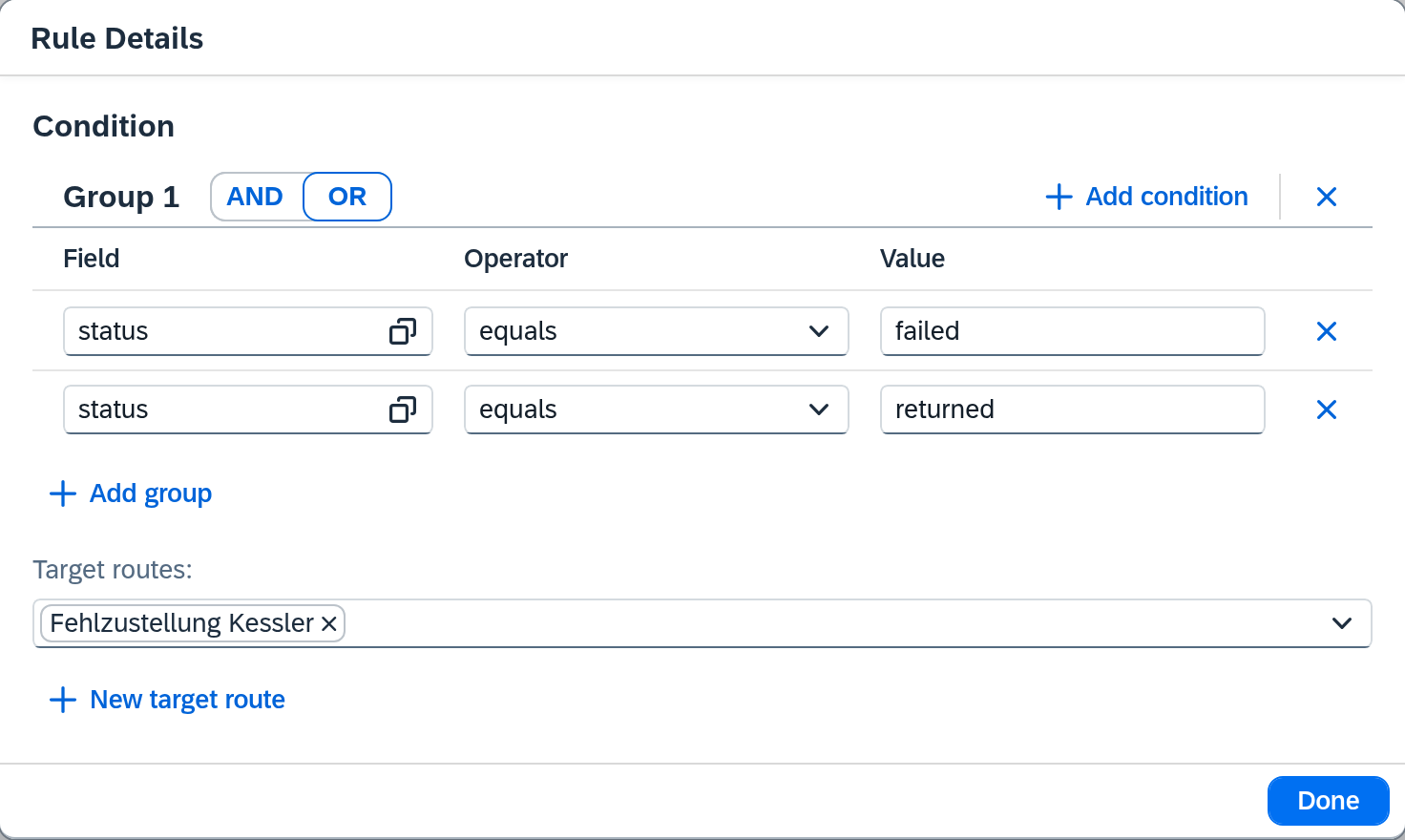
The gear opens a Rule Details window with two sections: the condition and the target routes. Xchange saves every change in it straight away; Done only closes the window.
Condition
The conditions sit in groups — Group 1, Group 2 and so on, at most 3 per rule, each with up to 5 conditions, without brackets or nesting. The header of each group holds the AND / OR switch, Add condition and Remove group. The switch applies to the conditions of that one group. Between the groups there is always OR: the rule matches as soon as one of its groups matches. Add group creates a further group below the last one. After the fifth condition of a group, Add condition only reports At most 5 conditions per group; after the third group, Add group reports At most 3 groups.
Remove group takes an empty group out at once. If the group already holds something, it asks first: Remove group, with the note "The group and all its conditions will be removed. This action cannot be undone." and the button Remove.
Each condition is a row with three columns:
| Column | What you enter |
|---|---|
| Field | the path into the message, in short form: status, lines[0].sku. With the icon next to it you pick it from a tree instead of typing it. The input field suggests e.g. type. |
| Operator | one of four — see below. |
| Value | the comparison value, entered freely. For is empty and is not empty the column disappears, because only the field itself is checked there. |
To the right is a narrow column with Remove condition. If a group has no condition at all, its table is replaced by: No conditions — rule matches all messages.
The field tree comes from the test message. It shows the fields of the message in the test area on the right. If the editor there is empty, the selection tree reports Enter a test message., and the path can only be entered by hand.
The four operators
| Operator | Matches if |
|---|---|
| equals | the field carries exactly this value |
| does not equal | the field carries a different value |
| is empty | the field is missing or has no value |
| is not empty | the field has a value |
That is considerably less than the Data filter on the Source data tab offers:
- There you also have contains, starts with, is one of and size comparisons.
- There up to 6 groups can be formed and combined with either AND or OR. A dispatch rule has at most 3, always combined with OR.
- There a date comparison can be tied to the run. A dispatch rule, by contrast, is checked before a run has even started.
Target routes
A required field. You select one or more routes; selected ones appear as tokens in the field. If a rule with two targets matches, the same message goes to both — and each target gets a run of its own.
Only routes that qualify as a target are offered. Four entries must be right for that: direction Import, type Processing, data origin Dispatch input — and the same connection as this route. Other dispatch routes are thereby ruled out. A route that fails one of the four entries does not appear in the selection; the field gives no reason for it. Which connection, direction and data origin a route has is shown on its General tab.
Below it is New target route. With it you create a route without leaving the tab. If the newly created route does not fit this rule, the hint Route created but not selected — not a valid target route for this rule appears: the route is then only in the route list.
When no rule matches
Below the rule list is Otherwise — if no rule matches with a selection of two settings:
| Setting | What happens to the message |
|---|---|
| Skip | The message counts as done without further processing. |
| Manual review | The message goes to Clarification, cause No dispatch rule. |
In the example, the dispatch is set to Manual review. That is why the message for shipment
KS-778102 with the unknown status customs_hold sits in clarification instead of being lost.
The catch-all rule
A rule without a condition matches every message that reaches it — it is a catch-all rule and shows (matches all) in the list. Every rule that Add rule creates is one until it gets a condition. A catch-all rule affects the whole tab:
- Rules below it never get their turn, because it catches every message that gets that far.
- The otherwise behavior never gets its turn. The selection is grayed out, and next to it appears Unreachable — a catch-all rule matches all messages. The setting stays saved.
- It cannot be duplicated — Duplicate rule is missing from its row.
- A second catch-all rule is reported by the validation as More than one catch-all rule in this route (see below).
What the validation reports
An empty required field shows up while you are still editing. If a Field, a Value or a target route is missing in the rule details, the field is red; Target routes carries the hint Required.
Everything else is reported by Validate on the Configuration Snapshots, because it depends on other routes or on the rule list as a whole. After that, the findings also appear in the route's messages, under Dispatch:
| Message | What it means |
|---|---|
| Target route does not exist in this configuration | The target route was deleted. In the rule list it then appears as text instead of a link. |
| Target route does not have the data origin "Dispatch input" | The target route has the data origin Dataset or Queue. Choose a route that is supplied from the dispatch input. |
| Target route is on a different connection than the dispatch route | The connection of one of the two routes was changed afterwards. |
| More than one catch-all rule in this route | Two rules have no condition. Only the upper one ever gets its turn. |
| Circular dispatch dependency | A target route leads back to this route, directly or via further dispatch routes. |
Rules have no names, so the message names their position, counted from the top:
| At the start of the message | What it refers to |
|---|---|
| Rule 1, Rule 2, … | a rule at that position |
| Rules 1 and 3 | two rules the message concerns together |
| Rule (position unknown), Rules (position unknown) | rules whose position can no longer be determined |
| Removed rule, Removed rules | rules you have removed since the validation |
A click on a message with a position opens the Rule Details of that rule. The circular message concerns the route as a whole; its click opens the tab as a whole.
The test area
The test area shows which rule applies to this message.
Test message. An editor with line numbers for a sample message in JSON format. Two icons in the header: Reset to reference brings back the reference data stored on the route and appears only if there is any; Clear test message empties the editor. What you enter here also feeds the field tree in the rule details.
When you first open it, the reference message is already in the editor, provided the route has one. You may overwrite it; the reference is kept. What you have entered once stays, even if the reference changes later.
Test. The button evaluates the rules against this message. If the text is not valid JSON, Test message is not valid JSON appears instead of a result.
Result. The section appears only after the first test. It carries one line that names the outcome:
| Outcome | What it says | Color |
|---|---|---|
| One rule matches | Rule 2 matches — targets: Transport Kessler | green |
| None matches | No match — behavior: Manual review | orange |
| A condition is not readable | No result — the condition of rule 3 is not readable | orange |
If a rule carries an unreadable condition, the third outcome always appears — even when a rule further up matches. Which one that is, the green check mark in the Test column then shows.
At the same time, the Test column in the rule list fills with one of four symbols:
| Symbol | Meaning |
|---|---|
| green check mark | This rule applies — it is the first one that matches. |
| gray check mark | This rule matches as well, but one further up wins. |
| gray dash | This rule does not match. |
| orange warning sign | The condition of this rule is not readable. |
The gray check mark shows an overlap that otherwise stays hidden in the list: two rules that would catch the same message, with the order deciding.
Symbols and result belong to the last test. If you move a rule or change its condition, the symbols travel with the rule and stay as they were; only the next Test evaluates again. If you change the test message, reset it to the reference or clear it, the result and the symbols in the Test column disappear.
A test takes effect only in the test area. Runs, target routes and the target system stay as they are. Before evaluating, it saves your pending changes to the rules, so that it checks what is on the screen.
See also
- Pass incoming messages to the responsible route (guide) — the way from the empty route to the first dispatched message
- Routes (reference) — the other tabs of a route
- Clarification (reference) — where a message without a match ends up
- Dispatch (core concept) — why the order of the rules carries the meaning