Value Tables
A value table translates values of one system into values of the other. The webshop writes
paypal, SAP Business One expects PP — the table says what becomes what. This screen
shows all value tables and the content of a single one.
How to use a value table in a mapping row is covered under Convert and translate values.
Permissions
The screen follows the Mapping permission — see Permissions.
| Level | What you can see and do |
|---|---|
| None | The Value Tables menu item is missing. |
| Read only | List and content for looking things up; New Value Table, Delete, Import values, Add entry and the input fields are missing. |
| Full | Everything — create, change, import, delete. |
In the example: A. Vogt has Full and maintains the tables. M. Brandt has Read only and looks up which key corresponds to which payment method.
Layout
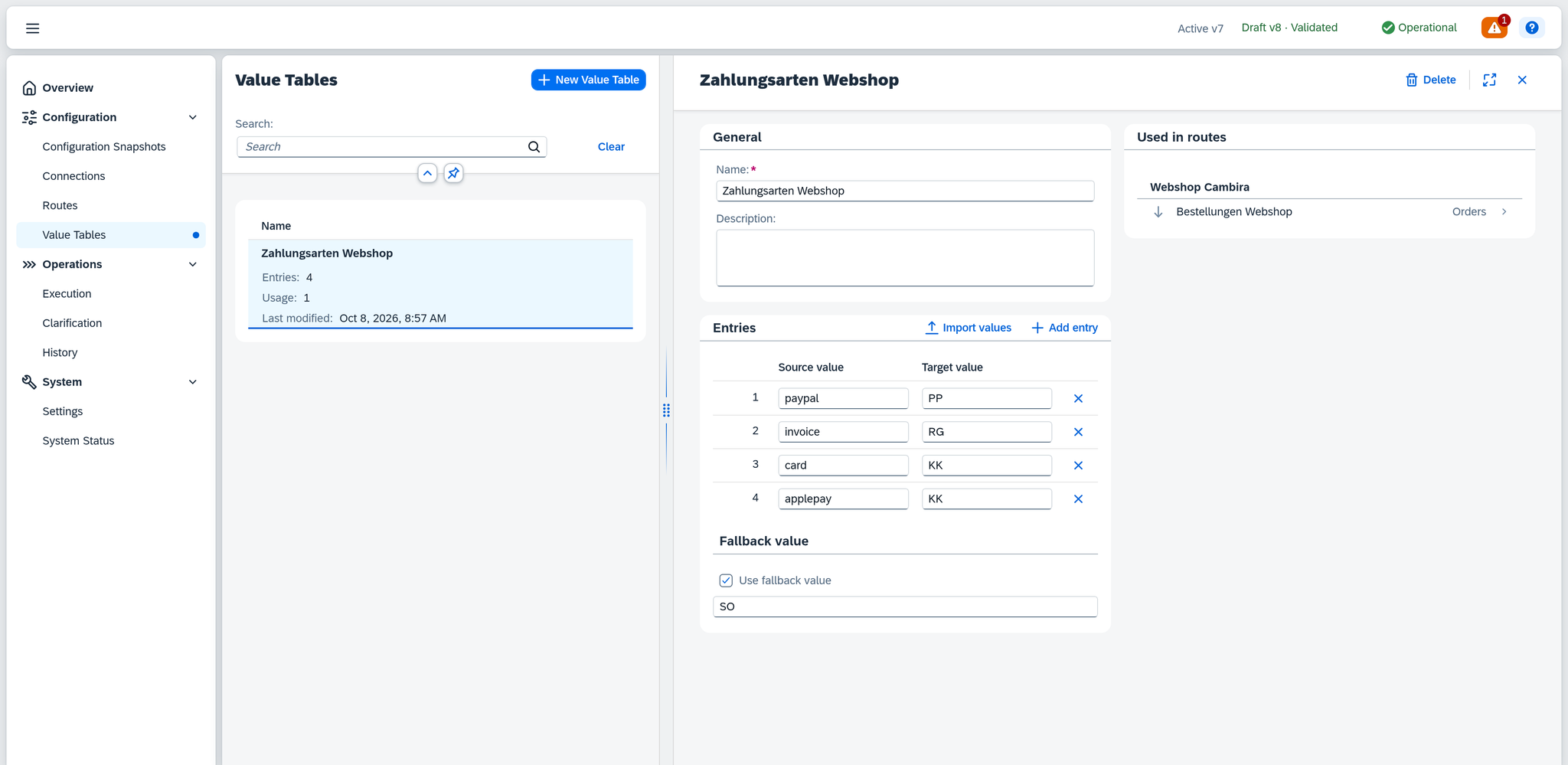
On the left, the list of all value tables; on the right, the content of the selected one. Both are one screen.
The content is in two columns: on the left General and the Entries, on the right Used in routes. If the window is narrow, the two columns move below each other. Below them is the footer.
The list
Four columns:
| Column | Content |
|---|---|
| Name | the name of the value table |
| Entries | how many rows it has; "–" if the stored entries cannot be read (below) |
| Usage | how many routes use it |
| Last modified | within the last 24 hours, the time since the change, after that date and time; the exact time appears when you point at it with the mouse |
The list is sorted alphabetically by name, and this order is fixed.
Above the list is a search field. It searches name and description. Only when the search matched the description does it appear as a second line below the name.
The search term is in the address of the page. A bookmark, a reload or the return from the content of a value table bring back the same filtered list. How this works on all lists is covered under History — The filters are in the address.
A pencil icon next to the name reports that someone else is currently working on this value table, and gives their name.
If nobody has created a value table yet, the list is replaced by No value tables yet. If the search finds nothing, it reads No results.
Creating a value table
New Value Table above the list opens a dialog with a single field: Name, required and marked with an asterisk, at most 150 characters. If it stays empty, the field reports Required. Create creates the value table and opens its content; Cancel closes the dialog and discards the input.
A name already in use triggers a warning, nothing more. If another value table has the same name, the hint "A value table with this name already exists." appears above the field — Create stays available all the same. The same warning appears when you rename a value table later. The name is what the mapping row offers for selection — a distinct name keeps the tables apart there.
The new value table opens with an empty entry row, into which you write the first value right away.
Header and footer
| Element | Effect |
|---|---|
| Delete (header) | removes the whole value table, provided no route uses it (below) |
| Full screen / Exit full screen / Close (header) | control how much room the content gets; Close hides it, and the list stands alone again |
| Messages (footer) | appears as soon as something is open on the value table, carries a number and opens the list of messages; the tooltip reads "Messages for this value table" |
| The bar for working through the list (footer) | appears while you work through the checklist |
| The autosave bar (footer) | reports whether the last input has been saved |
In the messages, each message first names the row it sits on: Entry 3: "Source value" is missing means the third row of the table. If the same message applies to several rows, it appears once for all — Entries 2, 4 and 7: "Source value" is used more than once. The numbers are the positions as the table stands now. Clicking a message takes you to its place.
What the number on the button counts is covered under Routes — The messages; which states the autosave bar knows, under Routes — Header and footer.
Xchange saves every input by itself. Ctrl+Z undoes the last change. The changes take effect with the activation of the configuration snapshot — see Configuration Snapshots.
Hints in orange can stand above the content:
| Hint | When |
|---|---|
| "Currently being edited by … — your changes may conflict" | Someone else is editing the value table right now; the hint gives the name. |
| "You are already editing this record in another session — your changes may conflict" | You yourself have the value table open in a second session. If someone else is editing at the same time, only the hint above appears. |
| "A value table with this name already exists." | Another value table has the same name (above). |
In the example: If L. Hoffmann has the value table open, A. Vogt reads "Currently being edited by LHOFFMANN — …".
Three situations replace the whole content:
| Situation | Display |
|---|---|
| Service Layer not reachable | Data not available — "Service Layer currently not reachable — entries cannot be loaded right now." |
| Runtime store not reachable | Data not available — "Runtime store currently not reachable — entries cannot be loaded right now." |
| Value table no longer there | Value table not found — "This value table no longer exists in the current configuration.", with Back to list |
General
| Field | Content |
|---|---|
| Name | must be filled, at most 150 characters; if left empty, the field reports Required, a name already in use is reported as when creating |
| Description | optional, at most 254 characters, three lines high |
The name is what appears for selection in the mapping row. So name the table after what it translates — "Zahlungsarten Webshop" says in the selection list what a numbered label there keeps quiet.
Entries
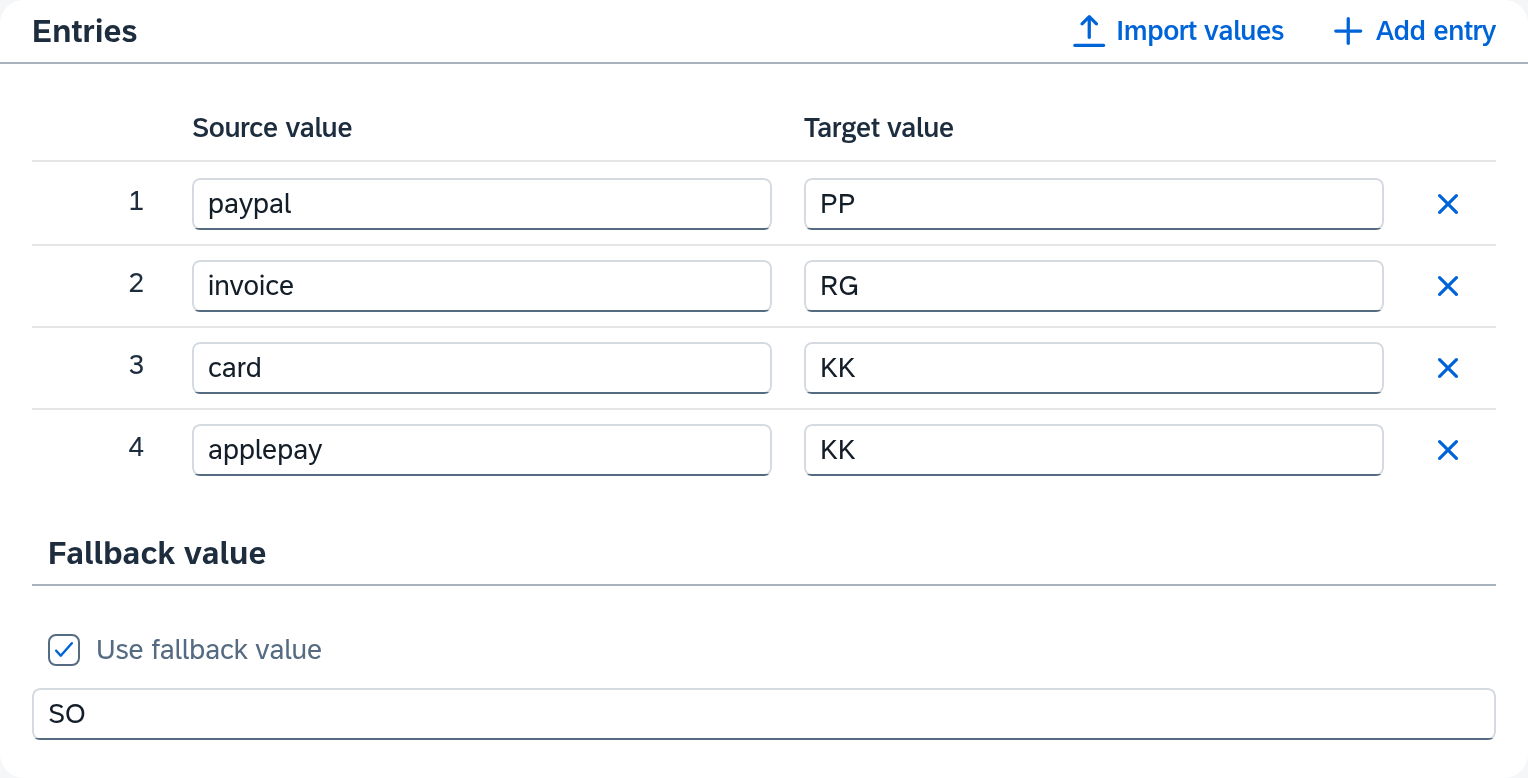
One row per translation.
| Column | Content |
|---|---|
| (first column, unlabeled) | the running number of the row |
| Source value | the value as the source system writes it |
| Target value | the value the target system expects |
On the right of the section's header row are Import values and Add entry. Add entry appends an empty row; the cross on the right of a row (Remove entry) takes it out again. The table first shows 100 rows and loads more as you scroll.
A new value table is saved with one empty row; everyone who opens the table sees that row. Only when no row is left does No entries yet. Add entries manually. take its place.
If the stored entries cannot be read, the table shows no entries, and above it reads: The stored entries and fallback value of this value table cannot be read. An empty table is shown; the stored entries are kept until you change the entries or the fallback value.
Xchange rejects four things on a row:
| Message | What you do |
|---|---|
| "Source value" is missing | fill it in |
| "Target value" is missing | fill it in |
| "Source value" is used more than once | remove or change one of the rows |
| Source value "_default" is reserved | choose another value — _default is reserved for the fallback value |
A row is marked red as soon as you have edited it, and wherever Validate on Configuration Snapshots found something — such a place is red even if you have not touched it yet. A row you have not edited and that no validation objected to stays quiet, even if the messages already list it.
A missing value in a row that the last validation did not yet know does not turn red. The messages list it in gray in its own group Missing required entries. It holds up activation all the same: Validate reports it as an error. More on this under Routes — The messages.
Removing a row
With the cross on a row, it depends on whether the row contains anything: a row you created and have not filled yet disappears at once. A row with content is only removed after a confirmation, and the confirmation names its source value — or the target value, if only that one is filled.
The fallback value
Below the entries is the Fallback value section with the checkbox Use fallback value. When it is switched on, an input field appears below it — that is the fallback value itself. The field sits unlabeled below the checkbox.
The fallback value is the target value for every source value that is missing from the table. For the
payment methods, it is SO: if a new payment method turns up in the shop, the document goes through with SO.
The word fallback value appears in two places. The fallback value of the value table — this one — steps in when the source value is there but missing from the table. The fallback value for an empty source value is in the settings of the mapping row on the Empty source value tab and steps in when the source value arrives empty. Both switches are called Use fallback value; which one is meant is told by the screen it is on. See Routes — Mapping.
How a value is looked up
Xchange compares the source value character for character with the left column. Upper and lower case
count, and spaces within the value count too: PayPal and paypal are two different values.
Xchange removes spaces at the start and end when saving — from source value, target value and
fallback value, whether you type the value or import it.
Then there are three outcomes:
| Case | Result |
|---|---|
| The source value is in a row | the associated target value |
| It is missing from the table, and a fallback value is set | the fallback value |
| It is missing from the table, and Use fallback value is switched off | the value is empty |
Without a fallback value, a value missing from the table disappears — it is passed on empty
instead of unchanged. In the example SO is set, so a new payment method klarna goes through
with SO; without a fallback value it would arrive empty in the target system.
What then happens to the empty result is decided by the empty behavior of the mapping row — just as for an empty source value, for which Xchange skips the table.
Importing values
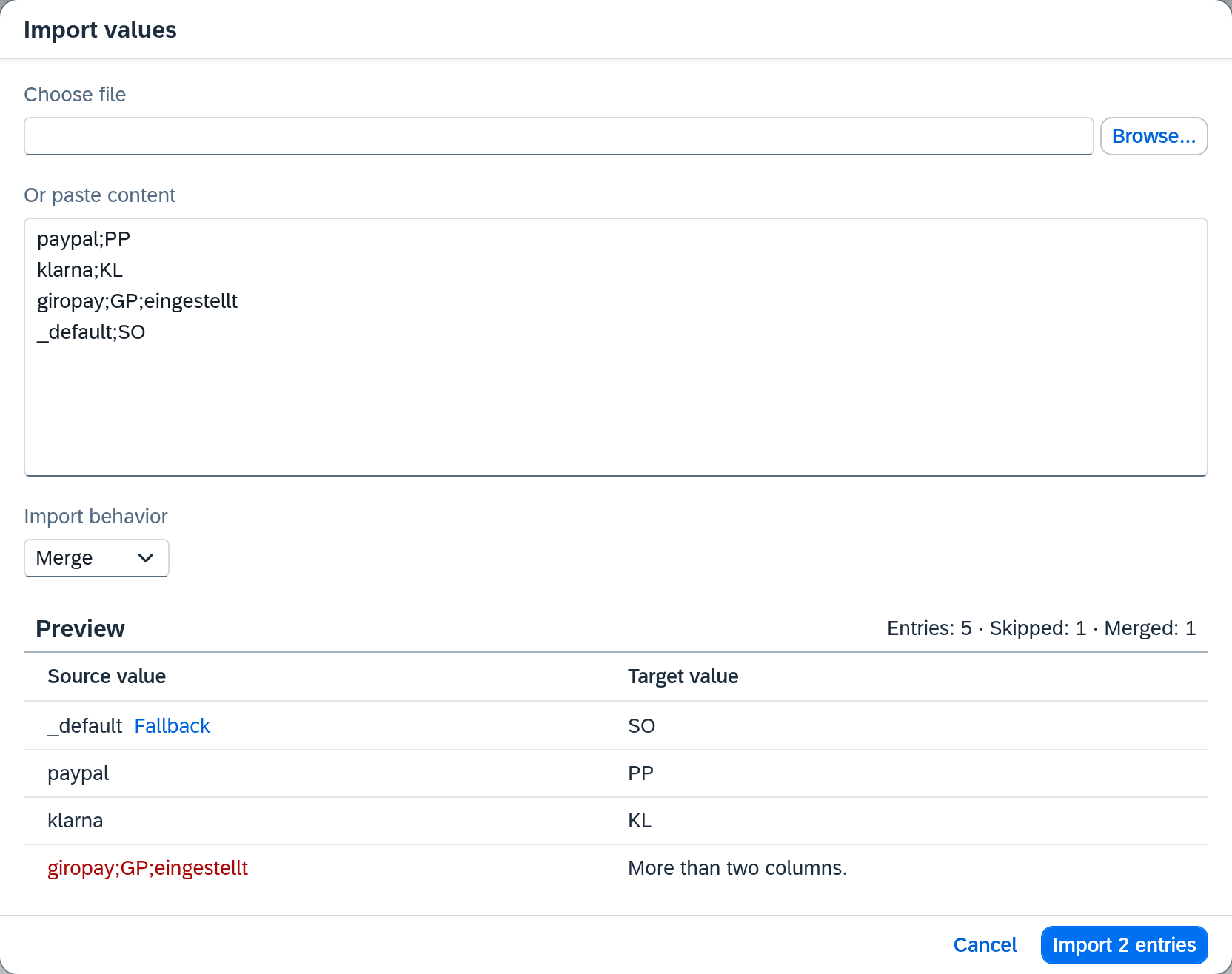
Import values is on the right of the header row of the Entries section. The dialog takes values from a file or from the clipboard.
| Field | Content |
|---|---|
| Choose file | a CSV, TXT or TSV file with two columns |
| Or paste content | the same content as text, one pair per row |
| Import behavior | Merge (preselected) or Replace; with Replace, "All existing entries and the fallback value will be overwritten." appears below it |
| Preview | what the import will produce, row by row |
A chosen file lands in the Or paste content text field. There you can still correct its content before the import.
Xchange detects the delimiter by itself. It checks tab, semicolon and comma, in that order; whichever occurs in more than half of the rows wins. Cells copied from Excel come with tabs, a German CSV file with semicolons — for both, pasting is enough. Empty rows do not count.
The two behaviors:
| Behavior | What happens |
|---|---|
| Merge | A source value that already exists is overwritten in place. New ones go to the end. Rows with neither source nor target value are dropped. The fallback value stays — unless the file brings one of its own. |
| Replace | All existing entries and the fallback value are overwritten. A file without a fallback value thus deletes it. |
The fallback value is in the file as a row with the source value _default. That is why this
source value is reserved in the table. In the preview, this row is at the very top, with the badge
Fallback.
If the file brings no _default row, the fallback value is gone after Replace, and missing
values arrive empty. The import is saved at once; Ctrl+Z brings back the previous state.
The import skips faulty rows — they stand at the end of the preview, red, with the reason next to them:
| Message | Meaning |
|---|---|
| No delimiter detected. Two columns separated by tab, semicolon or comma are expected. | No delimiter occurs in more than half of the rows; then every row is skipped. |
| Source value missing. | The left column is empty. |
| More than two columns. | The row has one delimiter too many. |
A single row without a delimiter in an otherwise valid file is not an error: it is taken over with an empty target value, and the messages then list the missing target value.
At the top of the dialog, a message about the file itself can appear:
| Message | Meaning |
|---|---|
| The file is … MB. The maximum is 5 MB. | The file is too large. |
| The file could not be read. | The file could not be opened. |
If two entries of the value table cannot be told apart, the dialog blocks the import and says: Two entries of the value table cannot be told apart. Reload the page and import again.
On the right of the Preview heading is the summary with three numbers:
| Number | What it counts |
|---|---|
| Entries | how many rows the value table will have after the import |
| Skipped | how many rows of the file were unusable |
| Merged | how many existing entries are overwritten, including the duplicates within the file |
If a source value appears twice in the file, the last occurrence wins.
The button at the bottom right says how many entries it imports — the _default row does not
count. Only a click on it transfers the values into the entries table; until then, the table
stays as it is. Afterwards, a short message confirms how many entries were applied.
Used in routes
On the right is the list of all routes that use this value table, grouped by connection. Each row gives the name of the route, to its right its object, and an icon in front shows the direction. Within a connection, the routes are in the same order as in the route list. The internal routes have no connection; they stand below "SAP Business One", which always comes first. A click opens the route.
If the value table is unused, it reads Not used here — "No route uses this value table."
Deleting a value table
Delete in the header removes the whole value table together with its entries. Xchange asks first and gives the name.
Deleting requires that the value table is unused. Delete stays available; if a route uses the table, instead of the confirmation a hint appears that says how many routes use it. Which ones they are is shown under Used in routes. First take the value table out of their mapping rows.
See also
- Convert and translate values (guide) — how to attach a value table to a mapping row
- Routes — Mapping (reference) — the mapping row, the empty behavior and the second fallback value
- Mapping (core concept) — how a target field gets filled at all
- Permissions (core concept) — which level is enough for what