System Status
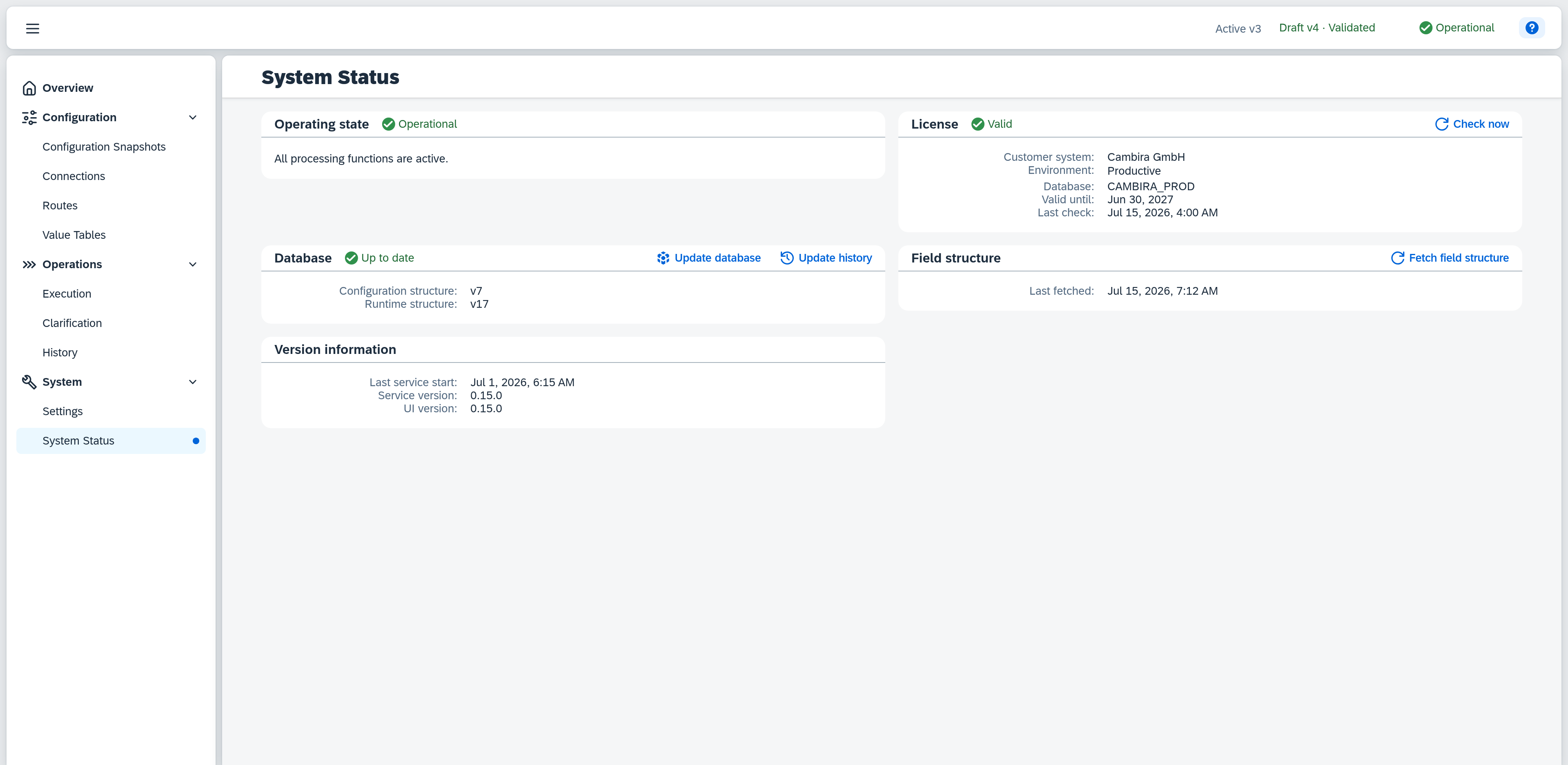
System Status shows the current runtime state of Xchange in four areas — operating state, license, database, and version information — and provides the corresponding administrative actions. Operating state matches the status badge in the header, with additional context here; when processing is halted, the Overview also leads you here under Action required. All information updates automatically.
Permissions
The page is visible once you have the System permission (Read or Full). The administrative actions — Repair event filter, Fetch field structure, Reset system, Update database, Finalize structural change, and Re-check — are only available with the System permission at the Full level. The two read-only actions Check now and Update history are already available at the Read level.
Operating state
| Status | Colour | Meaning |
|---|---|---|
| Operational | green | All processing functions are active. |
| Processing stopped | red | Processing is halted. A warning explains the exact cause — see below. |
| Database change detected | red | Xchange detected an external change to the database (e.g. a production database copied to a test environment) and halted processing until the system is reset. |
When the status is Processing stopped, a warning appears that names the exact cause. Causes you resolve on this page name the matching step as well:
- Event filters out of date: "The event filters are out of date and need to be repaired. Until then, Xchange does not process any changes from SAP Business One." — action Repair event filter.
- Database not at the expected state: "The database is not at the expected state. Update the database to resume processing."
- Procedure out of date: "A database procedure does not match this version. Update the database to resume processing."
- Permissions out of date: "The SAP Business One permissions do not match this version. Update the database to resume processing."
- Update failed: "Updating the database failed. Start the update again to resume processing."
- Update not completed: "Updating the database did not complete. Start the update again to resume processing."
- Service Layer restart pending: "The database structure has changed. Restart the Service Layer, then complete the operation."
- Service Layer out of date: "The Service Layer does not recognise structure that exists in the database. Restart the Service Layer, then re-check." — action Re-check. No update is outstanding here; the database is at the expected state, only the Service Layer has not picked that state up yet.
While the update itself is outstanding, the warning additionally carries the link Update the database now — it opens the same plan as the Update database action in the Database area. It is absent from both notices about the Service Layer, where Finalize structural change and Re-check respectively are the next step.
All remaining causes — a rejected service account permission or an unreachable sign-in, for example — carry the same explanation Xchange shows at startup when it comes up in this state. They are not resolved here but in the setup; the notice tells you what is wrong. Only a cause this interface version does not yet know falls back to the general text "Processing is stopped. The system needs attention."
Actions
- Repair event filter — Appears only while the event filters are out of date (see above). Rebuilds the internal processing state from the active configuration snapshot, with no confirmation dialog; the page then reloads automatically. If a route's event filter references a field that no longer exists in the target's field structure, the repair stops and names the route, its connection and the field: correct the route's trigger and activate the configuration — a successful activation clears the error.
- Reset system — Appears only in the Database change detected status. After confirmation, opens a modal progress dialog and then deletes all processing data and connection credentials; your configuration (routes, mappings, connections) is preserved and the configuration snapshot switches to draft. If a draft was already open at that moment, it is parked rather than deleted and can be restored later from Configuration Snapshots; the confirmation dialog announces this beforehand. This step cannot be undone.
The database actions live in the Database area. The full course — with the Service Layer restart by your IT in between — is described in the guide Update the database.
License
| Field | Note |
|---|---|
| Status badge | Current license status as a coloured badge — see status values below. |
| Development mode | Additional badge, only shown when the instance runs in development mode (license check bypassed). |
| Customer system | Name of the licensed customer system. Only shown when set. |
| Environment | Productive or Test — Test is additionally marked in orange. Not shown in development mode. |
| Database | Name of the connected database. Only shown when set. |
| Valid until | License expiry date. Only shown when set. |
| Last check | Time of the last license check. Only shown when set. |
| Last successful check | Time of the last successful license check. Only shown when it differs from the time of the last check — i.e. when the last check itself was not successful (e.g. the license portal was unreachable). |
Status values
| Status | Colour | Meaning |
|---|---|---|
| Valid | green | The license is valid. |
| Grace period | orange | The license portal is unreachable; the grace period is running. |
| Invalid | red | The license is invalid. New runs are blocked. |
| Expired | red | The license has expired. New runs are blocked. |
| Unknown | neutral | The license status could not yet be determined. |
Actions
- Check now — Queries the license status immediately, independent of the regular check interval. The button shows "Checking…" while the check is in progress.
Database
| Field | Note |
|---|---|
| Status badge | Current database status as a coloured badge — see status values below. |
| Configuration structure | Installed state of the structure Xchange stores its configuration in within SAP Business One, e.g. v7. If it deviates, the entry also names the expected state — v7 (expected v8). |
| Runtime structure | Installed state of the runtime data's structure, in the same form. Only shown once a state has been determined. |
Status values
| Status | Colour | Meaning |
|---|---|---|
| Up to date | green | The database is at the expected state. |
| Update required | orange | The database deviates from the expected state and must be updated. |
| Restart pending | orange | The database structure is in place; the Service Layer must be restarted and the structural change finalized afterwards. |
| Faulty | red | The last update failed. |
| Database newer than expected | red | The database belongs to a newer Xchange version than the running service. Update the service. |
A purely additive deviation — a single missing field, say — leaves the version entries unchanged, naming no expected state, and still reports Update required. Which gap is meant is named in the plan of the Update database action.
Actions
- Update database — Visible even when nothing is outstanding, not only when there is an error; highlighted while an update is outstanding. It first opens a plan: version transition, newly created structures, added field values, renewed procedures, renewed permissions, whether data is restructured or structures are removed, and whether a Service Layer restart is required afterwards. When there is nothing to do, the plan reports "The database is at the expected state. No changes are required."; when this database cannot be updated from the running version, the plan names the reason instead. Only the confirmation starts the update; its progress covers the UI as a display. While a run is in progress, and while only the finalization is outstanding, the action is hidden — Finalize structural change is then the only next step.
- Finalize structural change — Appears only while the Service Layer must be restarted. After confirmation, checks whether the Service Layer recognizes the new database structures and finalizes the operation; the operating state then returns to Operational. If the Service Layer has not yet been restarted, or cannot be reached at all, finalization aborts with the matching notice; the operation stays open and the action can be repeated. The same action also finalizes the first installation — it depends on structures having been created, not on which operation created them.
- Re-check — Appears only for the Service Layer out of date cause. Checks, with no confirmation dialog, whether the Service Layer recognizes the Xchange structures again; when it does, the stop ends and processing resumes. If it still does not recognize a structure, the notice names it — the restart did not take effect. If the Service Layer could not be reached at all, the notice says so too. The page reloads in both cases and the check can be repeated.
- Update history — Opens the history of database operations — see below. Already available with the System permission at the Read level.
Update history
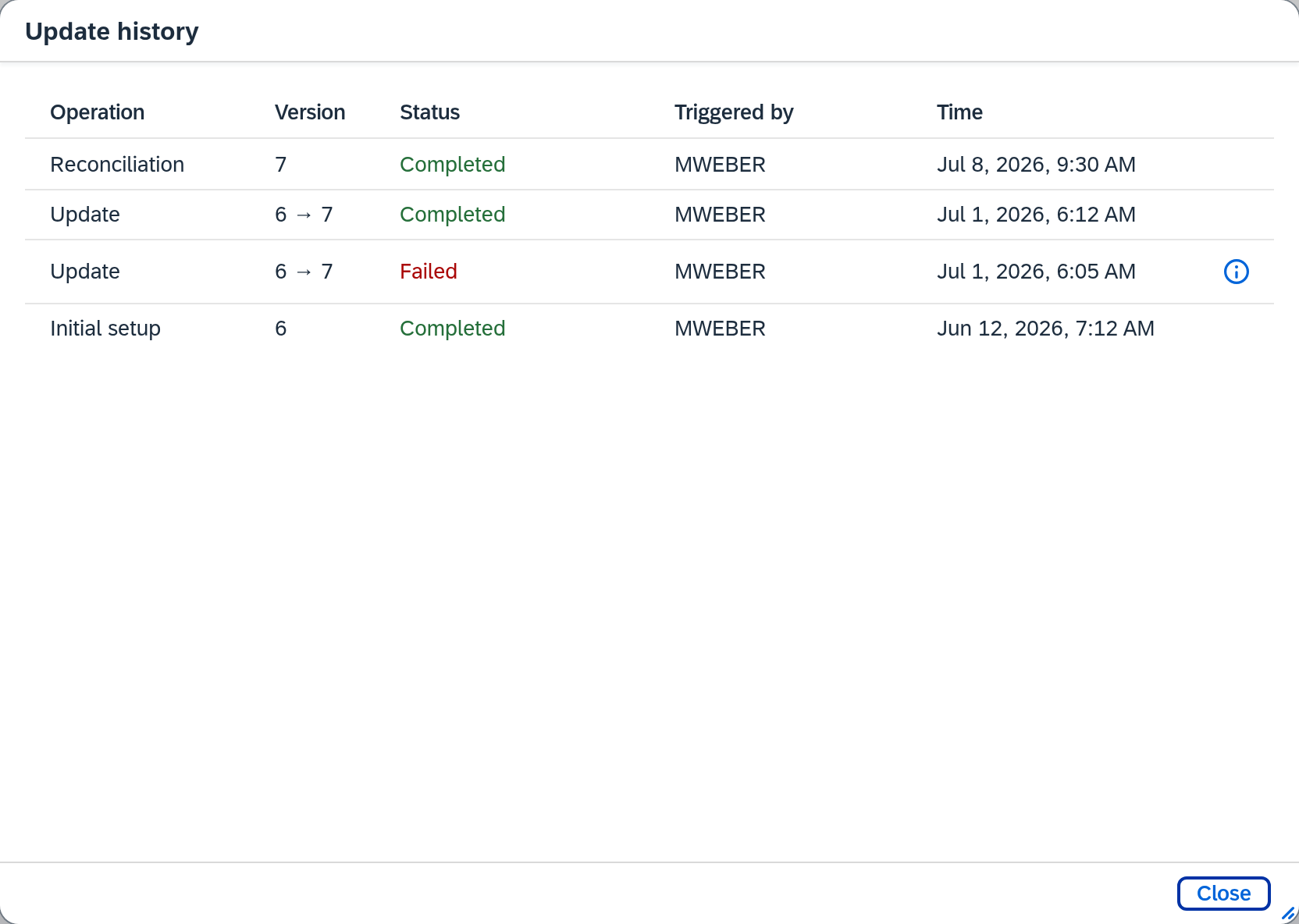
The history lists every database operation of this installation, most recent first.
| Column | Note |
|---|---|
| Operation | Kind of operation — see operations below. |
| Version | Target state of the operation, shown as a transition for an update — 6 → 7. |
| Status | Result of the operation — see status values below. |
| Triggered by | User who started the operation. |
| Time | Completion of the operation; for an operation still open, its start. |
| (untitled) | Button, shown only for a failed operation. It opens the technical error message the operation aborted with. |
Operations
| Operation | Meaning |
|---|---|
| Initial setup | The database structures were created for the first time. |
| Reconciliation | Missing structures, field values, procedures, or permissions were added without changing the version state. |
| Update | The database was brought to a new version state. |
Status values
| Status | Colour | Meaning |
|---|---|---|
| Completed | green | The operation ran through in full. |
| Failed | red | The operation aborted. The button in the last column shows the technical error message. |
| Awaiting restart | orange | The structures are in place; the operation stays open until the Service Layer has been restarted and Finalize structural change has run. |
When no operations have been recorded yet, the history reports "No updates recorded yet."
Field structure
The fields from SAP Business One that Xchange offers in the mappings and triggers of your routes. The fetch applies to the whole installation. The field structure of a connected external system is fetched by that connection instead.
| Field | Note |
|---|---|
| Last fetched | The moment Xchange last fetched the field structure from SAP Business One. While no fetch has been recorded, it shows "–". |
Actions
- Fetch field structure — Always visible, regardless of the operating state: fields can be created in SAP Business One at any time. Fetches the field structure again without a prompt; afterwards the field pickers of every route show the new state. If nothing has changed, a Field structure unchanged dialog says so — after a fresh change in SAP Business One that almost always means the Service Layer has not been restarted yet. The full course is described in the guide Pick up new fields from SAP Business One.
Version information
Informational only, with no actions.
| Field | Note |
|---|---|
| Last service start | Time the Xchange service was last started. Only shown when known. |
| Service version | Version of the running Xchange service. |
| UI version | Version of the user interface. |