Configuration Snapshots
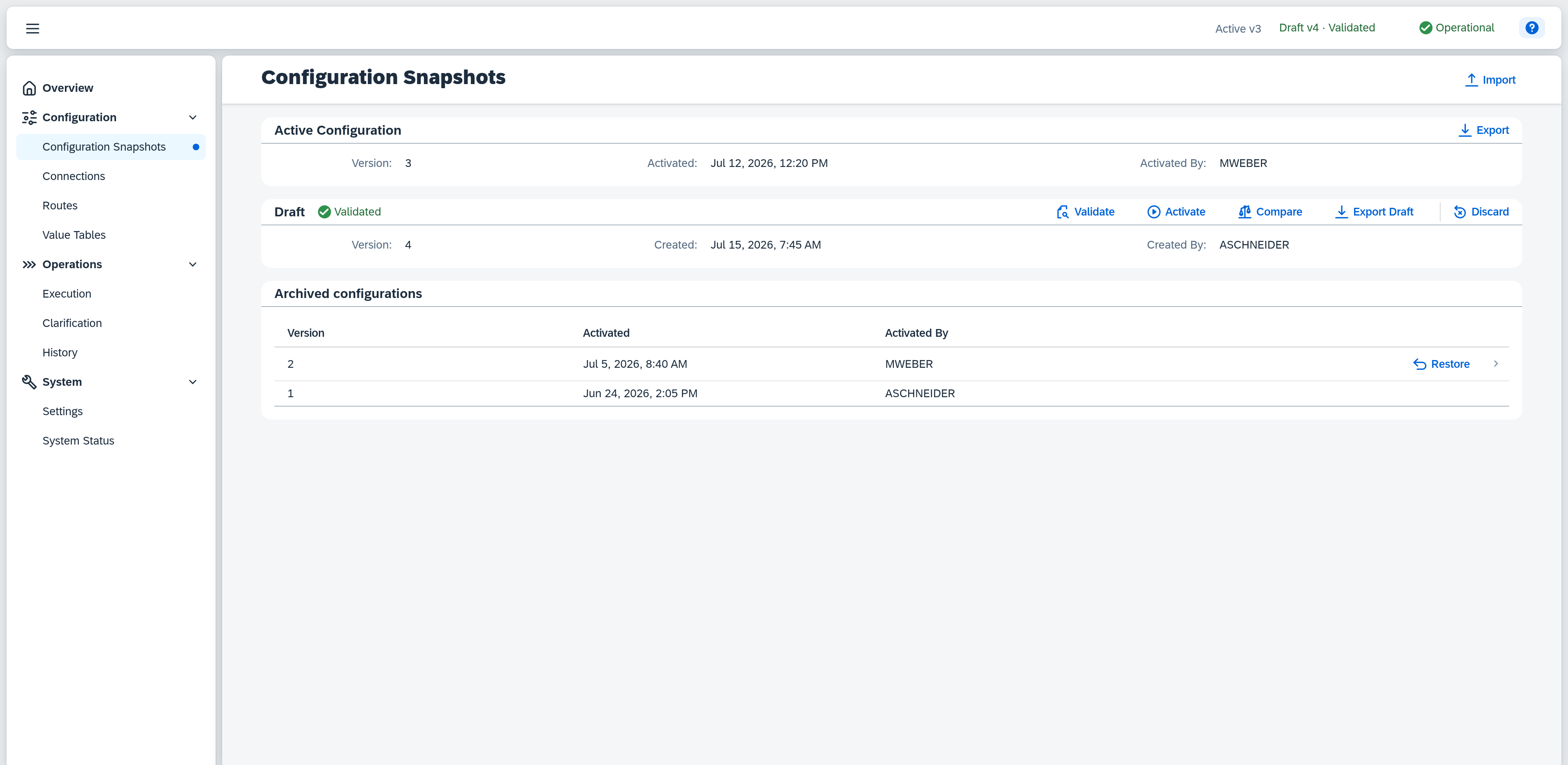
The Configuration Snapshots page shows which configuration is currently active and whether a draft with pending changes exists. A configuration snapshot is the collection of all connections, routes, and value tables that the system uses for processing. A draft contains changed configuration that takes effect only after a deliberate activation.
Permissions
The page is visible once you have the parent Configuration permission (Read or Full). The actions Validate, Activate, Discard, Import, and Restore additionally require the Configuration — Activation permission at the Full level. Export, Compare, and the comparison opened from an archive row are exempt — they change nothing and show nothing the detail pages do not already show you.
Active Configuration
The upper section shows the currently active configuration.
- Version — sequential number.
- Activated — date and time of the activation.
- Activated By — SAP Business One user code of the person who activated it (e.g.
MWEBER).
As long as no configuration has been activated, this area reads No active configuration. In that state no operations are processed.
Export downloads the active state as a .json file — to transfer it to another environment or to keep it as a backup.
Draft
As soon as something in the configuration is changed (e.g. a route is created or a connection is edited), a draft is created automatically. There is always at most one draft at a time — all further changes accumulate in the same draft until it is activated or discarded. When there is none, the draft area reads No draft available.
- Status badge — see the table below.
- Version — the version number the draft will receive after successful activation.
- Created — date and time of the first change.
- Created By — SAP Business One user code of the person who started editing (e.g.
ASCHNEIDER).
| Status | Meaning |
|---|---|
| Not Validated (neutral) | The draft has not been validated yet. |
| Validated (green) | Validation succeeded — ready for activation. |
| Contains Errors (red) | Validation failed — errors must be fixed first. |
| Validation Outdated (blue) | The draft was changed again after a validation. The last validation result stays visible but no longer applies to the current content — a new validation is required before activation. |
If the draft is edited again after a validation, the draft area additionally shows the note "The configuration changed since the last validation. Please validate again." Reloading the page drops that note and the validation result below it; the status Validation Outdated remains.
Validate runs a full check of the draft; the result appears directly below it (see Validation result). Activate is only available when the status is Validated — otherwise a short message points out that validation has to come first. A confirmation dialog asks before it proceeds and notes that running operations stay untouched; it is deliberately matter-of-fact, because activating is the regular next step and discards nothing. Export Draft downloads the draft as a .json file. Discard deletes the draft permanently; that dialog does warn, because the action cannot be undone. In both confirmation dialogs the focus starts on Cancel.
If one of these actions fails — because the Service Layer is unreachable, say, or because someone else changed the configuration in the meantime — a red message takes its place and says what to do. Technical details below it can be expanded; that text is meant for support, not for everyday work.
Validation result
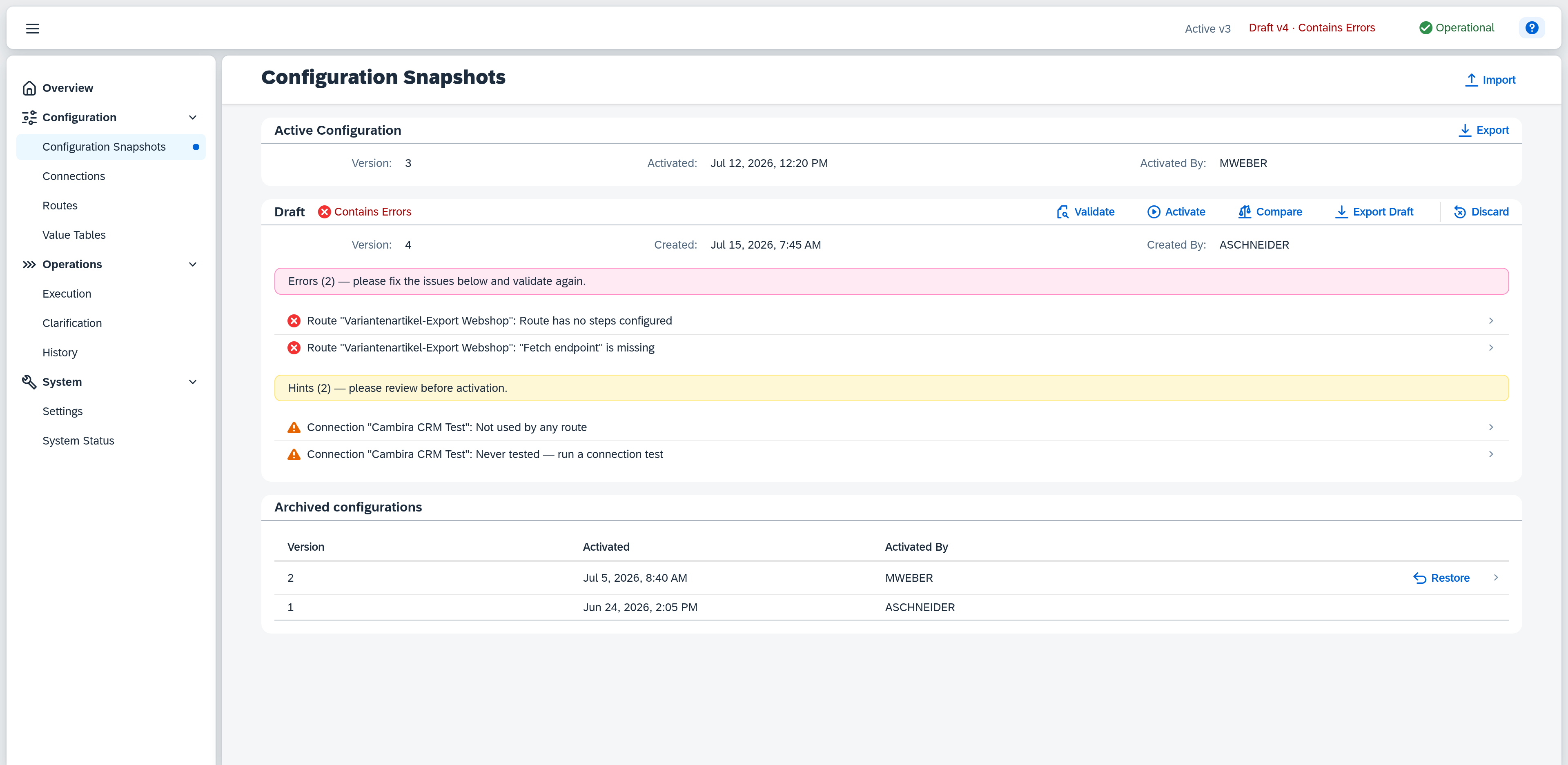
After Validate, the result appears below the draft details — in two separate blocks that show up independently of one another.
- Errors — a red bar names the count and asks you to fix the problems and validate again. Below it, every error is listed on its own row. While errors remain, the draft stays in status Contains Errors and cannot be activated.
- Warnings — an orange bar names the count and asks you to review them before activating. A warning is not an error: it does not block activation. Warnings report things that work but were probably not intended that way — a connection no route uses, or one that has never been tested.
A draft can have both at once, only one of the two, or — on a clean validation with nothing to note — neither. A draft in status Validated can carry warnings too.
Every message names the affected object and the problem. Rows with an arrow on the right lead straight to the source — a click opens the affected connection or route, switches to the right tab, and highlights the field, step, or mapping row in question. Messages without an arrow concern the configuration as a whole and have no single place to go to.
Messages are also marked at their source: a coloured dot — red for an error, orange for a warning — appears on the affected tab of the route editor as well as on the individual steps and mapping rows, each showing the most severe message it contains. That way you find the spot again even when the editor is already open.
Compare
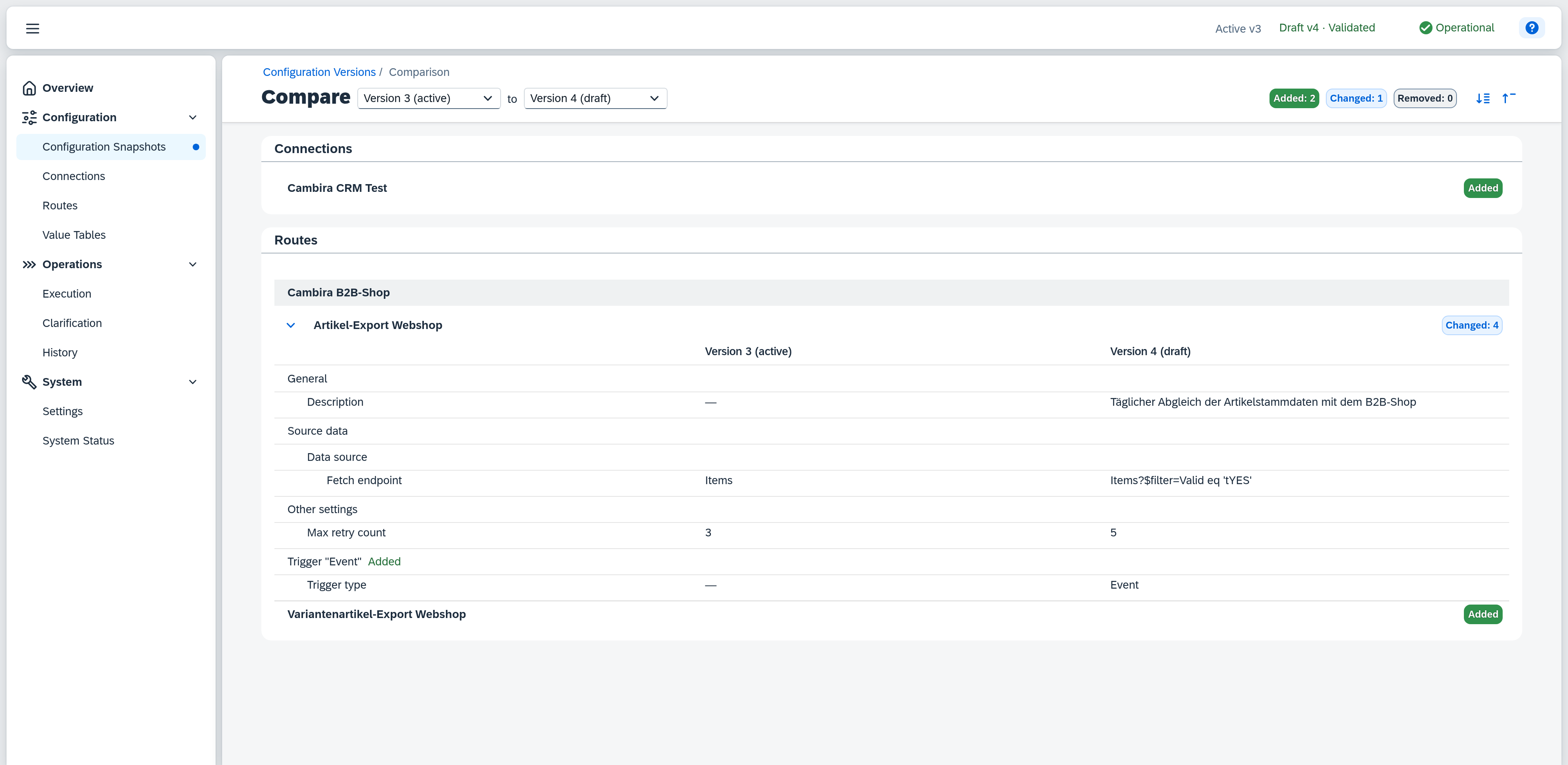
Compare answers the question of what actually changed in this draft. The button appears only when an active state exists alongside the draft; without one there is nothing to compare against.
The comparison is a page of its own. Above the heading, a breadcrumb Configuration Versions › Comparison leads back to the list. The heading itself names the two states being compared — Compare Version 3 (active) to Version 4 (draft) — and is the selector at the same time: the two dropdowns let you set any other pair, e.g. an archived state against the active configuration. Each entry names its version number and, where the state has a particular role, that role behind it — (active), (draft), (parked draft); an archived state stands there as a bare number. That way a parked draft can be set against any other state too. The older state always sits on the left and the newer on the right; a version that would reverse that is not offered in the opposite dropdown. On the right of the title row, three counters show how many objects were added, changed, and removed — counting the top-level objects, not their parts. Two icon buttons beside them expand or collapse every object at once; they appear only when there is something to expand.
The listing is grouped into connections, routes, and value tables, in that order; routes are further grouped by connection so that two routes sharing a name can be told apart. Routes without a connection are collected in a Without connection section at the end. If the two states differ in nothing, the list is replaced by No differences between the two configuration snapshots.
Every changed object expands into a table with three columns: the name of the field and one column per compared state. A badge on its header names how many fields differ, those of its parts included — so it counts fields, whereas the counters in the title row count objects. The comparison reaches into the parts a route is made of — steps, mappings, triggers, event filters, enrichments, and dispatch rules — and leaves out no changed field: conditions appear as a readable sentence, lists entry by entry, longer texts in full. In a list, a small icon beside an entry shows whether the value is a field reference or a constant value; when only the order changed, the row says so explicitly. An empty field appears as —. Fields that have no input of their own in the editor are collected in an Other settings section at the end.
Added and removed objects are named but do not expand — they have no counterpart to compare their fields against. Inside a changed object it works the other way round: when a sub-object is added or drops away — a trigger, an enrichment, a value table entry — its fields are shown, and a badge beside it names the kind of change. Nothing can be edited from the comparison.
Import
Use Import (top right) to load a previously exported configuration file. The import does not change the active configuration: it creates a draft, which is validated and activated like any other. A wizard runs in two steps — first the file with its key facts, then the objects it contains, which you decide on one by one. If a draft already exists, it asks beforehand whether that draft should be replaced or the import taken over into it.
Connection credentials — passwords, tokens, keys — are not part of the export for security reasons and have to be entered again after the import. The dialog points this out. The full procedure is described in the guide Export and Import Configuration.
Parked drafts
This section appears only when a parked draft exists — which normally means not at all. A parked draft arises solely from a system reset: if a draft was open at that moment, it is not deleted but set aside. An information strip in the section says so again.
Each row names the version, the creation time, and the user code — the same details as the draft. Clicking the row opens the comparison: against the open draft, or, when there is none, against the active configuration.
Two actions are available per row. Restore turns the parked draft back into the open draft. That requires no draft to be open at the moment — there is always at most one. If one is open, Xchange refuses the action with a short message; the button stays operable, because the draft can change from elsewhere at any time. Discard deletes the parked draft permanently, after a prompt.
Several rows are possible when the system has been reset more than once. The procedure is described in the guide Recover after a detected database change.
Archived Configurations
When a draft is activated, the state that was active until then moves into the archive. Parked drafts are not in this list but in the Parked drafts section above it — they were never active. The lower section lists these earlier states in descending order — with version, activation time, and user code. The 20 most recent are shown at first; More at the end of the list brings in the older ones. How many states are kept at all is a separate matter. As long as nothing has been archived, it reads No configuration snapshots have been archived yet.
Clicking the row opens the comparison of that version against its predecessor, showing what changed when this version was activated. The predecessor is the next-lower archived state — not necessarily the version number one below it, because retention removes old states from the bottom, which leaves gaps between two archived versions. On the oldest state still retained, the row stays inactive, because its predecessor no longer exists.
Every other direction of comparison — the archived state against the active configuration, say, to see what has changed in total since then — is set in the comparison screen itself, through the two dropdowns in its heading.
The only action here is Restore — it makes the version the active configuration snapshot again. The action of the same name on a parked draft does something different: it restores a draft, not an active state. It is offered only on the direct predecessor of the active configuration — that is, on the version that was active last. A confirmation dialog warns, names the target version, and points out that the state that is active now is archived in turn. An existing draft is preserved and can still be activated separately; the dialog says so explicitly when a draft exists. A validation result obtained earlier no longer applies afterwards, because it was obtained against a different active state — a new validation is required before the next activation.