Routes
A route defines which data is exchanged between SAP Business One and an external system — in which direction, for which object type, and over which connection. Routes are configured in the editor across several tabs; this page describes the list view and the first tab, General. Changes are collected in the draft and take effect when the draft is activated.
The editor orders the tabs the way a route comes into being:
| Tab | What for |
|---|---|
| General | What the route is — name, direction, type, data origin, object type, connection. |
| Source data | Where it reads from and how the data is prepared. |
| Mapping | How the fields are mapped onto the target structure. Processing routes only. |
| Dispatch | By which rules incoming messages are split across target routes. Dispatch routes only. |
| Automation | When the route runs on its own. |
Creating a new route? The guide Create a route walks through the creation dialog.
Permissions
The page is visible once you have the Configuration — Routes permission (Read or Full). New route, editing the fields, and Delete are only available with the same permission at the Full level — without it the route editor is read-only, across all of its tabs.
List view
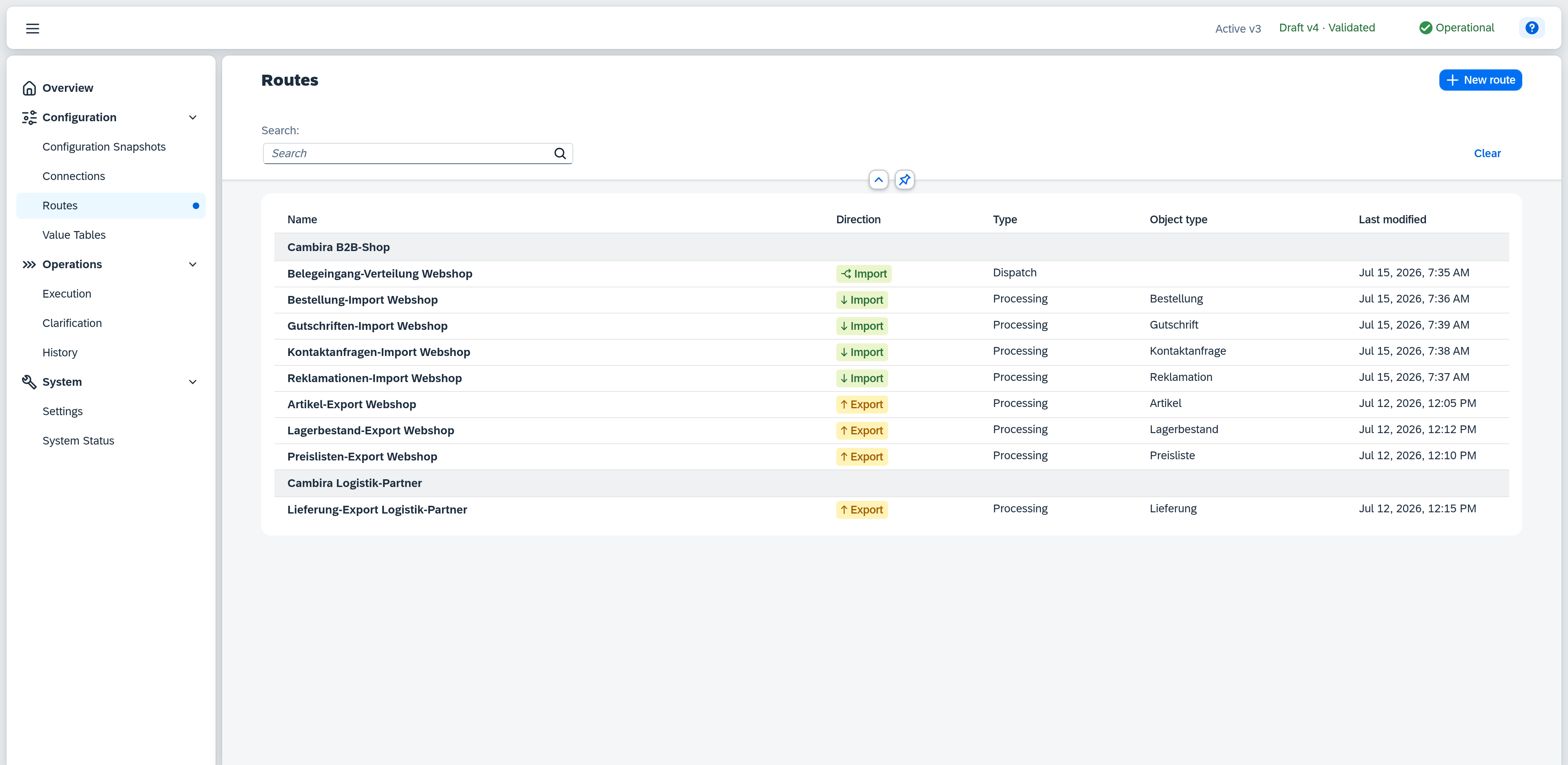
The list view shows every configured route, grouped by connection — the group header names the connection. Within a group the routes are ordered by direction and type, then by object type, and finally by name.
The Search field narrows the list by name and description. Where the search term matches the description, that description appears as a second line below the name — otherwise it would be unclear why the row is in the result. The search term lives in the page's address: you can bookmark the link or pass it on, reloading restores the filtered list, and closing the detail view returns to it.
Columns
| Column | Content |
|---|---|
| Name | Display name of the route. Click a row to open the detail view on the right. |
| Direction | Data-flow direction as a colored badge — e.g. Export (data leaving Xchange). |
| Type | Route type, which determines the processing pattern — e.g. Processing. |
| Object type | The business object type the route processes, e.g. Artikel. |
| Last modified | When the route was last changed. |
The connection is not shown as its own column but as the group heading (see above).
Actions
New route (top right) opens the creation dialog, where you set:
- Name — required, up to 150 characters.
- Direction (Import or Export) and Type (Processing or Dispatch) — see Direction and type.
- Data origin — where the route gets its data from; see Data origin.
- Object type — required for type Processing; pick an existing object type from the suggestion list or type a new name to create one. Not shown for type Dispatch.
- Connection — required; pick from the existing connections. If no connection is configured yet, a "No connection configured yet." hint appears with a Create connection link.
If a route with the identical combination of direction, type, object type, and connection already exists, a hint shows the name of the existing route — creation is still possible; the routes should then differ in their data filter.
Direction, type, data origin, and object type are immutable after creation; name and connection can be changed at any time. Cancel discards the input, Create creates the route and opens the editor.
For consistent naming of route and object type — which patterns prove themselves and why the name must carry on its own — see the guide Create a route and the concept Routes.
If another user is currently editing a route, an edit pencil appears in the Name column; a tooltip shows who is working on it.
Direction and type
Direction and type depend on each other:
- Dispatch is only available for import routes. Switching direction to Export in the creation dialog automatically resets type to Processing; conversely, Export is disabled while type is set to Dispatch.
- A dispatch route has no object type — the field is not shown for type Dispatch. Processing routes (import or export) always carry an object type.
This yields three valid combinations: Import + Processing, Export + Processing, and Import + Dispatch — there is no export dispatch. The default is Import + Processing with the data origin Queue. What a dispatch route configures is described in the Dispatch tab.
Data origin
The data origin defines where a route gets its records from. It is the editor's central switch: it decides which fields and areas appear on the Source data tab and which run types are offered.
| Data origin | Meaning |
|---|---|
| Dataset | The route reads by itself — it scans an endpoint and fetches the records. Export routes only. |
| Queue | The route processes what was delivered to it, draining a queue as it goes. |
| Dispatch input | The route gets its data from a dispatch route and reads nothing itself. |
Which values are available follows from direction and type: an export route always reads from the dataset, a dispatch route always from a queue — in both cases the dialog shows the single fitting value already selected. Only with Import + Processing do you choose between Queue and Dispatch input.
The data origin is immutable after creation — it shapes the whole remaining configuration of the route. If a route is to get its data differently, create it anew.
Detail view — General
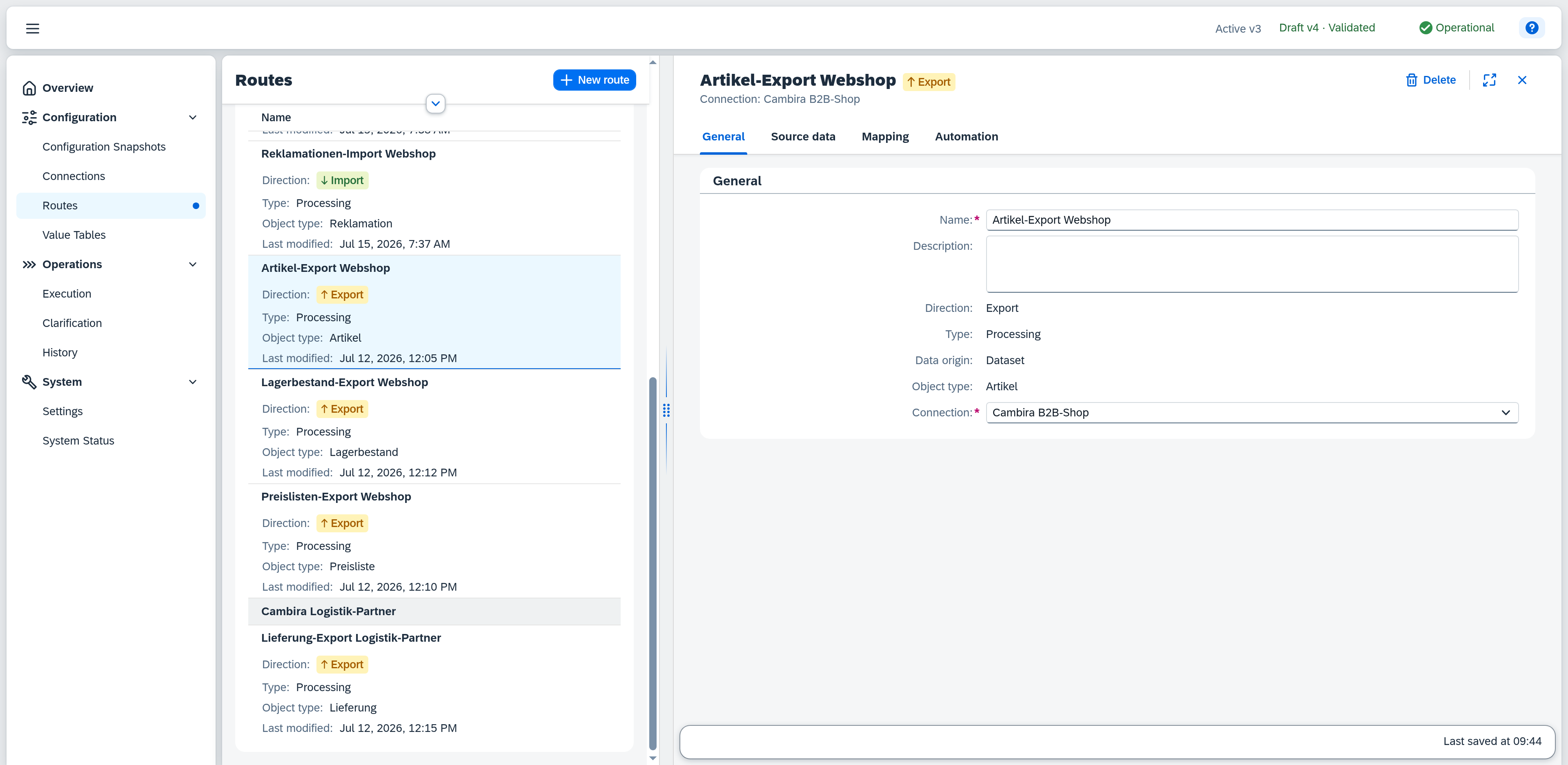
The route editor is organized into tabs. The first tab, General, shows the route's master data. The header names the route, with the direction beside it as a colored badge and the connection below it. Changes are automatically captured in the current draft — the timestamp of the last auto-save is shown at the bottom (footer).
| Field | Note |
|---|---|
| Name | Display name of the route. Required, can be changed at any time. |
| Description | Optional description of the route. Can be changed at any time. |
| Direction | Data-flow direction. Set at creation, cannot be changed afterwards. |
| Type | Route type. Set at creation, cannot be changed afterwards. |
| Data origin | Where the route gets its data from — see Data origin. Set at creation, cannot be changed afterwards. Processing routes only. |
| Object type | The route's business object type. Set at creation, cannot be changed afterwards. Processing routes only. |
| Connection | The connection the route communicates over. Selectable from the existing connections and can be changed at any time. |
A dispatch route has neither a data origin nor an object type — both rows are omitted for it.
Changing the connection re-checks for an identical combination of direction, type, object type, and connection: if this creates a duplicate with another route, the same hint as in the creation dialog appears, showing the name of the affected route — the change is still possible.
Message strips
Three strips can appear above the tabs. They concern the whole route and therefore show on every tab:
| Strip | When |
|---|---|
| Currently being edited by … — your changes may conflict | Another user currently has the route open. |
| This record was modified by … | Your change could not be saved because the record was modified elsewhere in the meantime. The close icon loads the current state; the footer additionally offers Reload and Save anyway. |
| Duplicate hint | The chosen connection produces the same combination as another route (see above). |
Delete route
Delete (top right) removes the route from the draft. A confirmation dialog names the route and points out that the route and its entire configuration will be deleted and that this cannot be undone. After deletion a short toast confirms "Route deleted", and the detail view closes.
Check errors and warnings
At the bottom of the editor, a button bundles all open items of the route across every tab. It shows the number of errors — or, if there are none, the number of warnings — and only appears when there is something to check. Clicking it opens the issue list with all messages, grouped by tab; clicking an entry jumps straight to the affected spot. In addition, a colored dot marks the location on the respective tab. Errors must be resolved before the draft can be activated.
The issue list runs continuously — it always shows the current state of this one route and is not the result of the Validate action. That action validates the entire draft on the Configuration Snapshots page and produces the validation result that activation depends on.