A field is missing from the mapping
On Monday, October 5, the webshop rejected every item change. The technical details of the job quoted the shop's response verbatim:
400 Bad Request – field "taxClass" is required
An overnight update had added a required field to the shop that the route "Artikel Webshop" does
not fill. The service provider rolled the update back the same day, and that settled the case. Had
the provider kept it, taxClass would have needed a mapping — except that the field is missing from
the picker when you open it in the mapping.
A single field is missing from the picker. What follows: where the picker's content comes from, the three places where a field can drop out, and what you do at each of them.
What you need
You are on the Mapping tab of a route, a step is selected, and you are working in the Mappings table. Anyone who can open the route may look. You can change the mapping only with write access to the configuration; one of the three remedies below also needs full access to System.
Xchange saves every entry immediately. It takes effect only once you activate the configuration snapshot.
Where the picker's content comes from
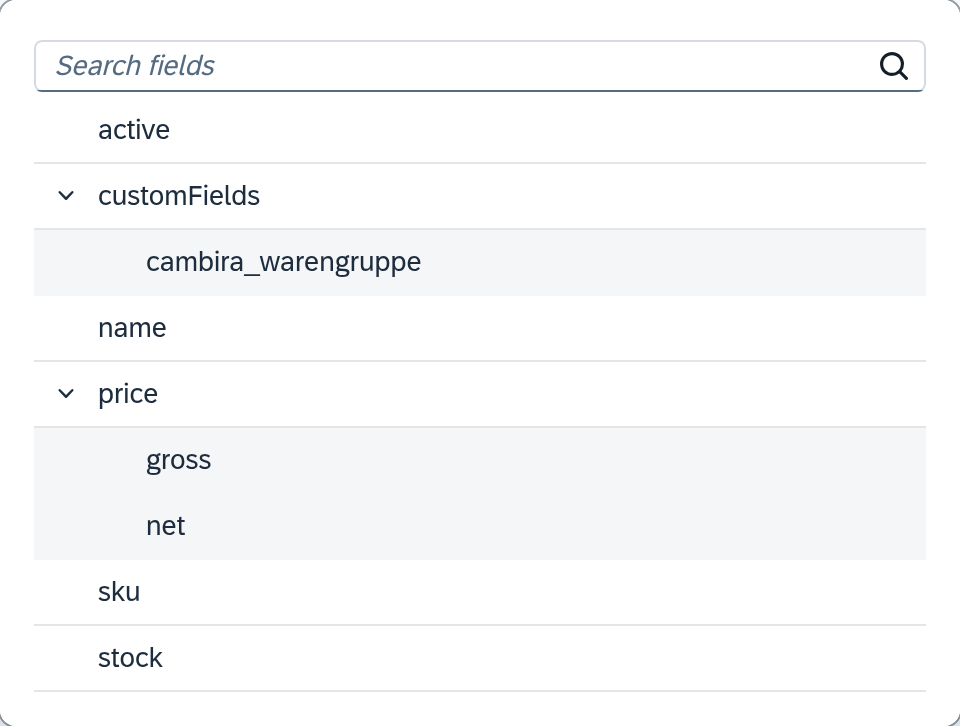
The Source and Target field columns are input fields with a value help: you can type, or you open the field tree and choose an entry. What this tree contains depends on whether the target can describe itself.
A target that can describe itself supplies its fields itself. In an import and on an internal route, the target is SAP Business One, and Xchange reads the fields there. In an export, it depends on the target system — some expose their structure, many keep it to themselves.
The other targets are read from an example. You insert a target structure — a sample record in the form the target system expects — and Xchange derives the field list from it. Until then, the empty field tree shows exactly that as a prompt: Insert the target structure. In an import, it shows Select the target endpoint. instead.
In both cases: The picker shows what Xchange found the last time it looked. If the target system changes after that, the picker stays at the old state.
The field is new in the other system
You have created a field in SAP Business One and want to map it. It is missing from the picker.
This is the most common of the three cases, and it has a complete remedy. Two things must happen, in this order:
- The Service Layer is restarted. A field newly created in SAP Business One becomes visible to Xchange only after that.
- The field structure is fetched. The System Status screen has the Field structure section, and in it the Fetch field structure button. After the fetch, Last fetched shows the new time, and the field is in the picker.
The message Field structure unchanged is the answer to a missing restart. It appears when the fetch returns the same as last time — so if you have just created fields, the step before is missing.
If the button is missing, you lack full access to System. The fetch is then the task of a role with this permission; which one that is, is described under Permissions.

The field is listed but cannot be selected
You see the name in the tree, but clicking it does nothing. The picker stays open, the field stays empty. There are two reasons for this, and they are easy to tell apart.
The entry is a group. A field tree bundles related fields under one name, and that name serves as a heading. Expand it and choose below it. How to recognize it: an entry with indented entries below it is a group. The entries below it are selectable; that clicking the heading does nothing is intended.
The entry belongs to a list. Repeating structures — the lines of a document, for example — are mapped through a row type of their own instead of as an ordinary target field, and that is a task of its own: Map header and lines.
A note on depth: the field tree shows nested structures down to a fixed depth. Anything deeper you enter into the field by hand — the column accepts a typed path just as it accepts a selected one.
The target requires a field you do not know
This is the case from October 5. The shop requires taxClass, and it is missing from the picker —
because the target structure from which Xchange reads the fields dates from before the update.
The remedy is a new target structure. Open the Step settings from the step bar and, there, the Target structure tab. Insert a sample record in the form the target system expects today. After that, the field is in the picker.
Where you get this sample record from is a question for the target system: from its interface description, or from whoever operates it. The error response itself usually names only the field; its position in the structure is in the description.
You can also enter the field directly. The Target field column accepts a typed name and keeps it. The tree continues to show what comes from the schema and from the inserted target structure. The test area shows whether the typed name works.
A field from your inserted target structure is in the tree even when the target system's field information does not know it. If you map it, Validate reports the difference — as an error for SAP Business One, and for other target systems as a warning that does not hold up activation.
When the whole structure is missing
If the picker is entirely empty, the whole structure the fields come from is missing — that is a different situation with a different way out. It starts where the empty field tree prompts you with Insert the target structure. or Select the target endpoint.
What comes next
Once the field is in the picker and mapped, check the step in the test area and then activate the configuration snapshot. Jobs that ended up in clarification during the disruption you catch up on afterwards: Retry failed jobs.
See also
- Map header and lines when the target splits differently (guide) — when the field you are looking for belongs to a list
- Routes — Mapping (reference) — all fields and columns of the mapping table
- Clarification (reference) — where the rejected jobs are
- Permissions (core concept) — who may fetch the field structure