Automation
The Automation tab of the route editor defines when a route runs on its own. For that you create one or more triggers. Without a trigger the route is only started manually from Execution. Changes are collected in the draft and take effect when it is activated.
Where a route reads from and which records it includes is not here but on the Source data tab — that is where you find the fetch endpoint, data filter and change filter.
- Scheduled
- Event
- Dispatch input
Permissions
The page is visible once you have the Configuration — Routes permission (Read or Full). Without the Full level the route editor is read-only: you see the configuration but cannot change it.
Triggers
The list of configured triggers is on the left, the configuration of the selected trigger on the right. If none is configured yet, the right-hand side shows the note "No triggers yet" — the route is then only triggered manually.
Add trigger opens the Choose trigger type dialog. On offer are Scheduled ("Starts the route on a fixed schedule.") and — for export routes only — Event ("Reacts when a record is created or changed."); Select creates the trigger, after which the corresponding fields appear on the right. A Dispatch input cannot be added manually; it is created automatically as soon as a dispatch rule targets the route (see below). Once the route carries a dispatch input, the Add trigger button disappears entirely — no further trigger is allowed beside it.
Delete trigger above the detail view removes the selected trigger after a confirmation ("The trigger '…' will be deleted. This action cannot be undone."). For a dispatch input the button is not shown.
If a validation note concerns the trigger as a whole rather than a single field — a missing operation type, say, or two triggers with the same run type — it appears as a message strip above the fields.
Scheduled trigger
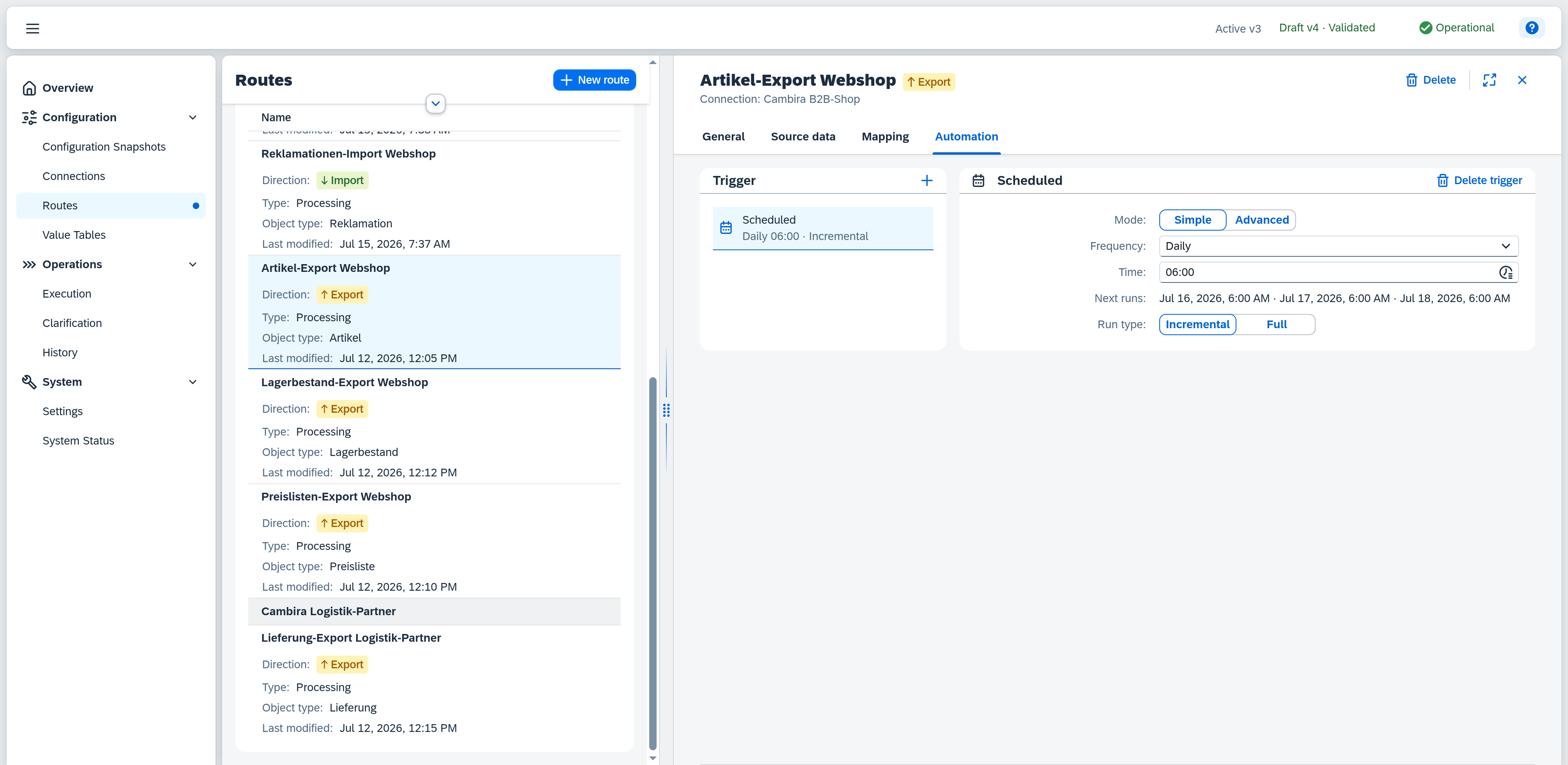
A scheduled trigger starts the route on a fixed schedule. Mode selects how you state the schedule: Simple through the fields below, or Advanced through a cron expression. Next runs shows, in both modes, a preview of the upcoming runs (server time) that result from the configured schedule.
Simple
The fields shown depend on the chosen frequency:
| Field | Note |
|---|---|
| Frequency | Every N minutes, Every N hours, Daily, Weekly, or Monthly. |
| Interval | For Every N minutes / Every N hours: the gap between two runs. |
| Weekdays | For Weekly: the days the route runs; at least one is required. |
| Day of month | For Monthly: the day (or Last day for the end of the month). For the days 28 to 31 the note "Months without this day are skipped — choose 'Last day' for the end of the month." appears. |
| Time | For Daily / Weekly / Monthly: the start time. |
Advanced
In Advanced mode you state the schedule as a cron expression (required, example 0 6 * * *). The simple mode's fields are omitted, the preview stays.
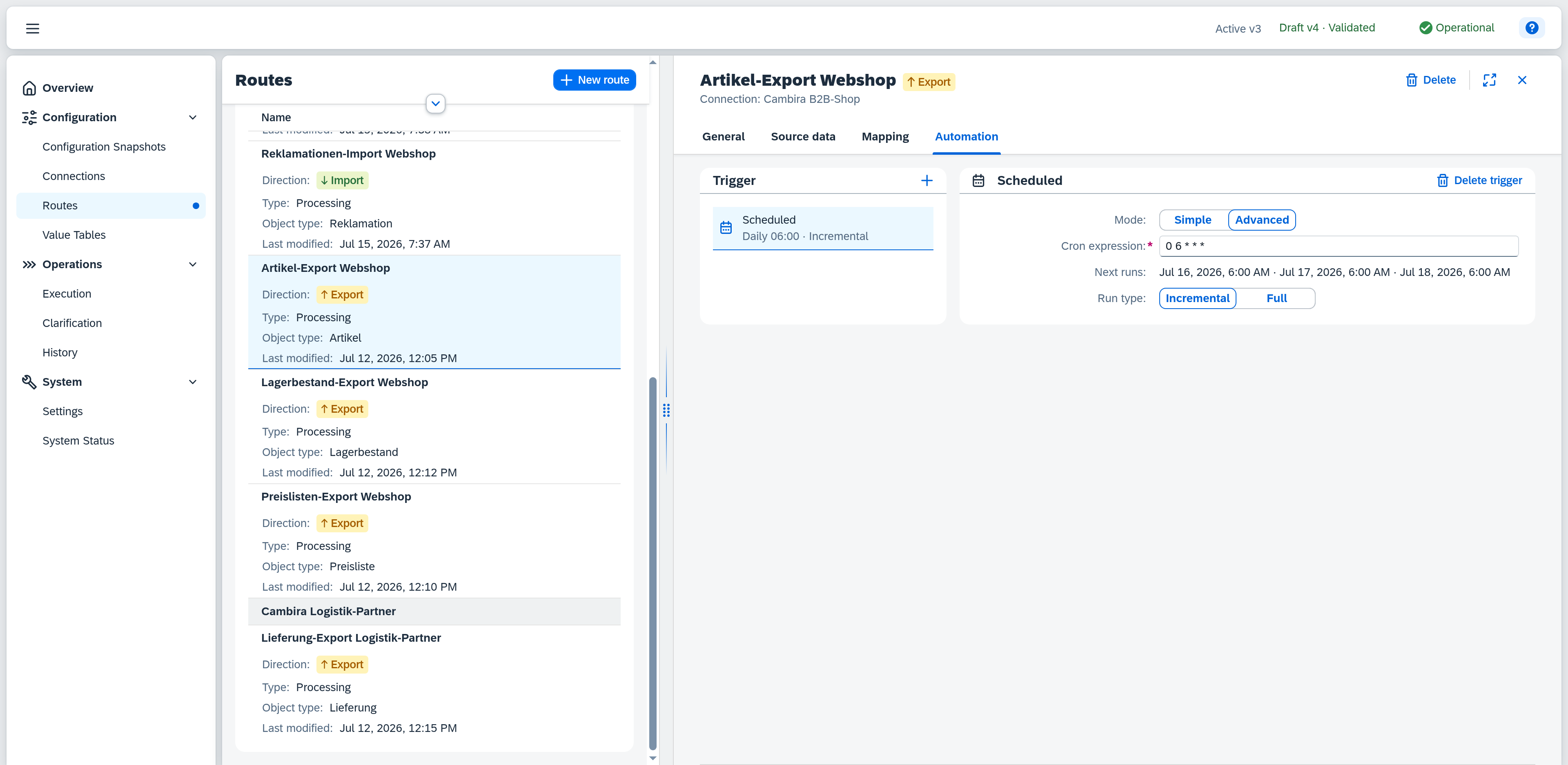
Switching between the modes carries the schedule over as far as that is possible: a simple schedule appears as an expression after switching to Advanced. The other way round, not every expression can be transferred into the simple mode's fields — a note then says "Expression is too complex for simple mode — switching back to simple mode resets the expression.", and the expression is discarded on the switch.
Run type
The run type determines which data a run processes; which run types are offered depends on the route's data origin:
- Incremental — only records changed since the last run. With data origin Dataset.
- Full — all records. With data origin Dataset.
- Drain queue — processes the entries currently waiting. With data origin Queue. You can additionally set Items per cycle to cap how many entries a run processes; empty means unlimited.
The run type belongs to the scheduled trigger.
If the run type is Full and the frequency is Every N minutes, a note points out the effort: "A full run transfers all data every time. At such short intervals that is usually unnecessary — 'Incremental' transfers only changes."
Cleanup
Directly below the run type, under Cleanup, sits the checkbox "Report records outside the data filter". It is only shown when both hold: the run type is Full, and the route's delete behaviour is set to Deactivate in the target system.
When it is set, Xchange compares after the run which records the route has transmitted before and did not transmit this time, and reports each of them to the target system. The reconciliation belongs to the individual trigger, not to the route: a weekly schedule may clean up while a nightly one beside it does not.
If the run type changes away from Full, the checkbox is reset — an incremental run does not see the entire data set and therefore cannot determine which records have dropped out.
Event
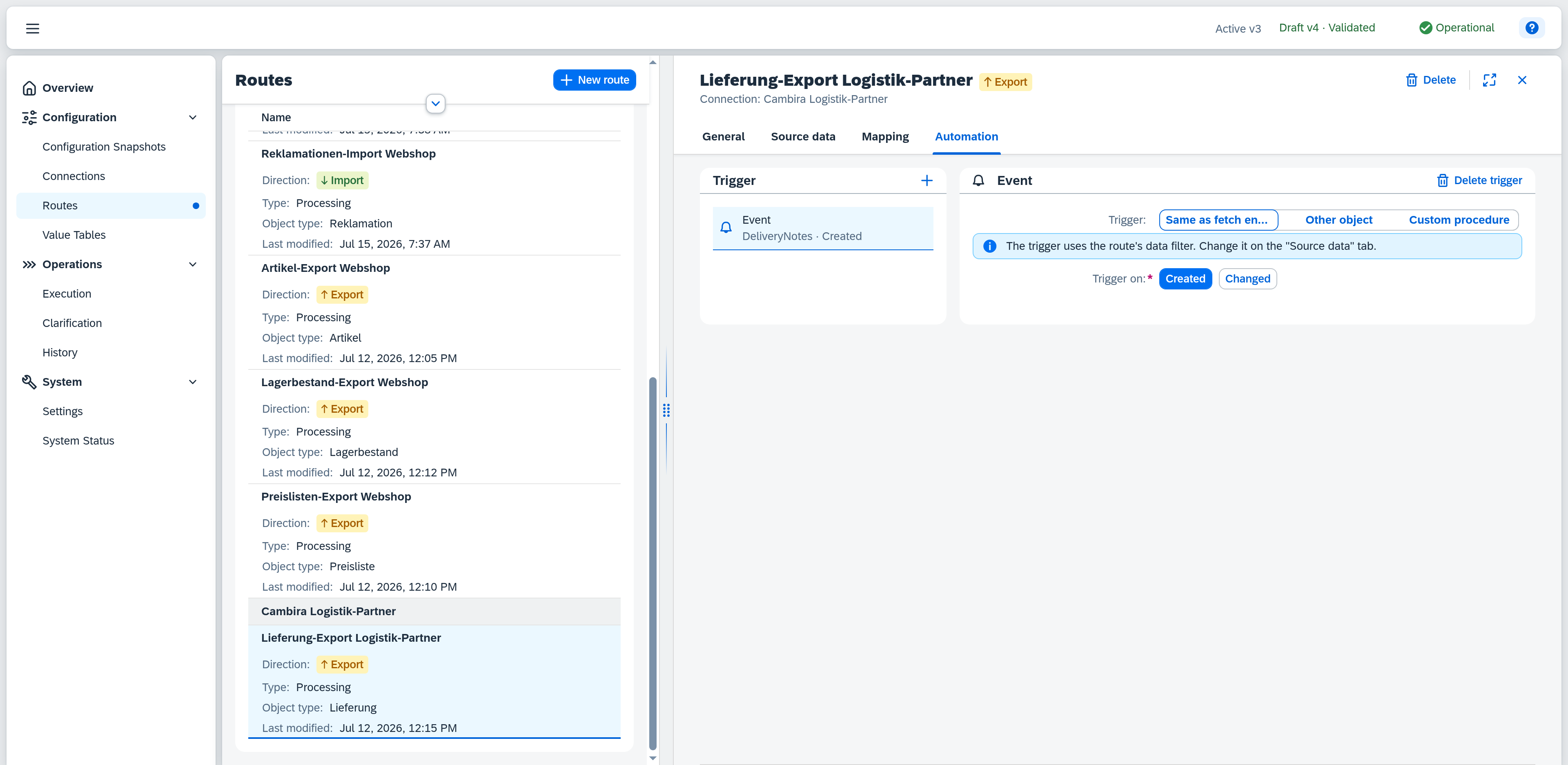
A trigger of type Event reacts to transaction events in SAP Business One — e.g. when a document is created or changed. Event triggers are available for export routes only: an event in SAP Business One kicks off the export of the affected data.
The Trigger field determines which object the trigger listens to and what narrows it down. The remaining fields follow from it:
| Trigger | Meaning |
|---|---|
| Same as fetch endpoint | The trigger listens to events of the same object the route reads from, and adopts its data filter. |
| Other object | The trigger listens to a different object and brings its own field conditions. |
| Custom procedure | A stored procedure defined in SAP Business One decides which operations generate an event. |
| Field | Note |
|---|---|
| Trigger on | Which operation types trigger: Created, Changed — at least one is required. With Custom procedure the field is omitted, because the procedure determines this itself. |
| Object | Only with Other object: the SAP Business One object whose events trigger the route. The list is sorted alphabetically and holds standard objects, user tables and user-defined objects in one common selection — only what reports events in SAP Business One at all is listed; required. |
| Fetch-key field | Only with Other object, and only if the chosen object differs from the fetch endpoint: the field of the event object that carries the key of the record to export. |
Same as fetch endpoint
If the route listens to events of the same object it reads from anyway, there is nothing further to set here: trigger and fetch share the route's data filter. The same conditions then decide in both directions — which records a run fetches, and which events start a run at all. A note says so: "The trigger uses the route's data filter. Change it on the "Source data" tab."
Not every data filter can be carried over to an event, though: a condition on linked data only takes effect if the filter consists of a single group combined with AND. If it is built differently, a warning appears — and the draft cannot be activated until that is resolved: "A condition on linked data can only be evaluated for the trigger if the data filter consists of a single 'AND' group. Resolve the OR on the 'Source data' tab, supply your own procedure, or remove this trigger. While the condition stays as it is, the route cannot be activated."
The mode is only offered if the fetch endpoint's object reports events in SAP Business One at all. If it reports none, the mode does not appear.
Other object
Here the trigger listens to an object other than the one the route reads from — e.g. when a change to a line item is meant to kick off the export of the document it belongs to. This mode brings its own restriction, independent of the route's data filter.
If the route has a data filter on the Source data tab, a note points out that it does not apply here: "The source data filter does not apply to this trigger. Only the conditions below decide. Add any restriction that is also meant to apply to the event there."
Conditions are organized into groups — up to 3 groups with up to 5 conditions each. Within a group they are combined with AND or OR; the groups themselves are always combined with OR (a "— OR —" separator sits between them).
| Field | Note |
|---|---|
| Field | A field of the chosen object, selected via the field picker; required. Fields that SAP Business One cannot evaluate at event time are marked "Only evaluable on fetch" and cannot be selected. |
| Operator | The same operators as in the data filter; depending on the type of the chosen field, only a matching subset is offered. |
| Value | The comparison value. For is empty / is not empty the value field is omitted. If the field offers fixed values, a dropdown appears instead of the input field. With is one of / is none of a value list takes the place of the single value. On a date field, the calendar icon in the value field sets "Today" as the comparison value. |
The condition editor is the same as the data filter's — layout and operation are identical. The day-granular comparison of date fields applies here too; "Today" is determined anew for every event.
Custom procedure
In the Custom procedure mode a stored procedure defined in SAP Business One takes full control over event generation — object, operation types and field conditions are then omitted.
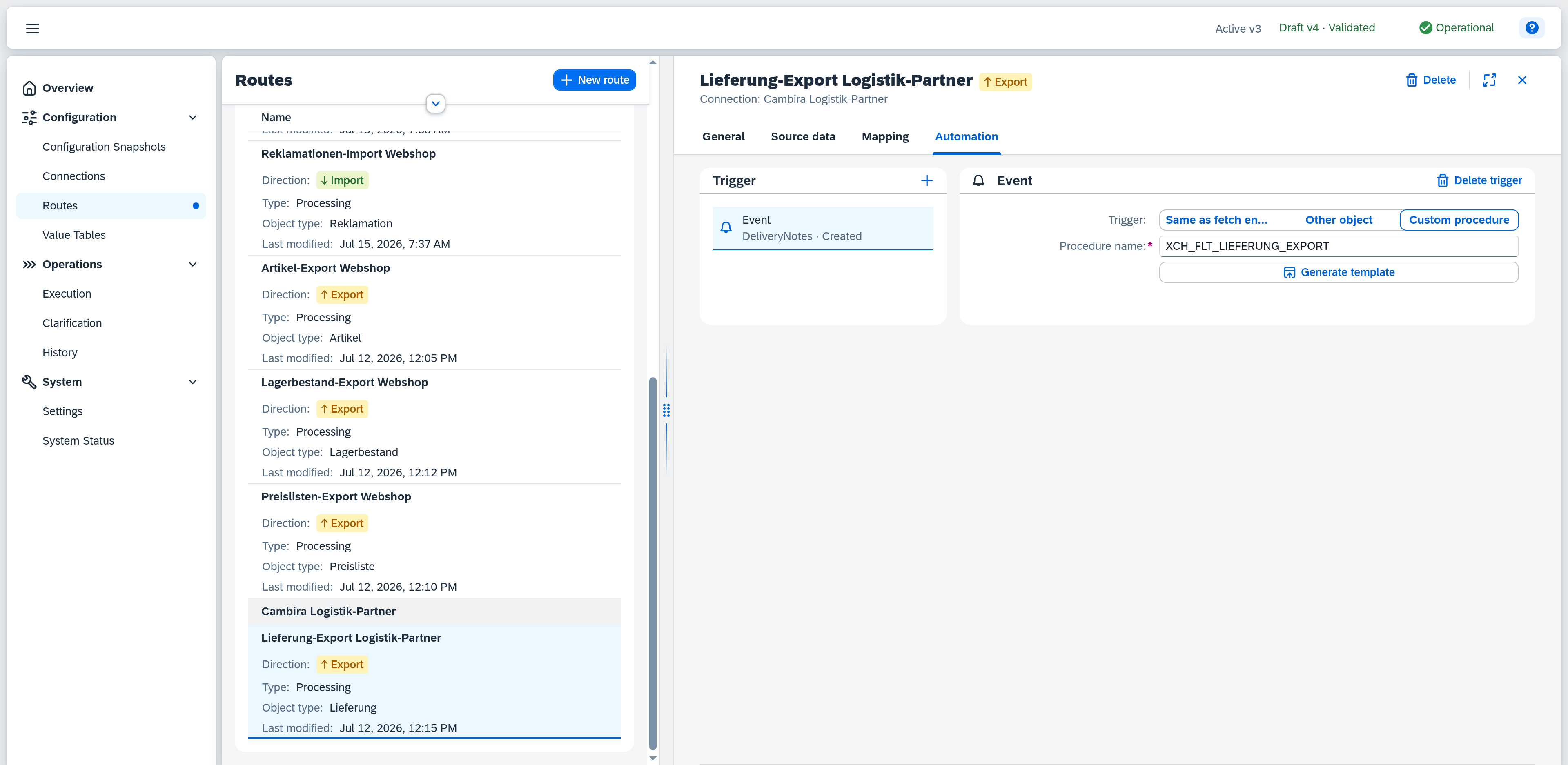
| Field | Note |
|---|---|
| Procedure name | Name of the stored procedure; required. If no procedure with this name exists, the note "No stored procedure with this name was found." appears. |
Generate template opens the Custom procedure template dialog with an SQL template as a starting point for the procedure. The Skeleton tab shows the bare frame; Field change additionally evaluates changed fields and only appears if the object keeps a change history in SAP Business One. Copy puts the displayed template on the clipboard, Close dismisses the dialog.
Dispatch input
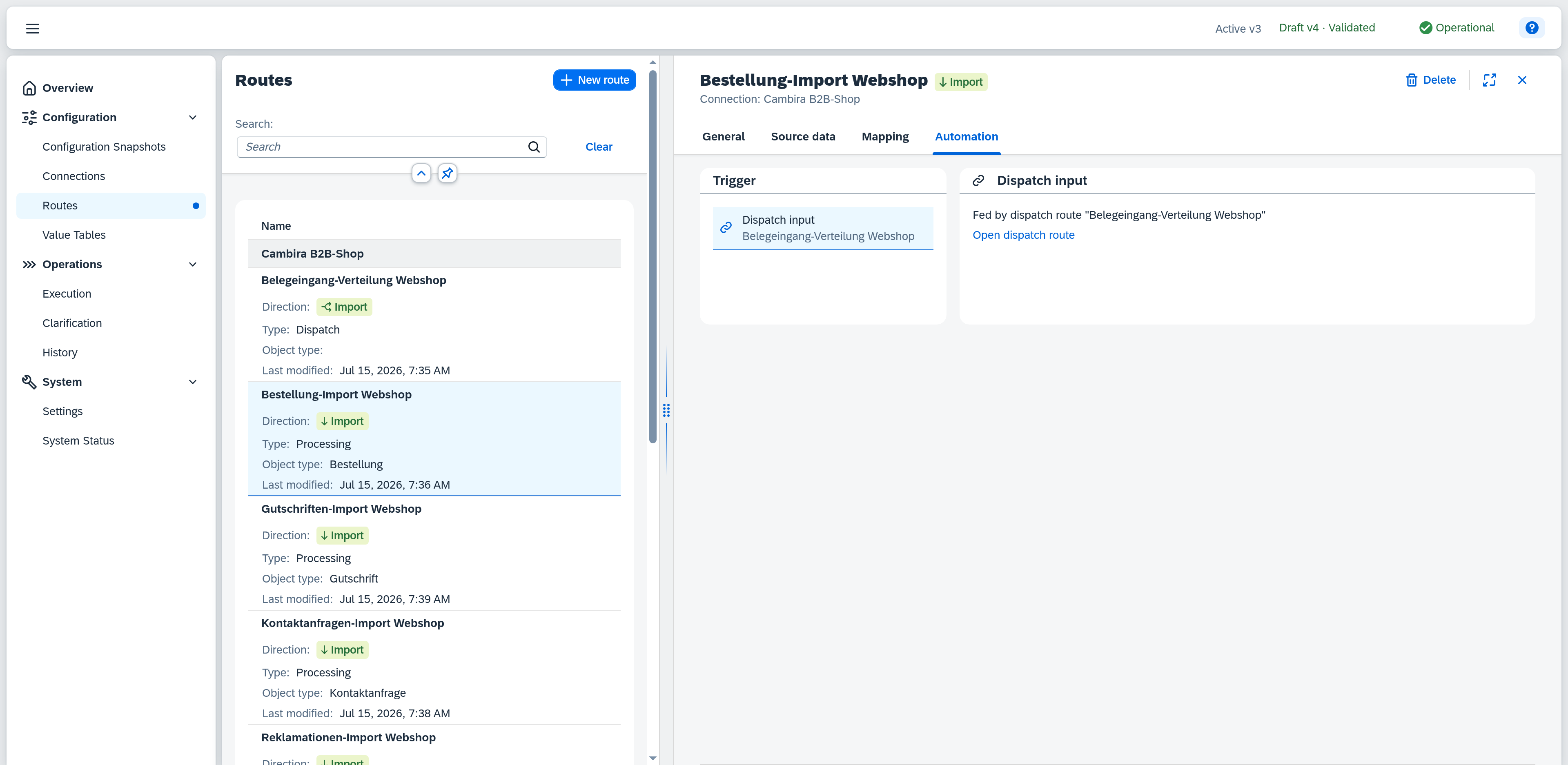
A trigger of type Dispatch input couples this route as a target route to a dispatch route. It is created automatically as soon as a dispatch rule targets this route, is read-only, and cannot be deleted manually.
If the feeding dispatch route is known, the trigger shows the note "Fed by dispatch route "…"" along with an Open dispatch route link. If no source is wired yet, the trigger helps you establish the link: if dispatch routes on the same connection already exist, it lists them as candidates — a click opens the chosen dispatch route on its Dispatch tab, where you add this route as a target. If no matching dispatch route exists yet, the note offers a Create dispatch route button that pre-fills the create dialog with the matching connection and direction.