Map header and lines when the target splits differently
An order from the webshop is one message. The document in SAP Business One that results from it is two things: a header with customer, date and payment method — and below it any number of lines with item and quantity.
{
  "order_id": "WS-2026-104877",
  "customer_no": "K-10042",
  "lines": [{ "sku": "ARM-4711", "qty": 2 }]
}
customer_no is a value and becomes a field. lines is a list and becomes many rows. For the
second case, the mapping needs a list.
This guide builds the lines of the route "Bestellungen Webshop". At the end, the test result shows
one entry under DocumentLines with ItemCode and Quantity for each line — as many as the order
has lines.
What you need
- The Routes permission at the Full level. See Permissions.
- A route with a mapping in which the header fields are already mapped. This guide adds the lines.
- Entry point: Configuration → Routes, select the route, Mapping tab.
Xchange saves every entry automatically. In operation, it takes effect only with the activated configuration snapshot — that is step 4.
1. Create and open the list
- In the header of the Mappings table, choose the Add List button. It sits there next to Add Row. A new row appears in the table.
- Click this row. The list opens and fills the work area: you now see the mappings that apply within the list. Above the table is the path there, from the step to the list — a click on an earlier entry takes you back.
- Next to this path is the List settings button. It appears only here, because it belongs to the opened list. Choose it.
Only list rows can be opened this way. An ordinary mapping row stays as it is when clicked — that is how, in case of doubt, you recognize which kind of row is in front of you.
2. Say which list fills which
The List settings dialog opens on the General tab.
- In the Target List field, enter
DocumentLines— the list in the target system that is to be filled. - The Fill Mode field shows From Source List. That is the default and the case of this guide: the source brings the list along, and each of its entries becomes an entry in the target.
- Below it, the Source List field appears. Select
OriginalPayload.lines[*]there. - In the Search By field, select Marked Fields. Because the order can also update an existing document, Xchange has to find that document's lines again — by the field you mark as the key in the next step.
- Choose Done. The dialog closes.
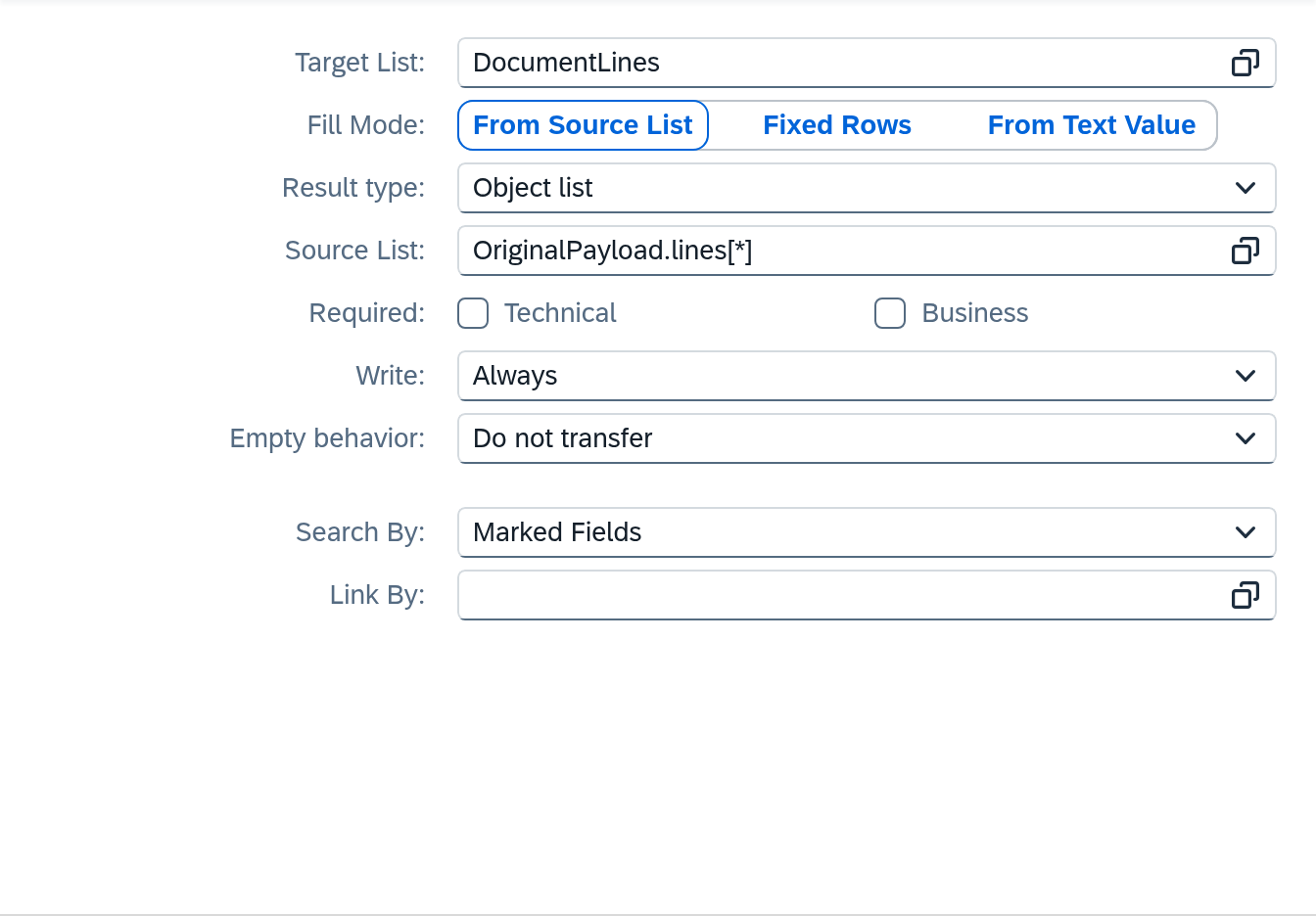
The list is a container. It only says which list of the source corresponds to which list of the target. What a single entry contains you map in the next step.
3. Map the line fields
You are still in the opened list.
- Choose Add Row and enter
ItemCodein the Target field column. - In the Source column, select the field. The picker is sorted by groups;
skuis under Element fields. - The same for the second row: Target field
Quantity, sourceqtyfrom the Element fields group. - On the
ItemCoderow, choose the key icon. A line with the same item is then updated instead of being appended a second time.
A mapping in the list runs once for each entry. You write two rows, and an order with seven lines produces fourteen values in seven entries from them.
A filter on the tab of the same name in the List settings restricts which entries are taken over at all — only lines with a quantity greater than zero, for example. Which comparisons are available is listed in Routes — Mapping.
4. Check in the test area
Before you activate, check what comes out.
- On the Mapping tab, choose the Test panel button.
- Insert a sample message — preferably one with several entries in
lines, because only that shows whether the list is right. - Choose Run test.
The result shows DocumentLines with one entry per line. A test runs only in the test area; the
target system remains untouched, so you can also use it on a running route.
5. Activate
Your change is in the draft. Validate it and activate it; only then does the route write the lines. The way there is described in Validate and activate.
When the item of a line changes
The key from step 3 finds a line as long as its item stays the same. If the customer swaps
ARM-4711 for ARM-4712 in the shop, Xchange finds no line with the new item and appends a second
one.
If the source sends an identifier of its own for each line that survives the swap, Xchange finds the
line again by that identifier. Suppose the shop delivers it as line_id:
"lines": [{ "line_id": "ln-3a81f2", "sku": "ARM-4711", "qty": 2 }]
- In the opened list, choose List settings.
- In the Link By field, select
line_id. - Choose Done.
Leave the key ItemCode as it is. Xchange records on writing which line belongs to which line_id
and finds it by that from the next run on — even with a new item. If the Link By field is missing,
the rows of this list cannot be linked. In which order link and key apply, when the field is missing
and what holds for an empty identifier is covered under
Mapping — Finding rows again by their link.
A value from the header in every line
Some target systems require a value on every line that the source sends only once — a warehouse number, a cost center, the order date.
The picker in the Source column therefore reaches beyond the entry. It is sorted by groups, from the inside out:
| Group | What it offers |
|---|---|
| Element fields | the fields of the single entry — sku, qty |
| Parent row | the fields of the list above, where a list sits inside a list |
| Main record | the fields of the whole message — customer_no, order_id |
This way every line gets the same value from the header, even though the source sends it only once.
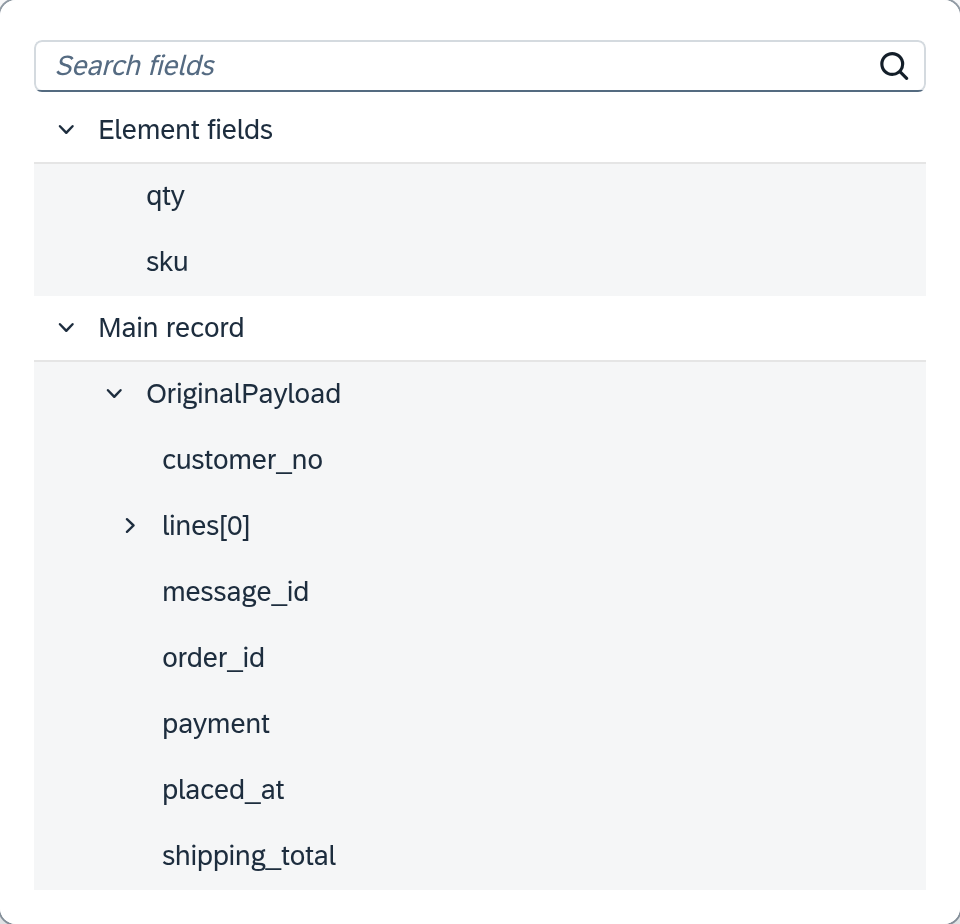
The Parent row group appears only when there is one. If your list sits directly below the main record, it is omitted — there, Element fields and Main record are enough.
When the source list is empty
An order without lines is rare. More often it is the filter that empties the list: if you take over only lines with a quantity greater than zero, the list stays empty for a pure cancellation order.
The Empty behavior field in the List settings decides what then goes to the target:
| Setting | Effect |
|---|---|
| Do not transfer | The list is missing from the message entirely. Default. |
| Write null | The list goes out with an explicit empty value. |
| Write empty list | The list goes out as a list without entries. |
A field has an Empty behavior with the same name and different values. There, the default is Transfer unchanged — the empty value goes out as it is. This setting exists only for the field; the list is set to Do not transfer instead. If you set both side by side, it is easy to reckon with the wrong default. Write empty list exists only here.
Above it is the Required field with Technical and Business. If it is set and the list is missing from the source entirely, the mapping aborts and the job ends up in Clarification. If the source brings the list along and the filter empties it, the Empty behavior applies — the difference decides whether you get to see the case.
Turn one text value into several rows
Some sources send a list as text: they pack several values into one text field, separated by a
character. The shop delivers a customer's payment methods this way, as
"payment_methods": "paypal|invoice".
For this, the Fill Mode field has the setting From Text Value. Instead of Source List, two other fields then appear:
- Source Field — the text field to be split.
- Separator — the character at which it is split.
Each part becomes an entry. In the mappings below, the Element fields group offers exactly one entry: Element value — the part itself, because it is a bare value.
In "Kunden Webshop", this fills the business partner's list BPPaymentMethods: Source Field
OriginalPayload.payment_methods, Separator |. Its one mapping writes PaymentMethodCode from
Element value, via the value table "Zahlungsarten Webshop". paypal|invoice thus becomes two
entries, PP and RG.
The third setting, Fixed Rows, needs no source: every entry is an additional row that you create by hand.
An additional row can also sit beside a source list. In "Bestellungen Webshop", the freight line
comes about this way. The shop sends the shipping costs as one amount in the header,
shipping_total; the list DocumentLines carries the additional row "Fracht" for it beside its
element fields, with ItemCode FRACHT-PAUSCHAL, Quantity 1 and UnitPrice from
OriginalPayload.shipping_total. A condition on the row — OriginalPayload.shipping_total is
greater than 0 — leaves the line out for orders without shipping costs.
Changing the fill mode discards what belonged to the previous one. Xchange asks first and says in the confirmation what will be lost — read it before you confirm.
Turn several rows into one value
The way back is the narrower one. A header field that is to say something about all lines is built in an ordinary mapping row. For this, a second picker sits next to the source, List values:
| Setting | Effect |
|---|---|
| Single value | The path must hit exactly one value. Default. |
| Sum | All values hit are added up. |
| Count | The number of values hit is counted. |
The path has a say too, and Xchange rewrites it itself when you switch:
OriginalPayload.lines[0].qty hits the first line, OriginalPayload.lines[*].qty hits
all. If you choose Sum or Count, [0] becomes [*]; if you switch back to
Single value, it becomes [0] again.
This leads to the most common mistake at this point: A path with [*] and Single value
aborts as soon as the list has more than one entry — several hits, but room for only one. You get
the first line through the path with [0].
Sum and Count always return a value, even for an empty list. A missing or empty list yields 0. A fallback value on this row therefore goes unused — for it, the field is filled. If you need to distinguish between "zero pieces" and "no information", do it with a separate row with Count.
Exactly Sum and Count are available. Concatenating values from several rows — into a target field that carries a list of all item numbers, for example — is not possible with the mapping.
What comes next
- If a single target field is to be built from several values, instead of a list from a list: Build a target field from several source values.
- If a value of the lines is to be translated, a unit for example: Convert and translate values.
- If a field of the lines is not in the picker: A field is missing from the mapping.
See also
- Routes — Mapping (reference) — all fields of the list settings, the filter and the additional rows
- Clarification (reference) — where an aborted job ends up
- Mapping (core concept) — why a route has steps and in which order it writes