Connections
A connection defines how Xchange talks to a connected system — which address to use and which credentials. That can be an external system with an HTTP API, or another SAP Business One company database. Every route is based on a connection. Changes to connections are collected in the draft and take effect when the draft is activated.
Permissions
The page is visible once you have the Configuration — Connections permission (Read or Full). New Connection, editing the fields, Test connection, and Delete are only available with the same permission at the Full level — without it, the detail view is read-only.
List view
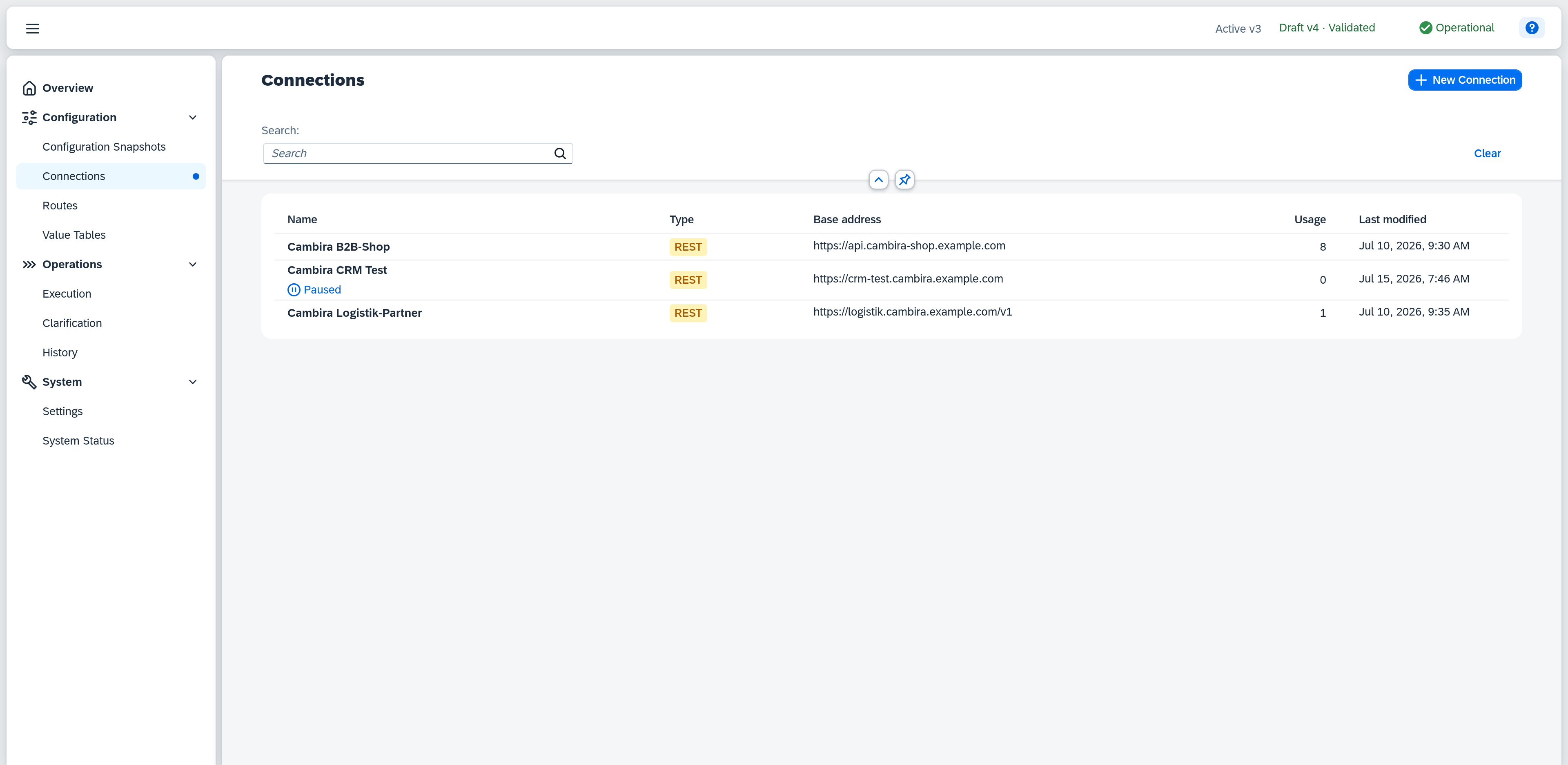
The list view shows every configured connection with its type and the base address of the external system. Connections are sorted alphabetically by name.
The Search field narrows the list by name and description. When a connection is matched through its description, the row shows that description below the name — otherwise the description stays hidden. The search term lives in the page's address: you can bookmark the link or pass it on, reloading restores the filtered list, and closing the detail view returns to it.
Columns
| Column | Content |
|---|---|
| Name | Display name of the connection. Click a row to open the detail view on the right. |
| Type | Connection type: REST for external systems with an HTTP API, or SAP Business One for another company database through its Service Layer. |
| Base address | Base address of the external system. Every route endpoint path is resolved relative to it. |
| Usage | Number of routes that use this connection. |
| Last modified | When the connection was last changed. |
If a connection is not active, the list shows a status badge: Paused when the connection is paused, or Blocked when Xchange can no longer authenticate (e.g. invalid credentials). Routes over a paused or blocked connection do not run until the state is resolved.
Actions
New Connection (top right) opens a dialog with two entries: Name (required, up to 150 characters) and Type — REST and SAP Business One are available, and the type cannot be changed after creation. Create creates the connection and opens the detail view for further configuration.
If another user is currently editing a connection, an edit pencil appears in the Name column; a tooltip shows who is working on it.
Detail view
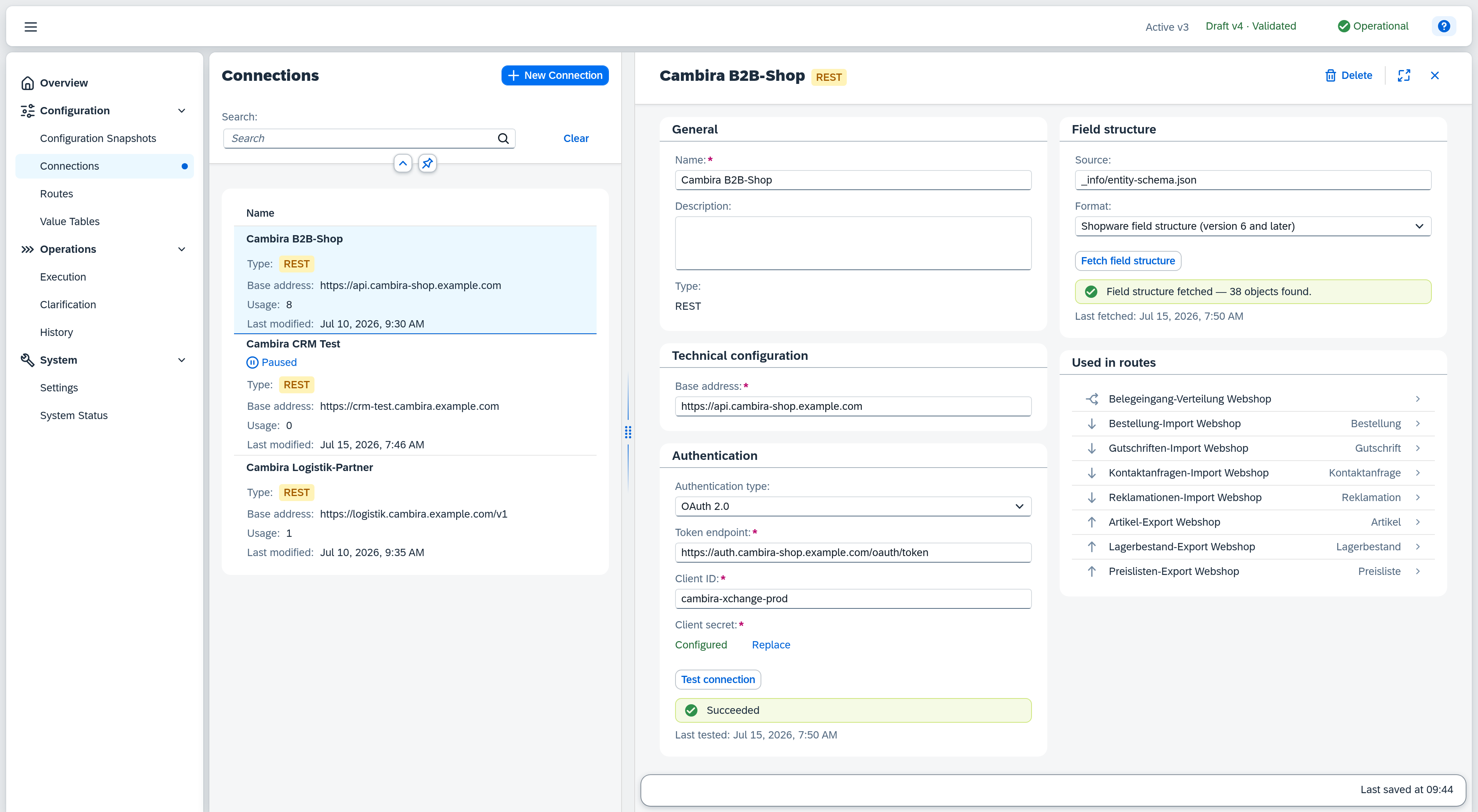
The detail view has two columns: on the left the form sections General, Technical configuration, and Authentication, which ends with the connection test; on the right Field structure, Fetch result structure, and Used in routes. Which fields and sections appear depends on the connection type: for connections of type SAP Business One, Fetch result structure is omitted, because the Service Layer fixes the response envelope.
Changes are automatically captured in the current draft — the timestamp of the last auto-save is shown at the bottom (footer). If the draft check has reported findings for this connection, a badge with their count sits there as well: clicking it opens the list of findings, and clicking an entry jumps to the field concerned.
If the connection is currently being edited by another user, a warning appears at the top of the detail view: "Currently being edited by … — your changes may conflict", with that person's name in place of the ellipsis.
If the connection is blocked, a warning appears there too, naming the reason — rejected credentials, or credentials that can no longer be decrypted. While the block is in place, no routes run over this connection; re-enter the credentials and lift the block with a successful Test connection.
General
| Field | Note |
|---|---|
| Name | Display name of the connection. Required, can be changed at any time, up to 150 characters. |
| Description | Free text to characterize the connection, up to 254 characters. Optional. The search in the list view covers this field. |
| Type | Connection type. Set at creation, cannot be changed afterwards. |
Technical configuration
| Field | Note |
|---|---|
| Base address | Base address of the external system, without path or parameters, e.g. https://api.example.com/v2. Every route endpoint path is resolved relative to it. For connections of type SAP Business One, enter the address of the Service Layer here. If another connection already uses the same base address, a warning appears naming it — the connection can still be saved. |
Authentication
Xchange supports three methods. Which of them are available is decided by the connection type: REST offers the first two, SAP Business One only the third.
- No authentication — open connection without credentials.
- OAuth 2.0 — token-based authentication. Xchange fetches an access token from the external system's token endpoint and refreshes it automatically before it expires. The Client Credentials flow is used: there is no user login, the token is exchanged directly between Xchange and the authorization server.
- Service Layer login — login to the Service Layer of an SAP Business One company database with a user name and a password. Xchange keeps the session open itself and logs in again when it expires.
| Field | Note |
|---|---|
| Authentication type | No authentication, OAuth 2.0, or Service Layer login, depending on the connection type. |
| Token endpoint | URL Xchange uses to fetch the access token, e.g. https://idp.example.com/oauth/token. Required for OAuth 2.0. |
| Client ID | Client identifier the provider issued for this integration. Required for OAuth 2.0. |
| Company database | Name of the SAP Business One company database Xchange logs in to, e.g. SBODEMODE. Required for the Service Layer login. Case-sensitive. |
| User name | User Xchange logs in with on that company database. Required for the Service Layer login. |
| Client secret / password | Matching secret — the client secret for OAuth 2.0, the user's password for the Service Layer login. Stored encrypted and never shown in clear text after the initial save. Status Configured (green) or Not configured. |
Use Replace next to the secret status to store a new secret: Xchange shows an input field, and the secret is only applied with Save (enabled as soon as something is entered) — Cancel discards the input and keeps the existing secret.
The draft check verifies two further points at the Company database field, and both block activation:
- The company database the Xchange service itself works with cannot be entered as a connection — it is already connected.
- The same company database on the same base address may only appear once. Both connections involved are reported, because the conflict can be resolved from either side.
Connection test
Test connection closes the Authentication section, because the test checks the base address and the credentials together. It lets you check at any time whether Xchange can reach the external system and authenticate successfully — independent of whether a draft is currently active. The result and the timestamp of the last test appear right below.
For the Service Layer login, Xchange actually logs in to the company database you entered. If that succeeds, the result names the company held there: Successful — Example Company Ltd. That way you can see immediately whether you picked the right company database. The name stays with the result even when you navigate elsewhere in the meantime.
Before the test, Xchange saves any pending changes. If an entry the test needs is missing — base address, authentication type, and depending on the method the token endpoint, client ID, company database, user name, or secret — a short notice names the fields concerned instead, and the test does not run.
A failed test blocks neither save nor activation; the draft check does, however, report a connection that has never been tested or whose last test failed. A successful test clears that finding and lifts an existing block on the connection.
Field structure
Every connection has this section — every connection type has a field structure. What differs is where it comes from: with REST you enter where the external system publishes its data model; with SAP Business One Xchange already knows the data model and reads it straight from the connected system when you fetch, so you configure nothing. Xchange offers the connected system's fields for selection in the route editor, so you do not have to derive them from a sample message.
The two fields below therefore only appear when you supply the data model yourself:
| Field | Note |
|---|---|
| Source | Path to the field structure, relative to the base address, e.g. _info/entity-schema.json. Up to 254 characters. |
| Format | Format in which the external system publishes its data model: No field structure or Shopware field structure (version 6 and later). |
The two fields belong together: either you fill in both or neither.
Fetch field structure makes Xchange fetch the field structure and report how many objects it contains. As with the connection test, pending changes are saved first; if one of the entries is missing or the base address is incomplete, a notice appears instead of the fetch. If the field structure is only temporarily unreachable, the message distinguishes that from a permanent error in the field structure source or format.
The fetch always takes the field structure fresh from the external system, never from a cache. It checks the connection at the same time — and it is the way to pick up a changed field structure: when the external system has gained new fields, press Fetch field structure here and the field pickers of your routes show the new state. For fields from SAP Business One, Fetch field structure on the system state page is responsible instead.
Fetch result structure
This section describes the envelope the connected system wraps its records in: where the records sit in the response, where the bookmark for the next fetch sits, how to tell that more data follows — and under which name that bookmark goes back out on the next fetch. Field structure describes what is inside one record — this section describes what is around the records. It applies to every route of this connection, because it describes the connected system's protocol and not one route's selection. With connections of type SAP Business One the section is absent: there the Service Layer fixes the envelope.
The first three fields address the response that comes in; the last one names a value that goes out with the next request. That is the order they stand in on the form.
| Field | Note |
|---|---|
| Records | Where the list of records sits in the response, e.g. $.items. Empty means the default, which is shown as the field's placeholder. |
| Bookmark | Where the system reports the position the next fetch continues from, e.g. $.deltaToken. Empty means the default. |
| More data follows | Where the system reports that further records are pending, e.g. $.hasMore. There is no default here: leaving the field empty means the system sends no such signal. Its placeholder is therefore marked as an example. |
| Fetch parameter | The name Xchange sends that position back under on the next fetch, e.g. token. Empty means the default. Up to 50 characters. |
All four fields are optional. A route of this connection fetches incrementally without them too — the defaults then apply.
Paste sample response (in the section header) opens a dialog where you paste a real response from the connected system. Done reads it and fills the suggestion lists of the three path fields; if the pasted text is not valid JSON, or is a single value, the dialog stays open with a notice. The sample response is not saved — it is a tool for filling in the fields, not configuration.
That yields two suggestion lists rather than one shared list. Records shows the response's lists themselves — selectable but not expandable, because what is wanted is items and not items[0].email. Bookmark and More data follows show the values outside those lists: a bookmark never sits inside an individual record.
A field structure cannot supply these paths, because it describes the individual record and not the envelope. With no sample response pasted, the suggestion lists still open and name the two ways: paste a sample response, or enter the path directly.
Used in routes
This section lists every route that uses this connection — with a direction icon, the route name, and the sync object on the right. Clicking an entry opens the route. If no route uses the connection yet, it shows Not used.
Delete connection
A connection can only be deleted if no route still uses it. If it is in use, Delete opens a warning with the number of referencing routes instead of the confirmation — which routes those are is shown by the Used in routes section. The connection is kept until the references are removed.