Source data
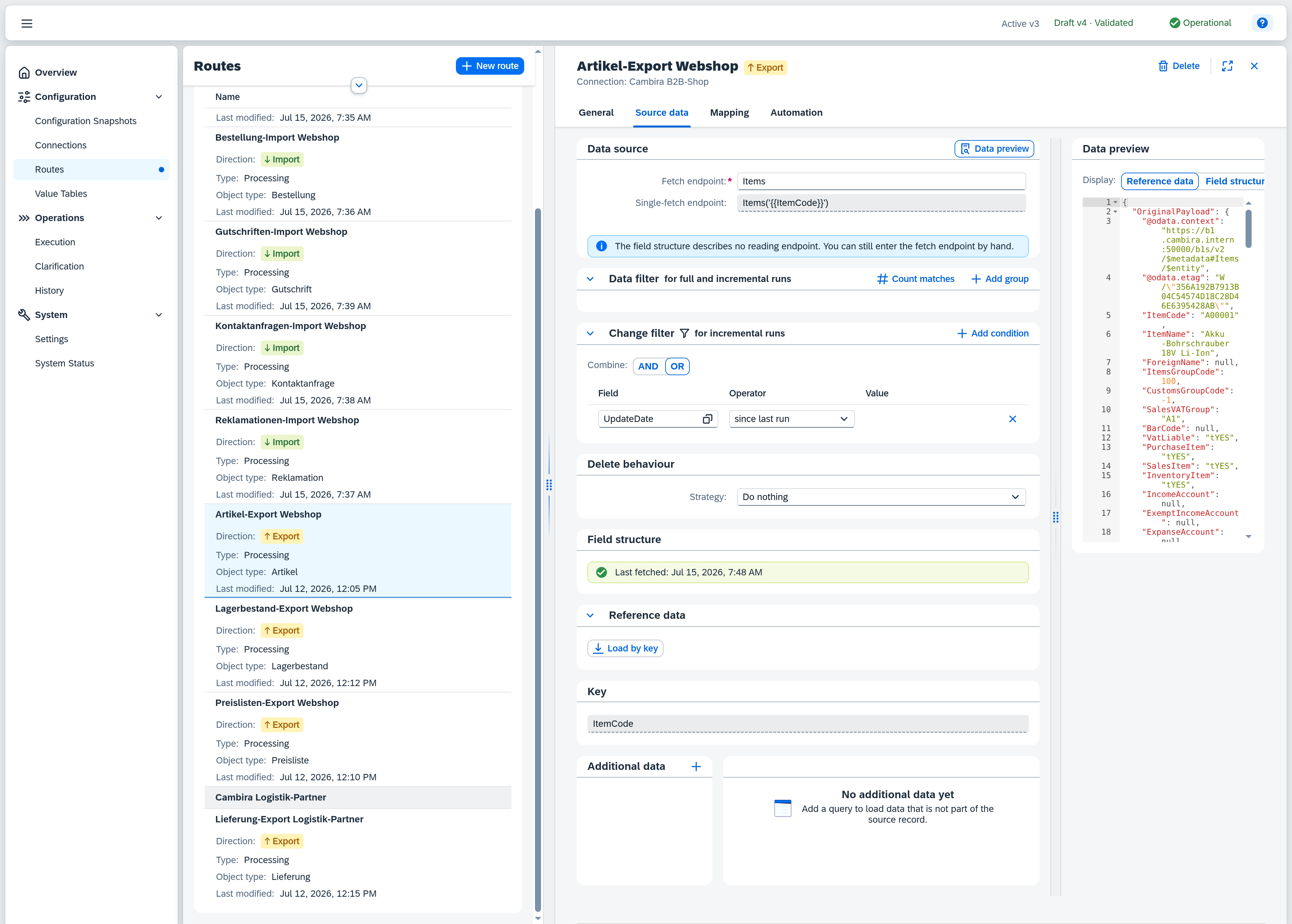
The Source data tab of the route editor defines where a route gets its data and how it turns that data into the internal message. From top to bottom it falls into two areas:
- Access — data source, acknowledgment, data filter and change filter: where it reads from and which records are included at all.
- Preparation — field structure, reference data, key and additional data: what becomes of the records that were read.
The data preview is on the right. The Data preview button in the header shows and hides it; the setting is remembered the next time you open the route. Changes are collected in the draft and take effect when it is activated.
Permissions
The page is visible once you have the Configuration — Routes permission (Read or Full). Without the Full level the route editor is read-only: you see the configuration but cannot change it.
What the data origin determines
Which areas the tab shows depends on the route's data origin — the field on the General tab:
| Data origin | Access area |
|---|---|
| Dataset | Data source with fetch endpoint and single-fetch endpoint, plus data filter and change filter. |
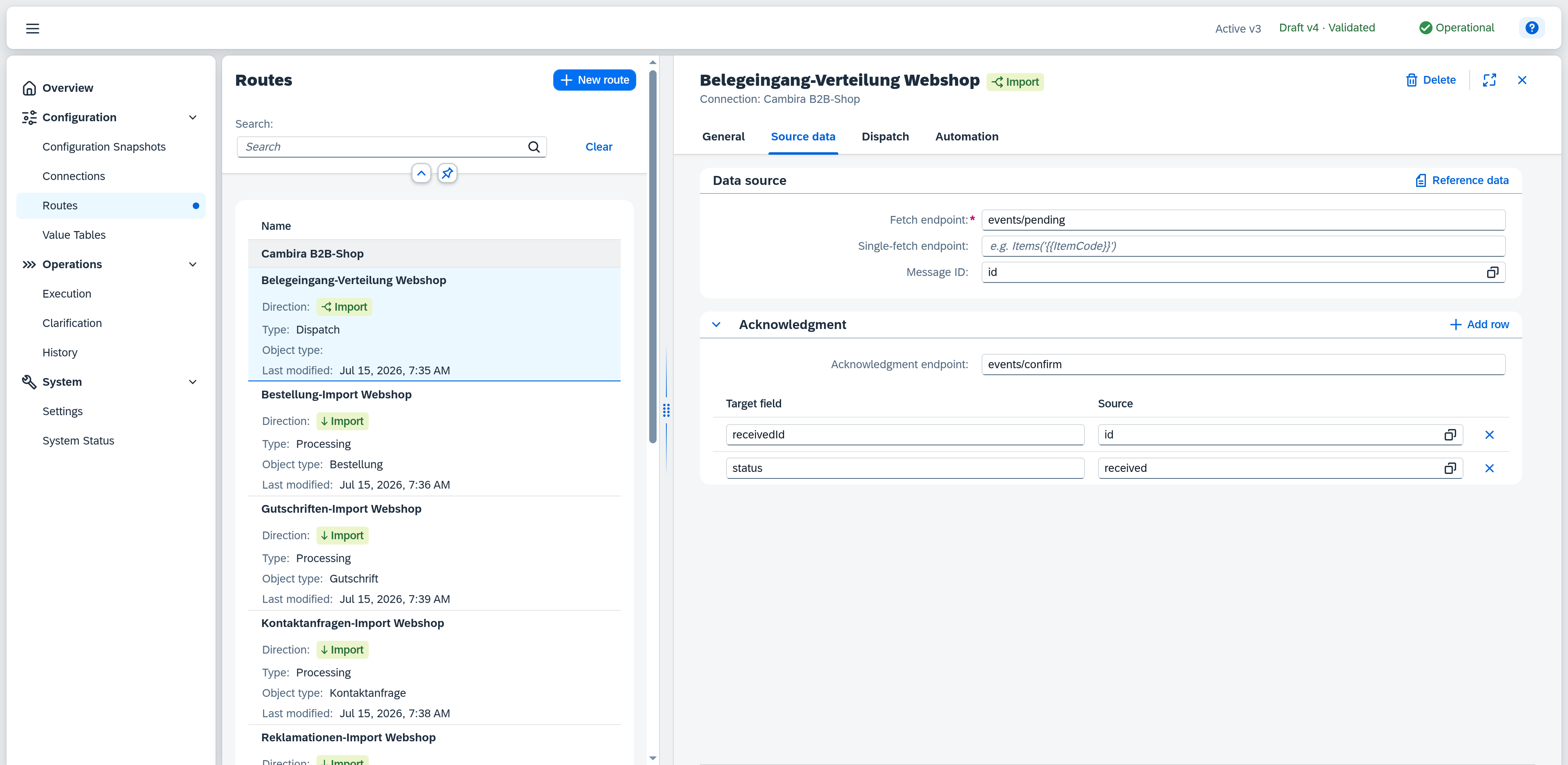
| Queue | Data source with fetch endpoint and message ID, plus acknowledgment. No filters — the route does not scan a dataset, it processes what was delivered to it. |
| Dispatch input | Omitted entirely. The data is delivered by the dispatch route; the route only maintains the preparation. |
Data source
Here you define the addresses the route reads its data from. The endpoints apply to every run of the route and equally to loading reference data in the editor.
| Field | Note |
|---|---|
| Fetch endpoint | The path the records are read from, relative to the connection — e.g. Items for a dataset, events/pending for a queue. Required. |
| Single-fetch endpoint | The path for loading a single record by key, e.g. Items('{{ItemCode}}'). The {{…}} placeholder is replaced by the key value on fetch. Optional — leave it empty and the route fetches no individual records. That is the normal case for a dataset, which already delivers the records in full with the scan. The field is required only where a trigger hands over the key alone: with the event trigger, whose transaction event reports only the affected record's key and leaves the record to be fetched afterwards. Where Xchange knows the field structure the path is derived from the fetch endpoint and read-only; otherwise you enter it yourself. |
| Message ID | Only with data origin Queue: the field of the incoming message that identifies it uniquely (e.g. id), selected via the field picker. Xchange uses it to recognise re-delivered messages and process each one only once. The picker is filled from the stored reference data; without it, it stays empty. |
Reference data in the header of the area lets you paste a sample record as JSON. The button appears where Xchange cannot obtain the record itself: always with data origin Queue and Dispatch input, and with Dataset whenever Xchange cannot derive by itself how a single record is addressed — that is, outside an export from SAP Business One and outside a connection with a Shopware field structure.
Acknowledgment
With data origin Queue, Xchange can confirm the successful receipt of every message to the source system. The area appears only with this data origin.
| Field | Note |
|---|---|
| Acknowledgment endpoint | The path Xchange POSTs the confirmation to once the message is durably stored (e.g. events/confirm). If the field stays empty, nothing is acknowledged. |
Below it you optionally define the acknowledgment mapping — which fields the confirmation carries. Each row maps a target field (in the acknowledgment body) to a source, which you pick from the incoming message via the field picker. Add row adds a mapping (at most 10), the Remove row button at the end of the row takes it out again. With no rows, Xchange sends an empty confirmation.
Data filter
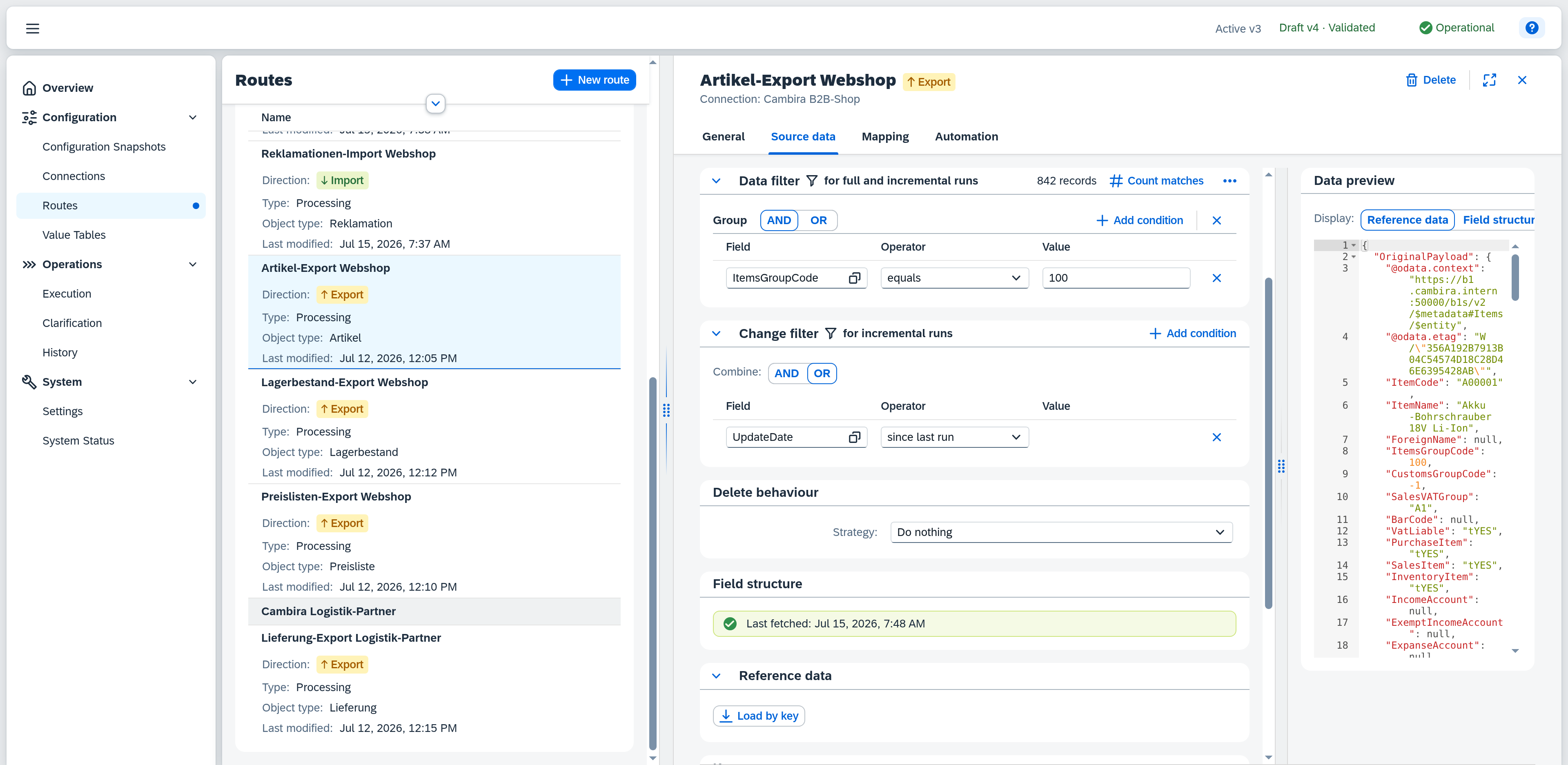
The data filter narrows down which records a route includes at all — it applies to every run, full as well as incremental (the title points this out with "for full and incremental runs"). Without a condition, all records are included. It appears only with data origin Dataset.
If the route additionally has an event trigger in mode Same as fetch endpoint, the same data filter applies to the events as well: SAP Business One then only raises an event for records that satisfy the conditions. You maintain the restriction in one place instead of two.
The conditions are organised in groups — up to 3 groups with up to 5 conditions each. Within a group they are combined with AND or OR; the groups themselves always with OR (an "— OR —" separator sits between them). Add group creates another group; Remove group in a group's header and Remove condition at the end of a row take them out again — both after a confirmation, because the step cannot be undone. If the filter contains conditions, a filter icon next to the title points this out, even while the section is collapsed.
| Field | Note |
|---|---|
| Field | A field of the data source, selected via the field picker; required. The picker is grouped into Own fields and Linked — see Linked objects. |
| Operator | equals, does not equal, is one of, is none of, is greater than, is greater than or equal to, is less than, is less than or equal to, contains, does not contain, starts with, does not start with, is empty or is not empty. Depending on the type of the selected field, only a fitting subset is offered. |
| Value | The comparison value. With is empty / is not empty the value field is omitted. If the field offers fixed values, a selection list appears instead of the input field. With is one of / is none of a value list takes the place of the single value. On a date field, the calendar icon in the value field sets "Today" as the comparison value; clicking it again clears it. |
A date field is compared day-granularly — the time of day is disregarded, including for a fixed date entered by hand. Instead of a fixed date, the current day can be the comparison value: "Today" is determined anew on every run, so a condition such as Change date equals Today stays valid without maintenance. "Today" is offered for the comparison operators, not for contains, does not contain, starts with, does not start with, is empty, and is not empty.
does not contain and does not start with let you exclude a group of values by its identifying prefix instead of enumerating every single value as does not equal — an enumeration you would have to extend whenever a new value appears. This is how two routes on the same entity are kept apart when one includes the warehouse prefix KSC- and the other excludes it.
Several values in one condition
Where the values to include or exclude share no common prefix, check them against a list with is one of and is none of. You enter the values one after another in a single field; each confirmed entry appears as its own item and can be removed individually. If the field offers fixed values, you pick them from a multi-selection instead. Up to 20 values per condition are allowed; duplicate entries are discarded.
The real gain is the combination of inclusion and exclusion. To transfer only transfers into warehouses L1, L2, L3 but no movements between them, two conditions in one AND group are enough: target warehouse is one of L1, L2, L3 and source warehouse is none of L1, L2, L3. As individual equality conditions that would be six rows — and because groups are always combined with OR, the combination could not be expressed at all.
The negations include empty fields: a record with no value satisfies does not start with — it does not start with the text you are looking for — and likewise is none of, because it appears in no value list. In the example above that is exactly right: a posting with no source warehouse is a receipt from outside and should come along. To keep empty values out, add an is not empty condition to the same group and combine the group with AND.
Count matches determines how many records the endpoint currently returns with the active filter and shows the result (e.g. "1,234 records") next to the button. If no fetch endpoint is configured, a hint points this out.
Linked objects
Not every criterion sits in the record itself. The data filter's field picker is therefore grouped in two:
- Own fields — the fields of the record.
- Linked — everything that leads beyond the record.
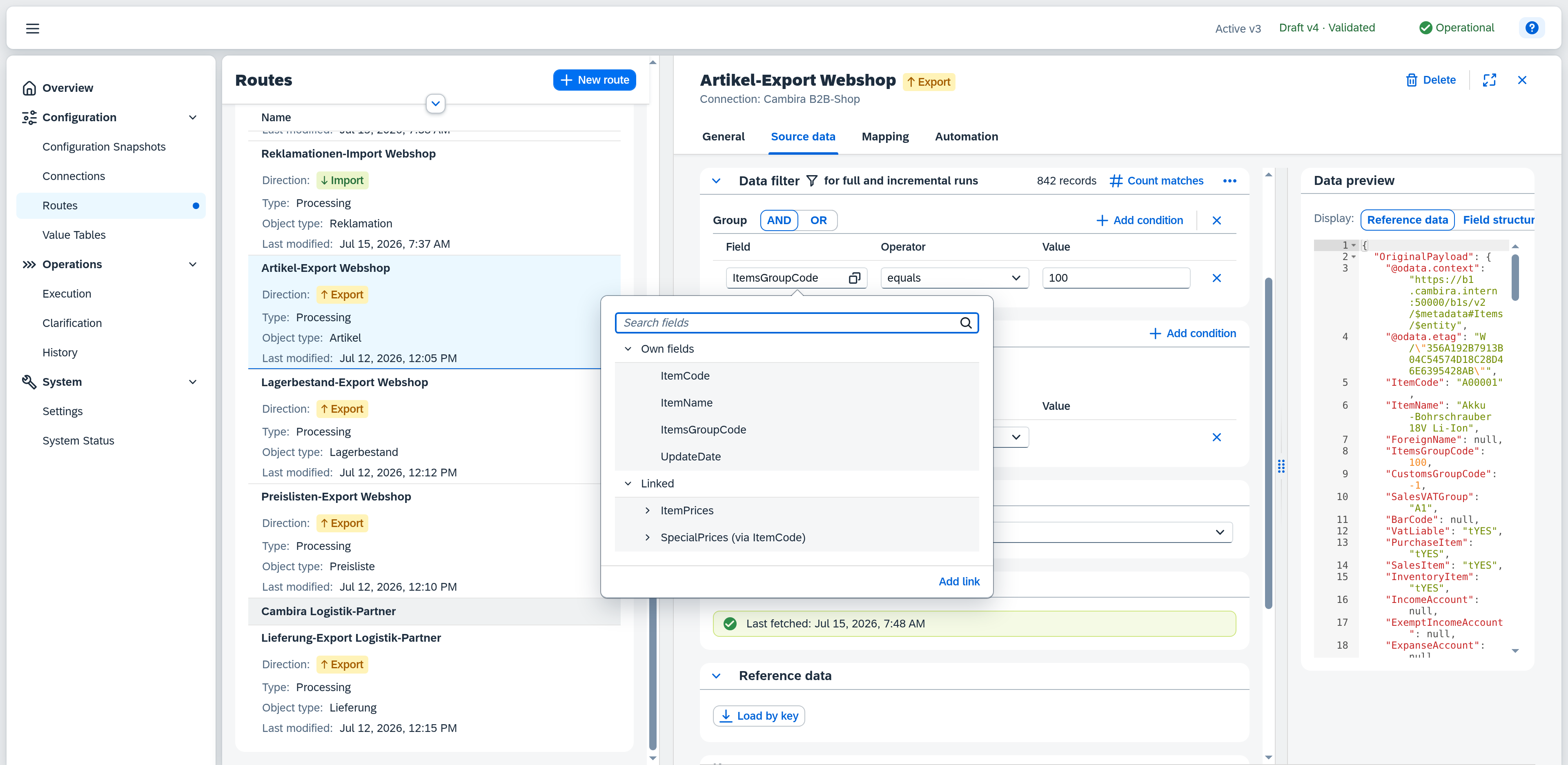
Under Linked there are three kinds of branch:
| Branch | Origin |
|---|---|
| Child collection | A collection subordinate to the record, e.g. the lines of a document. Xchange derives it from the field structure. |
| Discovered link | A target object a reference field of the record points to. The branch carries both names: Target object (via reference field). |
| Configured link | A link you set up yourself via Add link. The branch carries the name of the target object. |
If you pick a field below a branch, the condition behaves like any other — operator and value follow the type of that field.
If you pick the branch itself, the link is the entire statement: the operator is then is present, no other one is offered, and there is no value. The condition holds when the linked object exists. Child collections are excluded from this and cannot be picked themselves — that a document has lines is true of every document and would not narrow anything.
If the path to the field crosses a child collection, the qualifier at least one sits in front of the operator: the condition holds as soon as one element of the collection satisfies it.
Every condition over a branch requires the source data to have a single key field — Xchange leads the result back to the record through that key. If the object type needs several key fields, the condition cannot be evaluated: activation reports it at the fetch endpoint ("The source data has no single key field — a condition over linked data cannot be evaluated").
Add link
If Xchange does not discover the link you need by itself, set it up: Add link at the bottom of the field picker opens the dialog of the same name.
| Field | Note |
|---|---|
| From | Where the link starts — at the record itself or at one of its child collections. |
| Target object | The SAP Business One object type being linked to. Required. |
| Field | The field on the starting side whose value establishes the link. Required. |
| Field in target object | The field of the target object it is compared against. Required. Between the two sits a fixed equals. |
Apply only becomes available once the target object and both fields are set. The new branch is then immediately available in every condition picker of the data filter. If the target object cannot be read, the dialog says so ("The target object could not be read. Check the name and try again.") and creates nothing.
A configured link is stored with the conditions that use it. Once no condition uses it any more, the branch is gone the next time the route is opened.
Change filter
The change filter defines what counts as "changed since the last run" for an incremental run (the title points this out with "for incremental runs"). It is required as soon as an incremental schedule trigger exists — unless the connection carries the position of the last run itself: a REST connection sends it along with the fetch as a delta token and needs no field in the narrowing for it. The manual incremental run from Execution is likewise unlocked by either — a change filter that is set, or a connection with a delta token. Like the data filter, it appears only with data origin Dataset.
Unlike the data filter, the change filter knows exactly one group with up to 5 conditions (combined with AND or OR) and additionally offers the operator since the last run: it comes first, needs no value and can be chosen on fields that have an order: on a date field Xchange compares against the time of the last run, on a number field against the last value read — a running number, for example. On text, selection and yes/no fields the operator is not offered, because a position could never advance on them.
The field picker here lists the own fields of the record only: no groups, no linked objects and no way to add a link. Whether a record has changed is decided by the record itself. Apart from that, the Field, Operator and Value columns behave as in the data filter.
When the connection carries the position itself, the section looks different: a grey note "The fetch endpoint returns only the changes since the last run. A change filter is not required here." sits above the filter, and Add condition does not appear as long as no condition is configured — so no second, competing narrowing can be created. If the change filter already holds a condition — because the route's fetch endpoint was switched afterwards, for example — the button is available again and the filter stays fully editable. The note remains in both cases; it explains why the section looks the way it does.
Delete behaviour
Below the two filters sits the Strategy. It answers what happens to a record the route has transmitted so far and that no longer belongs to the scope — e.g. because an item was set inactive in SAP Business One and the data filter includes only active ones.
| Selection | Effect |
|---|---|
| Do nothing | The record drops out of the following runs. The target system keeps the state it received the last time. Default. |
| Deactivate in the target system | After a full run over the entire data set, Xchange determines which records no longer belong to the scope and transmits each one once more, flagged as a deletion. This is how the target system learns that the record no longer belongs. |
That final transmission goes through the ordinary mapping and the same steps as any other record — there is no second path into the target system. For the message to arrive there, the target field that marks a record as inactive or blocked has to be mapped; its value comes from the record's source data. The message additionally carries event type Delete, so the target system can recognise it from that as well.
If the record has since been deleted in SAP Business One, it can no longer be fetched for that final transmission. Xchange then falls back on the last transmitted state of the source data — every successful transmission of this route stores it — and maps it as usual. The message is then just as complete as for a record that still exists; if no state is stored, it carries only the key. The fallback applies solely to the record that is provably gone: if the fetch fails for any other reason — because the Service Layer is currently unreachable, for example — the transmission counts as failed and is retried. An outage never produces deletion messages.
Xchange only starts storing that state once Deactivate in the target system is selected. So when you switch an existing route over, first let one full run complete without cleanup — only then does every transmitted record have a stored state. An exit before that reports the key alone.
The selection alone triggers nothing yet: the reconciliation only runs when the run asks for it — via Cleanup on the scheduled trigger or in the Start run dialog of Execution. If the reconciliation reports an unusual number of records, Xchange holds it for release.
Like the filters themselves, the delete behaviour appears only with data origin Dataset.
Field structure
Shows the status of the source system's field structure. Once the structure has been fetched, the timestamp of the last fetch appears here. If no fetch endpoint is configured yet, a message points this out; if the fetch fails, that is reported too.
The field structure is not fetched again here but in one place for the whole installation: on the system state page via Fetch field structure. That is needed when a field was created in SAP Business One after the last fetch — without this step it stays invisible in the mapping. The course, including the Service Layer restart that belongs to it, is described in the guide Pick up new fields from SAP Business One. The field structure of an external system is fetched by Fetch field structure in the Field structure area of the connection.
Reference data
Reference data is a single, real sample record. You use it to check the actual values and to fill the field pickers of the mapping without running the route. There are two ways to provide it:
- Load by key — Xchange fetches the record from the source system via the single-fetch endpoint. Possible as soon as a single-fetch endpoint is configured.
- Insert manually — you paste the record as JSON. The route when Xchange cannot obtain the record itself — see Data source.
Key
The key field identifies a record in the source system uniquely. When Xchange knows the field structure and derives from it how a single record is addressed — on an export from SAP Business One, or on a connection with a Shopware field structure — it is filled automatically (e.g. ItemCode for articles) and is read-only. If the object type needs several fields, they sit comma-separated in one field — the same way the mapping shows that key; conditions over linked objects cannot be evaluated then. If nothing can be derived, the field stays empty or names the reason.
Otherwise you choose the key field yourself — via the field picker, or as a JSONPath (e.g. $.DocNum). The picker lists the fields of the pasted reference data; where none are stored, the fetched field structure takes their place.
Additional data
Additional data enriches the source record with values it does not itself contain. Xchange reads them with an extra query against SAP Business One (via the Service Layer) — linked through a value taken from the incoming record. The retrieved values land in the Enrichments part of the internal message and are then available to the mapping.
Instead of the whole record, a query can also address the rows of a list inside it — each row then carries its own additional data, and the mapping can filter the list on it. What the level decides is described under Query level.
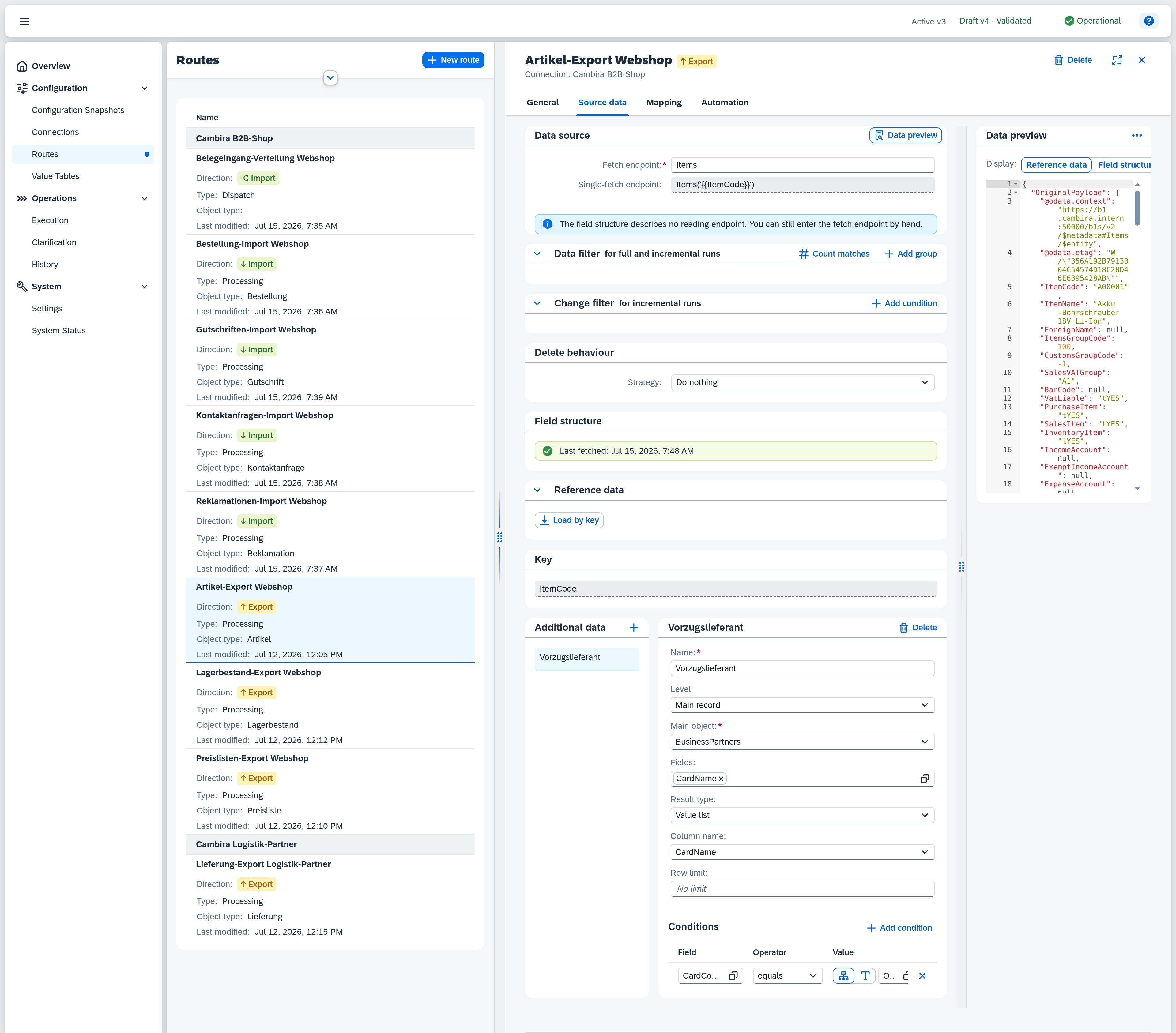
The list of configured queries is on the left, the form for the currently selected query on the right.
- Add additional data creates a new query; it appears in the list immediately.
- When no query exists yet, the area shows No additional data yet with the hint "Add a query to load data that is not part of the source record."
- Clicking a list entry opens the query in the form. An unnamed query is listed by its position — Additional Data 2 for the second one in the list. The validation list uses the same label when it reports a finding on that query.
- Delete removes the selected query after a confirmation (Delete additional data).
Changes are saved automatically — there is no separate save button.
Query level
The level decides what the query relates to, and thereby which fields the form shows at all.
| Level | Relates to | Result |
|---|---|---|
| Main record | The incoming record as a whole. Default. | One query per record. |
| Rows of a list | A list inside the record — the lines of a delivery, for example. | One value per row, stored at the row. |
At level Rows of a list, Xchange does not read row by row: it collects the link values of all rows and fetches them in one bundled query. The row list may itself sit inside a row list; three levels are possible — main record, list, list within that list.
Because the two sides need different fields, the form shows only those of the level chosen: Row list, Link field (row) and Link field (main object) belong to the row level, Sub-object, Link field (sub-object), Result type, Column name and Row limit to the main record. Everything else — name, main object, fields, conditions — applies to both.
The level can be changed later. The fields of the level being left are discarded in the process, without a confirmation: switching to Main record deletes the link to the row, switching to Rows of a list deletes the sub-object together with the fields and conditions chosen on it. Switching back restores neither.
Query fields
| Field | Meaning |
|---|---|
| Name (required) | The name of the query. It appears in the list on the left and labels the values in Enrichments. |
| Level | Main record or Rows of a list — see Query level. |
| Row list (required) | The list whose rows are queried (e.g. OriginalPayload.DocumentLines[*]) — through a picker over the lists of the source schema, in the same notation as the source list of the mapping. With no schema loaded the picker stays empty and you enter the path yourself. Only at level Rows of a list. |
| Main object (required) | The SAP Business One object type read from (e.g. Items, BusinessPartners). |
| Link field (row) (required) | The field of the row that names the record to load (e.g. ItemCode). Only at level Rows of a list. |
| Link field (main object) (required) | The field of the main object the row references. It must be the key of the main object, otherwise the query cannot be bundled. Only at level Rows of a list. |
| Sub-object | A child collection of the main object (optional). Only at level Main record, and shown only once the main object offers child objects or one is already selected. |
| Link field (sub-object) (required) | The sub-object field that references the main object. Shown only when a sub-object is selected. |
| Fields | The fields to read — multiple selection from a field list. Appears once a main object is set. |
| Result type | Object list (whole records with all selected fields) or Value list (only the values of a single column). Only at level Main record: a row belongs to one record and not to a list, so there is nothing to choose there. |
| Column name | The column whose values form the value list. Shown only at level Main record and only when result type is Value list. |
| Row limit | Upper bound on the records retrieved, at most 1000. Empty means No limit — the query then needs at least one condition, otherwise the validation list reports it. Only at level Main record. |
Conditions
Under Conditions you narrow down which records the query retrieves. With no condition it reads "No condition — all records are retrieved". Add condition adds a row with three columns:
- Field — the main- or sub-object field the condition acts on.
- Operator — equals, not equal, greater than, greater/equal, less than, less/equal, starts with, ends with, contains, is empty, is not empty.
- Value — either a Path (a value from the incoming record, e.g.
OriginalPayload.ItemCode) or a Constant (a freely entered value). A newly added row opens on Path: the link against a field of the current record is the query's parameter, and a constant sits beside it as an additional restriction. The is empty and is not empty operators take no value.
Each row can be removed individually.
Fetch enrichments
Fetch enrichments runs the queries against loaded reference data and shows the actually retrieved values in the data preview. The button only appears once reference data is loaded and at least one query has been added — before that there is nothing to fetch. After a change to the configuration, the Outdated — fetch again marker in the data preview header indicates that the displayed values no longer match the current configuration.
Data preview
Shows the internal message as formatted, read-only JSON — the uniform format Xchange converts every record into. It has three parts:
| Part | Content |
|---|---|
OriginalPayload | The raw record as delivered by the source system (for an export, the SAP Business One Service Layer). |
Enrichments | Values loaded via additional data — empty until the queries have been run. |
SubObjects | Linked sub-objects (empty here). |
The preview has three states: empty (field structure not loaded yet), skeleton (structure loaded but no record yet — shows the fields with placeholders), and real (an example record has been loaded and shows the actual values).
In the real state, Display switches between two views of the same record: Reference data shows the internal message with the actual values, Field structure the structure derived from it, with placeholders instead of the values.
A dispatch route has no data preview: a dispatch route does not build an internal message, it passes the incoming message on to its target routes.