Update the database
After an update to the Xchange service, the database can deviate from the expected state. Xchange detects this, reports it on the System Status page, and halts processing until the database has been updated. This guide walks through the process.
There is a single action for it: Update database. It first shows what will happen and runs the update only after you confirm. Whether it merely adds missing structures or restructures data is something Xchange decides itself — you read the result of that decision in the plan.
When the plan announces a Service Layer restart, that is an action on the server, not an operation in the UI. Coordinate it with the person who manages your SAP Business One environment. This guide marks the step but does not carry it out.
What you need
- The System permission at the Full level — only then is the action available.
- A suitable time window: Xchange does not process any data during the update.
- If the plan announces a restart: the ability to restart the Service Layer (or someone who can do it for you).
Read the plan
Open the System Status page. When an update is outstanding, the Operating state area says so — "The database is not at the expected state. Update the database to resume processing." — and the Database area shows the status Update required.
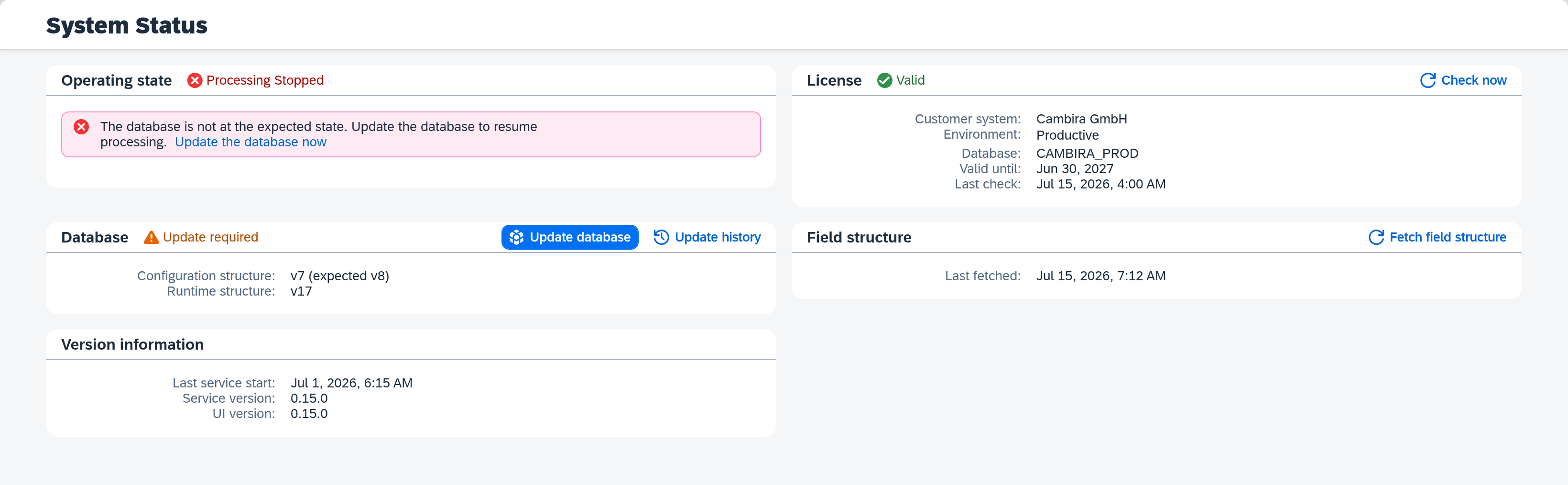
In the Database area, click Update database — or click Update the database now in the notice itself; both open the same plan. Nothing starts yet.
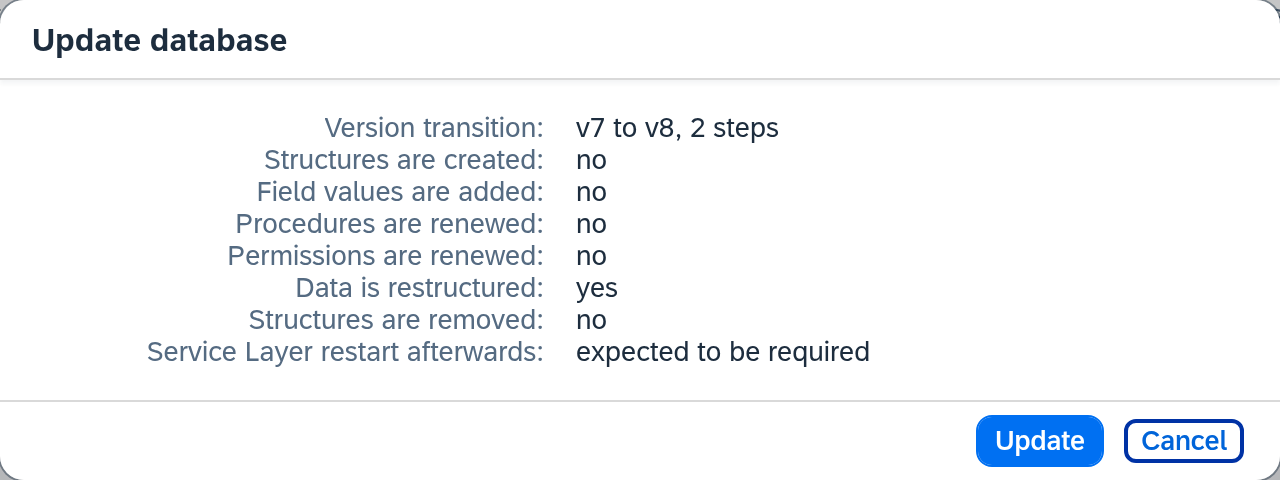
The plan always names four entries — including when the answer is "no", so you never have to guess whether something is unaffected or merely not shown. Only the version transition is omitted when the version does not change:
| Entry | Meaning |
|---|---|
| Version transition | Which state the database is brought from and to, and across how many steps. Only on a version change. |
| Structures are created | Which tables and fields are added — by name, one per line; "no" when there are none. |
| Data is restructured | Whether existing data is converted to a new form. |
| Structures are removed | Whether tables or fields are dropped. |
| Service Layer restart afterwards | Whether a restart follows — expected to be required or not expected to be required. |
When there is nothing to do, the dialog reports "The database is at the expected state. No changes are required." You can therefore open the plan at any time to check whether the database is up to date — even while processing is running normally.
Run the update
- In the plan dialog, click Update.
- Xchange runs the update. A progress display covers the UI and names the steps it goes through; Xchange cannot be operated while it runs.
- If no restart was required, the operating state then returns to Operational — Xchange resumes processing and you are done.
If the plan announced a Service Layer restart, the next two sections follow.
Restart the Service Layer
The update created database structures. For the Service Layer to recognize them, it must be restarted once — without this restart, the update cannot be finalized.
Have the Service Layer of your SAP Business One environment restarted. Then return to the System Status page.
Finalize the update
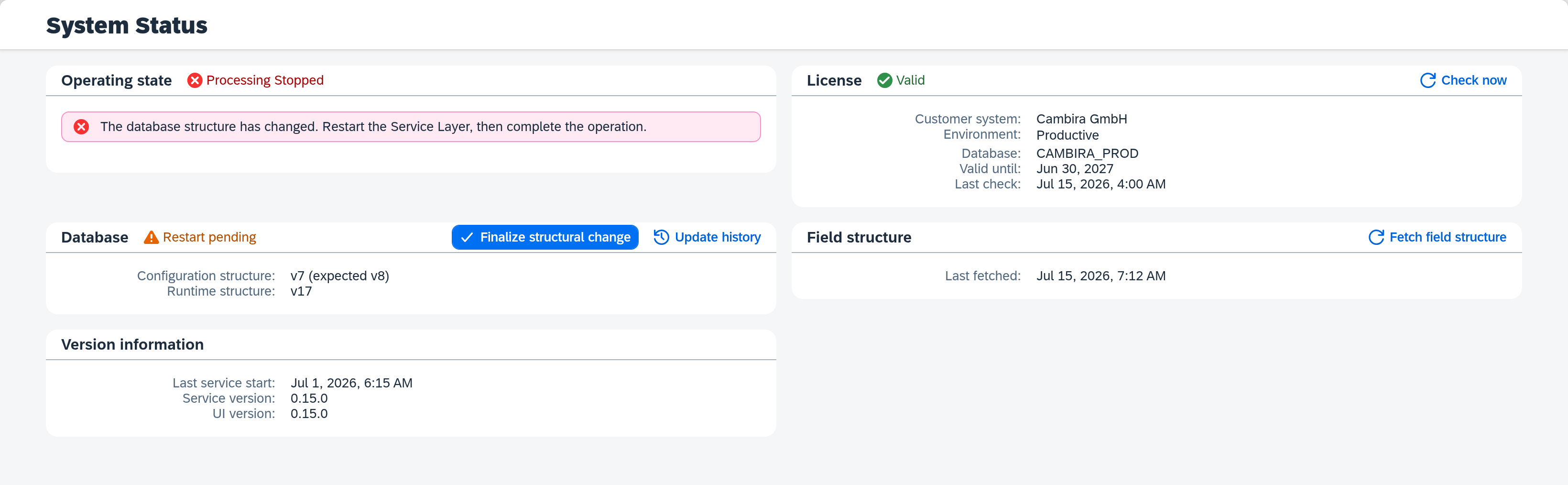
After the restart, the Finalize structural change action is available in the Database area. It is deliberately not called "update": the same action also finalizes a first installation — the step depends on structures having been created, not on which operation created them.
- Click Finalize structural change and confirm the prompt.
- Xchange checks whether the Service Layer recognizes the new structures and finalizes the update.
- The operating state then returns to Operational — Xchange resumes processing.
Two notices are possible, and they mean different things:
- "Restart the Service Layer" — the Service Layer is running but does not know the new structures yet. Have it restarted, then click Finalize structural change again.
- "Service Layer not reachable" — the check itself did not get through. Make sure the Service Layer is running, then click Finalize structural change again.
In both cases the operation stays open; the action can be repeated as often as needed.
When the update fails
If the operating state reports a failed or unfinished update, start it again through the same action. If the plan reports "This database cannot be updated from this version.", it cannot be resolved in the application — contact your administration.