The first route
The connection is in place and the test has passed. That settles where Xchange can talk to. What is transferred is defined by the route.
We stay with Cambira on March 16, 2026 and build the first one: items from SAP Business One to the webshop, the route "Artikel Webshop".
The goal is the route in the draft — created, with one step and one mapping. Route, step and mapping together are the smallest set that the validation lets through.
The route gets its trigger after the first run, which you start by hand.
Create the route
- In the menu under Configuration, open Routes.
- Select New route.
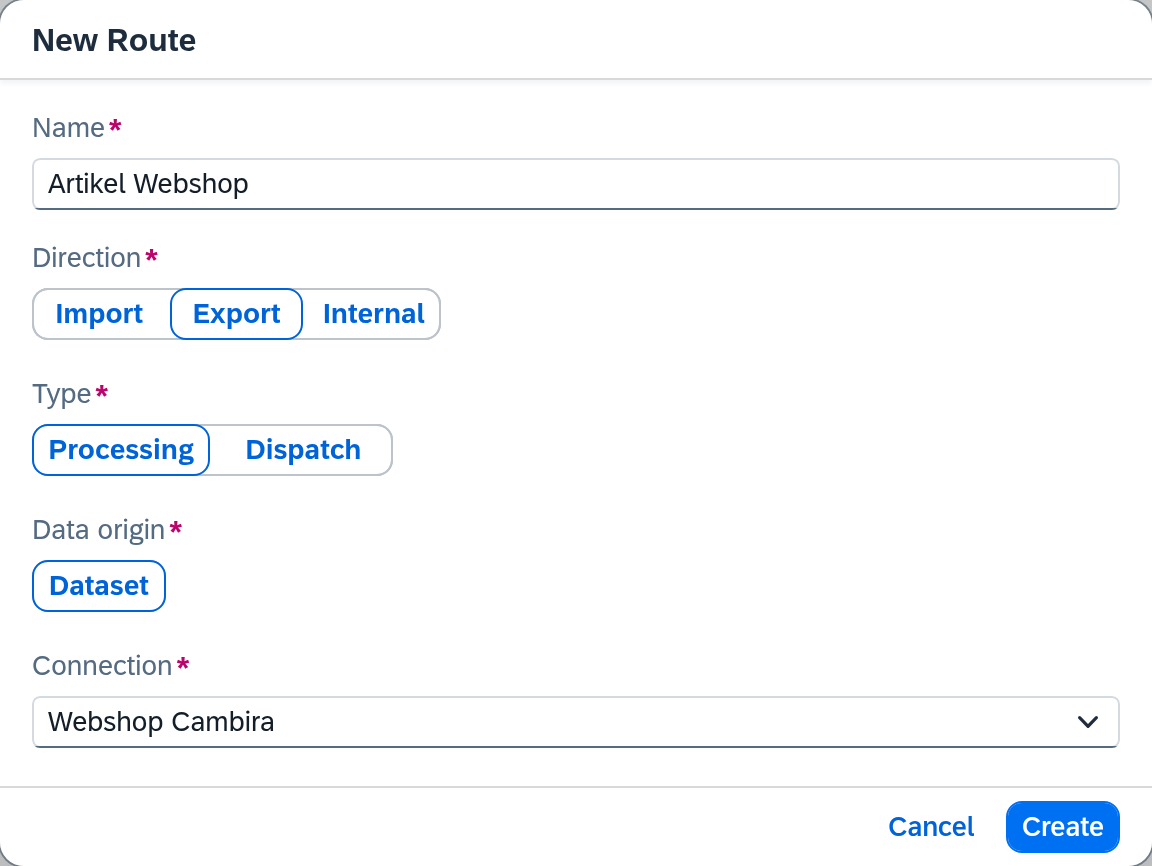
- Name:
Artikel Webshop. Choose a name that stands on its own in a selection list — that is where the route will later appear under this name. - Direction: Export — the items leave SAP Business One.
- Type: Processing — the route maps the fields and writes the data to the target system, here the items to the shop.
- Data origin: Dataset — Xchange fetches the items from the dataset. With export and processing, this is the only option anyway.
- Connection: "Webshop Cambira" — the one from the previous page. If the selection were empty, the dialog would say so and offer to create one.
- Create.
The route opens on the right with its tabs. What each of these five fields means and which other combinations there are is described under Routes.
Set up the step
A step is one write operation of the route: one target that is written to. Xchange creates the first step together with the route. As long as it has no name of its own, it appears in the Steps bar under the name of the route.
- Open the Mapping tab. The Steps bar shows the step "Artikel Webshop".
- Select Step settings.
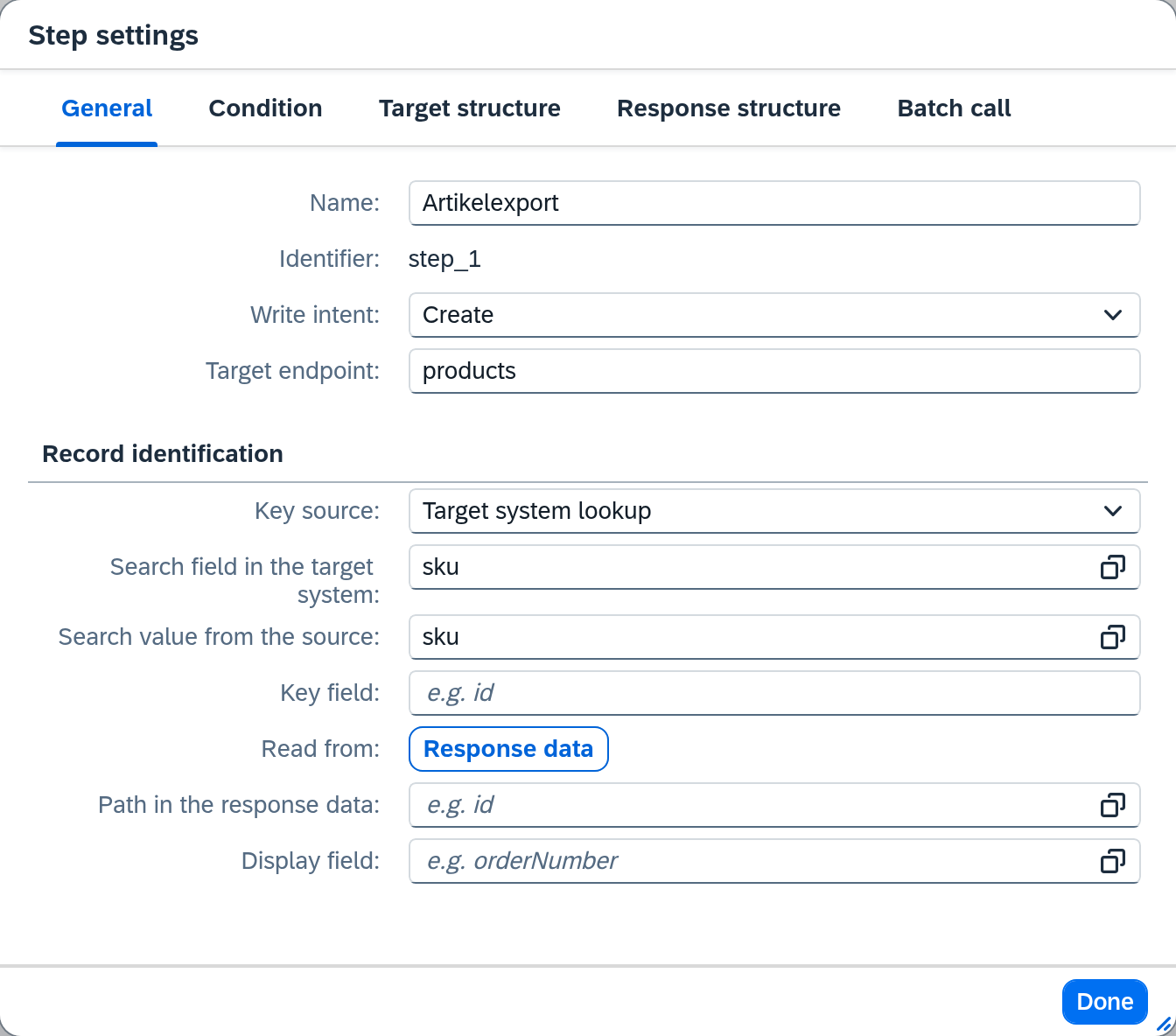
- Name:
Artikelexport. The name is optional; if it stays empty, the step carries the name of the route. - Write intent is already set to Create and stays that way.
- Target endpoint:
products. This is the place in the shop that is written to — relative to the base address of the connection. - Key source: Target system lookup — before creating, Xchange checks whether the shop already has the item.
- Search field in the target system:
sku— the field under which the shop keeps the item number. You fill in the Search value from the source once the mapping is in place. - Leave Key field and the response fields below it empty. A step that only creates does not need them.
- Done.

In the bar, the step is now called Artikelexport. The first step of a route is its Primary Step — it writes the main object. The step settings show a switch for it only once the route has a second step.
All fields of the step settings: Routes — Mapping.
Enter the mapping
Now the actual translation: in SAP Business One the item number is called ItemCode, in the shop
it is called sku. That is exactly what a mapping is.

The Mappings table already contains an empty row.
- Target field:
sku— that is the name of the field in the shop. - Source:
OriginalPayload.ItemCode—ItemCodeis the field in SAP Business One.OriginalPayloadin front of it stands for the item as SAP Business One delivered it. - Open the Step settings once more and, as the Search value from the source, choose the
row
skuunder Mappings. Then Done.
Search field and search value say by what the shop recognizes an item: by the same sku that the
row writes. Through them, Xchange remembers under which key the item is stored in the shop. The
route needs this as soon as it is also to update items:
Avoid duplicates.
Which other properties a mapping row has — transformations, conditions, fixed values — is described under Routes — Mapping. For the first run, the one row and the lookup are enough.
What is in place now — and what is still missing
The route is created, it has one step and one mapping. That makes the draft ready for validation. The validation checks these three entries:
| If this is missing | the validation reports |
|---|---|
| a mapping in the step | "Step has no mappings configured" |
| the key source | "'Key source' is missing" |
| search field and search value | "'Search field in the target system' is missing" |
What comes next
All of this sits in the draft: saved, but not yet in operation. Next, you validate it and put it into operation: Validate and activate.
See also
- Routes (reference) — every field of the route screen
- Routes — Mapping (reference) — steps, rows and step settings in detail
- Routes (core concept) — what a route is and what it consists of