Resolve a clarification
A case is in front of you. Maybe you found it in the list, maybe Action required on the Overview brought you here, maybe you jumped here from a job. The question is always the same: What has to happen so that this case disappears for the right reason?
"For the right reason" is the difficult part. Two buttons take the case out of the list, and afterwards both ways look equally done.
The way: first read what is there, then decide, then act. Two cases that stand for the two types
serve as examples: WS-2026-104861, an order from the webshop that was missing the customer
number, and KS-778102, a status message that runs into a gap in
the dispatch rules. For the outcome, a third one is added: ARM-4720, an item from
Monday that a bulk action took care of.
What you need
- The Clarification permission, Full level. With Read only, you can read every case and page through the list; the buttons are then hidden. See Permissions.
- Entry point: the Clarification menu item. If you come from the History, Open clarification takes you straight to the case.
- Often also: access to the target system or the source system, to check there. The decision is usually made with a look into one of them.
Reading has no consequences; only the two buttons from step 3 have an effect.
1. Read what is there
Three pieces of information carry the decision, and they are all in the opened case. Read them in this order:
- The type. Failure means: something went wrong. Review means: everything is intact, a decision is pending. The type determines which part of step 2 applies to you; a Field conflict and a deviation from the object link each have one of their own.
- The cause. The short label in the Cause area, the explanatory sentence below it and the Message verbatim. The sentence often already names the place where something can be done.
- The state. How long the case has been open, how many attempts there have been, and — for a Failure — what that means for the record.

In the example, this already puts the two cases far apart:
WS-2026-104861is a Failure, cause Required field has no value. The explanatory sentence names two places, the source and the row on the route's Mapping tab; the Message names the required fieldCardCode. The route buildsCardCodefromcustomer_no, and this field is missing in the order.KS-778102is a Review, cause No dispatch rule. The shipment reportscustoms_hold, and for this status the route "Statusmeldungen Kessler" has no rule. Everything is intact: the message has arrived, only the destination it belongs to is missing.
What each field of the areas means and which causes exist is listed in full in Clarification. Here, the three pieces of information above are enough.
2. Decide
For a failure: Has anything changed since then?
Reprocess picks up the record again — with the data that is in the source now, and bound to the active configuration snapshot. This leads to the only question that matters before you click: Is either of the two different today than at the first attempt?
If both have stayed the same, reprocessing takes the same path with the same data and ends the same way. The reason is explained in the concept Clarification.
In the example, both have stayed the same for WS-2026-104861, and the source stays that way too.
"Bestellungen Webshop" gets its work from a queue; Xchange picked up the message, committed it and
acknowledged it long before the mapping failed. So it now lies with Xchange alone — exactly this one
message is reprocessed, and customer_no is missing from it today just as it was yesterday.
The only place to start here is the route's mapping. Of the two places the explanatory sentence
names, the source is ruled out: the message has been acknowledged, and a customer number added in
the webshop no longer reaches this case. If CardCode is built in the future from a field the
webshop actually sends, and that snapshot is activated, then — and only then — Reprocess achieves
something. How to change a mapping and activate a snapshot is described in
Routes — Mapping and
Configuration Snapshots.
For a review: The decision is the work
Here everything is intact, and that is why Reprocess leads nowhere: Dispatch checks the same rules in the same order and reaches the same result.
The real question is: Will this happen again?
- Recurring — then it needs a dispatch rule. Add it on the route's Dispatch tab and activate the draft; afterwards, it applies to everything that comes in from then on. See Routes — Dispatch.
- One-off exception — then a rule is overkill. Resolve the one case by hand outside of Xchange and close it.
In the example, KS-778102 is seven minutes old, and exactly this question is still open: Is
customs_hold a regular intermediate status at Kessler, or was it customs on a single day? A call
to the partner provides the answer. Until then, the case stays where it is — and everything else
keeps running, because a record is blocked only for a Failure.
For a field conflict: Which side is right?
A Field conflict is a Review with buttons of its own. The source and the target system hold different values in a field, and the route did not write it but submitted it for review. The Fields to review area shows what was there at the last synchronization and what is on each side now. The question is: Which value is the right one? You answer it per field in the Value to apply column.
Here the actions sit on the right of this table's title: Apply decision and Keep all values in … with the name of the target system. Both reprocess the job. How to decide the case is under Decide which side wins in a field conflict.
With the object link: which record is the right one?
If the cause is Search contradicts object link or Key contradicts object link, the Deviations area shows two records in the target system per point: the one the source is linked to, and the one Xchange finds now. A point is the record itself or a linked row, such as a document line. Look at both in the target system, then decide per point:
- The one found is right — for example because the old record was replaced. Then Move object link, for a row Move row link. If the lookup found several, choose the right one beside it.
- The linked one is right — for example because sales deliberately changed the document's customer reference, so the lookup no longer finds it. Then confirm; it exists only with Search contradicts object link. For a row, Xchange then writes the source values back into the row.
- Neither is right — then first clean up in the target system and afterwards Reprocess.
With Several target records there is no object link yet, and the lookup found more than one record — Reprocess would find the same ones again. Look at the ones found in the target system and choose the one that was meant through Set object link.
Once every point is decided, click Accept decisions on the right of the deviations' title; the case is reprocessed once.
Why Xchange stops here instead of simply writing on is explained in When the object link contradicts; the decisions in detail in Clarification — Object link.
3. Act
Reprocess
One click is enough. The case changes to Reprocessing, a short message confirms Reprocessing started, and Xchange stays on this case.
A rejection can still come, and it looks different from a second failure. If the case's route is missing from the active configuration snapshot, Xchange rejects immediately: a message says that a snapshot containing this route must be activated first, and the case stays Open.
You can tell the two apart by what happens after the click:
| What you see | What it means |
|---|---|
| The case changes to Reprocessing and shortly afterwards shows up as a failure again | Processing ran, with the same data and the same configuration as before. |
| A message appears, the case stays Open | Xchange rejected before processing. Fix the configuration snapshot first. |
Close
Close takes the case out of the worklist and leaves the record as it is. Xchange asks for confirmation first.
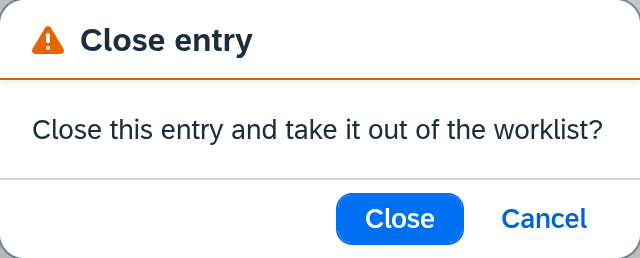
The real check is up to you, before the click. Closing is right when the matter has been taken care of elsewhere. Someone created the document by hand, the partner resent it, or it was an exception that does not call for a rule. The case then disappears for the right reason, because the work behind it is done.
It is wrong as long as the record is still missing. In the example, closing WS-2026-104861
would be the most convenient way and the worst: the order is real, the customer is waiting, and it
is missing in SAP Business One. After closing, it is still waiting — only now it is out of
sight.
What stops and what keeps running is clearly separated in the concept Clarification. Everything is preserved: a closed case can be viewed again at any time through the status filter, and the job itself remains unchanged in the History.
4. How you can tell it was the right outcome
The State area says in full sentences how the case ended, and it distinguishes the ways:
- Resolved by … on … — reprocessing went through. The record is in the target system.
- Resolved automatically on … — a later run picked up the record on its own.
- Closed by … on … — someone decided that the matter was taken care of elsewhere.
In the example, this is ARM-4720: the webshop rejected the item on Monday at 6:12 AM,
and AVOGT had it reprocessed at 1:55 PM together with 30 others. The State area
records both.

Resolved says that the record has arrived. Closed says that the matter is over for Xchange. Both empty the list; only Resolved solves the problem that created the case.
When there is more than one
If a notice above the Cause area points to further open cases of the same route with the same cause, the bigger picture is worth it: then it is about a mapping that is off for a whole batch of records, and the decision is made once for all of them.
The way to do this is on its own page: Retry failed jobs.
What comes next
If there are several cases and it is unclear whether any of them needs your intervention, that question comes before this page: Wait or intervene?. And if you start with a document number rather than a case, you get here via Find and trace a single job.
See also
- Decide which side wins in a field conflict (guide) — the rule that submits a field conflict, and how to decide it
- Clarification (reference) — every field, all causes, all buttons
- History (reference) — the complete history of the record behind the case
- Clarification (core concept) — what an open case does and how it ends
- Configuration Snapshots (core concept) — why a change takes effect only on activation