Decide which side wins in a field conflict
The route "Bestellungen Webshop" creates orders from the shop as documents in SAP Business One and
updates them when the shop sends an order again. But the back office maintains one of their
fields as well: after a phone call, it changes the payment method PaymentMethod from PayPal to
invoice. If the shop sends the order once more after that, the route overwrites this change — it
writes what the source delivers.
This how-to makes sure Xchange does not decide such a case silently. At the end, PaymentMethod is
set to Submit for review on the route, and a conflict on this field lands as a case in
Clarification, where someone picks the side that is right.
What you need
- The permission Routes at the level Full — see Permissions. To decide a submitted case, additionally Clarification at the level Full.
- A route of the type Processing that updates records in the target system.
- Starting point: Configuration → Routes → the route → Behavior tab.
Xchange saves every entry automatically. It takes effect in operation only with the activated configuration snapshot.
1. Choose the rule
On the Behavior tab, in the Conflicts section, there are three rules for every field. They only apply when a field was changed on both sides since the last synchronization:
| Rule | When it fits |
|---|---|
| Take value from … | The source leads the field; changes in the target system may be overwritten. This is the preset. |
| Keep value in … | The target system leads the field; what was changed there should stay. |
| Submit for review | Neither side is right in principle; a person decides case by case. |
Instead of the ellipsis, the names of the two systems appear. What each rule does exactly is under Routes — Behavior.
For the payment method, Submit for review is right: the back office usually has the more current state, but if the customer changes it again in the shop afterwards, that counts.
2. Set the rule
- Leave Default for this route on the rule that applies to most fields — on "Bestellungen Webshop" Take value from "Webshop Cambira".
- Under Per-field exceptions, find the row of the field, here
PaymentMethod. - In the Rule column, choose the rule for this field, here Submit for review.
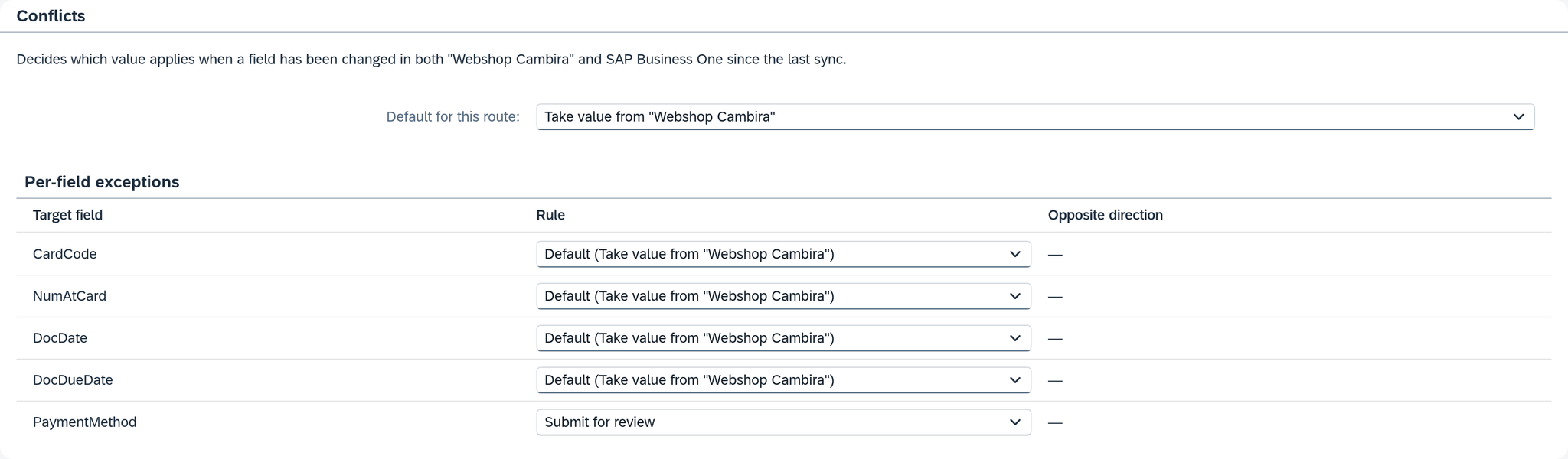
If the field is missing from the list, it cannot get into a conflict. For a route into an external system, this is usually because no route reads the field back from there; the note below the table names the reason — see Which fields are listed.
A list, e.g. DocumentLines, has a row of its own with a rule; its fields are indented below it
and follow it as long as they are set to As the list (…). Set the rule on the list if all its
fields are to be treated alike, and on a field only where it differs — see
Lists.
If a second route writes the same field in the opposite direction, it appears in the Opposite direction column with its rule. Set up both routes so that they want the same thing. On "Bestellungen Webshop" it shows "—": no route writes orders back to the shop.
3. Validate and activate
Activate the configuration snapshot — see Validate and activate. Only then does the rule take effect.
From now on, Xchange remembers the last synchronization for the field per record. A record that was already transferred does not have one yet. At the next job, the two values then decide on their own: if the field is empty in the target system, Xchange writes the source's value; if the source delivers no value, the one in the target system stays; if the two sides hold different values, that is a conflict — see How Xchange detects a conflict.
4. Decide a submitted case
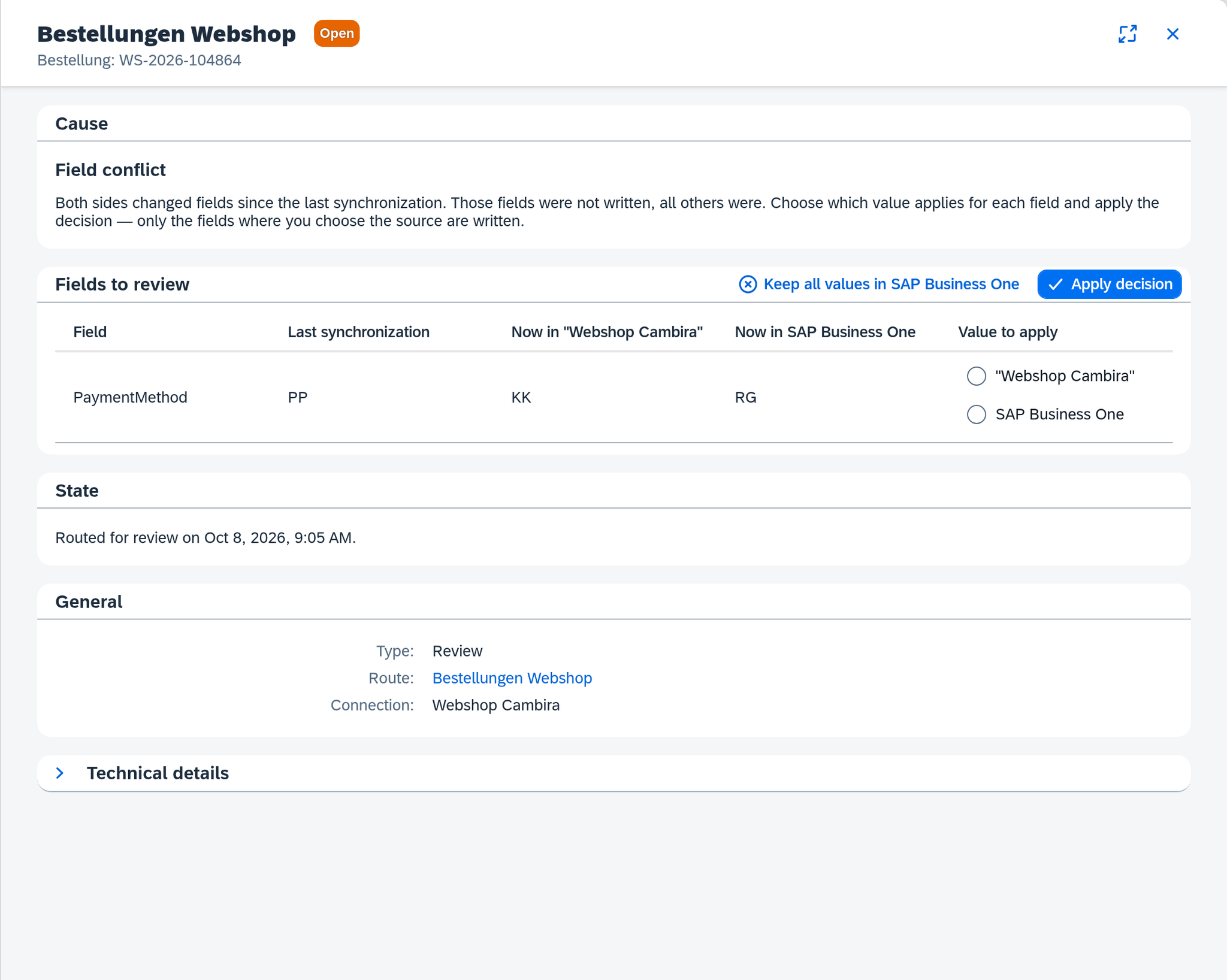
Order WS-2026-104864 came with the payment method PP (PayPal). The back office set it to
RG in SAP Business One, then the customer switched to credit card in the shop, and the shop sent
the order again with KK.
The job at 09:05 writes all fields except PaymentMethod and ends with Manual review. In
History, PaymentMethod carries the result Submitted for review under Conflicts, and Open review
leads to the case with the cause Field conflict.
- Open Clarification and select the case.
- In the Fields to review area, read the three values: Last synchronization
PP, Now in "Webshop Cambira"KK, Now in SAP Business OneRG. - In the Value to apply column, choose the side that is right — here Webshop Cambira, because the customer switched after the back office did.
- Click Apply decision on the right of the table's title. Xchange reprocesses the job and writes
KKinto the document; the case becomes Resolved.
If the value in SAP Business One should apply in every field of the case, click Keep all values
in SAP Business One instead of steps 3 and 4 and confirm with Keep. This reprocesses the job
as well but sends nothing: RG stays in place, and the case becomes Resolved. Both ways remember the values as synchronized: if the shop
sends KK again afterwards, no new conflict arises.
If the case stays open, it does not hold up the order. A field conflict is a Review; further
jobs of the same order go through — see Clarification. The next of them
replaces the case, which becomes Superseded. If the two sides still hold different values in
PaymentMethod then, that job holds the field again, and a new case appears.
Take the rule back
Choose Default again for the field in the Rule column and activate the configuration snapshot. After that, the route writes what the source delivers for this field again. Open cases stay in Clarification until you decide them.
What comes next
How a rule decided in a job — e.g. Value kept in … or Submitted for review — is shown in History under Conflicts.
See also
- Resolve a clarification (guide) — the other causes and how to work through them
- Routes — Behavior (reference) — every rule, which fields are listed and how Xchange detects a conflict
- Clarification (reference) — the Fields to review area and the two buttons
- Clarification (core concept) — what an open case does to the record