Retry failed jobs
Thirty failed jobs from the same source with the same cause are something you decide once. This page is about bringing them back into processing in one go — exactly the set you mean.
In the example, it is the Monday on which Cambira's webshop required a field that the route "Artikel Webshop" did not send: from 6:12 AM to 1:40 PM, 31 cases piled up, each a different item, each with the cause Target system rejected. At 1:40 PM, the shop's service provider rolled back its update. Fifteen minutes later, the list was empty.
How a single case is read and decided is described in Resolve a clarification; this page is about cases whose cause you have already understood.
What you need
- The Clarification permission, Full level. With Read only, you see the list and every case in it; the bulk bar appears only with Full. See Permissions.
- Entry point: the Clarification menu item.
- Above all: the certainty from the next section that the cause has been fixed.
First: Is the cause really gone?
Retrying a set at once is right exactly when two things hold at the same time:
- All cases have the same cause. What counts is the entry in the Cause column: it is the same for all of them.
- This one cause has been fixed. Someone changed something — in the target system, in the source system or on the route — and the changed state applies now.
If only the first holds, the retry ends like the first attempt: all cases go through the same processing with the same data and are back in the list shortly afterwards.
In the example, both hold: all 31 entries show Target system rejected, and the shop's
response — readable verbatim in the technical details — named the required field taxClass, which
the service provider withdrew again at 1:40 PM with its update. So the cause was fixed
in the shop: the route still shows Last modified Jun 24, 2026, and the configuration snapshot
is the same as in the morning.
The counter-example is on the neighboring page. WS-2026-104861, the order without a customer
number, belongs in individual handling: it comes from a different route, has a different cause, and
this cause persists.
1. Gather the cases of the same kind
For a bulk action to hit the right set, the list must show exactly this set beforehand. Two ways lead there, and they cut at different granularity.
From an opened case. If there are further open cases of the same route with the same cause, a notice with their number appears above the Cause area, and next to it Show all 31. The link sets the list afresh to route and cause — that is why it then shows exactly as many rows as the notice promised.

Through the cause strip. It appears above the list as soon as the open cases are spread across at least three cause groups, and switches the list to a group — that is, to several causes at once. That is the coarser cut: Target system covers, besides Target system rejected, everything else the target system turned down.
In the example, A. Vogt takes the first way: from the opened case ARM-4720, the first of the 31,
via Show all 31 into the list, which now shows exactly these 31. The notice suggests checking a
configuration change; here, the fix was in the shop, and the set the link
leads to is the right one all the same.
2. Choose the scope
A bar with the bulk actions appears above the list. What it offers depends on whether you have checked rows — and the two offers are alternatives: there is always exactly one of them:
- Empty selection: the bar shows a single button, All of Target system rejected (31); in it, you choose Reprocess or Close. Its text always names the scope the list is currently set to — a cause, a cause group or All causes when the list is set to everything. The number in parentheses counts the whole filtered set, including the rows further down the list.
- At least one box checked: in place of this button, Selected: appears on the left with the number of checked rows, and on the right Reprocess and Close — they act on exactly these rows.

All of … reaches every row the filter yields — including the ones you have not even scrolled to yet. That is right exactly when you have determined the set by its cause. If you want only some of them, check them; then the selection alone applies.
3. Read the confirmation prompt
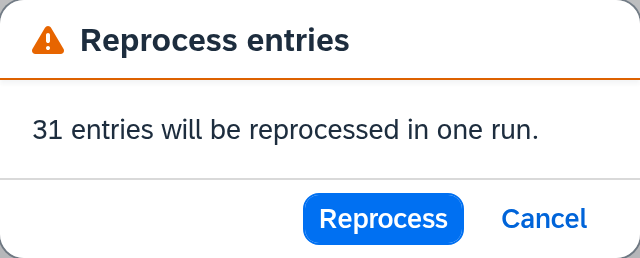
Before carrying it out, Xchange asks for confirmation. The prompt is titled Reprocess entries and always states how many runs are created — what is skipped and whether the snapshot is a different one only when there is something to say.
How many runs are created. "31 entries will be reprocessed in one run." One run, because all 31 come from the same route and the same processing path. If the selection spans several routes, the sentence says so explicitly: "… will be reprocessed in 3 runs — one per route and processing path." What a run is and why one is created per route is described in Execution.
What is skipped. If part of the set has changed its status in the meantime — because a later run picked it up or someone else handled it —, the first sentence already says so: "Of 33 entries, 31 will be reprocessed in one run; the remaining 2 stay unchanged." Where skipped entries can still be resolved, the way to do it follows in the same paragraph.
When the snapshot is a different one. If not all entries come from the active configuration version, this sentence appears: "Not all entries come from the active configuration version. They are processed with today's configuration."
The snapshot sentence is a notice. Both buttons stay operable; the decision is yours. Check whether today's configuration suits the cases — their age alone says little about that: since the oldest of these cases were created, a snapshot was activated. If this change affects the route that is about to run here, Xchange processes the old records by the new rules — and that may or may not be what you want. If the sentence appears, a look at Configuration Snapshots is worth it before you confirm.
In the example, it stays at the first sentence: all 31 cases are still open, and all come from version 7, the snapshot that has been active since October 2.
4. Read the result
After you confirm, the entries move from Open via Reprocessing to Resolved — and above the list, a strip with the result sentence stays in place: "Run started for 31 entries."
- If exactly one run was created, Open run next to it takes you straight to it. There you see what it actually did: in the example, 31 jobs, 31 successful, outcome Succeeded.
- If there are several, the sentence states their number; you then find the runs through the History.
- If by then all entries have been handled otherwise, Xchange reports this and leaves everything as it is: "None of the entries is still open. Nothing was changed."
The strip reports the start of the run; the outcome is reported by the run itself. If entries show up in the list again afterwards, the cause persisted, and the first section of this page is due once more.
Close instead of retrying
For a case where retrying is hopeless, there is Close: it takes the case out of the worklist and leaves the record unprocessed. This, too, works for a selection at once.
Closing is right when the matter has been taken care of; a hopeless processing alone is not
enough for that. WS-2026-104861 stays put without anyone doing anything — the message has been
consumed, and every further run passes it by —, and closing would still be wrong there: the order
still has to arrive in SAP Business One.
That is why this outcome is rarely a bulk action: the finding "this matter has been taken care of elsewhere" holds per record, not per cause. A whole set may only be closed together if it actually shares this finding — e.g. because a path was switched off and all its records left behind have already been posted elsewhere.
A closed case is preserved: it can be viewed again through the status filter, and the job stays unchanged in the History. How a case can end and what Closed, as opposed to Resolved, says about the record is described under Clarification.
What comes next
If the list is full and you do not know yet whether any intervention is needed at all, Wait or intervene? comes before this page. If it is about a record that still needs a job, Push manually takes you further.
See also
- Resolve a clarification (guide) — the single case, from the cause to the decision
- Clarification (reference) — every field, all causes, all buttons
- Execution (reference) — what a run is and what it reports about itself
- History (reference) — the jobs behind the cases