Stop a running run
Something is running right now, and it should stop. A run you did not mean that way. A run that takes much longer than usual. A single job that fails again and again.
Stop exactly what you mean. You can cancel at two levels, and they are in different places: the run is cancelled on Execution, the single job in History. If you cancel the whole run to get rid of a single job, you do far too much — and only notice when the other thousand records are missing too.
In the example: on Thursday morning, M. Brandt wants to push three fittings to Vienna, reaches
for the wrong control and at 9:10 AM starts a full run on "Artikel Cambira Austria" instead of
Transfer individually. It reads all 1,186 items and skips precisely the three fittings, because
they are unchanged in CAMBIRA_DE. At 9:12 AM, Brandt cancels it.
What you need
- For the run: the permission Execution, level Full. With Read only you see only the run itself; the buttons on it appear only with Full.
- For a single job: the permission History, level Full. It is a separate permission next to the one for the run — stopping a job requires History.
- For pausing the route as well (further down): additionally the permission Automation, level Full. The checkbox for it appears only with this permission; for the cancellation itself, Execution is enough.
Which level opens what is described under Permissions.
Both paths begin where you see the problem: the run on Execution in the block Currently running, the job in History on its detail page.
Do you mean the run or a job?
Are you bothered by what is happening overall, or by a single record within it?
- The run was wrong — wrong run type, wrong time, far too large a scope → section 1.
- A record is stuck — it repeats endlessly, or you know that it fails permanently → section 2. The run continues, all other jobs go through.
1. Cancel the run
On Execution, every row under Currently running carries a Cancel button. It is only there as long as it can have an effect: once the run is finished or you have already requested the cancellation, it disappears.
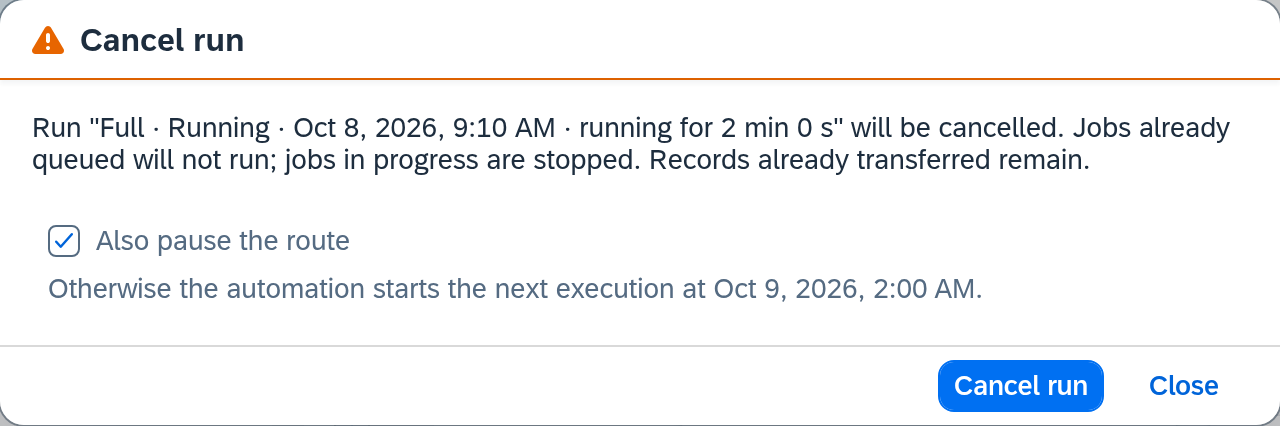
The dialog tells you beforehand what the cancellation does:
- What is still waiting is dropped. The queued jobs are dropped.
- What is running right now is stopped. It stays at the state it has reached.
- What has already been transferred stays. What has arrived in the target system has arrived.
A cancellation is final. That is why the focus is on Close when the dialog opens: an accidental Enter closes the dialog, and the run continues.
The Also pause the route checkbox — and why it is checked
If an automation runs on the route, the dialog offers to stop it as well — and the checkbox is already checked. Below it, it says what is at stake, with the actual time — in the example Otherwise the automation starts the next execution at Oct 9, 2026, 2:00 AM.
The checkbox prevents you from cancelling and the schedule starting the same run again hours later. Only clear the check mark if you stop the run for a one-off reason and the schedule should keep running.
In the example: Brandt clears the check mark. The slip was a one-off, and the route needs the nightly run at 2:00 AM.
The checkbox is offered where it has an effect: on a route whose automation is currently switched on, and with the permission Automation, level Full.
What happens next
After you confirm, Xchange briefly reports Cancel requested. The run first carries the status Cancel requested and then comes to a stop at the next opportunity. After that, it appears as Cancelled in the run table, with everything that was finished up to then.
If the run stopped by itself at exactly this moment, Xchange says so: The run has already finished. The result is the same.
2. Cancel a single job
For this, go to History, open the job and choose Cancel there. Here, too, it is ended at the next possible point. The run it belongs to continues untouched.
Which jobs can be cancelled and what that does to their status is described in the History reference.
If you want to stop the route permanently
A cancellation ends one run; the checkbox in the dialog stops the automation as a side effect of an intervention. The decision about the route itself is a separate step.
If the route is to rest for a longer time — because the target system is being rebuilt, because the connection changes, because it has simply served its purpose — that is a different action with different consequences: Take a route out of operation.
If it is only slow
A run that takes long often simply has a lot to do — a full run over 1,186 items takes many times longer than the nightly change run over 143. Before you cancel, it is worth looking at what the UI actually says about the pace:
- On Execution: the row of the run shows since when it has been running, and where the scope is already fixed, a bar shows how much of how much is done. If the bar moves, the run is large and working.
- On the Overview: the Key figures of the last 24 hours. Runtime per job says how fast the jobs were in this period, and sets the slowest one next to it. Backlog says whether something is building up.
That is everything the UI shows about the pace. Why a run is slow — a sluggish target system, a large dataset, an unfavorable time of day — lies outside this display. How you interpret the key figures is described under See how much goes through the interface.
If two runs get in each other's way
Two runs of the same route that both go through their dataset exclude each other. You notice that in two different places, depending on who wanted to trigger the second run:
- You yourself, by hand. Xchange briefly reports A run for this route is already requested — it stays with the one run, and the run table keeps its state. The message is the complete answer.
- The automation. If a slot of the schedule falls into the running run, it is dropped, and the run table shows nothing of it. The schedule continues with its next regular slot.
So cancel a wrong run instead of letting it run out. As long as Brandt's accidental full run is running, it blocks the route for every further run that goes through the dataset. If it drags on into the night, the nightly change run is dropped. The cancellation frees the route again.
Which runs exclude each other and which run side by side undisturbed is described under Execution.
What comes next
- The run is cancelled, and now the right thing should run: Push manually.
- You paused the route as well and want to start it up again: the same switch on Execution that stopped it — Execution.
- The run was right, but failed: Retry failed jobs.
See also
- Check whether a run went through cleanly (guide) — what a completed run reveals about itself.
- Execution (reference) — all controls of the screen on which you cancel.
- History (reference) — the job level and its buttons.
- Execution (core concept) — how runs, jobs and their outcomes relate.