Understand what a route does
In front of you is a route that someone else built. It runs, it did something last night, and you need to be able to say what. This guide goes through it once — from where to where, when, and what happens to the data along the way.
The example is "Artikel Cambira Austria". On Thursday morning, October 8, 2026, Execution shows that the route ran at 2:00 AM and had 143 jobs. Where the 143 come from is explained at the end of this round.
The order here follows the data. The question "What happens at the target?" is answered in two places: the Write intent is in the step settings of the Mapping tab, and the delete behavior is under the name Strategy on the Behavior tab. If you follow the data, you read the two halves of this answer together.
What you need
- The permission Routes, at least at the level Read only, and for step 1 additionally Configuration Snapshots — see Permissions.
- Starting point: Routes, in the menu.
This round is read-only — and that is also all it allows. With Read only, all fields are visible and grayed out. The three tools you use along the way — Count matches, the test area of the mapping and the comparison of two configuration snapshots — are explicitly available with Read only; all three leave the configuration as it is.
1. First, clarify which snapshot you are looking at
The route editor shows the draft as soon as there is one — that is, what is to apply; what is running right now can differ from it. In operation, the active configuration snapshot applies, and it can be older than what is on the screen here.
- Look at the header. It shows two details side by side: the active snapshot and the draft.
- If it says No Draft, you are done — there is only one snapshot, and you are looking at it.
- If a draft is shown, the question is open. Open Configuration Snapshots and choose Compare; the comparison puts the draft and the active configuration side by side.
- Check whether the route you want to read appears in the comparison. If it is missing there, it is unchanged in the draft — then what you see in the editor also applies to it.
In the example, the header shows Active v7 and next to it Draft v8 · Validated. The comparison shows a single changed row, and it is in the value table "Zahlungsarten Webshop". "Artikel Cambira Austria" is not in it. So what you are about to read is also what ran last night.
Remember which case applies. No screen of the route editor tells you again later which of the two snapshots you are looking at.
2. From where to where
The General tab answers the basic question. Three of its six fields are display only — they were set on creation and have been fixed since then.
| Field | In the example | What it tells you |
|---|---|---|
| Direction | Export | The data goes out of SAP Business One. With Import, it would come in; with Internal, it would stay in SAP Business One. |
| Type | Processing | The route maps the fields and writes to the target system. A Dispatch would only pass messages on to other routes. |
| Data origin | Dataset | The route actively fetches the data. With Queue, it would have it delivered. |
| Connection | Cambira Austria | The other end. |
The direction determines how you read the connection. For an export route, SAP Business One
is the source and the connection is the target; for an import route, exactly the other way around.
Here that means: reading is from CAMBIRA_DE, writing is to "Cambira Austria" — according to the
connection, the company database CAMBIRA_AT of the sister company. An internal route has no
connection — source and target are both in SAP Business One.
If the name of the connection means nothing to you, go there once: under Connections you find the type, base address and sign-in method. That is the only place where you see which system is behind the name.
3. When it happens
The Automation tab. The triggers are here — a route can have several, and they do different things.

In the example, there are two:
| Trigger | Run type | Cleanup |
|---|---|---|
| "Täglich 02:00" | Incremental | off |
| "Wöchentlich So 03:00" | Full | on |
You read three things here, and you need all three later:
- The run type decides how much a run takes along — only what has changed or the whole dataset.
- The Cleanup belongs to the schedule. Here it is switched on only on the Sunday trigger, and only it makes the delete behavior from step 5 effective.
- Under Next runs, you see when it happens next. That is the quickest check of whether a schedule means at all what you understood while reading.
If the list here is empty, the route runs only when someone triggers it by hand.
4. What is selected
The Source data tab. It answers two different questions, and they are easily confused.
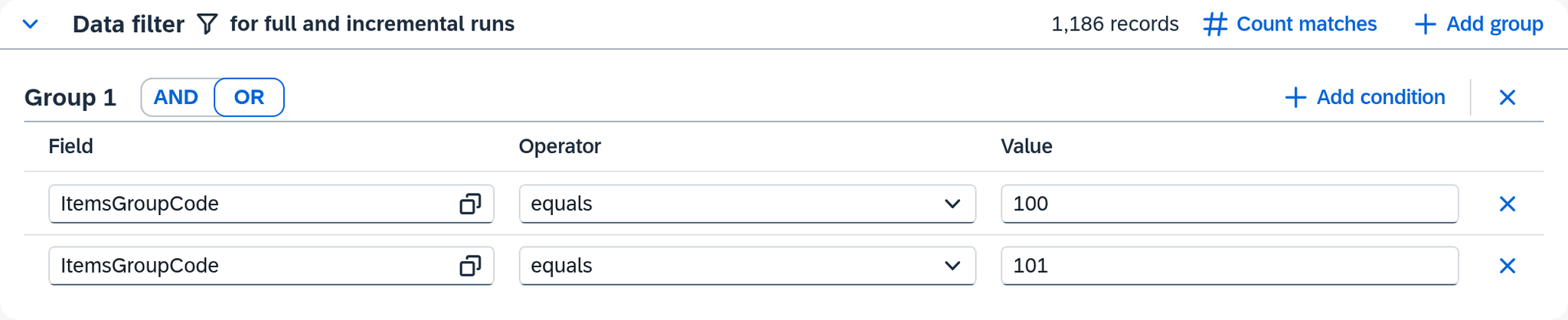
The data filter says which subset of the dataset concerns the route at all. It applies to every run, whatever the run type.
In the example: ItemsGroupCode equals 100 or ItemsGroupCode equals 101 —
the item groups Armaturen and Ersatzteile. How large this subset is, Count matches above the filter tells you: 1,186 of
2,418 items. That is the scope of a full run of this route.
The change filter says how an incremental run recognizes what is new. In the example,
UpdateDate or CreateDate. It applies only to incremental runs; a full run
ignores it.
Together, the two give the rule by which you read every number of this route: A full run reads the whole dataset within the filter. So 1,186 is the upper limit of a run.
Further down is the Key — in the example ItemCode. That is the field by which a
record is recognized; by it, Xchange tells a second transfer apart from a new
record.
5. What happens along the way — and what at the target
The Mapping tab. At the top is the Steps bar; the selected step determines what is shown below it.

In the example, the route has exactly one step, Artikelabgleich, and its mapping is three
rows long: ItemCode, ItemName and ItemsGroupCode go unchanged to the
target field of the same name. Both companies keep the same fields under the same names, so
taking them over directly is enough — no transformation, list or additional row is needed.
This is the simple case. If a row has more than one source field, a chain of transformations is attached to it, or the row refers to a value table, then something happens to the value along the way — and the question of where a value in the target comes from is worth a round of its own. It is described under Find out where a value in the target comes from.
What happens at the target is behind Step settings in the steps bar. The details that apply to the whole step are gathered there:
| Setting | In the example | What it means |
|---|---|---|
| Write intent | Create or update | An unknown item is created, a known one is overwritten. |
| Target endpoint | Items | The collection in the target system that items are created in. |
| Item endpoint | Items('{{ItemCode}}') | The address of a single item, under which a known one is overwritten. |
| Key source | Mapping or source | The key comes from the source data — here ARM-4711, which has the same name in both companies. The Key row ItemCode takes it from the mapping row ItemCode. |
The second half of the target question is on the Behavior tab, under Strategy: what happens to a record that the route transferred earlier and that drops out of the data filter today? In the example, it says Deactivate in the target system — and that takes effect only if the Cleanup is switched on in the schedule, so here only on Sundays.
A trial run instead of guessing. On the right of the Mapping tab is the test area. It takes a record and shows what the mapping makes of it — purely as a trial; configuration and target system stay untouched.
6. The number from the beginning
Now last night's run can be read. The data filter admits 1,186 items, around 70 of which change on an ordinary day — and yet the run at 2:00 AM had 143 jobs.
The reason is in Execution, under Next incremental run: an incremental run
reads from the largest value the previous one read in UpdateDate. The run of October 7 at
2:00 AM found October 6 as the newest value — nothing had changed yet that night. Because SAP
Business One keeps UpdateDate only to the day, the run of October 8 reads that day again in full
and reads from October 6 — it covers a good two working days.
This results in a rule for every route you did not build: a job count has only been read when you know the run type, the data filter and the starting point.
What comes next
You now know what the route does. Two questions typically follow:
- A single value in the target looks wrong. How you trace it backward to its source is described in Find out where a value in the target comes from.
- What the route actually did last is shown in Execution and in History; the configuration says what it is supposed to do: Check whether a run went through cleanly.
If you want to change something on the route, that starts a draft, and it takes effect only with the activation — see Change a running configuration.
See also
- Routes (reference) — the list, the creation dialog and the General tab
- Routes — Source data (reference) — data filter, change filter and key in detail
- Routes — Mapping (reference) — the mapping row, the step settings and the test area
- Routes — Behavior (reference) — the Strategy of the delete behavior
- Routes — Automation (reference) — the trigger types, the run types and the cleanup
- Configuration Snapshots (core concept) — why the editor can show a different snapshot than the one that is running