Find and trace a single job
You usually open History because of a question: the logistics partner claims never to have received a delivery order. Sales asks where yesterday's order is. Accounting wants to know exactly when something was transferred.
All of these questions begin the same way — you find the one job that it is about. After that, they part ways.
What you need
- The permission History, level Read only. It is enough for everything on this page, all the way down into the sent message — see Permissions. Only the jump into an open clarification case at the end additionally requires Clarification.
- Starting point: the menu item History.
- Some number in hand: a document key from SAP Business One, a number from the external system, or even just the route and the approximate day.
Everything on this page is read-only.
1. Find the job
The fastest way is the Quick search in the filter bar. It searches four keys:
- the Key of the record on our side, e.g.
80234, - the Correlation ID of the job,
- the Message ID of an incoming message,
- the External key from the object link — the number of the same record over there.
A part of it is enough, and upper or lower case does not matter: 778341 finds
KS-778341. Beside each key it also finds its display value — for a document from SAP Business
One, the document number you know from the document rather than the internal key.
The quick search reads the keys and leaves out the content of the message. A number that appears only in the transferred body is found via route and time period, as described below. That is the most common reason for an empty list.
The second most common is the time period. By default, it is set to the last 24 hours and also limits the quick search. Set the time period before you search.

If you have no number at all
Then narrow down from the other side: set the Route or Connection, the Time period to the day in question, and search the list by Triggered. For a route with a short interval, that is many rows — the Status filter makes them manageable, e.g. with the group Action required when you are looking for a problem case.
If you come from Execution, the way is already paved: a click on a row under Recent runs opens this page filtered on the Run reference, and that lifts the time period. You see the whole run, even an old one.
Which seven filters there are and what each one narrows is described on the reference page History.
2. Read its path
Once the job is selected, its details are on the right. Read them in this order — it answers the questions in the order in which they usually come.
- The header names the route and record and, next to them, the status. Lieferaufträge Kessler · 80234, Succeeded. This tells you whether you have the right job in front of you.
- General information says why it was created in the first place: Trigger Event, the Run it belongs to, and the Configuration version v7 with which it was processed.
- Records connects both worlds: Internal
80234, ExternalKS-778341. - Status and history gives the times and — if something went wrong — the error and the next retry.
- Execution steps shows the stations individually: Lieferauftrag, its status, its attempts.
Two notes on this. The configuration snapshot explains old cases: a job is always processed with the snapshot that was active when it was created — which is why an error from the day before yesterday can be explained even if the route looks different today. And the two time columns of the list show the distance, not the time of day — "20 minutes ago". The exact time is in the tooltip.
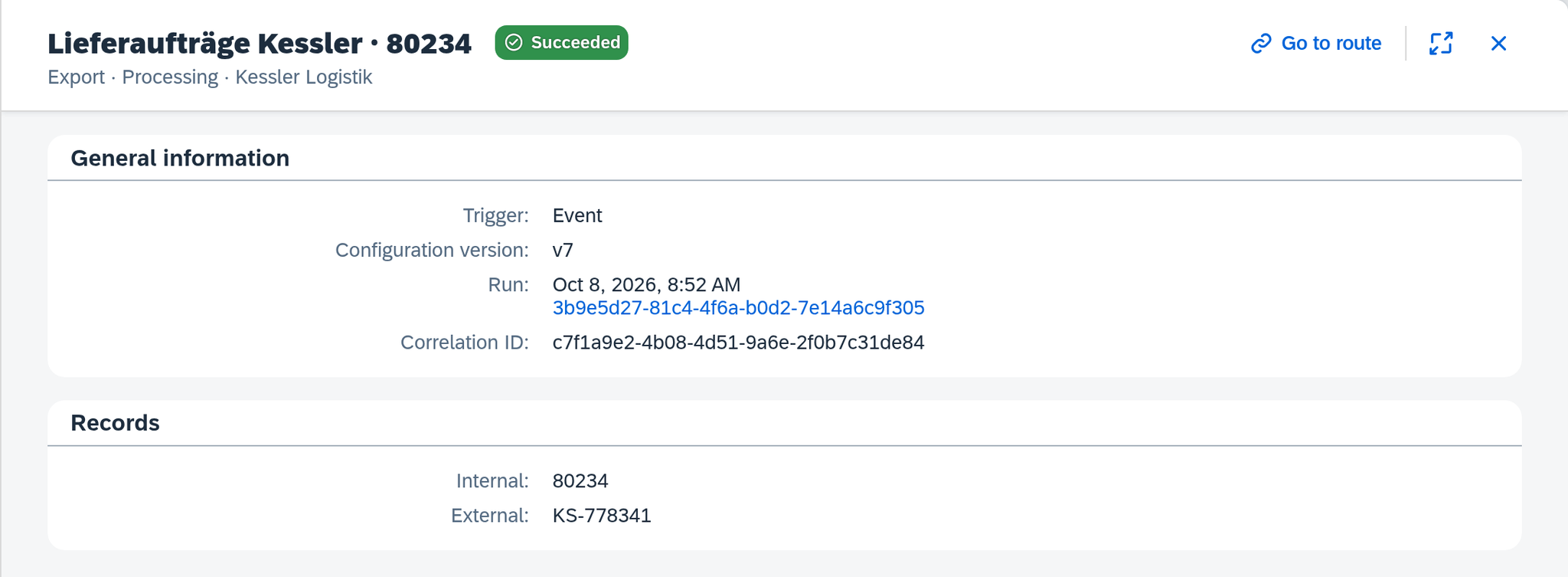
What each individual field means is listed completely in History.
3. Prove that it was transferred
The partner says they received nothing.
In the example, "Kessler Logistik" asks about delivery 80234. You search for it, open it and read
the two areas Sent message and Response — and they answer the question
conclusively, from Xchange alone:
- What went out, verbatim: the body with
sender_refanddelivery_no80234, customer numberK-10317and the lineARM-4711. - To which endpoint and with which method:
POSTtoshipments. - What came back: Status 201 and, in it, the shipment number
KS-778341, with the partner's acceptance time.
Take the timestamp for your reply from the tooltip of the list; it comes there with its label, Triggered: Oct 8, 2026, 8:52 AM. That way it goes unambiguously into an email.
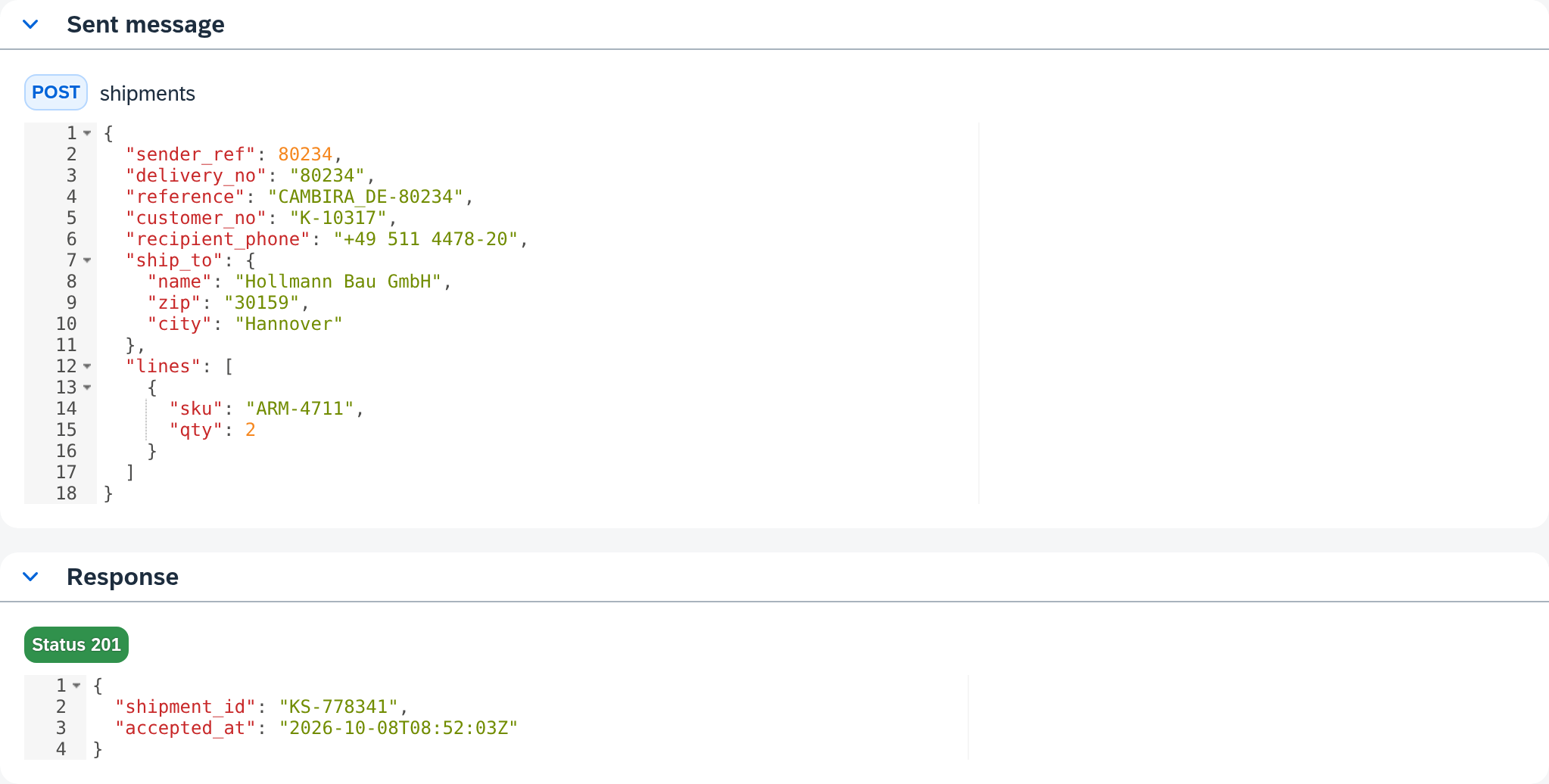
Three limits of the proof:
- With several attempts, you see the last one. The page states which attempt it is: "Showing the last of 3 attempts."
- If a received message is larger than 1 MB, the preview in the Received message area shows only its beginning. You get the complete message there via Download. The sent message and the response are always shown verbatim.
- Jobs are cleaned up after their retention period. Proof that is needed for longer must leave the house before then.
4. Be able to say why an order is not there yet
The opposite direction: someone in your own company asks where the customer's order is — it is not in SAP Business One. Search for the job by the order number. What you then see gives three different answers, and each points somewhere else.
| What it says | What it means | Where it points |
|---|---|---|
| Status Queued or Running | The job is there and still on its way. | Do nothing. If there are conspicuously many: the key figure Backlog on the Overview. |
| Status Skipped … | The job ran along, but there was nothing to write. The reason is shown with it. | The reasons are explained in Execution. |
| Status Clarification | It failed permanently and is waiting for a decision. | Open clarification in the Status and history area. |
In the example, it is the third case: WS-2026-104861 from Oct 7, 2026, 4:20 PM is in
Clarification, under Error the message Required field 'CardCode' has no value., and in
the received message the field customer_no is missing, from which the required field CardCode
gets its value. That answers the question: the order arrived, but it was missing the
customer number. In Clarification, the case carries the cause Required field has no value.
If the list stays empty although the time period and number are right, the route never took the record along. The answer then lies in what the route covers — see Routes — Source data.
What comes next
If the job has ended up in Clarification, resolving it belongs on a page of its own: Resolve a clarification. And if you come from the other end — not from a question, but from the morning check —, Check whether a run went through cleanly is the way there.
Here, the sent message was the proof — it answers whether and what was transferred. If it contains a value you cannot explain, the same message becomes the starting point: Find out where a value in the target comes from goes backward from there into the configuration.
See also
- History (reference) — the seven filters, the eight columns and every field of the details
- Clarification (reference) — the screen on which an open case sits
- Execution (core concept) — why a job is skipped and what "failed" means in that context
- Permissions (core concept) — what Read only allows in History