Check whether a run went through cleanly
It is Thursday morning, shortly after nine. Overnight, "Artikel Cambira Austria" ran at 2:00 AM, and the frequently scheduled routes ran all night. In the morning, one round is due: has anything been left behind — and if so, where is it?
The way leads from coarse to fine, across three screens: the Overview says whether there is anything to do at all, Execution says which route it concerns, History says which record.
What you need
- The Execution permission and the History permission, each at least at the level Read only — see Permissions. For the last step, additionally Clarification.
- Starting point: the Overview, the first menu item.
The round is pure reading: you look, and runs and jobs stay as they are.
1. Start on the Overview
Begin with Action required; the key figures come afterwards. The tiles say how things went; Action required says whether you need to do something.
- Open the Overview.
- Read the Action required list. If it says Nothing to clarify, the round ends here — the list holds everything that is open.
- If something is in it: read the rows from top to bottom. The list is sorted by urgency: first the red errors, then the orange warnings, last the blue notices. The top row is the one most likely to be blocking something.
In the example, on Oct 8, 2026, at 9:12 AM there is exactly one row, orange: 2 operations are waiting for your review. That is all — connections and routes are running, two records are waiting for a decision.

The four tiles below are the cross-check. They answer a different question — how much ran, how fast, with how few errors. In the example: Backlog 0, Error rate 0.1%, Runtime per job 420 ms, Jobs 781. A backlog of zero next to two open clarifications fits together: the two numbers count different things.
What the tiles count in detail — and why backlog and open clarifications measure different things — is on the reference page Overview.
2. Look up in Execution which route it concerns
Action required names the matter. The route for it is in the route list.
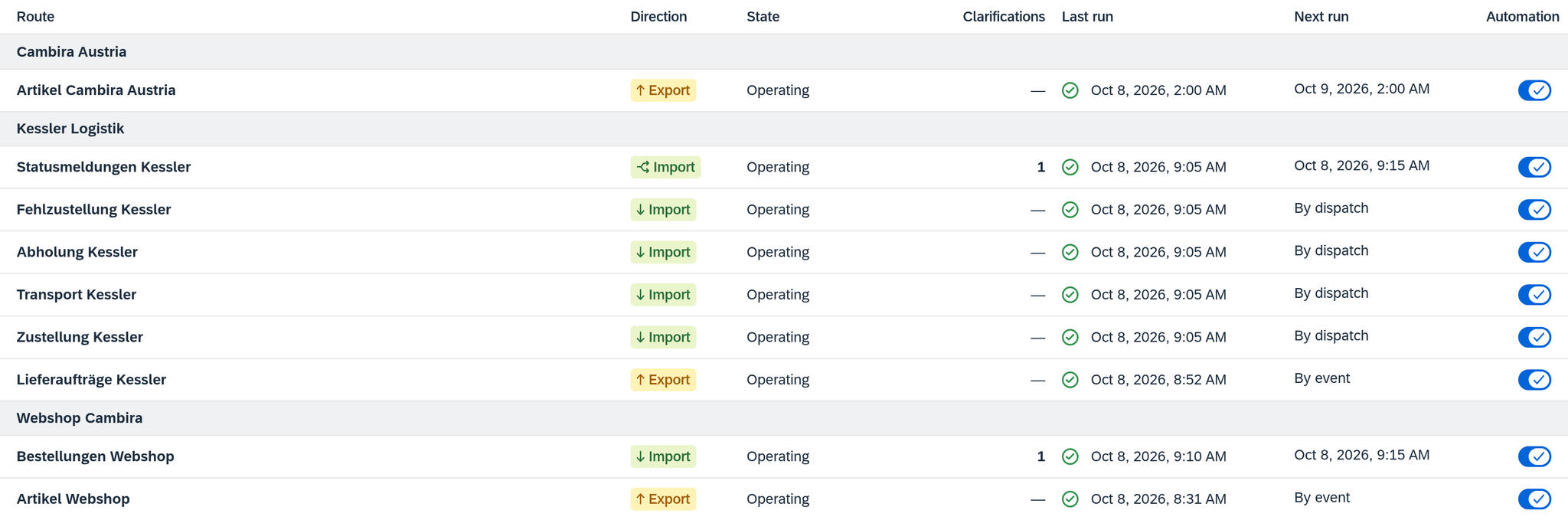
- Open Execution. The route list takes up the whole screen, each route under the band of its connection.
- Three columns answer the morning question: State (is the route running at all?), Clarifications (is anything waiting on it?) and Last run (when was it last up, and how did it end?).
- Go through the list once from top to bottom. A bold number in Clarifications and every state other than Operating are the places where you stop.
In the example, "Statusmeldungen Kessler" carries a bold 1 in the Clarifications column, and "Bestellungen Webshop" does too — together the two that the Overview reported. The nightly run of "Artikel Cambira Austria" shows Oct 8, 2026, 2:00 AM and the green check mark for Succeeded in the Last run column. That one is through.
3. Read the breakdown behind the result
The result of a run says whether its jobs got through. How they turned out in detail is shown in two places:
- in the route list in the tooltip over Last run — after the result, joined by a middle dot,
- in the operational information of the route in the Jobs column of the Recent runs table.
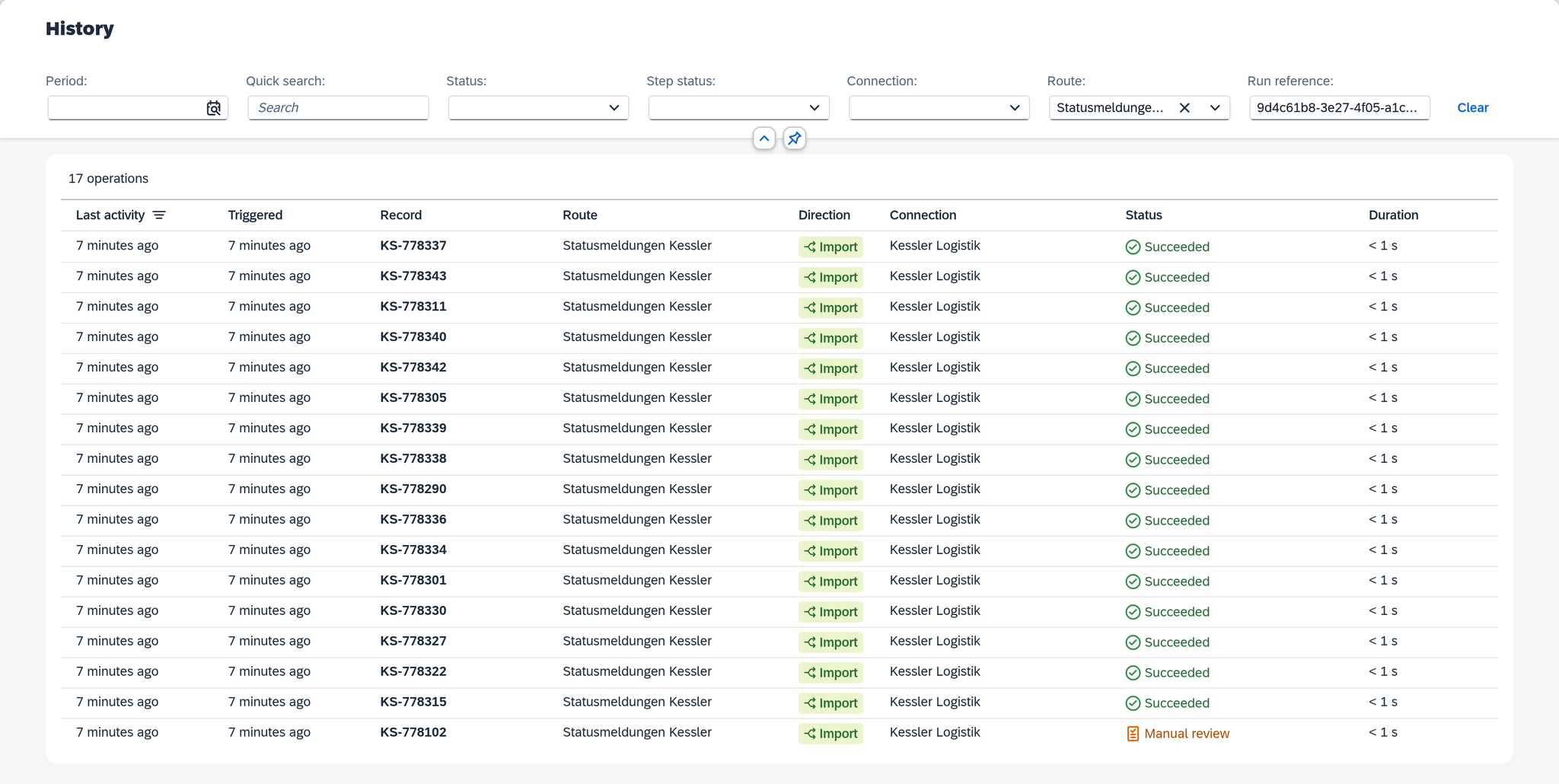
In the example, the run of "Statusmeldungen Kessler" at 9:05 AM. Its result is Succeeded; the green check mark gives nothing away. The tooltip says Succeeded — 1 for review · 16 ok, the Jobs column says 17 jobs: 1 for review, 16 succeeded.
A run can be called Succeeded and still contain something open. The message was looked at and passed on, and the pass itself came to an end without disruption — both are true. Why the result of a run and the result of a single record are two different things is covered in the concept Execution.
If jobs failed permanently, the result names the reason along with it, e.g. Partially succeeded · Records awaiting clarification. All reasons are in Execution.
4. Open the single job in History
By now you know which route has something left. Which record it is, is in History.
- In Execution, select the route. On the right is its operational information, below it the Recent runs table.
- Click the row of the run. History opens, filtered to exactly this one run.
- In the list, select the job that stands out — in the example "KS-778102" at Manual review. On the right are its details — the key data, the steps, the message.
The filter works via the Run reference, and it overrides the period: you see the whole run, even if it is older than 24 hours. If you clear the field, the previous period comes back.
If, conversely, you are looking for a particular record, Quick search is the shorter way — it finds it by its key or its display value. What each of the seven filters narrows down is on the reference page History.
5. Find what is open from yesterday via errors, clarifications or History
The Recent runs table lists the five most recent completed runs of the route. For a route that checks every five minutes, the run from yesterday afternoon has therefore long since dropped out by this morning: hundreds have followed since.
In the example, this hits exactly the error case. WS-2026-104861 failed on Oct 7, 2026, at 4:20 PM;
its run was Partially succeeded. Since then, "Bestellungen Webshop" has kept running every five
minutes, and the last run at 9:10 AM shows 4 jobs and Succeeded.
You get to the case by three other ways:
- The Last error section in the operational information of the route shows the message of the most recently failed job and below it View clarification case, which opens exactly this case.
- The Open clarifications tile under the key figures of the route opens Clarification, narrowed down to this route.
- History with a filter of your own: Period set to Yesterday, Status set to the group Action required.
Hence: Execution answers what has run; what is still open is answered by Action required on the Overview. That is why it comes in step 1.
What comes next
You now know what was left behind and where. Deciding is a separate task and is covered in Resolve a clarification. As long as a record is there, it remains a single case: the following runs leave it alone, and the list holds it exactly once. Why that is so and when it turns out differently after all is covered in the concept Execution.
See also
- Overview (reference) — what Action required shows and what the four tiles count
- Execution (reference) — the route list, the run results and the operational information per route
- History (reference) — the filters and the details of a job
- Execution (core concept) — why a run and a job can end separately