Push manually — a run or a single record
This guide is for the case where everything is running and something still has to reach the target sooner: something that would come by itself is needed now — or a single record is missing at the target, and the regular run passes over it.
In the example, it is the route "Artikel Cambira Austria". It runs at night at 2:00 AM and takes along what has changed since the last time; on Sundays at 3:00 AM, it reads the whole data set. Two occasions in one morning that end differently:
- This morning, someone corrected the descriptions of some Nordfluss fittings. The colleague in Vienna needs them before noon.
- Three fittings are set to inactive in the Austrian company because someone set them that way by hand there. In SAP Business One they are unchanged — which is why every run skips them, the nightly one as well as the Sunday one.
The first occasion is a run, the second is a single record. For a failed job, Retry failed jobs is the way.
What you need
- The Execution permission, level Full. With Read only, you see the route and its operational information; Start run and Transfer individually appear only with Full. See Permissions.
- Entry point: the Execution menu item, then click the route in the list. Both buttons are at the top right of the detail page.
- The route must be in the active configuration snapshot. A route you have only just created appears on this screen only after activation.
What you start here also runs on a route with Automation paused. The pause only stops the triggers. A locked connection, on the other hand, also stops the manual start: Xchange rejects it before a run is created. How to lift the lock is described under Change the credentials of a connection.
1. The run — when the whole scope is meant
Start run does the same thing the schedule does at night. It is the right tool when you do not have individual records in mind but a period of time: everything that has happened since yesterday.
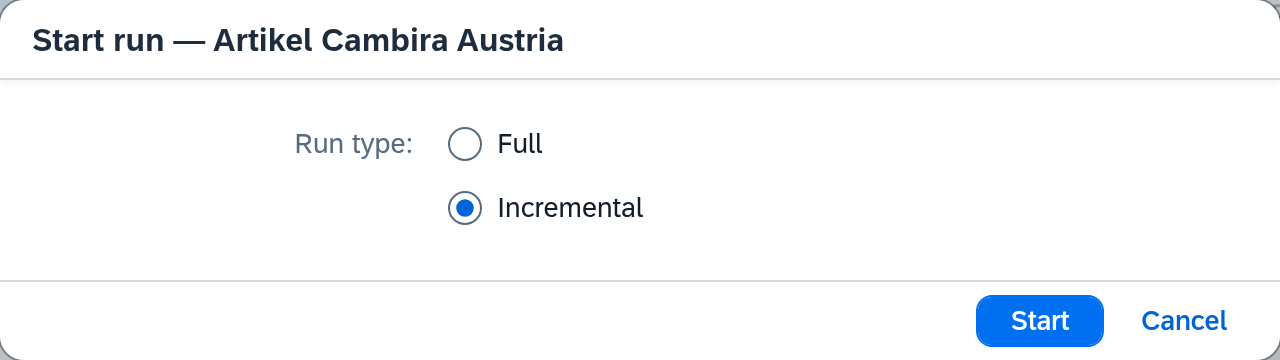
What the dialog offers follows from the route. There are three forms:
| What kind of source the route has | What the dialog shows |
|---|---|
| It reads a data set and can run incrementally | the choice Full or Incremental |
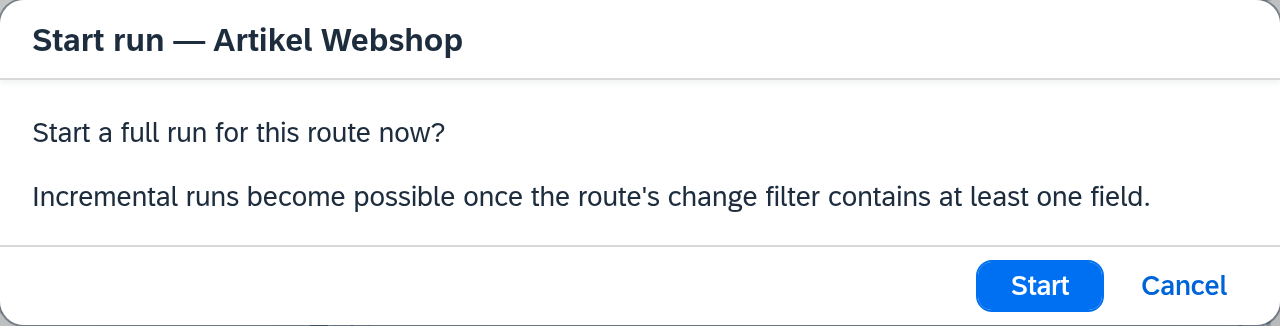
| It reads a data set but cannot run incrementally | the sentence "Start a full run for this route now?", with the reason below it |
| It fetches from a queue | the sentence "Empty the queue for this route now?" — plus a Limit to field |
Whether a route can run incrementally is decided by its connection and its change filter together. On the connection, the option under Detect changes must be filled in completely, and where the connection pages by Page number or Offset, it needs a Sort. If the source returns a change token, that is enough; otherwise the route needs a change filter with at least one field.
Where only one run type is possible, Xchange only asks for confirmation — as with the route "Artikel Webshop": it has no change filter, so a manual run there always reads the whole item master. Below the sentence, the dialog names the reason; which reasons there are is listed in the Execution reference.
Which choice suits which occasion
If the choice is open, Incremental is preselected, and that is almost always the right answer: the run takes along what has changed since the last time — in the example, the descriptions corrected this morning and whatever else was changed since yesterday, a few dozen items instead of 1,186.
Full is the expensive exception. With it, you read in anew the whole scope that the route's data filter covers. That is right when you do not trust the state at the target as a whole — and wrong as a reflex, because depending on the route it costs thousands of jobs and half the afternoon. Two things about it:
- Even a full run transfers only what has changed. Xchange compares each record read against the last transferred state; what is the same ends as Skipped (no change). Over a clean data set, a full run therefore reads a lot and writes little. Why a job is skipped is described in Execution.
- Only with a full run can the Cleanup checkbox appear — and even then only if the route has one. After the run, it reports to the target system every record that the route transferred earlier and that this run no longer delivered. What happens to it there depends on the route's delete behavior.
What the individual fields of the dialog mean is described in full in the reference Execution.
With a queue route
Here there is no run type, only the question of how much you want to clear in one go. The Limit to field is the upper limit for this one run; if it stays empty, the whole queue is emptied. More on this under The upper limit.
2. The single record — when you know which one
Transfer individually transfers what you name — even if nothing about it has changed.
In the example, these are the three fittings ARM-4711, ARM-4712 and ARM-4715: in SAP Business
One they hold the same as at the last run; someone changed them over in the Austrian
company. A run compares against the last transferred state and therefore leaves them alone —
the incremental one as well as the full one. Here you enter the three keys, and the three are
transferred.
This dialog also has up to three forms, and they too follow from the route. If the route offers more than one, you choose at the top between Display value, Key and Source record; preselected is the form you last used on this route, otherwise the strongest one the route offers.
You have the key
If the route's source has a Single-fetch endpoint, the key is enough — Xchange reads the record fresh and transfers it, from SAP Business One as well as from a REST source. If the route gets its data from a queue, this form is not offered. The dialog shows a Keys text area: one per line.
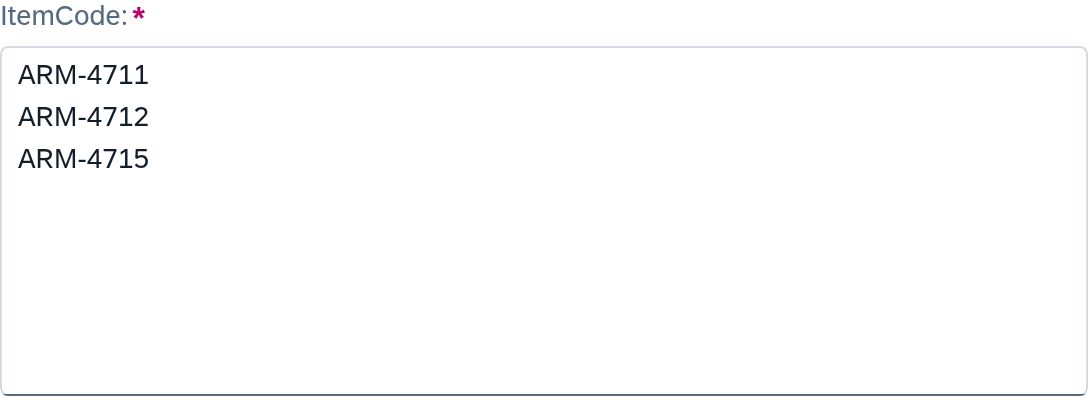
Below the field, Xchange shows what it has recognized — "3 keys recognised". It is worth a look, because it is the only feedback before the click:
- Empty lines do not count. A pasted block with paragraphs in between still gives the number you expect.
- Duplicates are removed before the transfer, and the dialog says so beforehand: "1 duplicate key will be removed before transfer". The counter shows the number after removal — that is, the number that is actually transferred.
- At least one line must be there. Xchange marks an empty field red.
You know the display value
You do not always know the key. A delivery of the route "Lieferaufträge Kessler", for example, you
know in SAP Business One by its document number, not by the internal key Xchange reads it with. If
the route has a Display field and its source a Fetch endpoint, choose Display value and
enter the document number — 80234. The field carries the display field's name, "Display values
(DocNum)", and the counter below it works as for keys.
On the click, Xchange looks up the record with exactly this value for each line and transfers it.
What cannot be matched unambiguously Xchange does not transfer; it leaves the line in the field with
its reason — 80235 — not found:
| Reason | What you do |
|---|---|
| not found | Check the value. |
| several records, please enter as key | Switch to Key. |
| the source does not support searching by display value, please enter as key | The source does not filter by the display field; switch to Key. |
| no permission to read in the source | Your user lacks read access in the source. |
| same record as another line | Nothing — the record is transferred once. |
Once a line is corrected, transfer again; the reason behind it does not need to go.
You have the record
Source record is offered on every route — and is the only form when Xchange cannot read anything in the source. You paste one record as JSON, exactly as the source system delivers it. On the click, the only check is whether it is valid JSON; if the content does not fit the route, that shows only in the run.
The upper limit
When transferring keys or display values: at most 100 lines per transfer. As soon as you are above that, a red hint with the limit appears below the field — At most 100 keys per transfer. The Transfer button stays clickable; Xchange rejects the click until you are below the limit again. With more than a hundred, split them up, or you are anyway in the range where a run is the more suitable tool.
When emptying a queue: Limit to is an upper limit for this run, not a promise about the rest. If there is more in the queue than the number allows, the rest stays there and is picked up by the next run. If the field stays empty, the run works through the queue until it is empty.
What happens afterwards
Both create a run, and you find both runs in the same place.
- The manual start creates a run of the type you confirmed — Full, Incremental or Drain queue.
- The individual transfer creates a run with the run type Targeted. By this you recognize later in the run table that someone pushed something manually here.
After you confirm, the dialog closes, the page reloads its state and highlights the new run in the run table. If Xchange skipped lines when transferring individually, the dialog stays open, states the result — "2 of 3 records were transferred." — and shows the skipped lines with their reason. Whether it went through cleanly you read as with any other — see Check whether a run went through cleanly.
What comes next
- If the run takes longer than it should, or you notice midway that it achieves nothing: Stop a running run.
- If something fails in the process, it ends up in clarification — then continue with Resolve a clarification.
- If something is regularly missing at the target, look for the cause: It ran for months and stopped yesterday.
See also
- Execution (reference) — every field of both dialogs, in full
- History (reference) — where the runs of later days can be looked up
- Execution (core concept) — run versus job, and why a job is skipped