When the field selection stays empty
On October 1, 2026, A. Vogt builds the route "Transport Kessler". It receives the in-transit messages of the logistics partner and writes the last known location into the delivery. Vogt opens the mapping, expands the Source selection — and the selection is empty.
Yet everything is correct: the connection "Kessler Logistik" has an interface description, the connection test is green, the field structure has been fetched. Still the selection stays empty here.
You can map anyway: with a real record instead of a description.
What you need
- The Routes permission at the Full level — see Permissions.
- A real record from the foreign system, as JSON. A row from the history, a sample response from the partner's documentation, an email from the foreign system's developer — anything will do, as long as the fields are the same as in operation.
- Starting point: the route, Source data tab.
Xchange saves every entry automatically. In operation, it takes effect only with the activated configuration snapshot.
1. What causes the empty selection
Three causes, and they call for different things. Check in this order:
| Cause | How you recognize it | What to do |
|---|---|---|
| The connection lacks the description | On the connection, Format is set to No field structure, or Source is empty | fill in both — see Create a connection |
| The foreign system lacks the description | The partner cannot give you an address for it | the way below |
| The data is delivered | The route is set to data origin Queue or Dispatch input | the way below |
The third case is Vogt's. A field structure describes what is behind a fetch endpoint. A message that sits in the queue or was passed on by a dispatch route arrives at Xchange without a fetch endpoint. That is why the field structure cannot supply any fields for it, however well the connection is described.
To be distinguished from this is the neighboring case. Here Xchange lacks the fields in a record. If, on the other hand, the whole fetch ends with "Connection does not match the response", then Xchange cannot find the envelope around the records, and that is covered elsewhere: When the external system responds differently than expected.
2. Insert a real record
Further down on the Source data tab is the Reference data section. A dispatch route does not have it; there, Reference data next to the heading of the Data source section opens the same dialog.
-
In the Reference data section, choose Insert manually.
-
Paste the record as JSON. Vogt takes a message as Kessler really sends it:
{"event_id": "ev-20261008-0901","shipment_id": "KS-778341","sender_ref": 80234,"delivery_no": "80234","status": "in_transit","timestamp": "2026-10-08T09:01:00Z","location": "Verteilzentrum Hannover"} -
Apply. If the JSON is invalid, the dialog says so, and the reference data stays as it was.
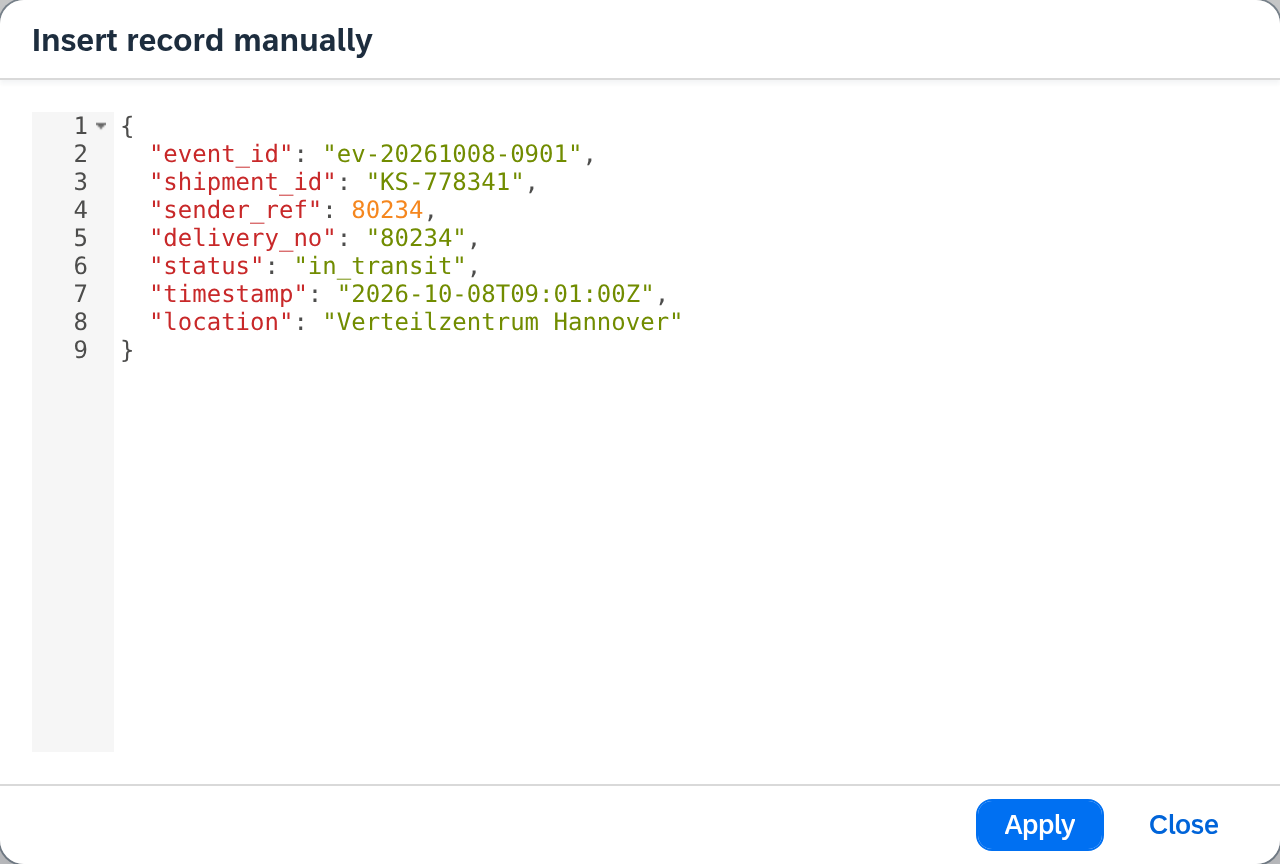
Take a record that contains everything you want to map. Xchange then knows exactly the fields that occur in this one record — a stripped-down sample makes a stripped-down selection. A field that Kessler sends only with failed deliveries is missing from an in-transit message and thus also from the selection.
3. Map
From now on the selection is filled. In the mapping row, Source offers the paths of the inserted
record — OriginalPayload.event_id, OriginalPayload.shipment_id,
OriginalPayload.sender_ref, OriginalPayload.delivery_no, OriginalPayload.status,
OriginalPayload.timestamp, OriginalPayload.location. Vogt needs one of them: U_LetzterOrt from
OriginalPayload.location, plus U_Lieferstatus with the fixed value UNTERWEGS.
The same applies to everything else that offers fields for selection: the Key, the Value of a key
row in the step settings — here OriginalPayload.sender_ref for DocEntry, as
Match a response to the right document builds it —, the data
filter and the additional data. All read from the same inserted record.
And the Data preview now shows real values instead of an empty skeleton — in it you see, before the first run, what your mapping would make of this message.
When the route can fetch itself
If your route fetches the record itself from the foreign system, a second way sits next to Insert manually: Load from source. You specify a key or a display value, Xchange fetches the record and takes it over.
The button appears only if a Single-fetch endpoint is entered on the route. A route with data origin Dispatch input does not have this field — it gets its message from a dispatch route and never addresses the foreign system itself. For "Transport Kessler", Insert manually is therefore the only way.
When the foreign system is the target
The empty selection can also affect the other side: if a route writes into a foreign system without a field structure, the Target field selection stays empty. The substitute is then in the settings of the mapping step — on the Target structure tab, you paste a sample record of the target system and have mappings generated from it.
The principle is the same: a real record takes the place of the description. The details are described under Routes — Mapping.
What the inserted record is for
It is working material for the setup. Operation reads the data that really comes in; the inserted record serves only so that you can build and check the mapping against something verifiable.
And it is something other than the field structure. Where a field structure is missing, you load reference data.
What comes next
Once the field selection is in place, finish the mapping; in operation it takes effect with the activation: Validate and activate.
See also
- Create a connection (guide) — where Source and Format are entered
- When the foreign system responds differently than expected (guide) — when the records themselves are missing
- Routes — Source data (reference) — every field of the tab, all messages
- Routes — Mapping (reference) — the mapping row and the target structure