Export and Import Configuration
Use the export and import mechanism to transfer the active configuration as a file into another environment (e.g. test → production) or to take a backup before a larger change.
You reach export and import on the Configuration Snapshots page — open it via the navigation in Xchange.
What you need
- For the export: an active configuration — or a draft, which you save via Export Draft. The Configuration permission at the Read level is sufficient.
- For the import: the Configuration — Activation permission at the Full level. Without it the action Import is not visible. Your administration grants this permission.
What's in the export — and what isn't
The export contains the complete active configuration:
- Routes with all settings, mappings, and processing rules
- Connections with their technical parameters (addresses, paths, options)
- Value tables with their entries
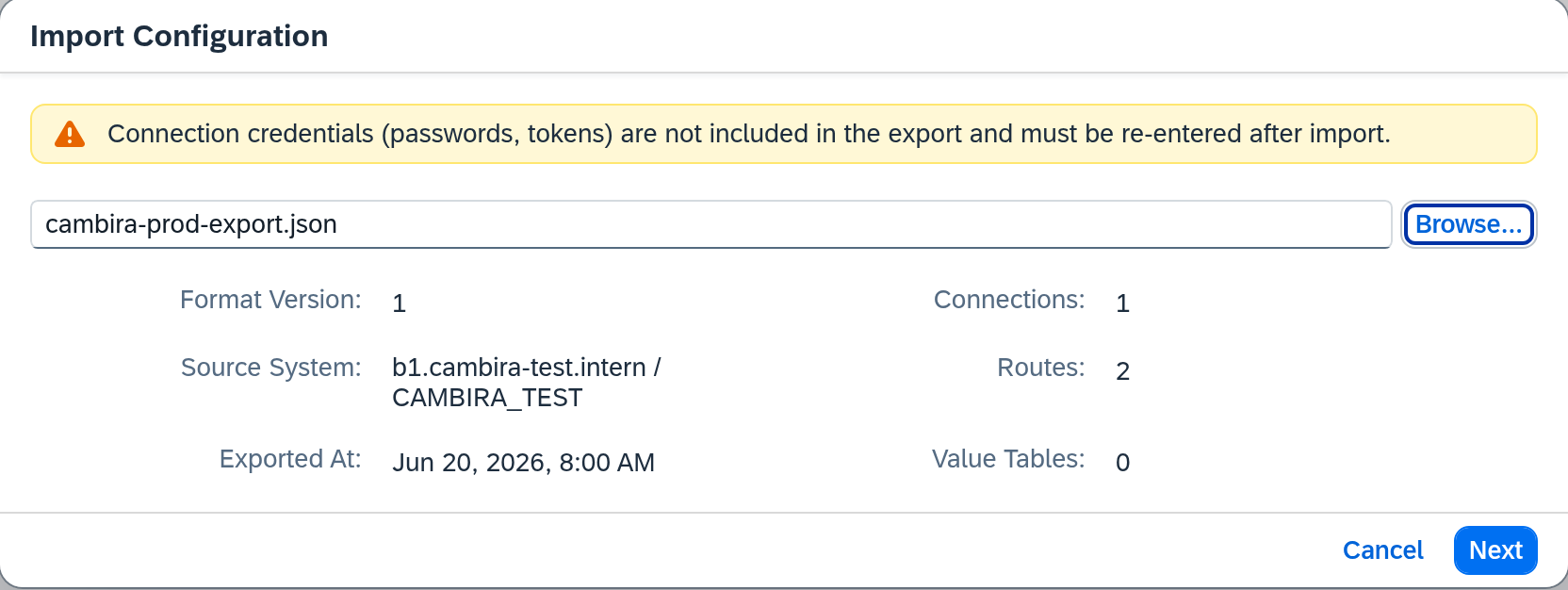
Passwords, OAuth client secrets, API tokens, and similar secrets from connections are deliberately not exported. After importing into another system you must re-enter these values — otherwise the imported connections cannot function.
Export the active configuration
In the Active Configuration area click Export. The browser immediately downloads a .json file containing the complete active state. Store the file in a safe place — it is the basis for any later import.
Import a configuration
Click Import (top right next to the page title) and select the previously exported .json file.
If a draft already exists in the target system, the wizard asks for the mode:
- Replace — the existing draft is discarded and a new draft is created from the import.
- Merge — the import is merged into the existing draft.
If no draft exists, the wizard creates a new draft automatically.
Step 1: Select file
The dialog shows the most important meta information of the file: Format Version, Exported At, Source System, and the number of contained connections, routes, and value tables. Check these values before continuing — that way you make sure you're importing the right file.
Step 2: Review conflicts
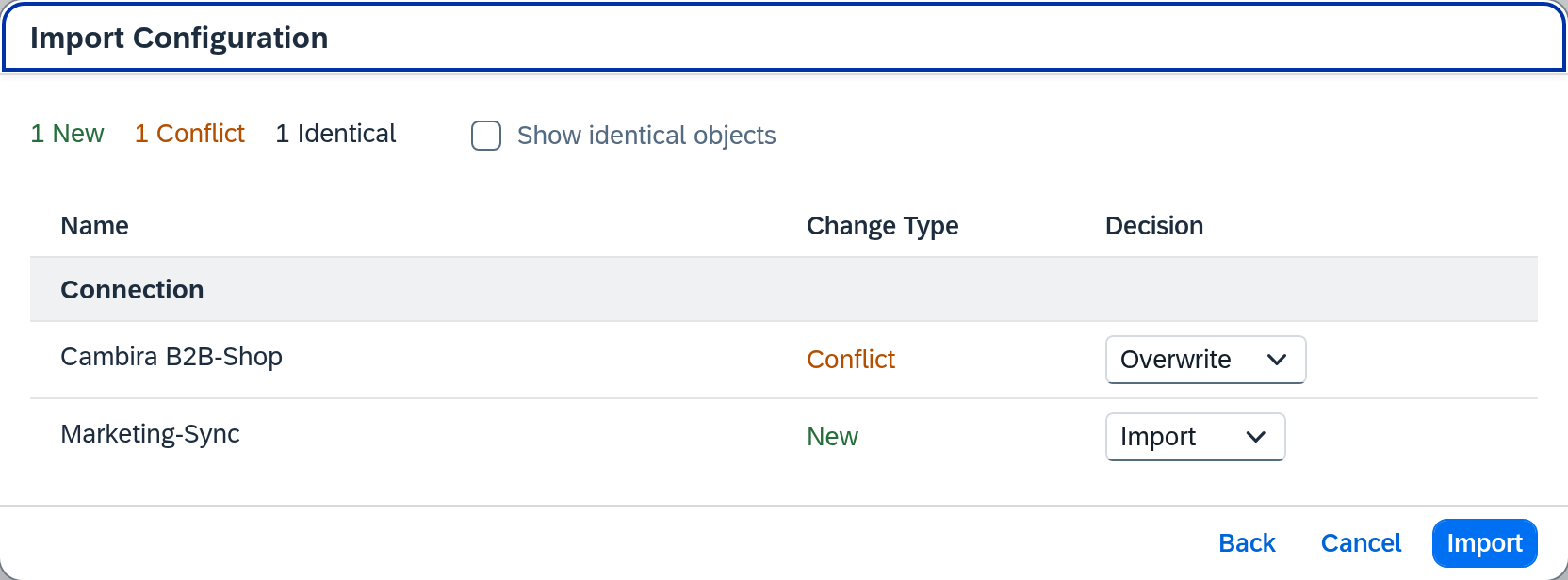
In the second step the system compares the file contents with the currently active configuration. Every entry is sorted into one of three categories:
- New — the entry does not yet exist in the target system.
- Conflict — an entry with the same name exists but differs in content.
- Identical — a content-identical entry already exists. These are hidden at first, because there is nothing to decide about them; Show identical objects brings them in.
For every entry you decide what should happen:
- Import — take the entry from the file (default for New).
- Overwrite — replace the existing entry with the version from the file (typical for Conflict).
- Skip — ignore the entry from the file and keep the existing state.
Complete the import
The wizard has these two steps only; the import is completed in the second. Clicking Import turns your decisions into a new draft (or extends the existing one in Merge mode). The import does not change the active configuration yet — the draft goes through the normal validate-and-activate lifecycle.
After the import
Right after the import the imported connections are not ready to use because their credentials are missing. Work through these steps in order:
- Open every imported connection and enter the password, client secret, or token.
- Run a connection test on the connection detail page to confirm the credentials are correct.
- Validate and activate the draft as usual — see Activate Configuration Changes.
Only after a successful activation does the imported configuration run productively in the target system.
Backup before a large change
Before a larger configuration change, take an export as a backup. Export the active state and store the file together with the date and the reason. If the changes turn out to be problematic later, you can re-import the backup and activate it.
Secure the draft before activating
In addition to Export for the active state, the draft area has a separate Export Draft button. With it you save the current state of the draft as a .json file — useful before experimental changes you might want to undo.