Filter records
Not every run should transfer every record. The filters on a route's Source data tab let you define which records a route includes — and, for recurring runs, which of those count as changed since the last run.
The Source data tab has two filters for this, which work together:
- The Data filter restricts which records the route includes at all. It applies to every run.
- The Change filter defines what counts as "changed since the last run" for an incremental run.
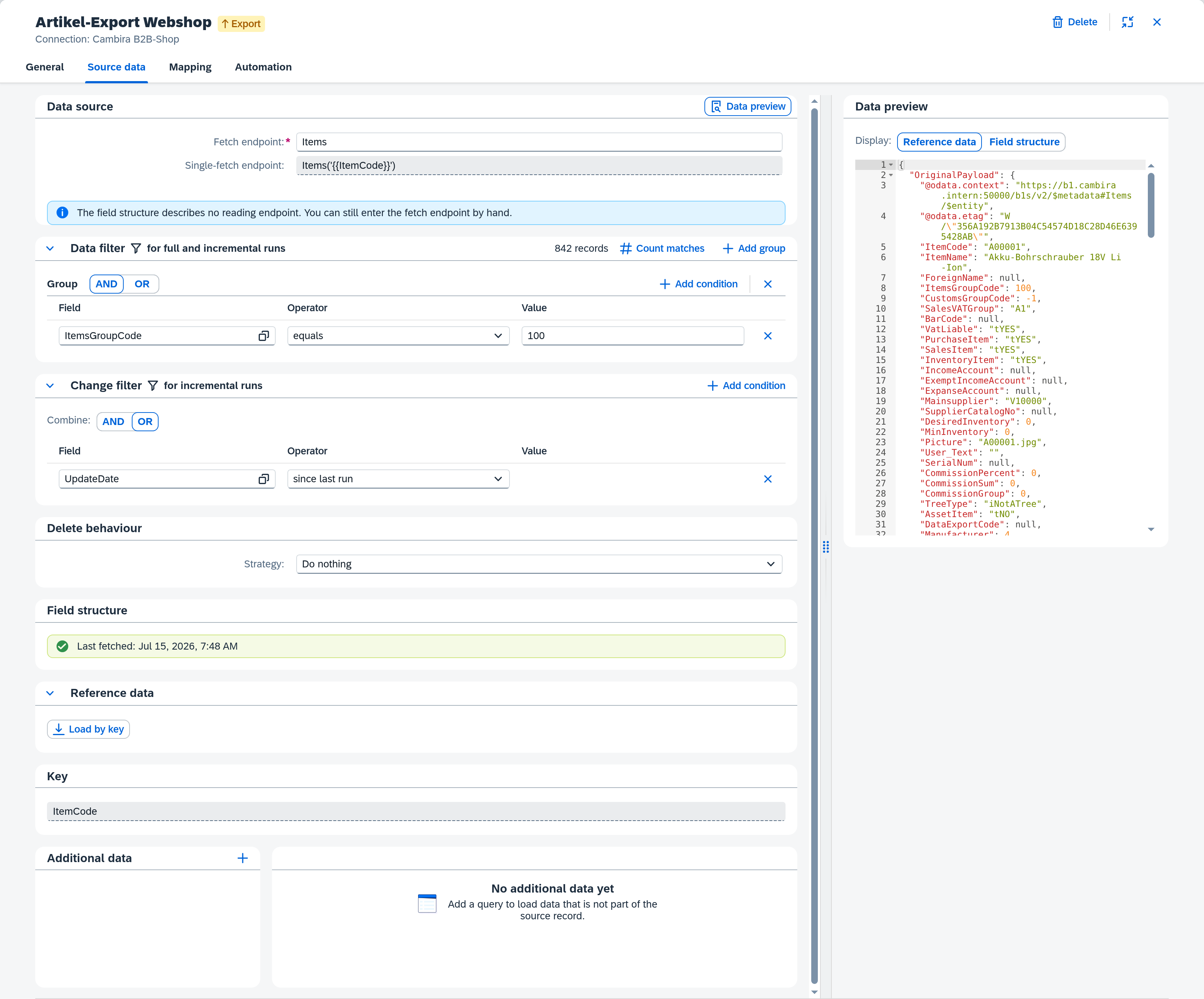
The running example is the route Artikel-Export Webshop: it transfers items from SAP Business One to the web shop. Only items in one particular item group should be transferred (data filter), and for recurring runs, only those changed since (change filter). The field picker offers the fields under the names SAP Business One uses: the item group as ItemsGroupCode, the modification date as UpdateDate.
What you need
- A route with the data origin Dataset — only then does the route read by itself and only then do the filters appear. With Queue and Dispatch input there is nothing to filter. Open the route and switch to the Source data tab in the editor.
- A configured fetch endpoint in the Data source area of the same tab — the filters' field picker offers its fields for selection.
Xchange saves every entry automatically. Your changes go into the draft and take effect only when it is activated.
Data filter — which records are transferred
The data filter sits on the Source data tab below the data source. With no condition, the route includes all records.
- Create a condition. Via the field picker, choose the Field of the data source (in the example the item group
ItemsGroupCode), an Operator (is equal to), and the Value — here the item group's number, 100 for tools in the example. For the operators is empty / is not empty the value field is omitted; if the field offers fixed values, a dropdown appears instead of the input. For a date field, either pick a fixed date from the calendar or choose the Today button — Today moves along with every run and therefore narrows differently each time, whereas a fixed date stays put (Source data). - Combine conditions. Within a group, combine multiple conditions via the AND / OR button. A group holds up to five conditions.
- Further groups. Add group creates another group (up to three). The groups themselves are always combined with OR — a "— OR —" separator sits between them. This lets you also express conditions like "(A and B) or C".
Text values are compared character-exact: case matters. A condition on L1 does not match the value l1 — not even with the operators contains or starts with. Date fields, by contrast, are compared day-granularly; the time of day is disregarded. Both apply to the change filter and to events from SAP Business One as well.
Change filter — only changes on incremental runs
An incremental run processes only records that have changed since the last run. The change filter defines how Xchange recognizes this.
- The change filter is required as soon as the route has an incremental scheduled trigger — unless the connection carries the position itself and sends it along with the fetch as a delta token, as a REST connection does. Without such a trigger it is optional — as soon as you set it, it unlocks the manual incremental run via Execution.
- It has exactly one group with up to five conditions (combined with AND or OR).
In the example, choose the date field UpdateDate and the operator since last run. This operator comes first, needs no value, and can be chosen on date and number fields — Xchange then compares the field against the position of the last run (Source data).
If the connection carries the position itself, you will not find Add condition here: in place of the button sits a note that the fetch endpoint already returns only the changes since the last run. There is nothing to set for such a route at this point.
Yes — provided the route has a trigger of type Event (export routes only) in Same as fetch endpoint mode. SAP Business One then generates an event only for records that satisfy the conditions in the first place; you set nothing extra for that. If the trigger listens to a different object, it brings its own field conditions, and a custom procedure decides entirely on its own. Details under Automation (reference).
When a record leaves the filter
An item that moves to a different item group no longer satisfies the data filter. It drops out of the following runs — but in the web shop it still stands exactly as it was last transferred. For the web shop to learn about that, set up three things:
- Set the delete behaviour. Below the two filters sits the Strategy field. Set it to Deactivate in the target system; the default is Do nothing.
- Map the target field. That final transmission goes through the route's ordinary mapping. So the target field that marks a record as inactive or blocked in the web shop has to be mapped there — its value comes from the item's master data, as with any other transmission.
- Ask for the cleanup. The reconciliation only runs when a run asks for it: permanently on the scheduled trigger under Cleanup via "Report records outside the data filter" (only with run type Full), or as a one-off in the Start run dialog of Execution.
After such a run, Xchange compares which items the route has transmitted before and did not transmit this time, and reports each of them to the web shop. If an item later returns into the filter, the route transmits it as usual again.
When a route cleans up for the first time, that includes every record that ever stopped matching the data filter earlier. If those are unusually many, Xchange suspends the cleanup, transmits nothing, and shows a notice with both numbers in Execution. Check the numbers, and only then release the cleanup.
Check whether the filter matches
Before you activate, check the data filter against the real data: Count matches determines how many records the endpoint currently returns with the current filter, and shows the result next to the button (e.g. "1,234 records"). If no fetch endpoint is configured, a note points this out.
Activate
The filters take effect only once you activate the draft. Review it first via the Configuration Snapshots and then activate it. The full flow is described in the guide Activate configuration changes.