Take a route out of operation
A route is to stop working. There are two very different reasons for this: it is to be quiet for a while — or it has served its purpose. Xchange has two ways for this: Pausing leaves everything as it is; deleting takes the configuration with it.
The case is "Lieferaufträge Kessler", the route that transfers deliveries to the carrier "Kessler Logistik". It is attached to an event trigger: every delivery that is created in SAP Business One goes out. Kessler announces maintenance — for a few hours, the system there is down. The route is to be quiet during that time as well.
What you need
The two ways on this page need different permissions, and in everyday work these belong to different people:
- Pausing and releasing again needs Automation at the Full level — at Cambira, M. Brandt has that.
- Deleting is a change to the configuration and needs Routes at the Full level — A. Vogt has that. It takes effect only through activation, and again only M. Brandt can do that.
At Cambira, deleting a route is therefore a matter for two people. More on this under Permissions.
Both happen on the Execution screen. You reach it through the main navigation; the list shows all routes of the active configuration snapshot.
Switch off the automation
There is exactly one control for this, and it has two positions: on and off. The pause applies indefinitely — the route stays quiet until someone flips the same switch back.
- Open Execution. In the list, each route has the State column and, on the far right, the Automation column with a switch. For "Lieferaufträge Kessler", the State shows Operating.
- Flip the switch — in the list or, if you have opened the route, at the top in the Operational information area.
- Xchange briefly confirms with Automation paused. The route's State changes to Paused (manual).

Paused (manual) is an intended state. The state says: someone decided it this way. That distinguishes it from Paused (fault), which Xchange sets itself — see It ran for months and stopped yesterday. That is why this pause stays in place until someone lifts it by hand.
What the pause stops — and what keeps running
The pause affects every automatic trigger equally. Whether a route runs on a schedule, waits for an event in SAP Business One or is supplied by a dispatch route — the pause applies to all three.
Three things stay as they are:
- Starting by hand stays possible. Start run and Transfer individually keep working on a paused route: the pause only switches off the automation; the route itself stays operable. So pushing records manually still works — see Push manually.
- What is queued is kept. Jobs that were already queued stay put and are executed as soon as the automation is back on. The associated run stays on Pending until then.
- What is running keeps running. A job that is already in progress runs to completion.
If you pause while a run is still listed at the top under Currently running, that run keeps running. To stop it, there is Cancel — with different consequences:
| Pause | Cancel | |
|---|---|---|
| Affects | future automatic triggers | exactly this one run |
| Queued jobs | stay put and run later | are dropped |
| Running jobs | run to completion | are stopped |
| Already transferred | — | stays in the target system |
If you want both, you need both: the cancel dialog offers to pause the route at the same time, and tells you the time at which the automation would otherwise start next.
The special case: a dispatch route
"Statusmeldungen Kessler" is the route that receives incoming status messages and dispatches them to four target routes — "Abholung Kessler", "Transport Kessler", "Zustellung Kessler" and "Fehlzustellung Kessler". If you pause such a route, Xchange asks for confirmation: a dialog Pause dispatch route? names the route and says that the configured target routes are supplied again only once it is resumed.
The prompt is there because the effect goes beyond the route: the four target routes themselves stay Operating and are still left empty — after all, their supply comes from here. Confirm with Pause, or cancel.
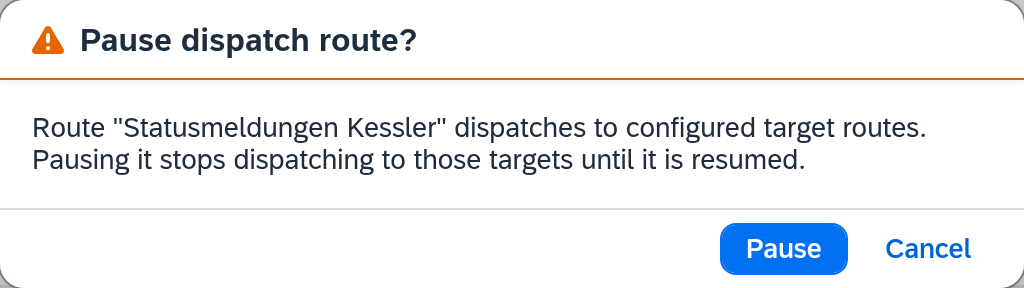
How this dispatch comes about in the first place is described under Pass incoming messages to the responsible route and Dispatch.
Put it back into operation
The same switch, back. Xchange confirms with Automation activated, the State shows Operating again, and whatever was left waiting starts on its own in the next cycle.
If you flip the switch twice in quick succession, Xchange reports that the previous change is still being applied. Wait a moment instead of clicking again.
Delete the route
If the route is no longer needed, delete it.
- Open the route under Routes and choose Delete.
- Xchange asks for confirmation in a Delete route dialog. It names the route, says that it will be deleted with its entire configuration, and that this cannot be undone.
- Confirm. The route disappears from the list, and Xchange confirms with Route deleted.
At this point, only the draft has been changed. Deleting is a change to the configuration like any other: the active configuration snapshot keeps the route, and it keeps running until someone activates the draft. Only then is it really gone. See Configuration Snapshots and Validate and activate.
That it cannot be undone is still true — the notice refers to the draft. Within the draft, the only way back is Discard Draft, and that takes all changes of the draft with it — this one and all the others.
What deleting takes with it — and what stays
With the activation:
| The route's configuration | is gone — trigger, data filter, mapping, everything |
| Its automation setting | is cleaned up along with it |
| The history of its jobs | stays readable, with the route name that each job received when it was created |
| The Go to route button in the History | leads nowhere and says so: Route is no longer available |
| Records already transferred | stay untouched in the target system |
Two side effects without a prompt:
- Dispatch rules that point to the deleted route lose their reference. If the route is a target in another route's dispatch, this target silently drops out.
- The same applies to a target route that got its supply from the deleted one. It stays in place and is left empty from then on.
So before deleting a dispatch route, check who depends on it.
A connection, by contrast, is protected against deletion as long as routes still refer to it.
How you can tell it works
After pausing: the route's State shows Paused (manual), and the Next run column stays empty. The Recent runs list stays as it was; a run that was still open shows Pending until you release it again.
After deleting and activating: the route has disappeared from the Routes list and from Execution. In the History, its jobs are still there, with the name — only the jump into the configuration now leads to the notice that it has been deleted.
What comes next
- If the route is only to run less often, change the schedule and leave the automation on: Run on a schedule.
- If the point is to clean up after a test phase, deleting is only half the way: Remove test data before going live.
- If the route stopped on its own, that is a different case: It ran for months and stopped yesterday.
See also
- Execution (reference) — the screen with the Automation column, the State and the Operational information
- Routes (reference) — the list in which you delete
- Configuration Snapshots (core concept) — why deleting takes effect only on activation