Change the credentials of a connection
Credentials expire. A client secret gets an expiry date, a password must be changed on a regular schedule, or someone has already reset it in the target system. In all three cases, the work in Xchange is the same and takes a minute.
The example is the connection "Webshop Cambira". It addresses the webshop via OAuth 2.0, its client secret expires next week, and the operator has already issued a new one.
A change of credentials takes effect immediately — on ongoing operation, too. No activation is needed.
What you need
You need the new secret from the target system — it is generated and stored there. And you need the certainty that it already applies there: Xchange stores what you enter, and checks only during the test whether the target system accepts it.
Replacing credentials and testing the connection both need Connections — Full. At Cambira, that is A. Vogt; M. Brandt may only read connections, which is why Replace and Test connection are hidden for Brandt.
Which fields the screen has and what the individual test results mean is described in the reference under Connections.
Why the change takes effect immediately
Every other change to a connection — the base address, the authentication type, the timing values — lands in the draft and takes effect only on activation. Credentials sit outside the configuration and take effect as soon as they are saved. Two consequences:
- The change is complete once you save. The configuration snapshot and the draft stay as they were when a secret is changed.
- The new value applies immediately. From the click on Save, Xchange signs in with the new value — on the next run that is due. You get back to the old value only by entering it again, and a saved secret stays hidden.
Replace the credentials
- Open Connections and, in it, "Webshop Cambira".
- Below the fields, the state of the credentials is shown. For "Webshop Cambira", it says Configured. Click Replace next to it.
- Enter the new client secret in the field that opens. Save becomes active only once there is something in it — an empty field is not a way to remove the secret.
- Click Save. Xchange confirms with Credentials saved.
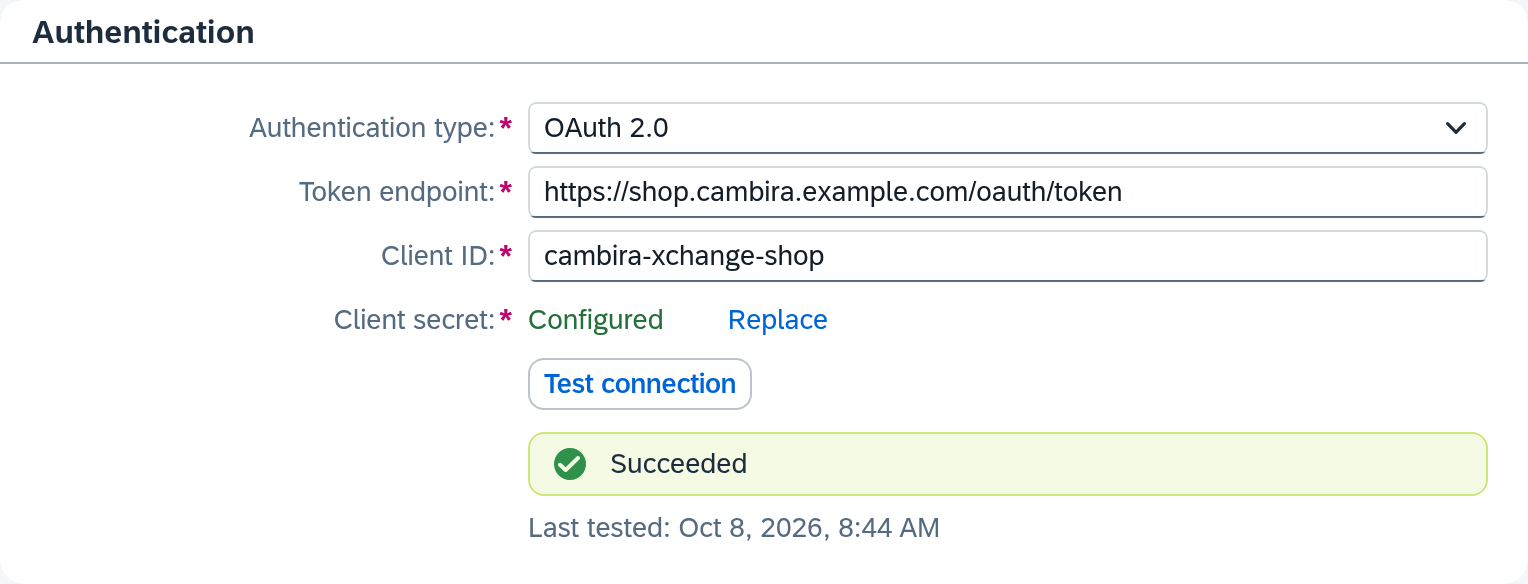
For a connection with Service Layer login — at Cambira, that is "Cambira Austria" — the field is called Password instead of Client secret. The way is the same.
Test afterwards
Then click Test connection. The test is part of the task, for two reasons.
Only the test shows a result again. When saving, Xchange discards the previous test result, because it applied to the old secret. Until you test, the Last tested strip therefore stays empty.
And only this way do you learn whether you made a typo. Within a few seconds, the test reports Succeeded — or Sign-in failed if the target system rejects the new secret. Otherwise, you notice only when the next run is due.
After a successful test, the Last tested strip shows the time just now, and the connection keeps working with the new secret.
When there is no overlap
Usually, the old secret stays valid for a while alongside the new one. Then the way above is the whole answer: you change at a time of your choosing, test, done.
Sometimes this overlap does not exist — the target system switches off the old secret when it issues the new one. Between the switch there and your Save here, Xchange then signs in with the secret that has already been switched off and blocks the connection (next section). All jobs are preserved. Keep the window short: save and test the new secret immediately after the switch in the target system.
When the change comes too late
If the secret has expired before you change it, the target system rejects the sign-in. Xchange then blocks the connection itself: in the Connections list, it shows Blocked, and above the form a notice names the reason. The jobs wait instead of failing; everything is preserved, and the data is complete.
The way out is the same as above: replace the credentials, then Test connection. A successful test lifts the block, and the waiting jobs continue on their own.
Easily confused: changing the authentication type
Swapping the secret and changing the authentication type are two different things, and only the second needs an activation.
If you switch a connection from OAuth 2.0 to another authentication type, you change the configuration. That lands in the draft and takes effect only when someone activates — at Cambira, that is M. Brandt. Until then, operation continues unchanged.
For a connection to SAP Business One — like "Cambira Austria" — the authentication type is fixed: there, Service Layer login is the only option, and the screen shows only its fields. You can still change credentials there, in exactly the same way.
How you can tell it works
- The credentials area shows Configured.
- The Last tested strip shows the time of your test and the result Succeeded.
- If the connection was blocked, the notice above the form has disappeared.
- In the Execution list, the routes of this connection are running again — or show Pending until the next run is due.
What comes next
If the sign-in is still rejected with the new secret, the secret itself is rarely the cause. What follows the result after the colon says what the cause was; the meaning of the individual results is described under Connections.
If jobs have ended up in Clarification in the meantime, work through them as soon as the connection is up again — Retry failed jobs describes how to take care of several at once.
See also
- Create a connection (guide) — the way the first time
- Connections (reference) — every field, every test result, the block notice
- Connections (core concept) — why Xchange blocks on rejected credentials