Working with Xchange
This page is your entry point to Xchange. Your work has two sides: you configure occasionally — create or change connections and routes and activate the change — and you monitor day-to-day operation: keeping an eye on the automatic data exchange running, and now and then clarifying an operation that didn't go through. Xchange handles the actual exchange on its own; you only step in when there is something to set up or to clarify.
The one-time technical setup — server, SAP access, certificates — is done by your IT department or UNIORG; they also ensure the Xchange service is running and the Xchange tile is available in the SAP Business One Web Client. You yourself create the connections to your external systems (e.g. your web shop) including their credentials — in the interface, and you maintain them there.
Opening Xchange
- Open the SAP Business One Web Client in your browser and — if not already signed in — sign in.
- Go to the Extensions area.
- Click the Xchange tile.
The Overview opens — the Xchange home page.
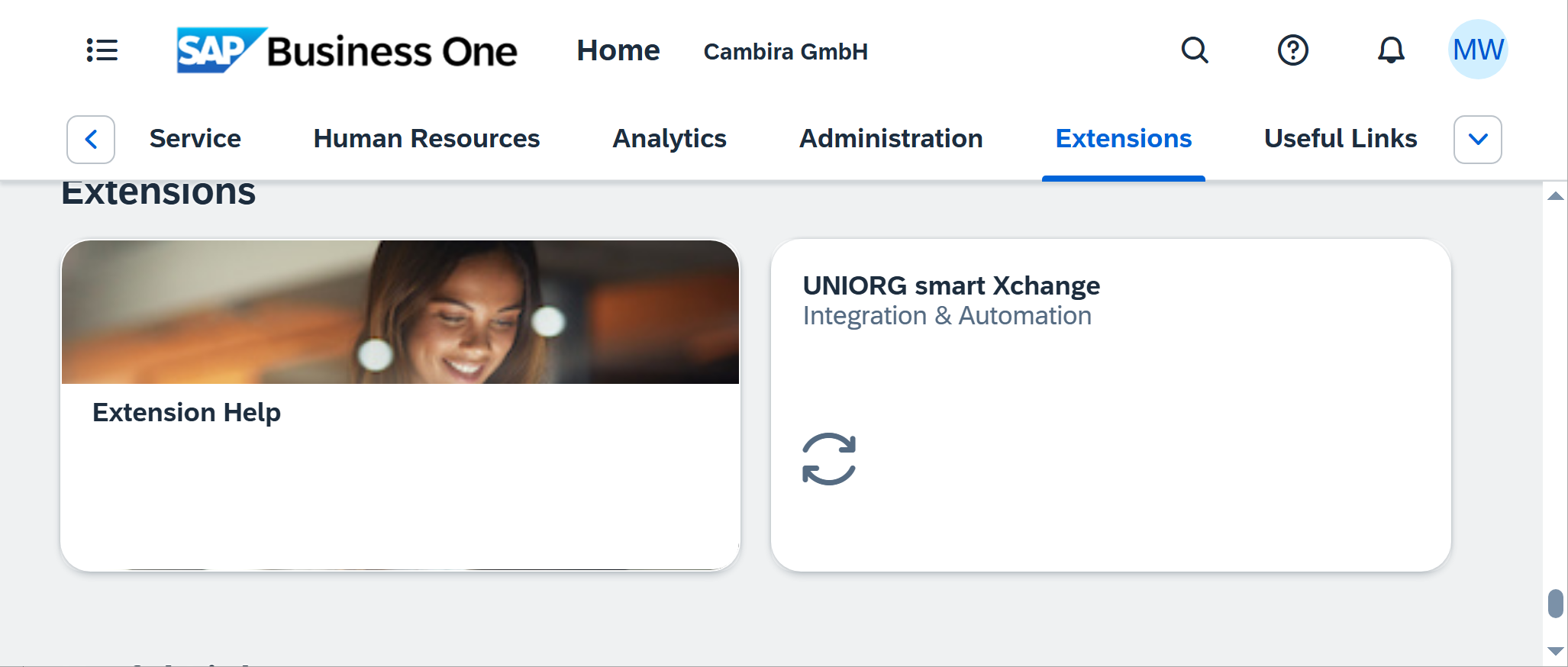
Like any other extension tile, the Xchange tile can be pinned to your Web Client home page and freely arranged there, so you don't have to navigate through Extensions every time. This is standard SAP Business One Web Client behaviour.
What you see on the Overview
At the very top, Xchange greets you by name. If nothing is open, Nothing to clarify sits next to the greeting. As soon as something is open, that message goes and the Action required list appears below — one row per open item, and clicking it takes you to where you handle it, e.g. to Clarification.
You can reach the same list from every screen: while something is open, a bell icon with the count appears in the header, and clicking it opens the list. That way you also learn about it while you are working on a route and do not have the Overview in front of you. How to work the list off is described in Work through Action required.
Below that come three sections:
- Running now — the runs working at this moment, with their progress; with nothing in flight, the section is absent.
- Key figures — operations, error rate, runtime per operation and backlog.
- Operations — last 24 hours — throughput per hour as a column chart.
The system status and the active configuration snapshot are not on the Overview but in the header — they apply on every screen and are therefore shown on every screen.
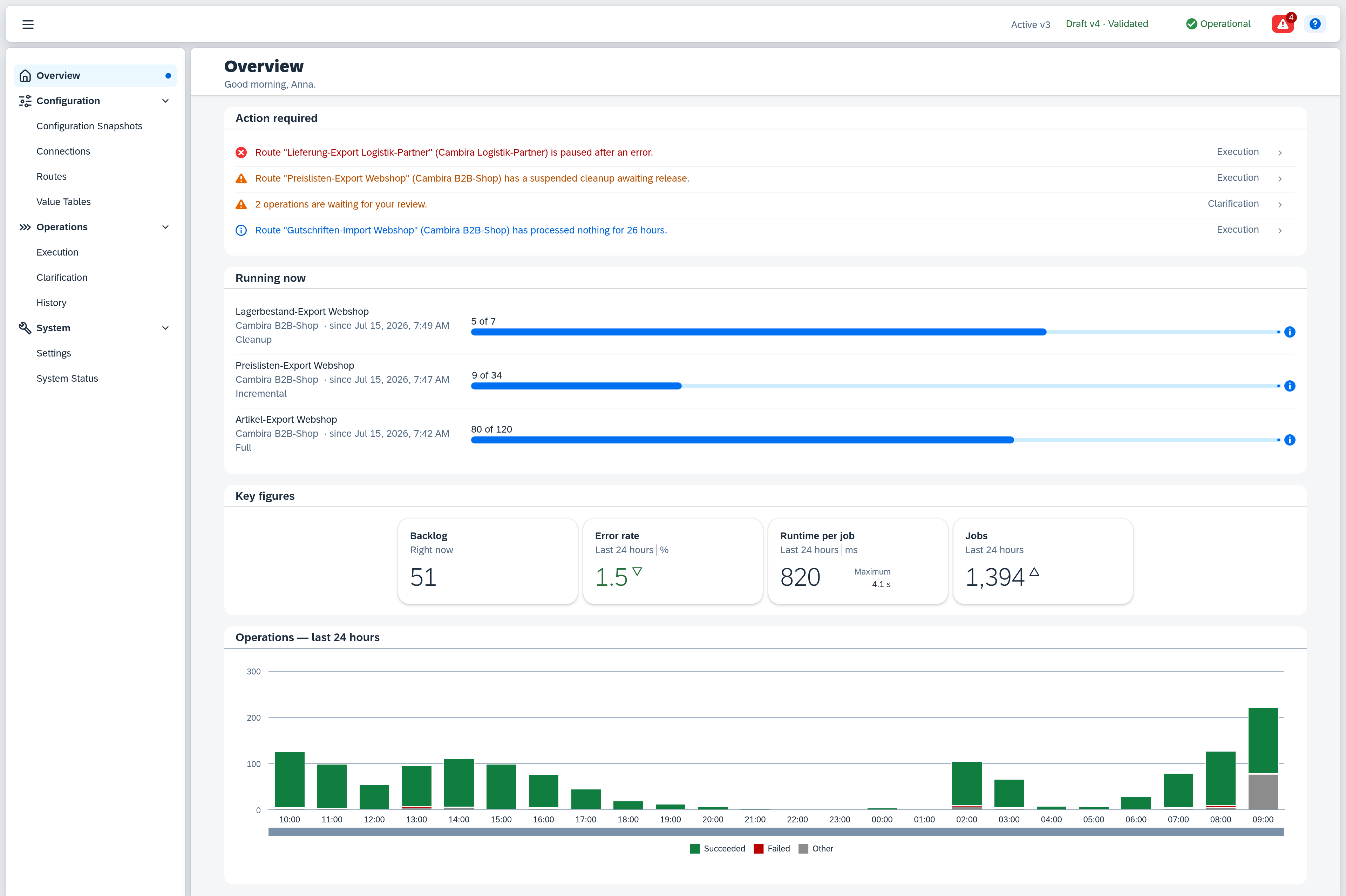
All sections are explained in detail under Overview.
Your everyday tasks
From here you can reach everything you need day to day:
| I want to … | Continue here |
|---|---|
| see whether everything is running | Overview |
| monitor runs and clarify operations | Track runs and clarify |
| create my first route | Your first route |
| create or maintain a connection | Create a connection |
| create or change a route | Create a route |
| activate changes | Activating configuration changes |
| back up or transfer a configuration | Exporting and importing configuration |
How changes take effect
An important principle: your changes do not take effect immediately. Every edit first goes into a draft. Only when you check and activate the draft does Xchange adopt it as the new active state. This lets you work in peace without disrupting ongoing operation.
You don't need a Save button for this: Xchange saves your entries automatically. The footer at the bottom shows "Saving…" and then "Last saved at HH:MM".
The full procedure is described in the guide Activating configuration changes. What exactly the draft holds is shown beforehand by a comparison with the active state.
When something's stuck
The most common everyday situations and what's behind them:
- Validation errors appear when activating. The draft isn't complete yet. The errors are clickable and take you straight to the affected spot; then validate and activate again. Details: Activating configuration changes.
- A route does nothing. Usually the trigger is missing (the route doesn't know when to run), the draft hasn't been activated yet, or the route's automation is still Paused on the Execution page. All three are covered by Your first route.