The first run
Version 1 is active.
The goal is that data flows and that the route then keeps running on its own.
The way there deliberately goes by hand: start it once and look at what happened, then switch on the automation. The other way round, you would face a route that does something at night that you have never seen.
On this page, M. Brandt does most of the work. Starting a run requires the permission Execution, switching the automation requires Run state — A. Vogt may only read both. The trigger, on the other hand, is built by Vogt again, because it is configuration. Who may do what is described under Permissions.
The route is ready

In the menu under Operations, open Execution. Here you see how the route is doing.
Three details in the row belong together:
- State reads Never started. The route has been ready since the activation, but it has not run yet.
- Automation: The switch is off. A new route starts on its own only once you switch on its automation. That way you see the first run before it works alone.
- Next run shows —. A point in time at which it would start is something you set up only later. If you open the row, the detail spells it out: Runs only manually.
Start it by hand
- Select the row "Artikel Webshop". The details of the route open on the right.
- Select Start run.
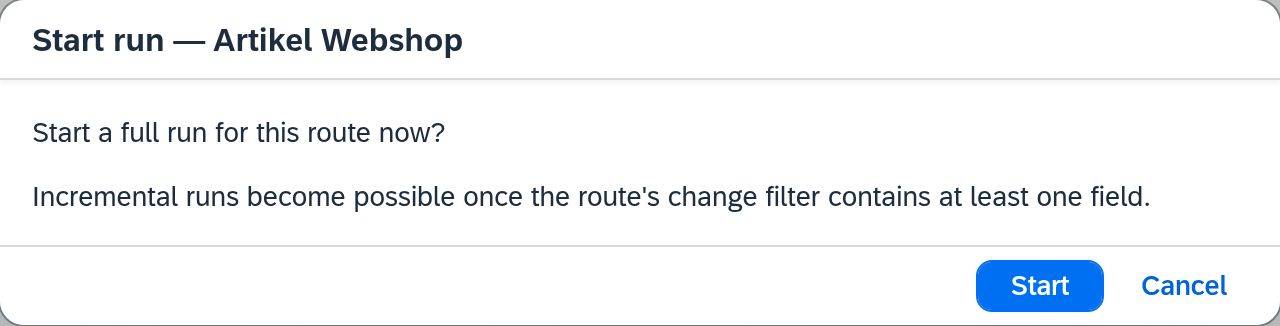
- Xchange asks: "Start a full run for this route now?" Confirm with Start.
Here the dialog offers only the full run and gives the reason below the question: "Incremental runs become possible once the route's change filter contains at least one field." Which run types there are and when a route offers them is described under Execution.
Full here means: the entire item master. Without a data filter, the route takes every item that SAP Business One holds — at Cambira on March 16 about 2,180 of them. The first run is the initial load of the shop, and that takes a few minutes.
You can start a route by hand at any time, even with the automation switched off. The automation only controls whether it starts on its own.
Look at what happened

While the run is working, it is listed under Currently running, with a progress bar. Once it is finished, it moves to Recent runs. The row there says how it turned out — Outcome Succeeded — and under Jobs what it consisted of: 2,180 jobs.
A job is one record on its way: an item that is written to the shop. A run is the round that created them — here, then, 2,180 jobs in one run. If a job ends other than successfully, the Jobs column lists it separately, and the History says which record it was and what caused it.
Now look in the shop and search for an item you know — ARM-4711, for example. It
is there.
Set up a trigger
In the long run, the route should start on its own. So the route gets a trigger — something that says when it should run. At Cambira: every night.
A trigger belongs to the route, and the route is configuration. So you build it in the draft again.

- In the menu under Configuration, open Routes, select "Artikel Webshop" and, in it, the Automation tab.
- The Trigger section is empty and offers Add trigger.
- Xchange asks for the Trigger type. Select Scheduled — "Starts the route on a fixed schedule."
- Frequency: Daily. Time: 06:00.
- Run type: Full.
The trigger then appears as Scheduled in the section, with Daily 06:00 · Full below it. Under Next runs, Xchange shows the upcoming dates — the first is March 17, 6:00 AM.
The second trigger type, Event, starts the route as soon as an item is created or changed in SAP Business One. For it, you additionally define which object it reacts to and on which change it fires. To begin with, the schedule is enough. Both in detail: Routes — Automation.
And again: validate and activate
The change sits in the draft, just like the route itself in the morning. It takes effect only when the draft becomes the active configuration snapshot:
- M. Brandt opens Configuration Snapshots in the menu under Configuration and selects Validate.
- Brandt activates — that results in version 2.
The same procedure as on the previous page, only told more briefly. From now on it always stays this way: build, validate, activate.
Switch on the automation
One thing is still missing: A trigger starts the route only once its automation is switched on. The trigger is in place, the snapshot is active — the switch is the last step.

- In the menu under Operations, open Execution again.
- In the row "Artikel Webshop", flip the switch in the Automation column.
Xchange reports Automation activated. The State changes to Operating. Under Last run, with the green check mark for Succeeded, is the run you started by hand at 11:52 AM; under Next run, tomorrow's date: Mar 17, 2026, 6:00 AM.
This switch belongs to operations — it takes effect immediately, without activation. What the route does is defined by the active configuration snapshot; whether it starts on its own is decided by the switch. That is why you can halt a route at night and the configuration stays as it is.
What is in place now
On the evening of March 16, 2026, Cambira has:
- a connection to the shop, tested,
- a route that transfers items there,
- an active configuration snapshot, version 2,
- an item master that actually is in the shop,
- and a route that runs again on its own tomorrow morning at 6:00 AM.
What comes next
The basics are in place. For every further task — a second route, transferring only changes, checking a run — there is a guide of its own: Guides.
See also
- Execution (reference) — every field of this screen, states and run types
- Routes — Automation (reference) — trigger types in detail
- History (reference) — what became of a single job
- Triggering (core concept) — what sets a route in motion
- Configuration Snapshots (core concept) — why a route change needs a new snapshot and the switch takes effect immediately