Enrich data with additional data
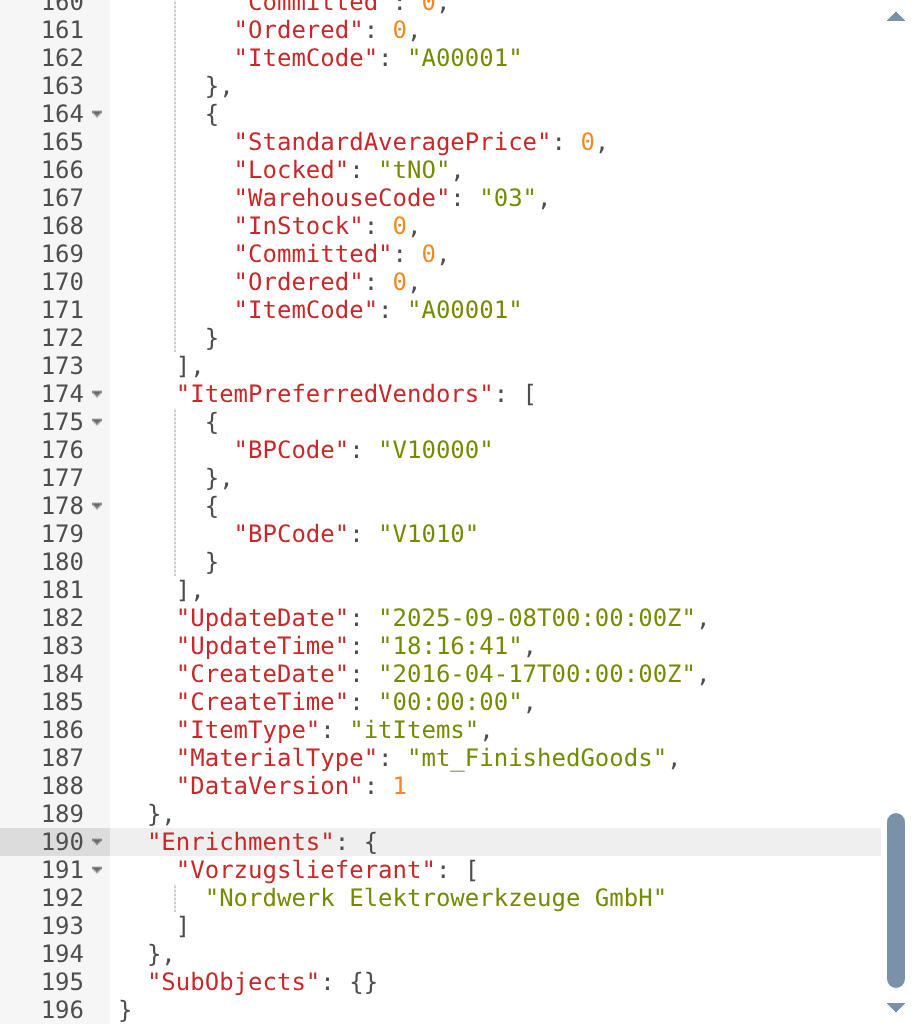
Sometimes the source record is missing exactly the value the target system needs. An item, for example, carries only the code of its preferred vendor, not its name. Additional data closes this gap: Xchange reads values that are not contained in the record via an extra query against SAP Business One (via the Service Layer). The retrieved values land in the Enrichments part of the internal message and are then available to the mapping.
You configure additional data on the Source data tab of a route.
The running example is the route Artikel-Export Webshop: for every item, it should also carry the name of the preferred vendor. The item only supplies its code — an additional data query loads the name from the business partners.
This guide covers the case where the loaded value belongs to the record as a whole. When every row of a list needs its own value instead, you switch the level of the query — described in Enrich and filter the rows of a list.
What you need
- A route with a configured fetch endpoint. Open the route and switch to the Source data tab — everything this guide needs is there.
- Reference data: use Load by key to load a real example record — in the example, the item
A00001. Without loaded reference data, you cannot fetch and check the result later.
Changes are saved automatically — there is no separate save button. They go into the draft and take effect only once it is activated.
Create an additional data query
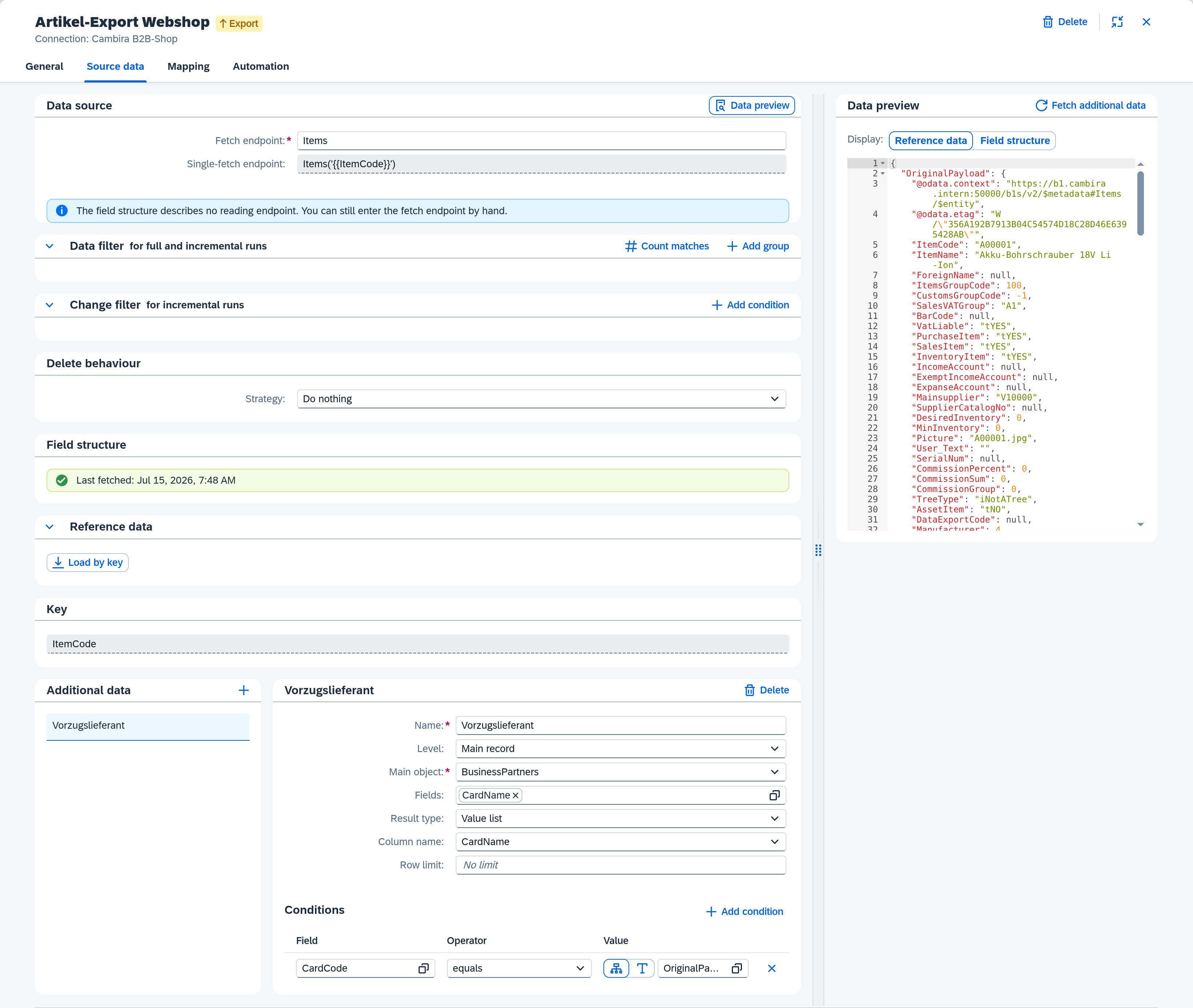
Add additional data creates a new query. It appears in the list on the left; its form opens on the right.
- Name (required) — a descriptive name, in the example
Preferred vendor. It labels the retrieved values in theEnrichmentspart and later serves as your access point in the mapping. - Main object (required) — the SAP Business One object type read from: in the example, business partners (
BusinessPartners). - Fields — select the fields to read; here, the name of the business partner. Multiple selection is possible.
Establish the link
For the query to load the correct record, you link it via a value from the incoming item. This is done through a condition.
Under Conditions, add a row:
- Field — the field of the main object that establishes the reference: the code of the business partner.
- Operator — equals.
- Value — leave the Source type on Path (the default) and pick the preferred vendor's code from the item within it (e.g.
OriginalPayload.…). This is exactly the link: the query looks for the business partner whose code matches the item's vendor code.
With Constant you enter a fixed value instead — independent of the record.
If the enrichment needs not the main object itself but one of its child collections (e.g. individual line items), also select a Sub-object and specify its Link field — the field that references the main object. For the simple case of a single retrieved value, this is not necessary.
Choose the result type
The Result type determines how the values arrive in Enrichments:
- Value list — only the values of a single column. The right choice for the vendor name: under Column name, select the name field.
- Object list — whole records with all selected fields. Useful when you need several fields of the retrieved object.
Fetch and check the result
Fetch enrichments runs the query against the loaded reference data. The button only appears once reference data is loaded and at least one query has been added.
Check the result in the data preview on the right: the retrieved name now appears under Enrichments, under the name of your query. If you then change anything in the configuration, the Outdated — fetch again marker in the preview header indicates that you should fetch again.
Use in the mapping
Once the value is in Enrichments, you can assign it to a target field in the mapping — just like a field from OriginalPayload. The full flow is described in the guide Create a mapping.
Activate
The additional data takes effect in live operation only once you activate the draft. Review it first via the Configuration Snapshots and then activate it. The full flow is described in the guide Activate configuration changes.
What comes next
When the loaded values belong not to the record but to the rows of a list inside it — and the list is then to be filtered on them — that is described in Enrich and filter the rows of a list.