Find out where a value in the target comes from
A field in the document carries a surprising value — the incoming message brings a different one. This guide goes the way backward: from the field in the target to the place in the configuration that wrote the value there.
The example is the order WS-2026-104879 from the route "Bestellungen Webshop". The document
contains PaymentMethod = "SO", the order from the web shop the payment method applepay.
Xchange wrote the value, and the way there leads through two stations of the configuration.
The way has more than one hop, and that is the normal case. A field whose value is taken over unchanged from the message can be found in the mapping at first glance. It gets more involved where something stands between source and target — a transformation, a value table, a fallback value.
What you need
- The permission History and the permission Routes, each at least at the level Read only. For step 5, additionally Value Tables — see Permissions.
- Starting point: History, in the menu.
- The key of the record in question — for a document from the web shop, the order number.
The search is read-only: with Read only you see all fields grayed out, and configuration and jobs stay as they are.
1. Find the job
Open History and enter the key in the Quick search — here
WS-2026-104879, the order number. You get one match; open it.
If you do not know the key, finding it is the task itself: Find and trace a single job shows what else History can be narrowed down by.
2. Read what was actually written
The detail page of a job shows what came in and, for each step, what Xchange made of it and sent off. Hold the two against each other:
- Under Received message, read the source field — here
"payment": "applepay". - In the Execution steps table, in the row "Bestellung anlegen", in the column Messages, click Show. A dialog opens with Sent message and Response.
- Under Sent message, read the target field — here
"PaymentMethod": "SO". The Response below it carries Status 201: the target system created the document with exactly this value.
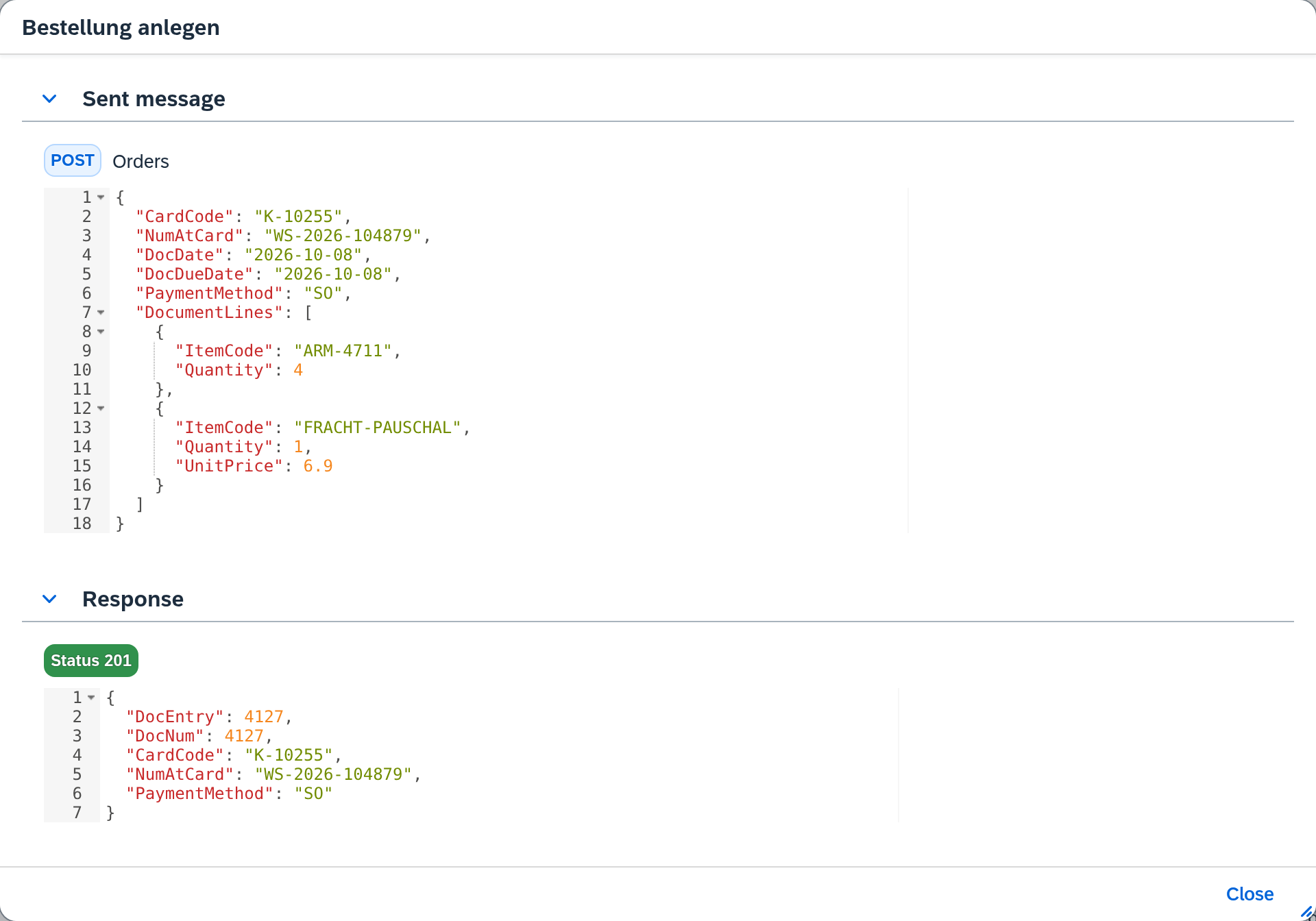
For an export route with a single step, Sent message is directly on the detail page. If a route has several steps, each carries its own row with Show; the field you are looking for is in the step that writes the target object.
Note the configuration snapshot here. It is at the top under General information and names the version of the configuration under which this job ran. If something has changed since then, a notice below it names the snapshot that is active now. In the example, the job ran under v7, and v7 is still active. The configuration you are about to open can still be a newer one — how you recognize that is described under Why the test area can show something different.
3. Find the mapping row for the target field
Switch to the route that created the job, and there to the Mapping tab. The
mapping table has two columns: Target field and Source. In the Target field column, look for
the name from the sent message — here PaymentMethod.
This is manual work: you go through the column from top to bottom. For a long mapping, it helps that the order of the rows is fixed — you can go through them with the sent message next to it.
If the target field is missing from the column, the value reached the target another way. Then continue under If the value comes from another source.
4. Read the row
Click the row. It opens as a dialog with four tabs: Transformation, Empty source value, Condition and Options. For the question of origin, the first two count.
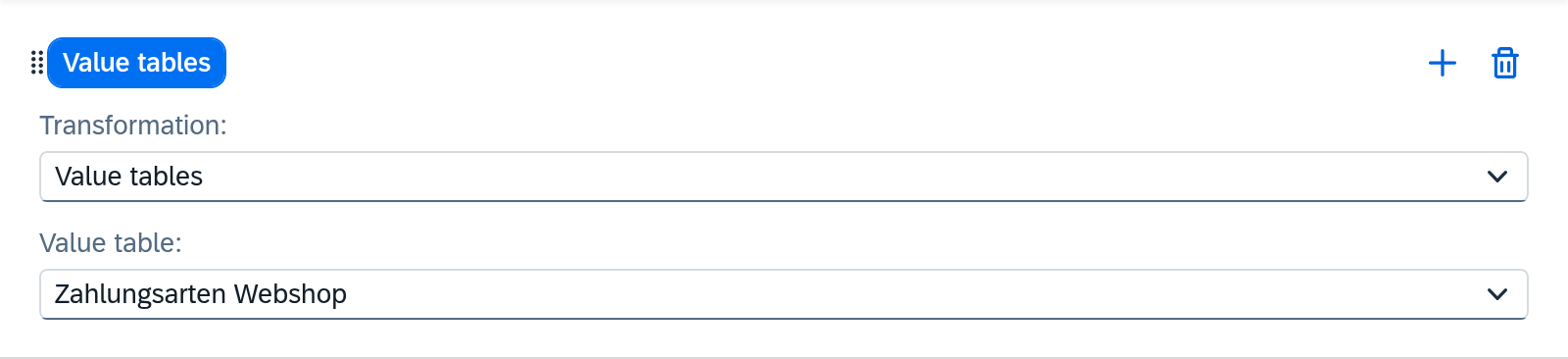
The Transformation tab says what happens between source and target. Three cases:
- The source value goes through unchanged. Then the value is in the received message as it is, and you have arrived — or the row is a different one.
- A transformation that calculates or reshapes — e.g. Substring, Convert to uppercase, Replace. What it does is shown under its name, with its settings next to it.
- A transformation that looks up — Value tables or Object type. Then the value is in another place, and the row names it. That is our case.
In our example, the row carries the source OriginalPayload.payment, as transformation
Value tables, and in the Value table selection list the entry "Zahlungsarten Webshop".
The Empty source value tab is the second place where a value can arise that the message does not bring: if Use fallback value is switched on, Xchange writes the Fallback value entered there when the row delivers nothing in the end. If you see the same value there that you found in the target, the matter is settled.
5. Switch to the value table
The mapping row names the value table; its content is shown on the Value Tables screen. Note the name, close the dialog and open Value Tables in the menu.
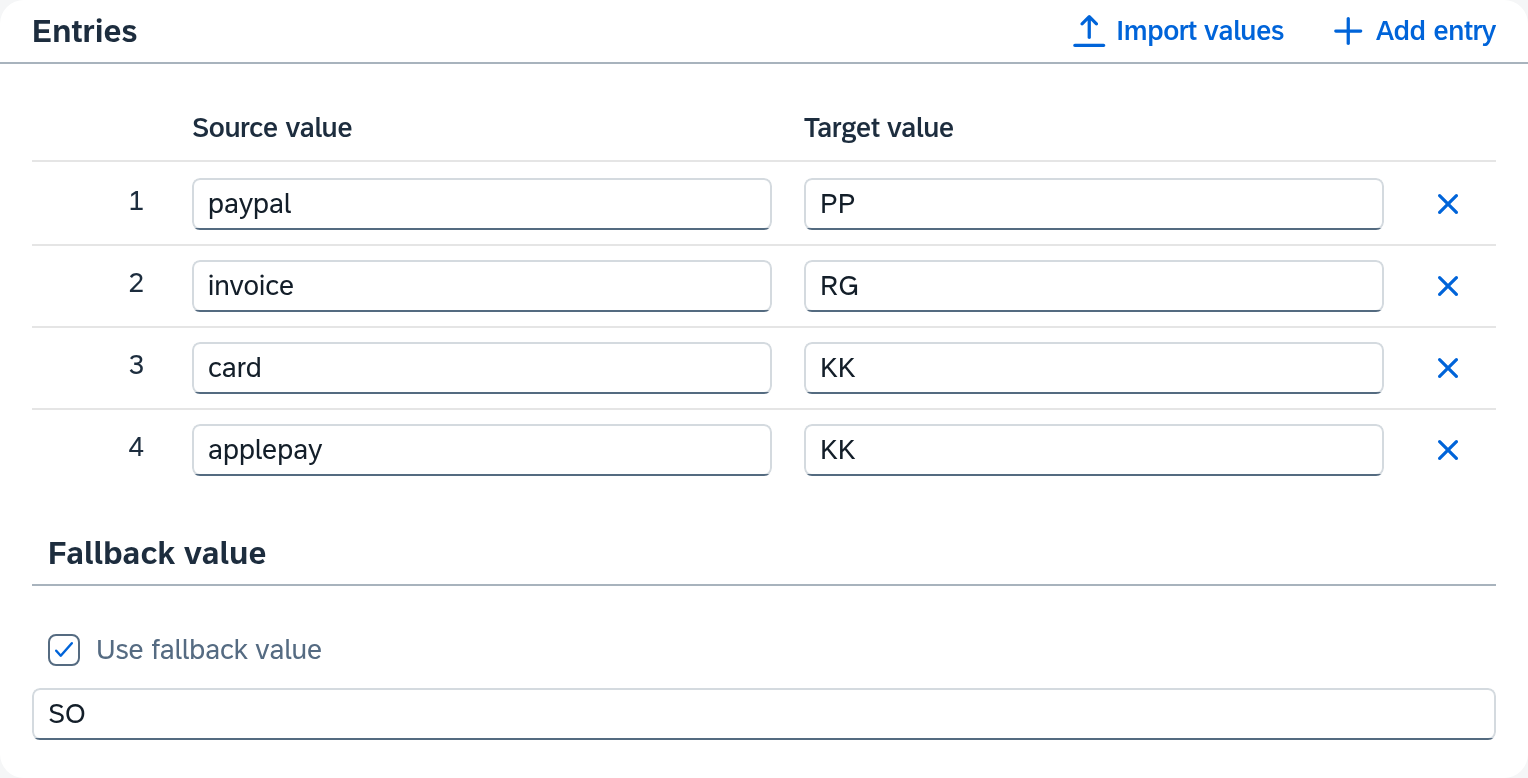
Look for the source value that was in the received message. In our case, that is
applepay. For every value without a row of its own, the Fallback value section applies: Use
fallback value is switched on, and the fallback value is SO.
The screen shows the value table in the snapshot that is currently being worked on — in the
example, draft 8. It already contains applepay → KK. This row was added after the job:
under v7, the table held only paypal, invoice and card. What has changed since the job's
snapshot is shown by the comparison under Configuration Snapshots — see Change a running
configuration, section Compare.
With that, the way is complete: applepay came in under v7, went past all three rows in
"Zahlungsarten Webshop", and the table delivered its fallback value SO.
Two fallback values on one path — keep them apart. The fallback value of the value table applies within the lookup, for a source value without a row of its own. The fallback value of the mapping row applies only afterwards, when the row comes out empty in the end. A value from the fallback value of the value table is a filled value — the row has delivered with it, and its own fallback value stays untouched.
If the value comes from another source
Some values in the target have a different origin instead of a source field. Three of them, in the order in which it is worth checking them:
- A fixed value in the mapping. Instead of a field reference, a row can carry a constant value. You recognize that in the row itself — instead of a source path, it then shows the value with its Value type.
- Additional data. On the Source data tab, the route can fetch further data that goes beyond the message. A mapping row can refer to it. If the source path of a row points to a field outside the received message, look in the Additional data section.
- The target system itself. SAP Business One fills some fields when creating — from templates, from the business partner's master data, from its own defaults. If a value is missing in the sent message from step 2, the target system set it; the sent message is the proof of that.
Why the test area can show something different
On the Mapping tab there is the Test area: you enter a Test message, run the test and see the Result.
The test area calculates with the configuration you are currently working on, and with the value tables in their current state. The job in History ran under the snapshot that was active at its time. If the two differ — and the notice from step 2 tells you so — the two answers can diverge.
In our example, this is even certain: in the draft, the row applepay → KK has been
added. A test message with "payment": "applepay" therefore delivers KK today, while the
document contains SO. Both are correct — the answers belong to two different snapshots.
The test area shows the result; this guide shows the way there. The Result shows the finished body. Whether a field was filled via a row of the value table or via a fallback value, you find out via History and the steps above.
What comes next
- The value is correct, the value table incomplete — then add a row: Convert and translate values. The change takes effect only with the activation, see Change a running configuration.
- The job has to run again with the correct value — how that works and when it is possible at all is described under Push manually.
- You want to understand the whole route — Understand what a route does.
See also
- Routes — Mapping (reference) — the mapping row with all four tabs, the transformations in detail and the test area
- Value Tables (reference) — structure, fallback value and where a value table can be used
- History (reference) — what the detail page of a job shows in detail
- Configuration Snapshots (core concept) — why a job may have run under a different snapshot than the one you are looking at