Test a route before you activate
Before a route transfers data in live operation, verify that every stage delivers what is expected. The route editor provides test and preview surfaces on several tabs for this, working with a real example record without actually processing a message.
There is no real run against the draft — processing always runs against the active Configuration Snapshot. "Testing before activating" therefore means: use the preview surfaces in the editor and check the draft. The final proof is the first real run after activation (see below).
The route Artikel-Export Webshop serves as the running example. Check it along the processing chain: first the data read, then its mapping, and finally the draft as a whole.
What you need
- A route whose Source data and Mapping tabs are already configured. Open the route in the editor.
Check source data
Switch to the Source data tab and load a real record via Load by key — in the example, the item A00001. The data preview then shows the internal message that Xchange converts the record into.
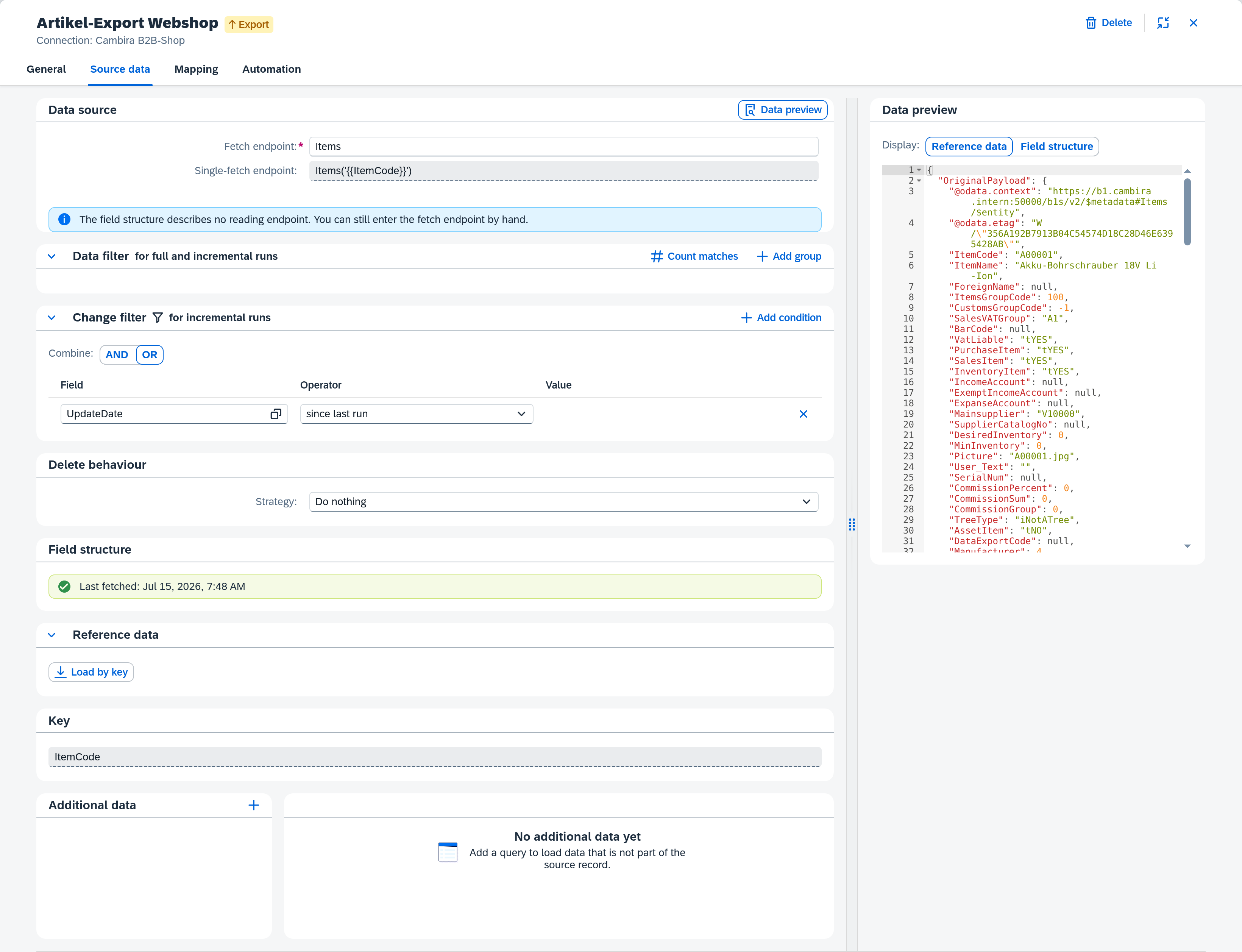
- Check that
OriginalPayloadcontains the expected values. - If additional data is configured, click Fetch enrichments and check whether the retrieved values appear under
Enrichments.
If something is wrong here, the mapping will be wrong too — that is why this step comes first.
Test the mapping
Switch to the Mapping tab and open the test area via the Test panel icon in the toolbar.
- Load the test message from the source data (or paste a JSON example).
- Click Run test.
- Check the result as JSON: it shows the target document that the current mappings produce. Failed mappings are marked on the affected rows.
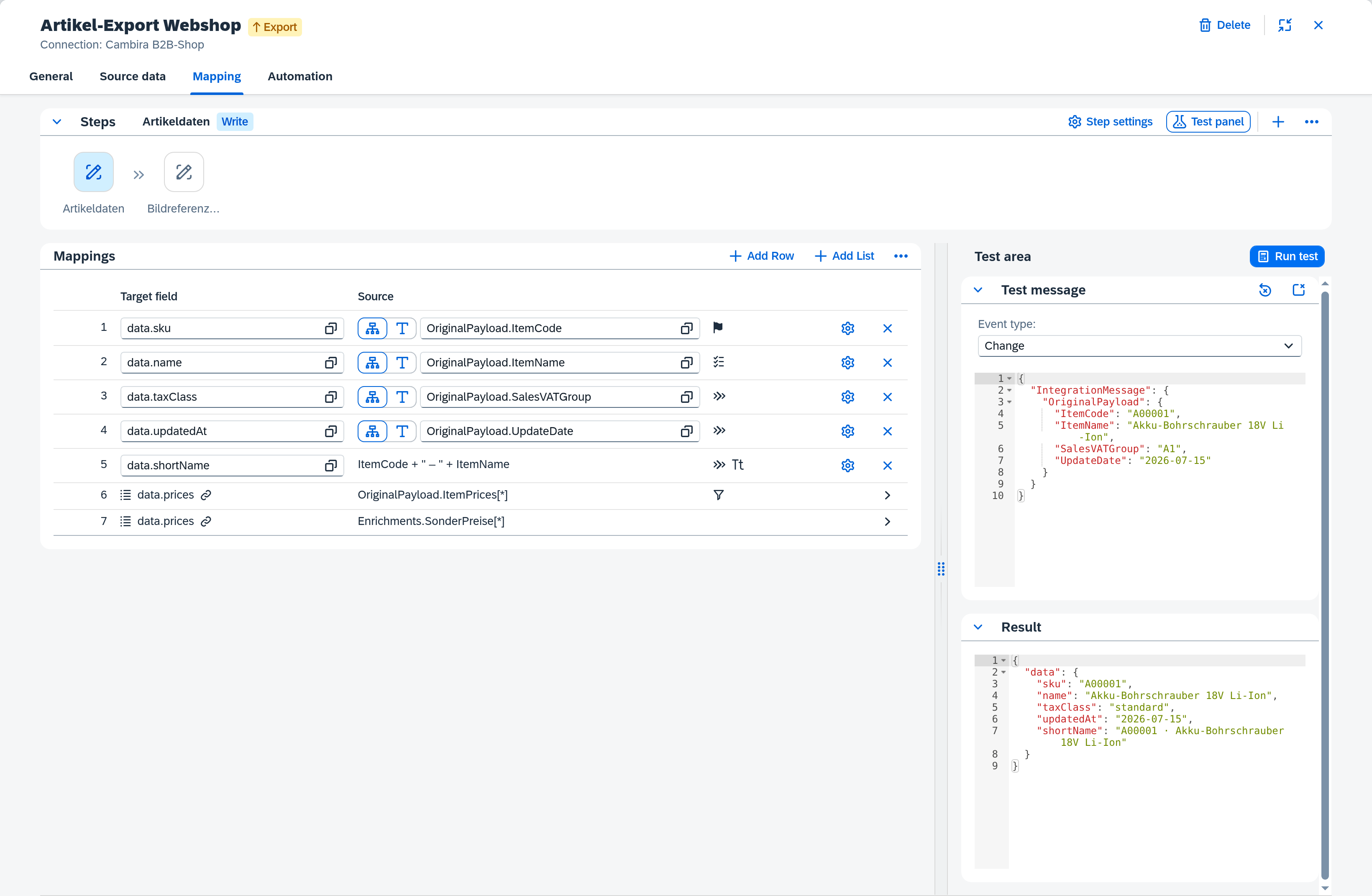
If the route has several steps, test each step individually. If you change a mapping afterward, the Outdated — run test again badge indicates that you should test again.
Test dispatch
Only for dispatch routes: the Dispatch tab offers its own test area, where you evaluate a test message against the rules and see which rule matches and which target routes it dispatches to. The guide Set up dispatch → Test the rules describes the flow.
Check the draft
The editor tests check one route on its own. Before you activate, check the draft as a whole via the Configuration Snapshots: validation reports configuration errors that the editor does not surface — e.g. missing required fields or a target route on a different connection. Only an error-free draft is worth activating.
After activation: the first real run
Once the draft is error-free, activate it — the guide Activate configuration changes describes the full flow. The first real run is the actual proof: track it via Track runs and clarify an operation and check whether the operation completes as expected.